Introduction
Illustrator has some powerful - and really fun ways to transform artwork freely.
One of them is called - the Puppet Warp Tool.
The Puppet Warp Tool - lets you twist and distort artwork without having to even select - individual objects.
Let's take a look at our project - and see how we can use it.
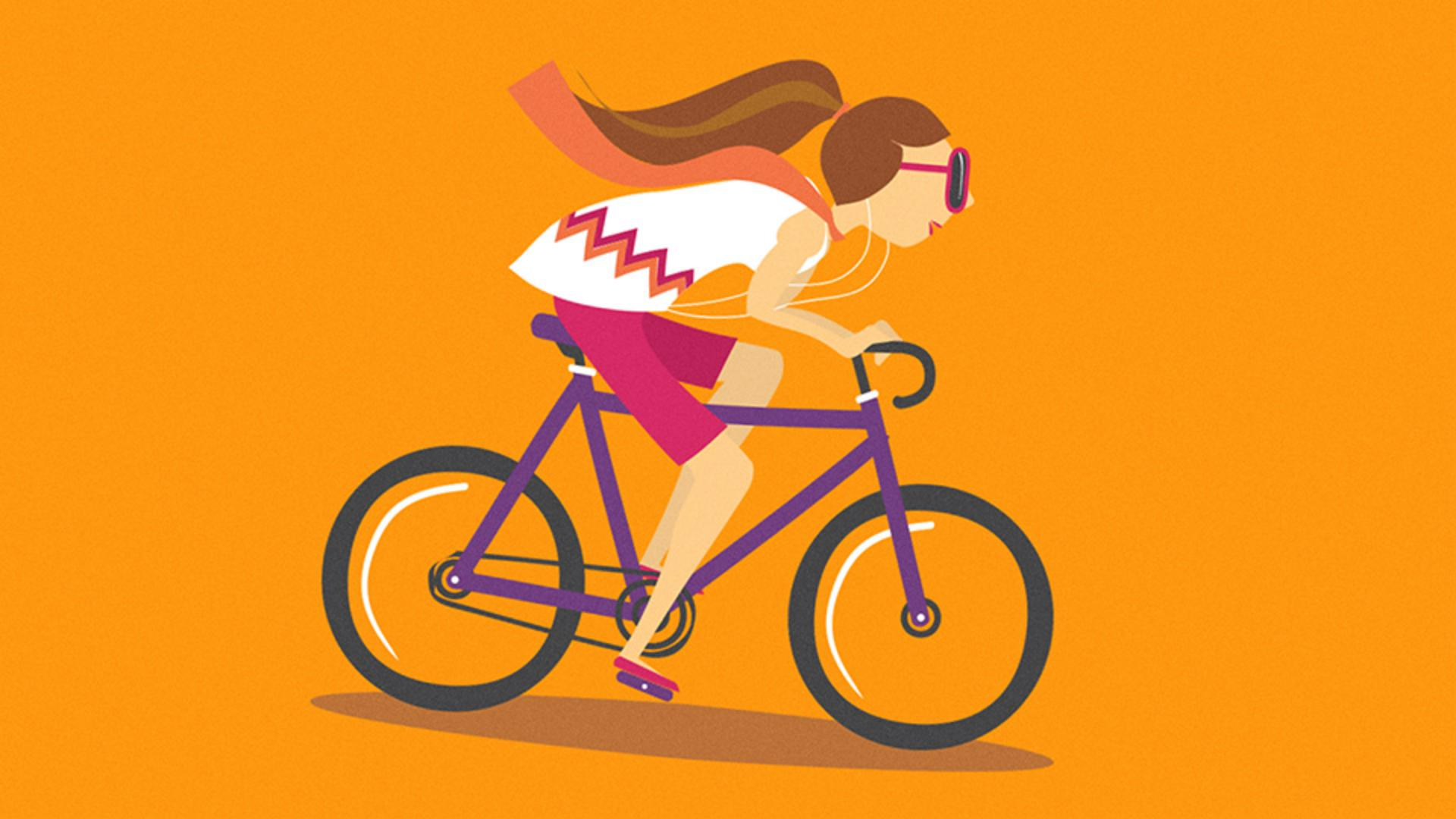
I'll zoom in to this part.
I want this woman to look like - she's going faster on her bike.
Kind of like this.
We'll start by warping the scarf.
It might actually look better - if it had some movement because she's kind of - riding into the wind.
To do that, we're going to twist - and distort using the Puppet Warp Tool.
Go ahead and select all the artwork - for the woman.
You don't really need to select the bike.
Now, to warp the scarf, - you need the Puppet Warp Tool,
Accessing the puppet warp tool and understanding pins
you won't find it in the default Toolbar.
So to find it, - you can show a more advanced Toolbar.
Choose Window, Toolbars, Advanced.
Now the Puppet Warp Tool - lives here under the Free Transform Tool over here in the Toolbar.
Go ahead and select it.
With the tool selected, notice the circles - that Illustrator added to your artwork.
Those are called pins.
They're where you can control the warp.
Illustrator automatically adds those - so you can move, rotate or pin parts of artwork to even keep it still.
You'll also see a mesh - that covers the artwork.
You can leave this on, - but I find it easier if you turn it off.
You can turn it off over here - in the Properties panel by de-selecting this Mesh option.
Let's get to warping.
Come out to the artwork
Warping and rotating the scarf to create motion
and move the pointer - into the middle of the scarf here.
When you see a + next to the pointer, - click and you'll add a pin.
If you drag that pin, you can see - the effect it's having on the artwork especially at the scarf here.
Now, the other pins in the artwork, - like the one in her hair, they keep that artwork in place.
They keep it pinned.
But notice how her back - is moving a little bit.
You can set a pin there to keep it still.
So click to add one here - roughly around her shoulder.
Then try moving the scarf pin again.
Now you can also rotate artwork - using these pins.
With this pin still selected - you'll see a dashed circle around it.
Move the pointer over that circle and drag.
I think that looks pretty good.
Now the scarf has some movement to it.
Now I want to get her - into a more aggressive riding position.
We want to rotate her head down, - bring her body down a little bit.
Adjusting body posture using multiple pins
So if we're going to rotate her head, think of where the pivot point - for that might be.
I'm thinking probably here at the neck.
Click to add a new pin.
Now I want to rotate this pin, - which would rotate the head but the problem is, if I do that watch.
It's going to look weird - because we already have a pin in the head.
To rotate the head freely, - we need to remove all pins.
So I will undo what I just did.
Select any pins in the head here and press Delete or Backspace - to remove them.
Now you can select that pin again - at the neck and try rotating it.
That's better.
Her torso needs to be - a little more horizontal, so we'll move the pin - you added at her shoulders.
But before you move it, if you move it, you're going to see that only that one moves, - and the rest are going to stay still.
The hands on the bike and her hips - shouldn't really move.
So there need to be pins there.
Now I've got a pin here at the elbow - and if you do too, let's remove it.
So select it and delete it, and then add a pin somewhere down here - near her wrist or forearm.
That's going to keep that area still.
Now, I've got a pin here - in the lower back.
If you don't have one, - go ahead and add one.
We need to move the head, body - and scarf down.
You can drag these pins one at a time, but it'll be faster - if you drag them all at once.
So to select multiple pins, - you can press the Shift key and click on all of them.
Now you can drag one of them down.
That looks pretty good.
I don't want to crush the artwork - too much here.
There we go.
A little adjusting here.
Once I think it looks good, now the head - will need to get rotated again.
She's looking down.
She needs to kind of look straight ahead.
So go to the neck pin and rotate the head, - and, there it is.
Fine-tuning the warp and exploring creative possibilities
That's pretty fun.
You can keep exploring and practicing.
Go ahead and remove some of the pins, add more pins, rotate, - try different things.
If you look to the right in the asset file, there are actually a few examples - of practice artwork and what I wound up with, - to the right there, the final, and if you want to see how I did it, - you can select the final artwork and then select the Puppet Warp Tool - and you can see the pins. -