ACROBAT | 5-MINUTE READ
How to convert HEIC to JPG.
Learn how to easily convert HEIC files to JPG on any device.


ACROBAT | 5-MINUTE READ
Learn how to easily convert HEIC files to JPG on any device.
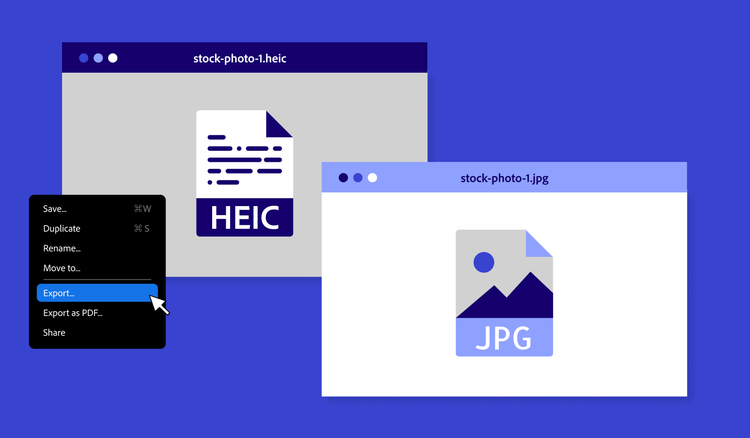
Have you ever opened your photo folder only to find a file ending in a .heic extension and wondered what to do with it? You’re not alone. The HEIC (High Efficiency Image Coding) is excellent for iPhones and Macs, but it’s not always compatible with other devices or programs.
That’s why many users find themselves searching for how to convert HEIC to JPG— a more widely supported format. Whether you want to upload your images to a website, share them with a friend on a different platform, or edit them in software that doesn’t recognize HEIC files, converting them to JPG is often the easiest solution.
Fortunately, you don’t need complicated software to make the switch. In this article, we’ll break down what HEIC files are and show you simple ways to manage them on both Mac and Windows.
HEIC is the default format for storing images on iPhones and Macs. This image file format offers high compression and quality images with little storage space. HEIC files are compact, high-quality, and efficient, saving storage space without compromising image quality. That’s great if you’re working within the Apple ecosystem.
While HEIC files can store your images in small files that maintain the quality, they aren’t natively supported by any products that aren’t Apple. Non-Apple PCs, phones, and older software can’t support this file extension. You need special software to view HEIC files on a PC without converting them, which can get expensive and complicated. Whether you want to view a file sent to you from a Mac user or want to allow anyone to view and share an image, converting HEIC files is the easiest way forward.
That’s where the JPG file format comes in. JPGs are universally supported; you can open them on virtually any phone, computer, or web browser without special software. JPGs might lose some image quality when they’re compressed or heavily edited, but they’re still a great alternative to Apple-exclusive HEIC files. You can also convert HEIC to PDF for easier sharing or archiving.
The fastest way to convert a HEIC file to a JPG file on a Mac is with the built-in Preview app. If you always want your photos to be in JPG format, you can change the image default from HEIC to JPG. JPGs require more storage space than HEICs, but their shareability makes up for it.
Here’s how to convert HEIC to JPG on a Mac:
If you’re saving or downloading a new image onto your Mac, consider saving it as a JPG so you don’t have to convert it later for sharing.
Here’s how you can save an online image as a JPG on your Mac:
If you’re a Windows user, you might be surprised that your computer doesn’t recognize HEIC files by default. That’s because HEIC is a format native to Apple, so you won’t be able to open or view these files right away unless you’ve installed a special extension.
The easiest way to convert HEIC to JPG on Windows is with the Photos app:
You can also use the native Microsoft converter app. It’s free and works on both PCs and tablets. With this app, all you need to do is drag and drop your HEIC file into the tool and click Convert. Best of all, the app works locally, so you don’t even need internet access.
Converting images to JPG makes them more shareable, but so does converting almost anything to PDF. PDF is one of the most shareable file formats and maintains its integrity across all devices. Use a JPG to PDF converter to reformat JPGs into universal PDFs.
Whether you’re using a Mac or PC, or you just want a quick solution from your browser, knowing how to convert HEIC to JPG ensures your images are accessible, shareable, and easy to work with.
You can change your camera settings so that new photos save as JPG instead of HEIC:
This setting ensures your iPhone saves future photos as JPGs automatically. For existing photos, you can use Acrobat online tools or send them to yourself via email or AirDrop and choose JPG during the export.


