How to fill in a form and sign a PDF
Follow these easy steps to fill and sign a PDF using an e-signature:
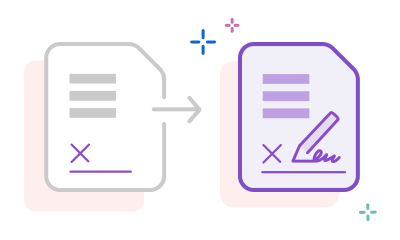
- Click the Select a file button above or drag and drop a file into the drop zone.
- Choose the PDF document you want to fill in and sign.
- Your file will be uploaded to Acrobat web. You must be signed in to complete the fillable form.
- Use the tools in the Sign panel to fill in the form fields and add your PDF signature.
- Click Next to proceed.
- Download your completed form or share your signed PDF online with a secure link.
Try our free PDF filler and document signer tool

Fill and sign PDFs online
Form filling is quick and easy with the Adobe Acrobat Fill & Sign tool. Upload a file, then add text, checkmarks, lines and more and you can place your electronic signature instantly.

Add your PDF signature fast
To sign PDF forms, create an electronic signature for free and then place it or your initials anywhere in the PDF document. You can type, draw or upload an image of your signature.

Speed up your workflows
The Acrobat online signature tool lets you fill in a form, sign it, and share it — all without leaving Acrobat. Enjoy seamless e-signing from anywhere, anytime.

Share secure files after e-signing
After signing in to download your form, you can securely share your signed PDF with others in just a few clicks. Recipients receive a trusted link by email.

E-sign PDFs from anywhere
You can use the document signer in any browser, so you don’t need to install any additional software. All you need is an Internet connection.

For all of your e-signature needs
From school forms to formal agreements, Acrobat is your one stop to add a signature without ever needing to print a piece of paper. With Acrobat AI Assistant you can even chat with your documents and get a summary of contracts or agreements, so you never miss the fine print.

An easy way to fill in forms
Save time by ticking a box with just a simple click. You can use checkmarks, circles or dots depending on what the form requires. Text fields can be filled in just as easily and you can add initials and your signature to complete the form.

A free, trusted PDF filler
As the inventor of PDF, Adobe has been working with PDF forms longer than anyone else. You can trust the quality of Acrobat tools when filling in and signing PDFs.
Frequently asked questions.
The Acrobat online PDF filler tool lets you go paperless by completing fillable fields and signing documents online. After uploading a PDF, use the form filler toolbar to add text boxes, tick boxes, checkmarks, circles, lines, and dots. Then, create an electronic signature to sign your document effortlessly. Sign in to save your file to Adobe cloud storage and download your completed form.
If you try Adobe Acrobat Pro for free for seven days, you can request signatures from others without hassle. Recipients receive an easy-to-use link by email to sign the document online in minutes. You can also track signing progress with real-time notifications and an audit trail.
Subscribers to the Acrobat Pro trial unlock advanced features, including:
- Digital signatures with validation and timestamps.
- Creating and editing PDF files.
- Converting PDFs to Microsoft Excel, Word, and PowerPoint.
- Optical Character Recognition (OCR) for scanned documents.
- Annotating, resizing, and watermarking PDFs.
- Mobile access via Adobe Acrobat Reader.
After uploading your document, follow these steps to add your handwritten signature:
- Select Add signature.
- Click Image, then Select image to browse for an image of your handwritten signature. You can also create signatures by typing your name or drawing your signature using a mouse or track pad.
- Drag your new electronic signature into a signature field or anywhere on the PDF. Click to place your signature.
- Sign in to download or share your signed document.
To sign a PDF on your phone or tablet, follow these steps:
- Access Adobe's PDF Editor:
- On your device's web browser, navigate to Adobe's online PDF Editor.
- Sign in with your Adobe, Apple, or Google account.
- Upload and Sign the PDF:
- Upload the PDF document you wish to sign.
- Tap on 'Sign' to open the signature options.
- Choose to type, draw, or upload an image of your signature.
- If using a touchscreen device, you can draw your signature directly on the screen.
- Place and Save Your Signature:
- Position and resize the signature as needed within the document.
- Save the signed PDF to your device or share it directly.
For Android users, the Adobe Acrobat Reader app is also available for signing PDFs. Download it from the Google Play Store, sign in, upload your PDF, and use the 'Sign' feature to add your signature.
For iPad users with an Apple Pencil, you can draw your signature directly using the Apple Pencil for a more natural signing experience.
More resources on how to sign a PDF
Content as a Service v3 - sign-pdf - Tuesday, 11 March 2025 at 22.02

Use Acrobat tools for free
- Sign in to try 25+ tools, like convert or compress
- Add comments, fill in forms and sign PDFs for free
- Store your files online to access from any device
Create a free account | Create free account Adobe Acrobat Sign in


