PDF tools, now 100% free.

Try now

All the PDF tools you need, now 100% free.

Try now

All the PDF tools you need, now 100% free.

Try now

.

Adobe Acrobat

How to convert photo to PDF on your iPhone.

Effortlessly turn images on your iPhone into PDF files. Follow step-by-step instructions for built-in tools and Adobe Acrobat to enjoy streamlined document sharing, whether it’s for work, school, or personal use.

Explore Acrobat Studio

A male professional in a suit, sitting outside, and using his iPhone to read PDF documents.

Converting photos to PDF on an iPhone is a common requirement for both personal and professional communication in India. Whether you’re submitting KYC documents, sending invoices, sharing school forms, or uploading official paperwork, PDFs are often the preferred format. They look professional, are widely accepted, and are easier to manage than image files.

In this guide, you’ll learn how to convert a photo to PDF on iPhone using built-in iOS tools and trusted apps like Adobe Acrobat. Let's start.

Ways to convert photo to PDF in iPhone.

How to convert photo to PDF using the built-in Photos app.

https://www.youtube.com/shorts/_OjjSzzKtG0

If you know your way around your iPhone, you’ll know that converting a photo to PDF is straightforward. You don’t even need to install third-party software to do so. Here’s how you can do it:

  1. In the Photos app, select your image, tap Share, and select Save to Files.
  2. Open the Files app and locate your image.
  3. Touch and hold the image file, then tap Quick Actions, and select Create PDF.
  4. To combine multiple photos, tap the More icon (three dots) in Files, select your photos, tap More, and choose Create PDF.

How to convert photo to PDF using the Print method.

Another easy way to convert an image to PDF on iPhone is by using the “Print to PDF” option hidden inside the Photos app. This method doesn’t require saving files separately and works on most iOS versions. Here’s how to use it:

  1. Open the Photos app and select the photo you want to convert.
  2. Tap Share and choose Print.
  3. On the Print preview screen, use a pinch-out gesture on the image.
  4. The image opens as a PDF preview.
  5. Tap Share again to save or send the PDF.

How to convert photo to PDF using Adobe's online image-to-PDF converter.

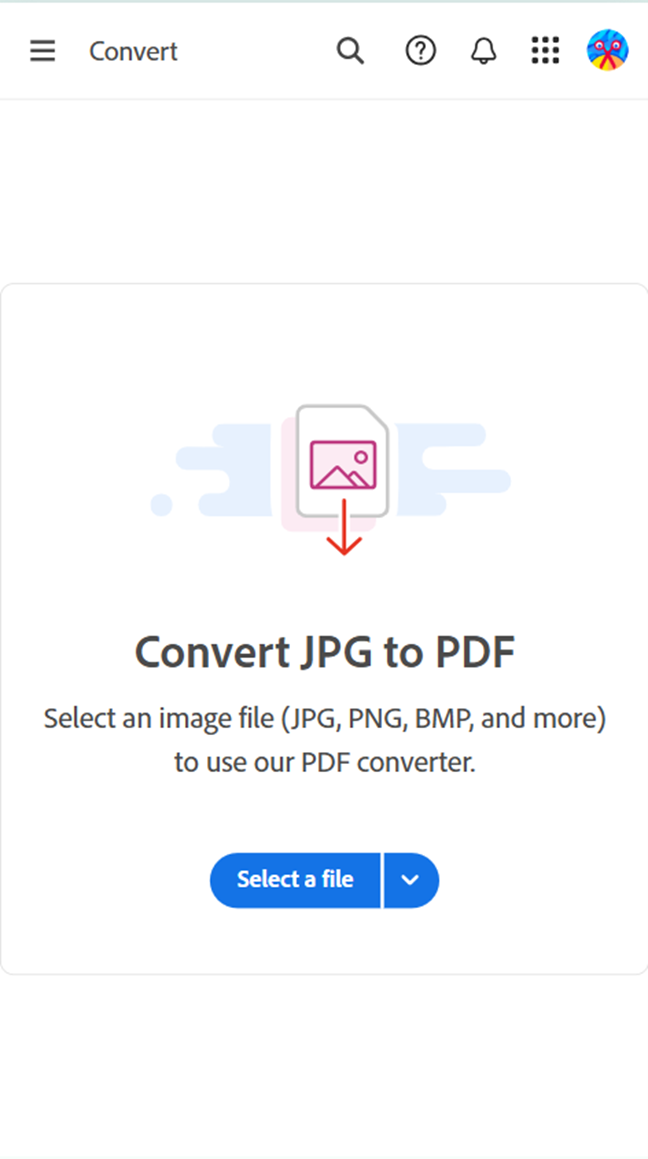
A screenshot of using Adobe JPG to PDF online converter in iphone.

You can convert any image to PDF using Adobe Acrobat image converter. It’s free and does not require any software downloads. You just need to sign in, and you’re good to go. Here’s how:

  1. Open the browser and go to Adobe’s JPG-to-PDF online converter.
  2. Click the Select a File button or drag and drop files into the drop zone.
  3. Select the image file you want to convert to PDF.
  4. After uploading, Acrobat automatically converts the file from image to PDF.
  5. Download and save your compressed new PDF file with a unique file name or sign in to share it.

Why convert photos to PDF on iPhone?

Photos are easy to capture on an iPhone, but image formats like JPG or PNG aren’t always ideal for official use. Many organisations in India specifically request documents in PDF format for good reasons, such as:

  • PDFs preserve layout and image quality.
  • PDFs help reduce unintentional edits.
  • PDFs work consistently across devices.
  • PDFs are easier to archive, label, and share.
  • PDFs provide more compact file sizes than images.
  • PDFs enable document integration.
  • PDFs offer security features like password protection and encryption.
  • PDFs are a print-ready format.

All in all, PDFs are a practical choice for everyday document workflows on iPhone. They are particularly helpful when:

  • Submitting documents for government services, banks, or educational institutions
  • Sending professional paperwork via email
  • Combining multiple photos into a single document
  • Reducing file size while maintaining clarity

Edit and manage PDFs after conversion using Adobe Acrobat.

After converting a photo to PDF on your iPhone, you may still need to make changes before sharing or submitting the document. This is where Adobe Acrobat becomes especially useful. With Acrobat, users can easily edit PDFs after conversion to make sure the document looks professional and meets official requirements for form submissions, applications, or invoices.

Using Adobe Acrobat online services, you can:

  • Edit text and rearrange pages in a PDF.
  • Add comments, highlights, or notes for review.
  • Combine multiple PDFs into one file.
  • Compress PDFs to reduce file size for email or uploads.
  • Convert PDFs to other formats like Word or Excel.

Beyond traditional editing, Adobe Acrobat also includes generative AI–powered features that help users work smarter with PDFs. With tools like Chat with PDF and an AI Assistant, users can ask questions about a document and receive instant answers, generate summaries of lengthy PDFs, and quickly grasp key points without needing to read every page. This is especially useful for contracts, reports, study material, or business documents.

Try our online tools to enhance your PDF.

Edit PDF Edit PDF

Easily update text, images, and links in your PDF.

Merge PDFs Merge PDF

Combine multiple PDFs into one seamless file.

Compress PDF Compress PDF

Reduce file size without losing quality.

Summary Generator Summary Generator

Let AI condense your PDFs into key takeaways.

Person holding a smartphone displaying a PDF file download icon on the screen, representing mobile PDF access and document management.

How to send photo in PDF format from iPhone.

Once you’ve converted your photo to a PDF, sharing it is effortless. Most iPhone apps support PDF sharing natively, making it easy to send documents instantly. You can send PDFs via:

  • Email for official or professional communication
  • WhatsApp for quick sharing
  • Cloud storage apps like Google Drive or iCloud

Alternatively, you share PDF files directly in Acrobat. Here’s how:

  1. Open a PDF in Acrobat on your iPhone, and then click the Share With Others icon in the top toolbar.
  2. Share your file by adding the email address of each recipient.
  3. Click “Send” to send a link to the shared PDF online.
  4. To track the activity of your PDF file, click the Home tab and choose “Shared” > “Shared by You.

Tips when converting photos to PDF on iPhone.

While converting photos to PDFs is simple, users may face a few common challenges. Image clarity, file size, and organisation are the most frequent concerns. Here are some tips to help you get the best results every time you convert your images to PDF:

  • Ensure photos are well-lit and sharp before converting.
  • Use apps that allow quality enhancement if the text is unclear.
  • Combine multiple photos into one PDF for easier sharing.
  • Organise PDFs into folders for quick access.
  • Before sending, make sure the PDF is properly named.

Frequently asked questions.

More resources

Adobe Acrobat

Browse all Acrobat plans.

Buy now Free trial