
#1E1E1E

Acrobat

How to open and edit PDFs on Android.

A practical guide to downloading, editing, and managing PDFs on Android devices using trusted tools and smart mobile workflows.

Explore Adobe Acrobat

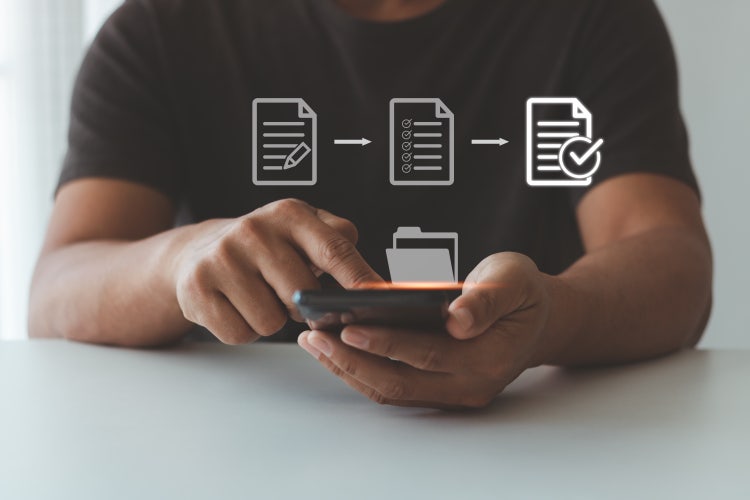
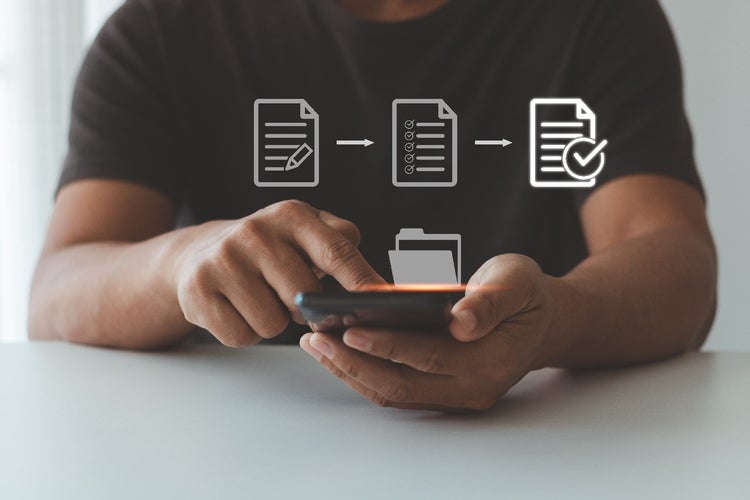
Casual business person edits, checks and saves PDF to and on mobile.

Opening and editing PDFs on an Android device is increasingly common as more users rely on smartphones and tablets for document management. Whether it's reviewing contracts, signing forms or reading eBooks, having a dependable PDF app for Android can save time and effort. With a range of free and professional tools available through the Google Play Store, users can download trusted PDF reader apps directly and gain the ability to annotate, edit, and even convert files without needing a desktop. This guide explores exactly how to get started, offering solutions for everyday tasks and tips to handle common issues along the way.

Key takeaways.

  • You can open PDFs on Android by installing a trusted PDF reader app for Android from the Google Play Store.
  • Free PDF editor apps for Android, like Adobe Acrobat, allow basic and advanced edits including text, images and annotations.
  • You can create, scan or convert files into PDFs directly on Android using system features or apps like Adobe Acrobat and Adobe Scan.
  • Organising and signing PDFs on Android is made simple using mobile tools built into apps such as Adobe Acrobat.
  • Most PDF Android issues can be solved by updating the app, using trusted readers, or checking file permissions and integrity.

What is the best way to open a PDF file on Android?

To open PDF files on Android, users need a trusted PDF reader app for Android installed on their device. Here’s how to begin:

  • Open the Google Play Store on your Android device
  • Search for "PDF reader app for Android"
  • Select and install a well-reviewed app such as Adobe Acrobat Reader
  • Once installed, open the app and allow it to access your files
  • Tap the PDF you wish to open from your device or cloud storage

The Adobe Acrobat Reader mobile app offers a dependable experience, including viewing and signing features.

How can you edit text and images in PDFs on Android?

To edit text and images in a PDF on Android, a more advanced tool may be required. Here’s how you can do it:

  • Open your PDF using the Adobe Acrobat mobile app
  • Tap the pencil icon to begin editing (this may require a subscription)
  • Tap on the text box or image you want to change
  • Use on-screen keyboard or tools to adjust content
  • Save the changes and re-export if needed

The modify PDFs feature in Acrobat Pro includes these advanced capabilities.

Can you create a new PDF file on an Android device?

Yes, Android users can create PDFs directly from documents, web pages or images:

  • Use the Print feature: tap Share > Print > Save as PDF in many apps
  • Scan physical documents using Adobe Scan or your device’s camera
  • Use the Adobe Acrobat app and select Create PDF
  • Choose a file type (image, DOCX, etc.) and convert to PDF

You can begin with the create PDF tool to generate high-quality files from mobile.

How do you sign a PDF on Android?

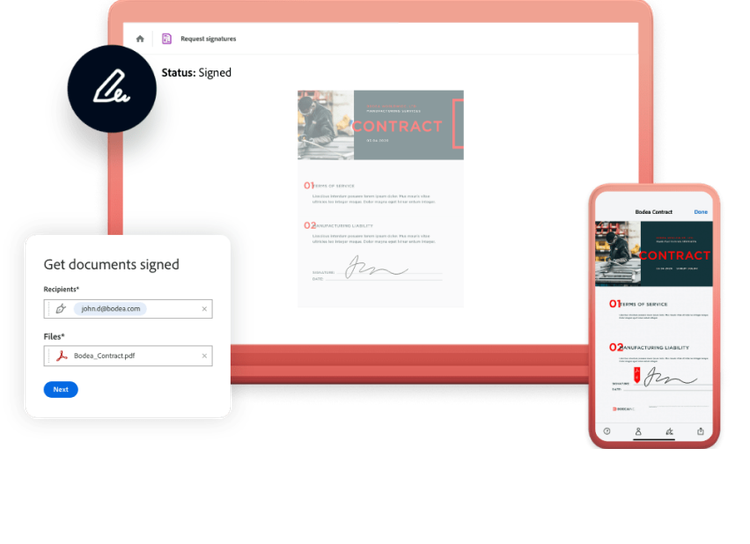
To electronically sign a PDF document on Android:

  • Open the PDF in the Adobe Acrobat mobile app
  • Tap the pen icon or choose "Fill & Sign"
  • Tap the area to insert your signature
  • Sign with your finger or stylus
  • Save and share the signed document

Adobe’s fill and sign tool makes secure signing simple from Android devices.

What is the best way to scan documents into PDF format on Android?

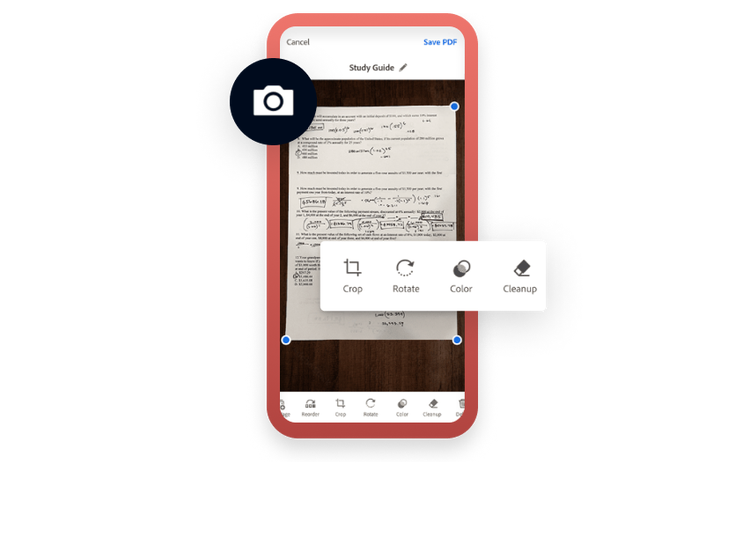
To scan paper documents and save them as PDFs on Android:

  • Download the Adobe Scan app from the Google Play Store
  • Open the app and capture a photo of the document
  • Auto-adjustments will enhance the image
  • Save as PDF and open it in Acrobat for further editing

The scanner app is ideal for digitising receipts, ID cards or handwritten notes.

How do you organise pages in a PDF on Android?

Organising content within a PDF is essential when compiling documents:

  • Open the file in Acrobat mobile
  • Select the "Organise Pages" tool
  • Drag to reorder, rotate or delete pages
  • Tap Save when the structure is final

Use the organise PDF function for mobile-friendly page control.

https://main--dc--adobecom.aem.live/dc-shared/fragments/roc/blog/with-acrobat-work-from-anywhere

What should you do if a PDF won’t open on Android?

If you are unable to open a PDF file:

  • Check if the file is corrupted or partially downloaded
  • Try opening the file with Adobe Acrobat Reader instead of default apps
  • Make sure the app has permission to access storage
  • Clear cache or reinstall the app

Opening in a trusted PDF Android app like Acrobat resolves most compatibility issues.

Is there a way to convert PDFs to other file types on Android?

Yes, conversion tools on Android allow you to change PDFs into other formats:

  • Open the PDF in Adobe Acrobat mobile
  • Tap the menu and select "Export PDF"
  • Choose the desired format (Word, Excel, JPG etc.)
  • Save the exported file locally or to the cloud

The export PDF feature makes conversion easy while preserving formatting.

Can Android users try premium PDF tools for free?

If you’d like to test out professional PDF editing tools:

  • Download Adobe Acrobat Reader from Google Play Store
  • Sign in with your Adobe ID
  • Start a 7-day free trial to access premium features
  • Cancel any time before trial ends to avoid charges

Start exploring tools like editing, signing and organising with the free trial download.

https://main--dc--adobecom.aem.live/dc-shared/fragments/roc/blog/acrobat-reader-scan-web

Frequently asked questions.

Can I fill out forms using a PDF app for Android?

Yes, most PDF apps for Android like Adobe Acrobat allow you to fill out interactive or static PDF forms by:

  • Tapping text fields directly
  • Typing in responses using your keyboard
  • Adding checkmarks or selecting options

What if my PDF opens blank on Android?

If your PDF appears blank:

  • Try reopening it with Adobe Acrobat Reader
  • Check that the file is fully downloaded
  • Update your PDF reader app to the latest version

Can I compress a PDF on Android to reduce file size?

Yes, you can compress large files using tools like:

  • Adobe Acrobat’s Compress PDF option
  • Online platforms that support mobile use
  • Lower image resolution settings before saving

How do I search text in a PDF Android app?

To search within a PDF document:

  • Open the PDF in your reader app
  • Tap the search icon (usually a magnifying glass)
  • Enter the keyword and view matched results

Is it safe to use a free PDF editor app for Android?

Yes, if downloaded from a trusted source like Google Play:

  • Avoid APKs from unofficial websites
  • Check app reviews and developer history
  • Use apps with clear privacy policies like Adobe Acrobat

Can I add password protection to a PDF on Android?

Yes, using Adobe Acrobat or similar apps:

  • Open the file and tap "Protect PDF"
  • Set a password and save your file securely

What’s the best way to email a PDF from Android?

To email a PDF:

  • Open the document in your PDF reader
  • Tap Share > Email
  • Choose your mail app and send as an attachment

How do I print a PDF from my Android device?

To print a PDF:

  • Connect to a wireless printer
  • Open your PDF and tap Share > Print
  • Adjust settings and confirm to print

Can I annotate PDFs using an Android stylus?

Yes, annotation is possible with a stylus:

  • Use tools like highlight, draw or underline
  • Save and export marked-up versions for feedback

Does Adobe Acrobat work on all Android versions?

Adobe Acrobat is compatible with most devices running Android 7.0 and above:
  • Regular updates ensure newer Android compatibility
  • Performance is optimised for tablets and smartphones

More resources

Content as a Service v3 - Wednesday 9 July 2025 at 15:38

https://main--dc--adobecom.hlx.live/dc-shared/fragments/roc/blog/do-more-with-acrobat-blade