Acrobat
How to remove background from PDFs effortlessly.
Discover simple ways to remove backgrounds from PDFs or change the PDF background colour to white. Create clean, professional documents quickly and work more efficiently.


Acrobat
Discover simple ways to remove backgrounds from PDFs or change the PDF background colour to white. Create clean, professional documents quickly and work more efficiently.
Published by Adobe Acrobat India on 29 April 2024
Modified: 29 October 2025
JUMP TO SECTION
Different ways to remove PDF backgrounds: Automated and manual
How to remove background from PDFs online
Manual techniques for removing PDF backgrounds
Best practices for background colour removal in PDFs
Benefits of background removal in business documents
In today’s fast-paced digital workspace, presentation matters as much as content. A PDF with a clean, distraction-free background allows your message to take centre stage, making it easier for readers to focus on what truly counts.
Whether you need to remove a background from a PDF, change the background colour, or switch it to white, the right techniques can help you create documents that look polished and professional.
These methods are invaluable for business professionals, content creators, educators, or anyone who wants their work to stand out. In this guide, we will walk you through simple, effective ways to edit PDF backgrounds, along with best practices to ensure your documents remain clear, concise, and visually engaging.
When removing backgrounds from PDFs, there are two main approaches: automated online tools and manual editing methods. Automated tools, such as PDF background removers available online, use advanced technology to detect and remove backgrounds in just a few clicks. This makes them ideal for quick and hassle-free results. Manual methods use image editing software to give you precise control, making them better for specialised tasks like refining scanned documents or updating branded templates.
The sections below will guide you through both approaches so you can choose the one that best suits your needs.
Follow this step-by-step guide to automatically remove backgrounds from PDFs using tools like Adobe Acrobat online.
Step 1: Open the PDF document.
Open the required file to remove the background by clicking on the “File” menu and “Open”.
Step 2: Access the edit tool.
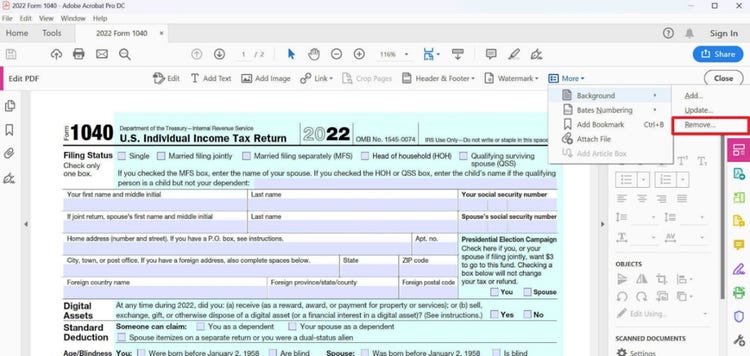
In the top bar, select the option “Edit”. This will open a new section where you can choose the Edit PDF toolset on the left side of the window.
Step 3: Select the background option.
Within the Edit PDF options, choose the “Background” Option to start the background removal process.
Step 4: Choose the page range.
After you choose the “Remove” option, you need to select the pages by either specifying the page number or selecting the whole document.
Step 5: Confirm the process.
Choose “Yes” to proceed with background removal. It will process and remove the background.
Step 6: Verify the overall document integrity.
Verify that your document has all the necessary elements and content. Also, check if no image was removed unintentionally during the background removal process.
In certain situations, having precise control over your document’s details is essential. Manual background removal techniques provide that control, allowing for detailed customisation without unnecessary complexity. For instance, you might be working on scanned copies of Aadhaar cards, PAN cards, or land records where distracting paper textures need to be removed while preserving official stamps and signatures. Or you may be updating corporate materials such as invoice templates, employee ID cards, or proposal documents to match new brand guidelines, which can involve clearing outdated logos, patterned backgrounds, or background graphics without affecting the main content.
In such cases, an image editor software like Adobe Photoshop will help with removing background while offering the flexibility to make precise adjustments and achieve professional results.
While you use these manual approaches, you need to consider important key tips while working on it. We have listed a few of them below:
Now that you have a basic understanding of the steps involved in removing background from PDFs, it is important to have some best practices to follow.
These practices will help you achieve clear and concise PDF documents, whether marketing collateral or business presentation.
Having understood the best practices and step-by-step guidance, let's unveil some of the reasons why it's beneficial to remove background from PDF online. This will help you to get some more understanding about achieving branding goals within your documents.
Removing the PDF background is much more than just a visual enhancement. It is a strategic move to make your documents impactful and compelling. By utilising best practices and techniques to remove background from PDF, you can take visuals and presentations to the next level without compromising brand integrity. Additionally, this also lets you leave a positive impression on your clientele.
Edit PDFs with minimal effort from anywhere, on any device. With Acrobat, you have instant access to the essential PDF tools you need — across desktop, mobile devices and the web. See how easy it is to edit, create, share, organise and e-sign PDFs on the go.

To change your coloured PDF background to white: