
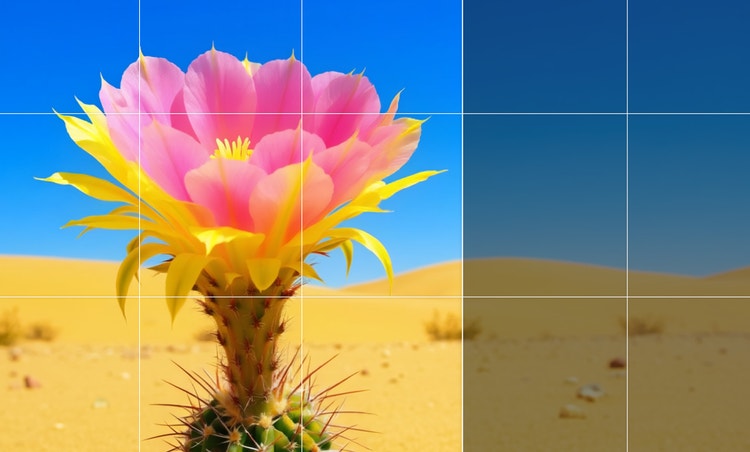
Discover the magic of using AI to extend images.
Dream it, type it, see it.
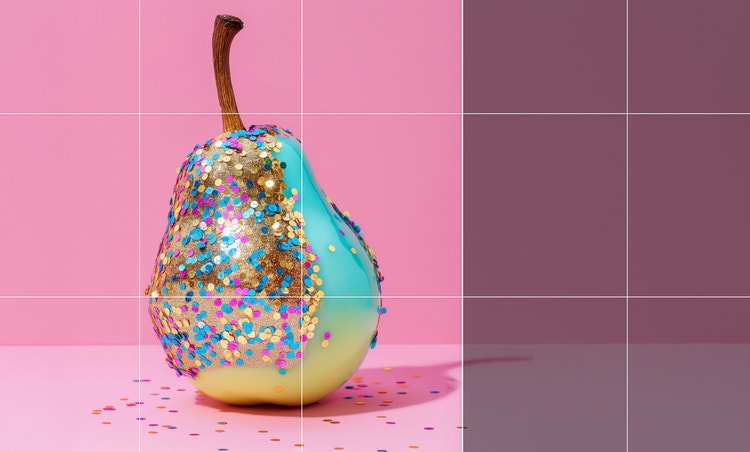
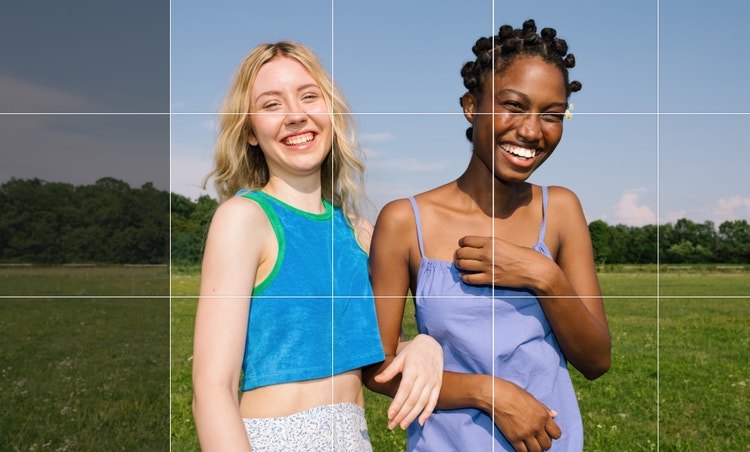
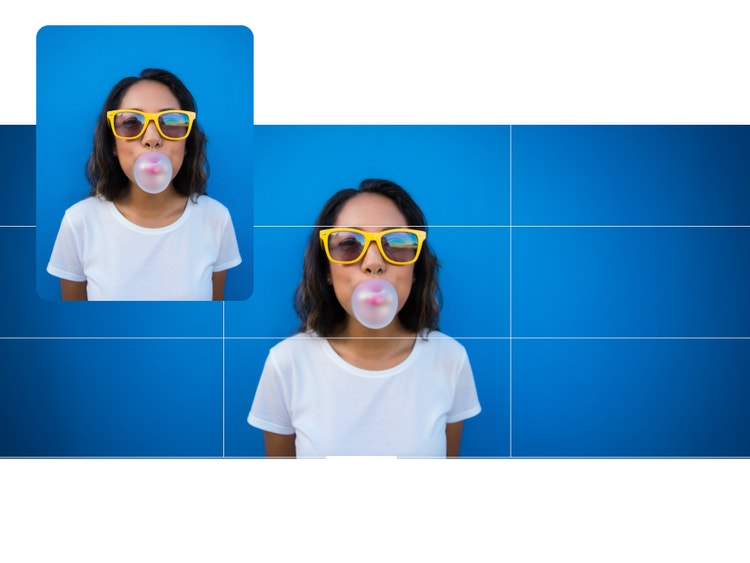
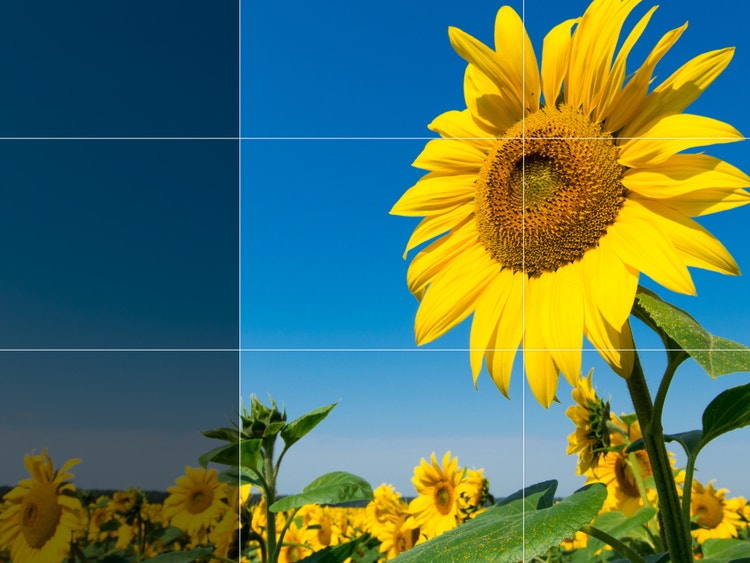
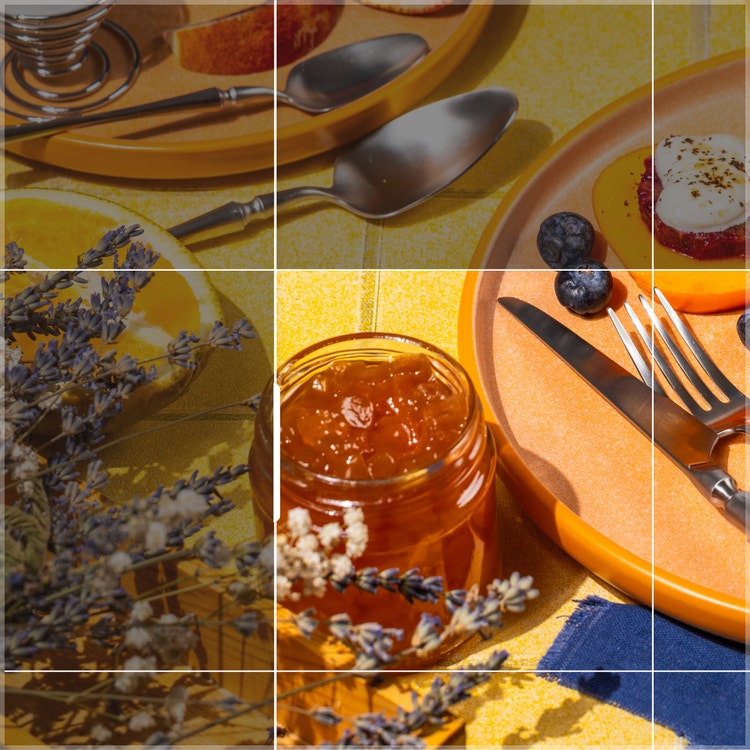
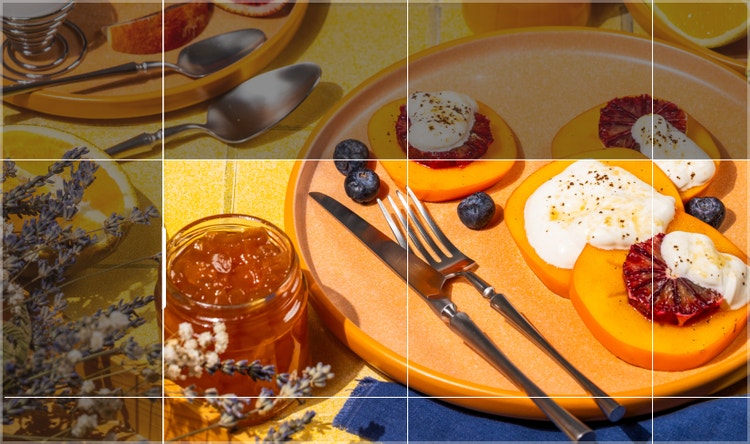
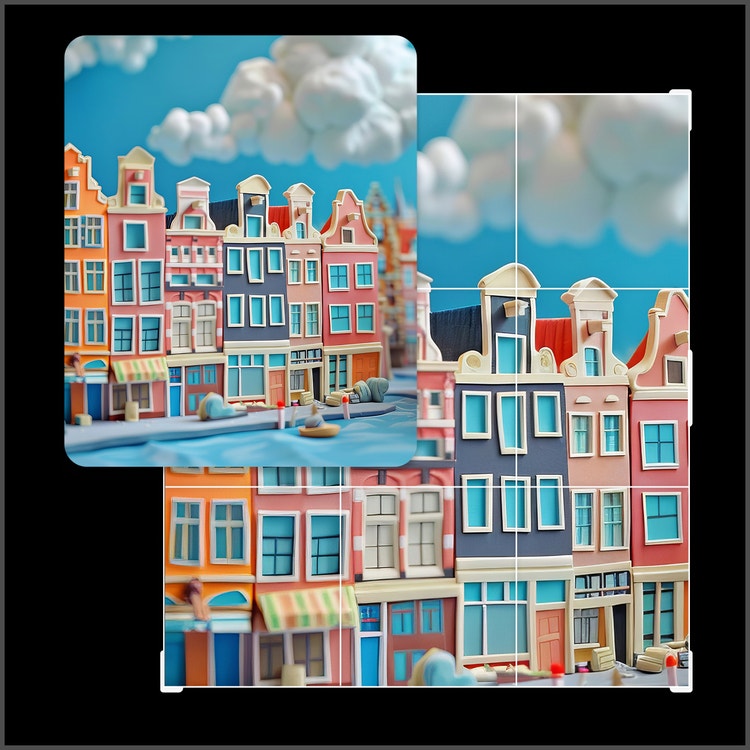
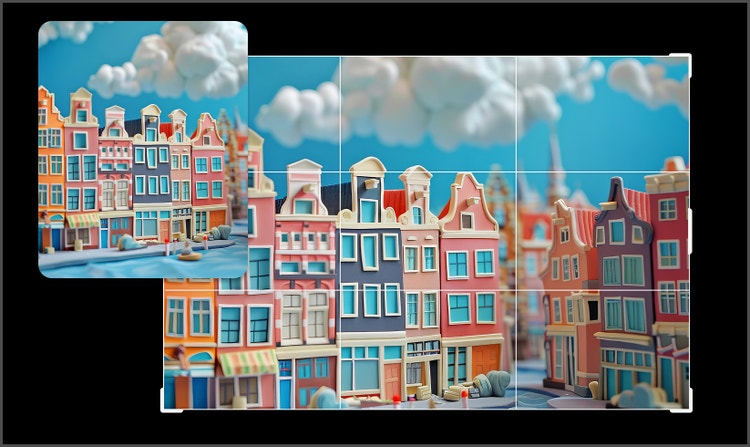
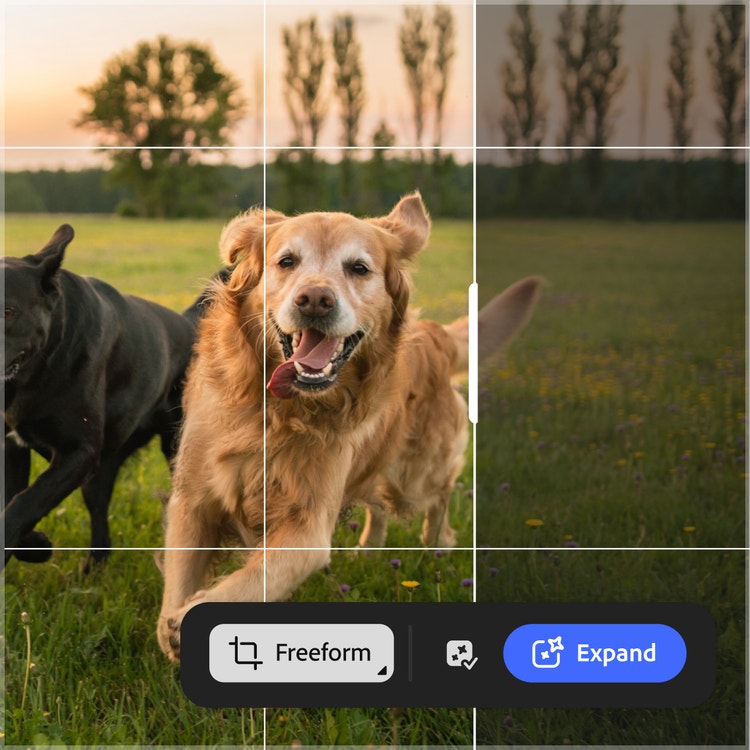
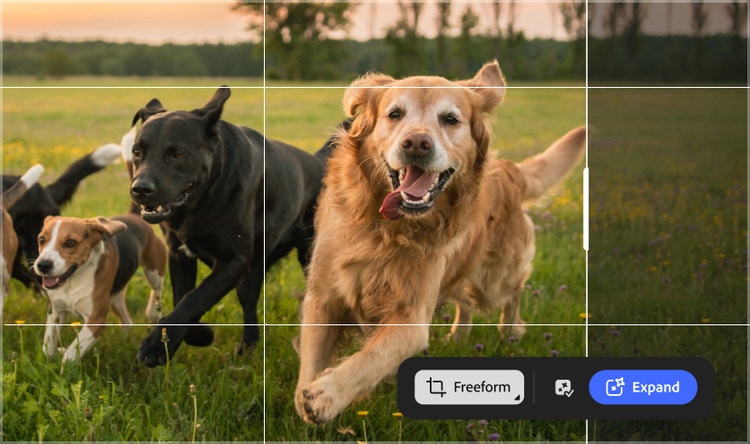
Cropping is often associated with making things smaller, but you can use the Crop tool to make the background you’re working with larger, too. Just click and drag beyond the borders of your image to the size you want, and let Generative Expand act as an AI image expander to extend backgrounds and increase the aspect ratio naturally.
Magically expand your images.
Once you’ve got the crop just right, click Generate to immediately fill the empty space with newly generated high-quality content that naturally blends with the existing image. Generative Expand AI works as an image extender that can seamlessly extend backgrounds, increase the aspect ratio of an image, and create a larger photo that looks natural.
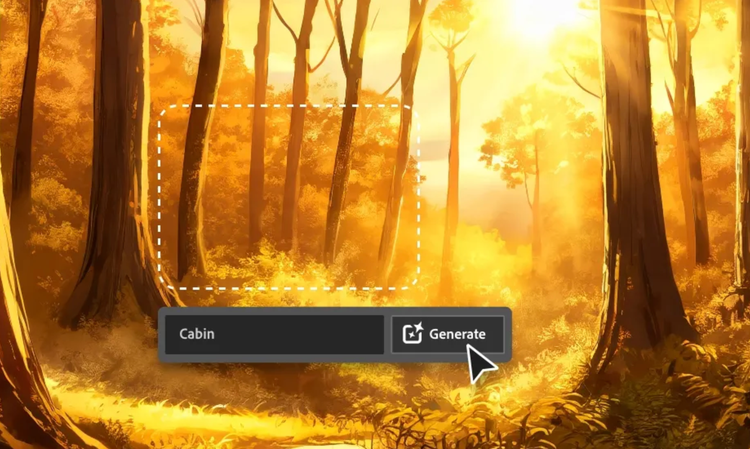
Make a scene with text prompts.
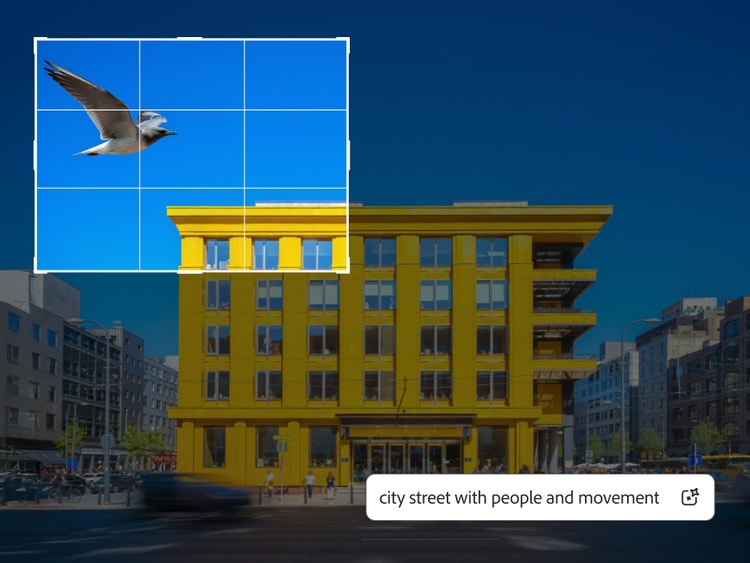
Place your subject in a fantastical forest, a crowded city street or within an ornate gold frame. Just type a simple description of what you want to fill your expanded canvas with and click Generate to get high-quality results. Using Generative Expand AI, you can uncrop images, extend photo backgrounds, or transform different types of pictures across photography genres.
Fine-tune your work.
Tweak your results as much as you want using all the powerful AI photo editing tools in Photoshop. Add or remove content nondestructively with Generative Fill, apply a gradient, play with blend modes and more. Generative Expand also helps refine extended backgrounds, adjust aspect ratios, and customise uncropped images so that various photography styles look seamless.
How to use AI to expand an image in Photoshop.
- Get started with the Crop Tool.
Open your image in Photoshop, then select the Crop tool from the toolbar. Click and drag the handles on the crop border to expand your canvas. You can also use the Contextual Task Bar to select common crop sizes from the Ratio drop-down menu. This makes it easy to adjust aspect ratios and set up images for different photography styles. - Generate a new background.
Click Generate in the Contextual Task Bar to fill your expanded canvas with newly generated content that blends seamlessly with the original image. The AI image extender seamlessly uncrops images, extends backgrounds, and produces larger photos while keeping high quality intact. Click through the variation options in the Contextual Task Bar or Properties panel to choose the one you like best. - Use prompts for a customised result.
Type a simple description into the text-entry prompt box in the Contextual Task Bar, like “sunny tropical beach” to generate a specific output. Experiment with prompts to explore varied photography genres, from wildlife and travel to editorial or commercial, for more tailored results.
Why extend an image background?
You need to tell a larger story.
Maybe you have the perfect shot of a person or object, but they’re off-centre or an important bit of background has been cut off. With Generative Expand you can quickly correct such imperfections with high-quality results.
You want to create a specific background.
If you want your background to be full of fireflies or need an expanded city background to be busy or empty, you can use prompts to fine tune your results. This makes Photoshop a powerful AI photo expander for customised backgrounds.
You want a different aspect ratio.
When it comes to photography and graphic design work, one uniform size does not fit all. With the Crop tool and Generative Expand, adjusting a photo to 16:9 from 4:3 dimensions can happen in an instant. Expand images so they work on websites, social, digital ads, print projects and more.
You need more space to play.
Extending the background of your workspace helps you to add text and other elements, like graphics or cutouts from other images.
Best practices for extending image backgrounds.
Extending image backgrounds with Generative Expand in Photoshop can create natural and seamless results when done thoughtfully. Here are some best practices to follow:
- Keep subjects centred before expansion:
This ensures that the AI image expander has enough context to uncrop the image and extend the background without distorting key details. - Use clear and simple text prompts:
For example, type “blue sky with clouds” instead of “vast and dramatic afternoon sky” to get predictable results. - Experiment with aspect ratios:
Adjusting from 4:3 to 16:9 or square formats can help create versions suited for websites, social media, or digital ads. - Blend and refine with Photoshop tools:
Apply gradients, use the Crop Tool precisely, or adjust blend modes to polish extended areas. - Match the genre of photography:
Expansions work differently for portraits, product images, travel photography, or wildlife shots, so experiment with prompts suited to each style.