


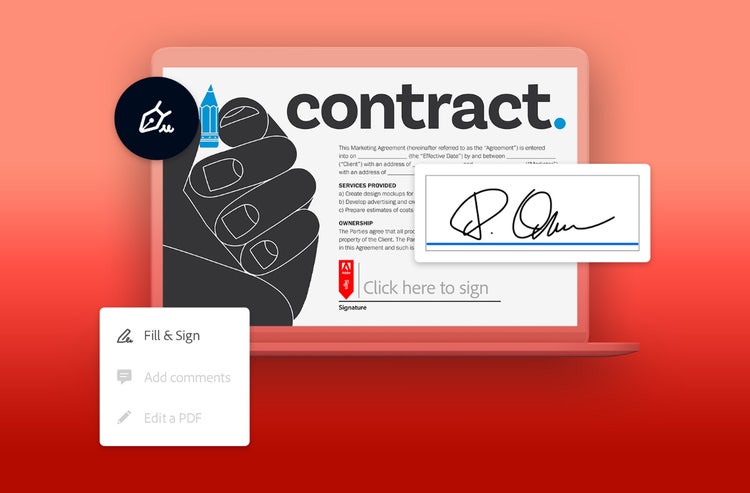
Signing documents shouldn’t slow you down. With Adobe Acrobat’s online signature generator, you can create a personalised signature, apply it to any PDF and collaborate on documents securely, all without printing, scanning or switching tools. Whether you’re approving a contract, signing a form or collaborating with others on shared documents, Acrobat makes the entire process fast, intuitive and legally reliable.
A basic signature is easiest to read, but adding your own creative flair can showcase your personality in any documents you sign. You can still maintain professionalism while adding some extra pizazz to your crucial documents.
Let’s explore the steps you’ll need to create your signature using online tools.
Why create an online signature?
In both your professional and personal life, you’ll need to sign documents regularly, from financial forms and tax documents to school waivers and workplace agreements. An online signature lets you:
- Sign documents instantly from any device
- Avoid printing, scanning or mailing paperwork
- Keep your signature consistent across all documents
- Collaborate with others on shared files without delays
- Maintain a secure, traceable record of every signature
Acrobat’s signature generator gives you a clean, reusable signature that you can apply to any PDF in seconds.
How to generate an online signature.
Creating your online signature with Acrobat is simple. Once you generate it, you can reuse it across all your documents, saving time and eliminating manual steps.
Generate your signature using Acrobat online services
Create your signature using the Fill & Sign tool:
- Click the “Select a file” button or drag and drop a file into the drop zone.
- Choose the PDF document you want to fill in and sign.
- Once it’s uploaded, sign in to complete the fillable form.
- Use the tools in the Sign panel to fill in the form fields and add your PDF signature.
- Click Next.
- Download your completed form featuring your newly generated online signature or get a link to share your PDF online.
Generate your signature directly in Acrobat
You can also use Adobe Acrobat for more features and options when generating an online signature.
-
Open the PDF you want to sign.
-
Click the Sign icon in the toolbar or go to Tools > Fill & Sign.
-
Choose whether you want to sign yourself or request signatures from others.
-
Acrobat automatically detects form fields — click any highlighted field to begin.
-
Select Sign, then choose Add Signature or Add Initials.
-
Choose how you want to create your signature:
- Type your name and choose a style
- Draw your signature with your mouse or touch screen
- Upload an image of your handwritten signature
-
Select Save Signature to store it securely in Adobe Document Cloud.
-
Click anywhere in the PDF to place your signature.
You can move, resize or delete your signature at any time.
Now that you know how to create your online signature, perhaps you’d like to learn about the different types of online signatures you can use throughout your documents.
Different types of online signatures.
Not all signatures are the same and different documents require different levels of security. Acrobat supports all major types of electronic signatures so you can choose the right one for your needs.
Simple electronic signatures (SES)
A simple e‑signature is the most common type of online signature. It’s ideal for everyday documents that don’t require identity verification, such as:
- Attendance sheets
- Internal forms
- Basic agreements
SES is easy to create and widely supported, but it offers limited security and is not legally binding for sensitive or high‑risk documents.
Advanced electronic signatures (AdES)
Advanced e‑signatures offer stronger identity verification. They are linked to a specific signer through a method only that person controls, such as a verified device or digital certificate.
AdES is ideal for documents that require a higher level of trust, including:
- Administrative forms
- Non‑binding agreements
- Internal approvals
While more secure than SES, AdES still may not meet the legal requirements for formal contracts.
Qualified electronic signatures (QES)
A qualified e‑signature is the most secure and legally recognised type of electronic signature. It requires identity verification through trusted third‑party providers and meets the highest global standards for authenticity.
With Acrobat’s QES support, you get:
- Multi‑factor authentication
- Verified signer identity
- A complete audit trail
- Legal equivalence to handwritten signatures
QES is ideal for:
- Vendor contracts
- Tuition agreements
- Legal documents
- High‑value transactions
How to add your signature to different files.
Signatures are a huge part of the professional world and your personal life and digital signatures pave the pathway for simple and secure document sharing. Acrobat makes it easy to sign documents across formats, even if they weren’t originally PDFs.
Excel files
Convert your Excel sheet to PDF, then add your signature using Acrobat’s Fill & Sign tools. Perfect for budgets, approvals and project documents.
Word documents
Turn your Word file into a PDF and sign it instantly. Great for proposals, schedules and content approvals.
Any document you can convert to PDF
If it can become a PDF, you can sign it with Acrobat.
AI‑powered signature workflows in Acrobat
As more teams collaborate digitally, signatures are becoming part of broader document workflows, not just final approvals. Acrobat’s AI‑powered features help you to move faster by understanding your documents, identifying signature needs and assisting with collaboration.
With Acrobat AI Assistant, you can ask natural questions like:
- “Where in this document do signatures still need to be added”
- “Summarise all fields that require initials or approval”
- “Explain what I’m agreeing to before I sign”
- “Generate a quick overview of this contract for my team”
AI can also help you:
- Identify missing signatures
- Extract key terms before signing
- Summarise long agreements
- Prepare documents for multi‑signer workflows
- Clarify responsibilities and deadlines
This makes Acrobat not just a signature generator, but a complete document collaboration and decision‑support tool.
Signature inspirations.
Your signature differentiates your name from others on a document — while some names and letters may be the same, a signature gives you the chance to get creative with your lettering. Your signature can say a lot about who you are as a person and a working professional.
Let’s go over some famous signatures and what their writing says about them.
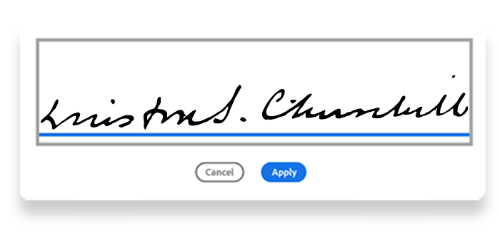
Winston Churchill’s signature shows someone who is passionate and focused. It matches well with his intelligence and quick thinking.
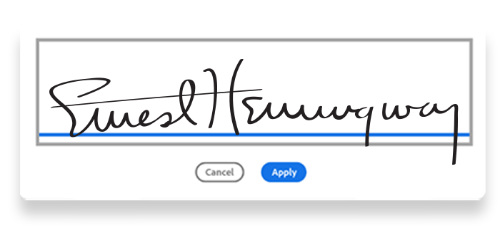
Ernest Hemingway’s signature presents someone who values introspection. It pairs well with his logical and direct writing style.
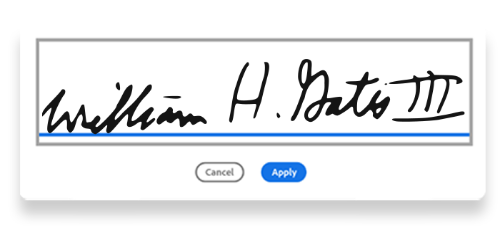
Bill Gates’s signature demonstrates determination. It co-ordinates well with his modest approach to leadership.
Serena Williams’s signature exhibits her fearless personality. It links well with her ability to speak up and stand out on and off the tennis court.
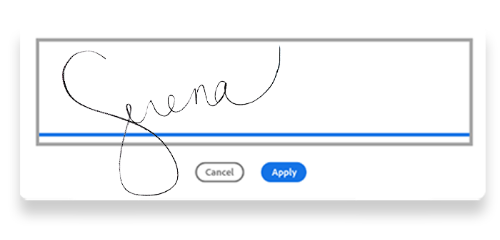
The weight, angles and other letter features can also send important signals about your personal approach. For example:
- Slanted letters could mean you are more extroverted.
- Unreadable letters could say you have a sharp mind.
- An upward angle may indicate you are an optimistic person.
There are endless possibilities for creating slants and angles that are uniquely yours. Explore the Adobe Fill & Sign tool today to create your unique e-signature and save time signing documents.
Frequently asked questions.
You can generate your own online signature using Adobe Acrobat's Fill & Sign tool. After uploading your file, you can type your name in a chosen style, draw it by hand, or upload a photo of your usual signature. It's typically saved for next time, so signing future documents can take just a couple of clicks.
You can use your finger or a stylus to draw your handwritten e-signature using the Acrobat online Fill & Sign tool. Simply upload your PDF, sign in, then choose Draw from the signature options and sketch it directly onto the screen. Once you're happy with it, Acrobat saves it so you can reuse the same signature next time, without drawing it fresh for every document.
Digital signatures are e-signatures backed by digital certificates, which can help provide an added layer of security and verification. You can create one using Adobe's e-signature solution: click the review link, choose to digitally sign, select a signature source and name, then sign in to apply your signature. You can preview it before confirming, then share it with anyone who needs to view the document.
You may be able to generate a signature at no cost through Acrobat's Fill & Sign tool in your browser, though some features can require sign-in or a paid plan. Drag your PDF into the tool, sign in, then choose how you'd like to create your signature — by typing your name, drawing it, or uploading a photo of your handwritten one. From there, you can download or share the finished file.
AI-powered signature workflows can save time compared to reviewing long documents manually. Acrobat's AI Assistant can help identify where signatures are still missing, summarise lengthy agreements, and highlight key points before you sign — though it's worth reviewing important agreements yourself, or with a qualified professional, rather than relying solely on an AI summary. It can also help prepare documents for multi-signer workflows.
It depends on the type of signature and the document. A simple e-signature is often suitable for everyday paperwork, like internal forms, but may not carry enough legal weight for higher-risk documents. For contracts, vendor agreements or other significant legal documents, a qualified electronic signature — which includes identity verification and a full audit trail — is often more appropriate. Requirements can vary, so it's worth seeking independent legal advice if you're unsure.
There are several alternatives if you'd rather sign documents outside Adobe's tools. Many browser-based e-signature platforms let you draw, type or upload a signature, and some may be free to use, though availability can vary by feature and plan. For documents requiring stronger legal weight, it's worth using a provider that offers identity verification and an audit trail, such as Adobe Acrobat, rather than a simple signature alone. It's worth comparing options against your specific needs.
Not all online signatures offer the same level of security. Simple signatures are fine for everyday use but offer relatively little protection, while qualified electronic signatures typically add multi-factor authentication and a full audit trail, which can give them legal weight closer to a handwritten signature (though this can depend on jurisdiction). Acrobat stores your signature in Document Cloud, which is designed to help protect it after use, though no system can guarantee absolute security.
In the Acrobat mobile app, open your PDF and select Signature, then Add Signature. You can draw it with your finger or stylus, upload an image, or take a photo of your handwritten signature. Once placed, you can move or resize it before saving. Acrobat then saves it to the cloud, designed to help keep it consistent across your phone, tablet and desktop.
In general, online signatures can be legally binding in the UK for most documents, under the Electronic Communications Act 2000 and the UK's retained version of eIDAS. A simple signature is often enough for everyday contracts, but higher-stakes agreements may call for an advanced or qualified electronic signature to carry stronger legal weight. Some document types, like wills, typically still require a handwritten signature. Since requirements can vary, it's worth seeking independent legal advice if you're unsure, rather than relying on a signature tool alone.
Yes, Acrobat gives you a few ways to personalise your signature. If you type your name, you can choose from different font styles. You can also draw it by hand using your mouse, finger or a stylus, or upload an image of your usual handwritten signature if you'd rather keep it consistent with pen and paper.
Signature features are typically bundled into Acrobat's regular plans rather than sold separately. Acrobat Standard covers basic signing, while Acrobat Pro adds bulk sending, tracking and more advanced e-signature tools. There are individual and team pricing tiers, as well as custom enterprise plans for larger organisations — it's worth checking Adobe's pricing page directly for current UK rates, as prices can change.
Keep exploring

title
Online signature generator — how to create your online signature.
cardImageAltText
Previews of free templates for a household monthly budget and a 50/30/20 budget with customisable fields.
cardImage
primaryTag
caas:content-type/article
Tags
caas:content-type/article,caas:business-unit/document-cloud,caas:products/acrobat,caas:content-type/article,caas:topic/fill-&-sign

