Adobe Acrobat

Extract PDF pages

Drag and drop a PDF file, then extract pages from it.

Extract pages from a PDF for free

{{verb-widget-legal}}

How to extract pages from a PDF online

In the age of information, efficiency is key. So, imagine you’ve got a large document, but you only need a few pages from it. How do you pull out the core sections and collate them in one easy-to-read PDF?
Fortunately, it’s easy to extract pages from a PDF online with Adobe Acrobat. Just follow the steps below to learn how:

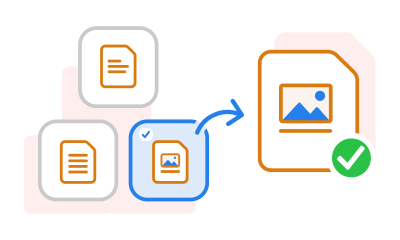
https://main--dc--adobecom.aem.page/dc-shared/assets/images/frictionless/how-to-images/extract-pdf-pages-how-to.svg | A PDF page extractor showing a file containing three pages next to a single page.

  1. Click Select a file in the drop box above or drag and drop your PDF from your file folder.
  2. Choose the PDF you’d like to work with.
  3. Wait for Adobe to upload your file.
  4. Once uploaded, choose the PDF pages you’d like to extract.
  5. Click Extract. This will save them into a new PDF file.
  6. Save your new document or sign in to share with others.

Try our free PDF page extractor online

https://main--dc--adobecom.aem.page/dc-shared/assets/images/shared-images/frictionless/seo-icons/extract-page.svg | A PDF page with an arrow showing the process of extracting a PDF page

Extract pages from a PDF file with ease

Need to isolate certain pages from a PDF file? It's easy to extract specific pages from a PDF file with Acrobat online. Just create a new PDF file from the pages you want to separate. Our free online PDF extractor tool is quick and simple to use.

https://main--dc--adobecom.aem.page/dc-shared/assets/images/shared-images/frictionless/seo-icons/organize-pdf.svg | Two files with arrows showing how you can set up the perfect PDF

Rearrange your PDF files with the Adobe PDF Extract tool

Adobe online lets you organise PDF files using the Extract PDF tool. Before separating your pages, you can reorder, rotate or delete pages from your original PDF file. Then, select which pages you’d like to extract.

https://main--dc--adobecom.aem.page/dc-shared/assets/images/shared-images/frictionless/seo-icons/extract-multiple-docs.svg | Three stacked documents displaying the process of extracting pages from a PDF file

Extract up to 500 PDF pages for free

With Adobe online tools, you can extract up to 500 pages from a single PDF file. Separate up to 100MB in file size, fast and for free. If you need to reduce the size of any PDFs, head to our Compress PDF tool first.

https://main--dc--adobecom.aem.page/dc-shared/assets/images/shared-images/frictionless/seo-icons/nothing-to-install.svg | A cloud with the Acrobat icon showing that you can use PDF tools without installing software

Edit PDF files anytime, anywhere from your browser

You can use Adobe’s online tools on any browser – including Microsoft Edge, Google Chrome and Safari. You don’t need to download anything to your desktop, mobile or tablet. Just visit the online Extract PDF pages tool for quick and easy editing on the go.

https://main--dc--adobecom.aem.page/dc-shared/assets/images/shared-images/frictionless/seo-icons/private-pdf.svg | A badge with a lock showing PDF file security you can trust

Keep files locked down

We value your privacy. Whether you’re editing work or personal documents, your PDFs are secure and comply with GDPR policies. Unless you sign in and save your progress, each file is deleted from our servers to protect sensitive information.

https://main--dc--adobecom.aem.page/dc-shared/assets/images/shared-images/frictionless/seo-icons/best-pdf.svg | An Adobe Acrobat PDF document that has been extracted from a PDF file

Premium online editing tools at no cost

Adobe brought the PDF file to life, so you can trust our online suite of editing tools is up to the task. Extract, compress and convert high-quality PDF files online for free today. It’s an easy-to-use, intuitive interface – so don’t worry if you’ve never done it before.

Questions? We have answers.

What is PDF page extraction?
PDF page extraction selects specific pages from a PDF document and saves them as new, separate PDF files. It means you can isolate content, such as chapters from a document or pages of a report, and remove any material you don’t need.
Can I extract a range of PDF pages?
Yes, you can extract a range of PDF pages. Select just one page, a specific range of pages, or a selection of pages in a row. You can use keyboard shortcuts to quickly highlight multiple pages to extract. Then, simply click Extract and save your new PDF.
How many pages can I extract from a PDF?

You can select and extract up to 500 pages (or up to 100MB) from a single PDF file. You can repeat this with as many different PDFs as you like. Go on to edit and sign PDFs or even merge PDFs back together again with free Adobe online tools.

Want to do more? Edit your PDFs with more advanced tools with a 7-day free trial of Adobe Acrobat Pro.

Are extracted pages deleted from my original PDF?
No, extracted pages aren’t deleted from your original PDF. The Adobe Extract PDF tool creates a new PDF file with the selected pages from your original PDF. You’ll still have your original PDF intact, as well as a new, separate PDF file created with the extracted pages.
Why can’t I extract pages from my PDF?
If you’re having some trouble extracting pages from a PDF despite having followed the correct steps, there may be some restrictions on the file preventing you from doing so. You can go to File > Properties > Security to see if there are any restrictions on the document.
Can I extract pages and keep the original formatting?
Yes, Adobe’s online tool lets you extract your chosen PDF pages without changing the original formatting. So, the pages you extract will still look the same as they did in the original PDF document – fonts, images and all.

More resources

Content as a Service v3 - Thursday 5 December 2024 at 03:56

Verb
extract-pdf-pages

Try these Acrobat online tools

Convert from PDF

Convert to PDF

Reduce file size

Edit

Sign & Protect

Generative AI

Convert from PDF
Convert to PDF
Reduce file size
Edit
Sign & Protect
Generative AI