Join thousands of users who have successfully extracted PDF pages using Acrobat
Key takeaways
- Sometimes, you only need specific pages from a PDF document.
- Separate and save core pages of a PDF with ease using our online PDF extractor tool.
- Edit, extract, reorder, delete PDF pages and more from any browser.
How to extract pages from a PDF online
Imagine you’ve got a large document, but you only need a few pages from it. How do you pull out the core sections and collate them in one easy-to-read PDF?
Follow these steps to extract PDF pages online:
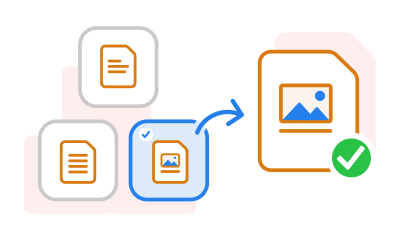
- Click Select a file in the drop box above or drag and drop your PDF into the dropzone.
- Wait a few moments for your upload.
- Choose the PDF pages you’d like to extract.
- Click Extract. This will save them into a new file.
- Save your new PDF or sign in to share with others.
Try our free PDF page extractor online
Learn how to extract PDF pages easily. Select pages from your PDF to save separately and keep your documents organised.

Extract pages from a PDF file with ease
It's easy to extract specific pages from a PDF file with Acrobat online – whether you want to extract one page from a PDF, or multiple. Adobe’s free online PDF extractor tool is simple to use.

Rearrange your PDF files with the Adobe PDF Extract tool
Adobe online allows you to organise PDF files using the Extract PDF tool. Before extracting, you can reorder, rotate or delete pages from your original PDF file. Then, select which pages you’d like to pull out.

Extract up to 500 PDF pages for free
With Adobe online tools, you can extract up to 500 pages from a single PDF file. Separate up to 100MB in file size, fast and for free. Don’t forget you can use our Compress PDF first if you need to reduce the size of any PDFs.

Edit PDF files anytime, anywhere from your browser
You can use Adobe’s online tools on any browser – including Microsoft Edge, Google Chrome and Safari. You don’t need to download anything to your desktop, mobile or tablet. Just visit the online Extract PDF pages tool for quick and easy PDF editing on the go.

Keep files locked down
We value your privacy. Whether you’re editing personal or work documents, your PDFs are secure and comply with GDPR policies. Unless you sign in and save your progress, each file is deleted from our servers to protect sensitive information. You can also password protect your PDF with our online tools.

Premium online editing tools at no cost
Adobe brought the PDF file to life, so you can trust that our online suite of editing tools is up to the task. Extract, compress and convert high-quality PDF files online for free today. It’s an easy-to-use, intuitive interface – so no previous experience is required.
Questions? We have answers.
You can select and extract up to 500 pages (or up to 100MB) from a single PDF file. You can repeat this with as many different PDFs as you like. Go on to edit and sign PDFs or even merge PDFs back together again with free Adobe online tools.
Want to do more? Edit your PDFs with more advanced tools with a 7-day free trial of Adobe Acrobat Pro.
How do I extract PDF pages on macOS?
You can also use your desktop’s built-in PDF viewer to extract a PDF page. Here’s what you need to do on macOS:
- Open the PDF in Preview.
- Head to the menu bar and select File.
- Click Print.
- Choose which PDF pages to extract.
- Using the dropdown, click Save as PDF.
- Choose where to save.
How do I extract PDF pages on Windows?
To extract PDF pages on Windows, just follow these steps:
- Open your PDF in Edge.
- Go to File and then Print.
- Click Microsoft Print to PDF.
- Choose which page to save separately.
- Hit Print.
- Select where to save your new PDF.
Can I extract PDF pages on Adobe Reader?
You can capture a snapshot of a page on Adobe Reader, which you can then turn into a PDF. Here’s how to do it:
- Open up the PDF in Adobe Reader.
- Click to Select & Zoom.
- On the Tools menu, select Snapshot Tool.
- Click Zoom and Fit to Page. This will make sure the snapshot includes the full page.
- You can then use Acrobat online tools to Convert to PDF.
How to Split a PDF for free online?
It’s easy to split a PDF using Adobe’s Split PDF tool. All you need to do is follow these steps:
- Select a file or drag and drop your PDF into the drop box.
- Use the scissors tool to highlight which page you’d like to separate.
- Hit Continue, confirm your selection, and click Save.
The tool also allows you to divide your PDF file into different sections of multiple pages.
What’s the best PDF extraction tool?
The best PDF extraction tool depends on your specific needs. Adobe’s online tool allows you to extract up to 500 pages from just one PDF file. Our comprehensive library of PDF tools makes managing your documents cohesive and easy. As well as extracting PDFs, you can compress, reorder, delete pages, and more.
More resources
Use Acrobat tools for free
- Sign in to try 25+ tools, like convert or compress
- Add comments, fill in forms and sign PDFs for free
- Store your files online to access from any device
Create a free account | Create free account Adobe Acrobat Sign in


