ACROBAT
How to add a hyperlink to a PDF
Learn to improve the user experience by linking sections within a PDF file.


ACROBAT
Learn to improve the user experience by linking sections within a PDF file.

Hyperlinks help readers find the information they need.
Add text or graphic hyperlinks to your electronic documents to help your readers find the information they need. Start with a linked table of contents for PDF documents so readers jump directly to the section they want or use links to send readers anywhere in your PDF — or to an attachment, web page, video or audio file.
Links improve the readability of PDF documents by condensing the text. They’re more user-friendly than footnotes or endnotes and they help you direct readers to supplemental information that may be useful. Plus, they’re universally compatible, so you can convert any Microsoft Word document or Google Doc into a linked PDF that anyone can read in any web browser.
You can save time by sharing PDFs as links instead of uploading the files to send as attachments. There’s no need to send the whole file when you can store it securely in the cloud and create a shareable link.
It’s easy to add links to a PDF using Adobe Acrobat. Follow these steps to add an external hyperlink to your document.
1. Choose Tools › Edit PDF › Link › Add or Edit. The pointer becomes a crosshair and any existing links in the document, including invisible links, are temporarily visible.
2. Drag a rectangle where you want to create a link. Whether it’s a text box or graphic, this will be the area in which the link is active.
3. In the Create Link dialogue box that appears, choose your link appearance. Make it invisible or choose the link type and highlight style, as well as the line type, style, thickness and colour.
4. Select the destination for your hyperlink. Simply provide the URL of the destination web page. When your readers click this hyperlink, they will be taken to the specified web page.
You can also create a customised link by clicking "Next" to open the Link Properties dialogue box. Set an action, like reading an article or executing a menu command, to be associated with the link.
Linking to a specific section within a PDF enhances navigation and improves user experience, especially in lengthy or complex documents. This feature is particularly useful for reports, manuals or legal documents where quick access to specific sections is essential. By creating internal links, readers can jump directly to relevant content without scrolling, saving time and reducing frustration. This capability is invaluable in collaborative environments, training materials or reference guides, ensuring users can efficiently locate the information they need.
Follow these steps to add an internal link to a section of your PDF:
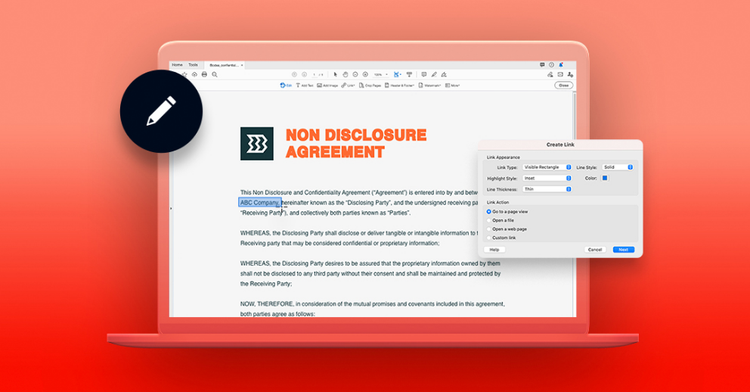
PDF links point to a specific location within a document or to an external web page. Regardless of the type of link you have in your file, you can easily edit it.
Follow these simple steps to change the way a link appears in your PDF using Adobe Acrobat :
You can modify the properties of multiple links simultaneously by selecting the Link tool and dragging a rectangle to encompass all the desired links.
If you want to move or resize the rectangle of a link, follow these steps:
You can change a link’s action to perform a different task when activated by a user.
To delete a link: