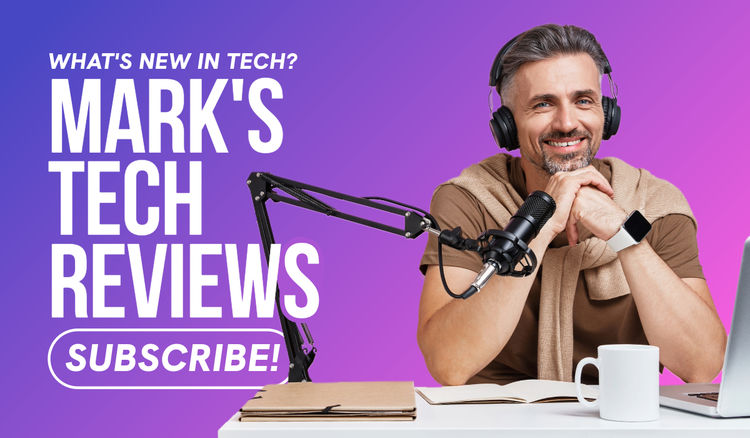




How to go live on YouTube.
Ready to hit the “Live” button but not sure where to start? This guide shows you how to go live on YouTube – from setup to audience growth – and how to design standout thumbnails with Adobe Express that get your livestream noticed.
Going live on YouTube isn’t just a niche thing anymore. In recent years, it has become a powerful tool for anyone with a message to share. Whether you’re a creator building a community, a brand ambassador promoting your latest launch, an educator running live tutorials, a business presenting behind-the-scenes insights, or an influencer hosting a Q&A, YouTube Live offers a direct line to your audience. It’s raw, real, and refreshingly interactive.
And here’s the best part: you don’t need a studio or a tech crew to get started. With the right setup and a bit of planning, you can go live on YouTube straight from your laptop or even your phone. Plus, with Adobe Express, you can give your livestreams a polished, professional edge – starting with custom thumbnails that grab attention and get clicks.
In this guide, we’ll walk you through everything you need to know about how to go live on YouTube – from meeting the platform’s requirements and setting up your stream to growing your audience and standing out in a crowded feed. And to top it off, we’ll show you how to create a scroll-stopping thumbnail for your live video using Adobe Express – no design experience required.
Benefits of YouTube live streaming.
Before diving into the how-to, let’s talk about why you should even consider going live on YouTube in the first place. YouTube Live offers several advantages for individuals, businesses, creators and educators. Here are some of the key benefits of video streaming on YouTube:
1. Real-time interaction:
Live streaming allows you to engage with your audience. You can answer questions, respond to comments or feedback and acknowledge viewers – making them feel seen and valued. This helps you create a stronger connection with your audience.
2. Broader reach:
YouTube is the second-largest search engine in the world, and live content is often prioritised in search results, recommendations and on the platform’s homepage. This means that going live can expose your channel to new viewers who may not have discovered you otherwise.
3. Increased watch time:
YouTube values watch time as a ranking signal, and live streams typically run longer than regular videos. If your content is engaging, viewers will stay tuned for extended periods – boosting your overall channel performance and helping your videos rank higher.
4. Monetisation opportunities:
Once you meet the eligibility criteria for the YouTube Partner Program, you can start earning revenue on YouTube through live ads, Super Chat, Super Stickers, channel memberships and more. Live content can also continue to generate revenue after the stream ends, if made publicly available.
5. Authenticity:
Unlike polished, edited YouTube videos, live content feels more spontaneous and transparent. This unfiltered format can humanise your brand, build trust with your community, and make you more relatable as a creator or business.
No matter what you’re streaming – live streaming helps you stay visible, interactive and relevant. And with the right setup, you’ll be ready to take your first steps into live broadcasting. How? Just read on to learn how to go live on YouTube.
Collection ID
(To pull in manually curated templates if needed)
Orientation
(Horizontal/Vertical)
Width
(Full, Std, sixcols)
Limit
(number of templates to load each pagination. Min. 5)
Sort
Most Viewed
Rare & Original
Newest to Oldest
Oldest to Newest
Premium
(true, false, all) true or false will limit to premium only or free only.
How to set up a YouTube live stream in 5 steps.
Getting started with YouTube Live is easier than you might think, but there are a few key steps to follow before you hit "Go Live". Here’s our step-by-step guide to going live on YouTube and launching your first livestream with confidence:
Going live on YouTube, step 1: Verify your YouTube account.
Before anything else, your channel needs to be verified. Visit youtube.com/verify and follow the on-screen instructions. You’ll need to provide a phone number to confirm your identity. Once verified, live streaming is typically enabled within 24 hours.
Note: To get verified, your channel must have no recent community guideline strikes or live streaming restrictions. YouTube also requires creators to be at least 16 years old to live stream. If you want to go live on mobile, there’s also a 50‑subscriber requirement.
Going live on YouTube, step 2: Choose your streaming method.
YouTube offers several ways to go live, depending on your device and content style:
- Webcam: The easiest way to stream. Open YouTube in your browser, click “Create” and select “Go Live”. Your computer’s built-in camera and mic will do the job (however, quality might not be optimal).
- Mobile: If you prefer to stream on the go using the YouTube mobile application, you’ll need at least 50 subscribers, a verified channel and no recent restrictions. This is ideal for live events or behind-the-scenes content.
- Encoder (streaming software): Perfect for advanced users or gamers who want to share their screen, use multiple camera angles, or add overlays in high quality. You’ll might need external software, and you’ll set up your stream via YouTube’s Live Control Room using a stream key.
Going live on YouTube, step 3: Set up your stream.
Once your account is verified and your streaming method is chosen, it’s time to configure your livestream details:
- Title and description: Make your content discoverable by using descriptive titles and relevant keywords.
- Privacy settings: Choose who can see your stream – the options are “Public” (anyone), “Unlisted” (only with link), or “Private” (invite-only).
- Schedule or go live now: You can either go live immediately or schedule your stream for later. Scheduling allows viewers to set reminders and helps build anticipation.
- Add a custom thumbnail: This visual preview is key to attracting clicks. Below, we’ll show you how to design a scroll-stopping one using Adobe Express.
- Audience settings: Mark your video as “Made for kids” or not, to comply with YouTube’s child protection policies.
Going live on YouTube, step 4: Engage and stream.
When your stream starts, engagement is everything:
- Enable live chat: This lets viewers interact with you in real time. You can respond to comments and questions as they come in.
- Use moderation tools: Set up moderators, block certain words, or enable slow mode to keep the chat friendly and manageable.
- Monitor stream health: YouTube shows real-time analytics like viewer count and connection stability.
- Stay present: Welcome new viewers, give shoutouts, ask questions – make it feel like a two-way conversation.
Going live on YouTube, step 5: End and analyse.
When you’re ready to wrap up, end the stream: Hit “End Stream” and YouTube will begin processing the video. You can choose to keep it public or change the privacy settings afterwards. Then, head to the analytics to review data such as total views, average watch time, peak concurrent viewers, chat replay, and viewer retention. These insights help you understand what worked – and what to improve next time.
As you see, YouTube live streaming doesn’t need to be complicated. With the right setup and a bit of practice, you’ll be able to deliver engaging, on-brand content that builds community and boosts visibility.
Tips for growing your live audience on YouTube.
You’ve mastered the setup – now it’s time to get people to actually watch your streams. Here are some strategies to help you grow your live audience and maximise your video streaming efforts:
- Promote ahead of time: Use your other platforms to let people know when you’ll be going live. Post teasers on your socials and set (or even send) reminders.
- Optimise your title and description: Think like your audience. Include terms that match what people are searching for to your livestreams title and description to make it more visible.
- Create compelling thumbnails: Visuals matter. An engaging thumbnail can increase click-through-rates and pulls more viewers to your YouTube live stream.
- Stick to a schedule: Consistency builds habits. Going live regularly at the same time helps retain viewers and turns your live streams into set events.
- Engage in real time: This one is especially important. Ask questions, do shoutouts, read comments. Make your YouTube live stream a conversation, not a broadcast.
- Repurpose your stream: Recycle your live session into more content pieces: highlights, shorts, blog summaries, etc.
Growing a loyal viewership takes time, but with consistent effort and valuable content, your live streams can become a core part of your channel strategy – and even a reliable source of revenue on YouTube.
How to create a YouTube thumbnail for your live video using Adobe Express.
As mentioned, first impressions count, especially when it comes to live content. A well-designed thumbnail can make all the difference between someone clicking or scrolling past your stream. Luckily, with Adobe Express, creating professional thumbnails is fast, fun and free. Here’s how to create one in just a few steps:
This should include key elements, such as:
• A bold, readable text overlay summarising the live stream topic.
• An image of yourself or a relevant background (high contrast).
• Use your branding (colours, logo, fonts) so viewers recognise you.
Upload your own images or use Adobe Express’ extensive range of free stock media.
Ensure your live stream thumbnail matches the content and is optimised for clickthrough. Our tips:
• Use bright colours, clear faces, and expressive visuals help.
• Avoid clutter; make sure the text is legible even when small (on phone screens).
• Consider how it will look beside your other thumbnails.
Collection ID
(To pull in manually curated templates if needed)
Orientation
(Horizontal/Vertical)
Width
(Full, Std, sixcols)
Limit
(number of templates to load each pagination. Min. 5)
Sort
Most Viewed
Rare & Original
Newest to Oldest
Oldest to Newest
Premium
(true, false, all) true or false will limit to premium only or free only.
Take your YouTube live streams to the next level with Adobe Express.
Once you're up and running with your YouTube live sessions, Adobe Express can help you take your livestreaming game to the next level. Whether you need eye-catching banners for your YouTube channel, video intros, promotional posts for social media, or sleek overlays, Adobe Express helps you keep your live content on-brand and eye-catching – without eating up your time, so you can focus on what matters most: connecting with your audience in real time.
Good to know.
What is live streaming?
Live streaming is a type of video content broadcast in real time over the internet. On YouTube, it allows creators to engage with viewers as events happen, via features like live chat, Q&A and instant feedback.
How can I go live on YouTube?
To go live on YouTube, verify your account at youtube.com/verify, choose your streaming method (webcam, mobile or encoder), set up your stream with a title, description, privacy setting and thumbnail, then hit "Go Live". Make sure your channel has no recent restrictions and, if streaming via mobile, at least 50 subscribers.
How do you monetise YouTube?
You can monetise your YouTube channel by joining the YouTube Partner Program. Once eligible, you can earn revenue on YouTube through ads, Super Chat, channel memberships and more.
Does YouTube pay for views?
Yes, YouTube pays for views – but not for views alone. YouTube pays creators based on ad revenue, which is influenced by viewer watch time, video engagement, viewer demographics and the type of ads shown.
How do I watch live streams on YouTube?
To watch a live stream on YouTube, go to the Live tab on the homepage or search for specific keywords. You can also subscribe to channels and turn on notifications to catch their future live broadcasts.
Can I use Adobe Express for free?
Yes. Adobe Express offers a free plan which includes access to thousands of templates to create standout content fast, generative AI features, stock imagery, and image and video editing tolls tools sufficient to create high-quality thumbnails for your YouTube live streams.