


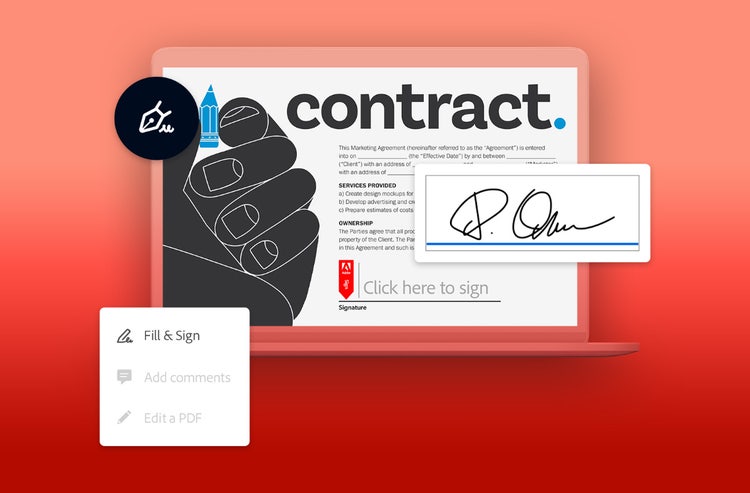
Signing documents shouldn’t slow you down. With Adobe Acrobat’s online signature generator, you can create a personalized signature, apply it to any PDF, and collaborate on documents securely, all without printing, scanning, or switching tools. Whether you’re approving a contract, signing a form, or collaborating with others on shared documents, Acrobat makes the entire process fast, intuitive, and legally reliable.
A basic signature is easiest to read, but adding your own creative flair can showcase your personality in any documents you sign. You can still maintain professionalism while adding some extra pizazz to your crucial documents.
Let’s explore the steps you’ll need to create your signature using online tools.
Why create an online signature?
In both your professional and personal life, you’ll need to sign documents regularly, from financial forms and tax documents to school waivers and workplace agreements. An online signature lets you:
- Sign documents instantly from any device
- Avoid printing, scanning, or mailing paperwork
- Keep your signature consistent across all documents
- Collaborate with others on shared files without delays
- Maintain a secure, traceable record of every signature
Acrobat’s signature generator gives you a clean, reusable signature that you can apply to any PDF in seconds.
How to generate an online signature.
Creating your online signature with Acrobat is simple. Once you generate it, you can reuse it across all your documents, saving time and eliminating manual steps.
Generate your signature using Acrobat online services
Create your signature using the Fill & Sign tool:
- Click the “Select a file” button or drag and drop a file into the drop zone.
- Choose the PDF document you want to fill in and sign.
- Once it’s uploaded, sign in to complete the fillable form.
- Use the tools in the Sign panel to fill in the form fields and add your PDF signature.
- Click Next.
- Download your completed form featuring your newly generated online signature, or get a link to share your PDF online.
Generate your signature directly in Acrobat
You can also use Adobe Acrobat for more features and options when generating an online signature.
-
Open the PDF you want to sign.
-
Click the Sign icon in the toolbar or go to Tools > Fill & Sign.
-
Choose whether you want to sign yourself or request signatures from others.
-
Acrobat automatically detects form fields — click any highlighted field to begin.
-
Select Sign, then choose Add Signature or Add Initials.
-
Choose how you want to create your signature:
- Type your name and choose a style
- Draw your signature with your mouse or touchscreen
- Upload an image of your handwritten signature
-
Select Save Signature to store it securely in Adobe Document Cloud.
-
Click anywhere in the PDF to place your signature.
You can move, resize, or delete your signature at any time.
Now that you know how to create your online signature, perhaps you’d like to learn about the different types of online signatures you can use throughout your documents.
Different types of online signatures.
Not all signatures are the same, and different documents require different levels of security. Acrobat supports all major types of electronic signatures so you can choose the right one for your needs.
Simple electronic signatures (SES)
A simple e‑signature is the most common type of online signature. It’s ideal for everyday documents that don’t require identity verification, such as:
- Attendance sheets
- Internal forms
- Basic agreements
SES is easy to create and widely supported, but it offers limited security and is not legally binding for sensitive or high‑risk documents.
Advanced electronic signatures (AdES)
Advanced e‑signatures offer stronger identity verification. They are linked to a specific signer through a method only that person controls, such as a verified device or digital certificate.
AdES is ideal for documents that require a higher level of trust, including:
- Administrative forms
- Non‑binding agreements
- Internal approvals
While more secure than SES, AdES still may not meet the legal requirements for formal contracts.
Qualified electronic signatures (QES)
A qualified e‑signature is the most secure and legally recognized type of electronic signature. It requires identity verification through trusted third‑party providers and meets the highest global standards for authenticity.
With Acrobat’s QES support, you get:
- Multi‑factor authentication
- Verified signer identity
- A complete audit trail
- Legal equivalence to handwritten signatures
QES is ideal for:
- Vendor contracts
- Tuition agreements
- Legal documents
- High‑value transactions
How to add your signature to different files.
Signatures are a huge part of the professional world and your personal life, and digital signatures pave the pathway for simple and secure document sharing. Acrobat makes it easy to sign documents across formats, even if they weren’t originally PDFs.
Excel files
Convert your Excel sheet to PDF, then add your signature using Acrobat’s Fill & Sign tools. Perfect for budgets, approvals, and project documents.
Word documents
Turn your Word file into a PDF and sign it instantly. Great for proposals, schedules, and content approvals.
Any document you can convert to PDF
If it can become a PDF, you can sign it with Acrobat.
AI‑powered signature workflows in Acrobat
As more teams collaborate digitally, signatures are becoming part of broader document workflows, not just final approvals. Acrobat’s AI‑powered features help you move faster by understanding your documents, identifying signature needs, and assisting with collaboration.
With Acrobat AI Assistant, you can ask natural questions like:
- “Where in this document do signatures still need to be added”
- “Summarize all fields that require initials or approval”
- “Explain what I’m agreeing to before I sign”
- “Generate a quick overview of this contract for my team”
AI can also help you:
- Identify missing signatures
- Extract key terms before signing
- Summarize long agreements
- Prepare documents for multi‑signer workflows
- Clarify responsibilities and deadlines
This makes Acrobat not just a signature generator, but a complete document collaboration and decision‑support tool.
Signature inspirations.
Your signature differentiates your name from others on a document — while some names and letters may be the same, a signature gives you the chance to get creative with your lettering. Your signature can say a lot about who you are as a person and a working professional.
Let’s go over some famous signatures and what their writing says about them.
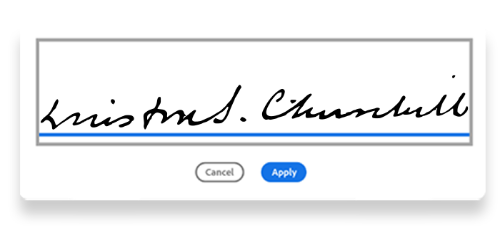
Winston Churchill’s signature shows someone who is passionate and focused. It matches well with his intelligence and quick thinking.
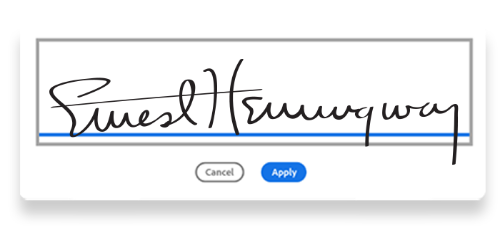
Ernest Hemingway’s signature presents someone who values introspection. It pairs well with his logical and direct writing style.
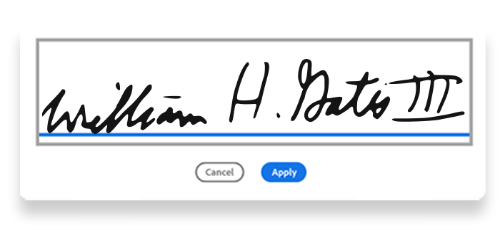
Bill Gates’s signature demonstrates determination. It coordinates well with his modest approach to leadership.
Serena Williams’s signature exhibits her fearless personality. It links well with her ability to speak up and stand out on and off the tennis court.
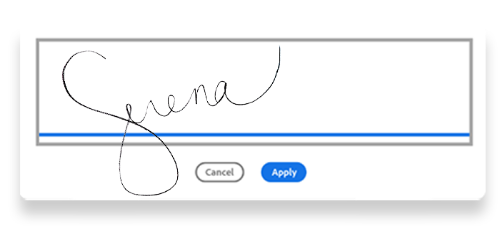
The weight, angles, and other letter features can also send important signals about your personal approach. For example:
- Slanted letters could mean you are more extroverted.
- Unreadable letters could say you have a sharp mind.
- An upward angle may indicate you are an optimistic person.
There are endless possibilities for creating slants and angles that are uniquely yours. Explore the Adobe Fill & Sign tool today to create your unique e-signature and save time signing documents.
Frequently asked questions.
You can easily generate your own online signature using the Fill & Sign tool from Adobe Acrobat online.
You can use your finger or a stylus to draw your handwritten e-signature using the Acrobat online Fill & Sign tool.
Digital signatures are secure e-signatures backed by digital certificates. You can create a digital signature using Adobe’s e-signature solution. Simply click the review link and opt to digitally sign. From there, select a signature source and name, then sign in to apply your digital signature. Next, you can preview your signature and authenticate it if you are satisfied with how it looks. Finally, you can share it with all who need to view the document.
You can create a free electronic signature in seconds with the Adobe free e-signature creation tool.
Keep exploring
title
Online signature generator — how to create your online signature.
cardImageAltText
Previews of free templates for a household monthly budget and a 50/30/20 budget with customizable fields.
cardImage
primaryTag
caas:content-type/article
Tags
caas:content-type/article,caas:business-unit/document-cloud,caas:products/acrobat,caas:content-type/article,caas:topic/fill-&-sign

