Acrobat online tools
Fill and sign PDFs directly on your iPhone.


Acrobat online tools
Fill and sign PDFs directly on your iPhone.
Adobe Acrobat for business
Learn how to sign a PDF on iPhone to ensure important documents get signed with ease, even when you’re on the move.

Whether you're in your home office, the grocery store, or on the golf course, your location shouldn't affect your ability to share signed documents. Faster and more secure than sending handwritten signatures on physical contracts by mail, Adobe Acrobat for business makes it easier to keep your business flowing. Mark up and sign PDFs or scanned documents with only your fingers and an iPhone.
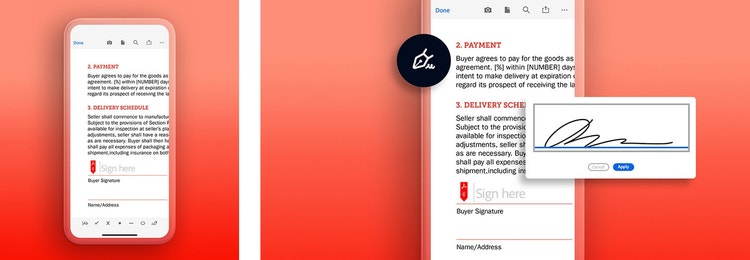
Mobility is crucial for running a successful business, as it enables owners and employees to review and sign documents on the go, ensuring timely decision-making.
This flexibility allows teams to stay productive and responsive, no matter where they are, ultimately enhancing efficiency and improving costs. Acrobat for business helps achieve mobility and streamlines the way you work.
To start signing PDF documents on your iPhone, download the Acrobat app from your phone's app store. Then follow these simple steps:
The iPhone's Files app includes a Markup tool which can be used for signing PDF documents. You can follow these steps to sign your document:
After inserting the signature, it can be adjusted in size and placement as desired. The finalized PDF can then be saved and shared.
Although this option is quick and straightforward, the Markup tool does not offer other document features that you might need for your business, such as organizing or splitting PDF pages, password protect your documents, document tracking or signing in bulk.
Another option to sign a PDF on iPhone is using the Notes app. However, you'll have to either upload your PDF to Notes or have a physical document that needs scanning. Here are the steps to follow:
Similar to the option above, this method does not provide you with a full range of tools and features you might need when managing business documents on the go. Acrobat for business has everything you need for both document management and electronic signatures.
Many professionals use Google docs as both a joint workspace and way to share files. Like the iPhone, it also has a built-in feature that allows you to quickly add your signature to documents. How? Just open your Google doc on the iPhone and follow these steps:
When you create a handwritten signature to place on emails or other professional documents, it helps to build trust with colleagues and customers. Plus, it promotes professionalism and adds a personal touch. Creating a handwritten signature on an iPhone can be done in just a few steps — add it to your documents, emails, or keep it to reuse in the future. Here’s how:
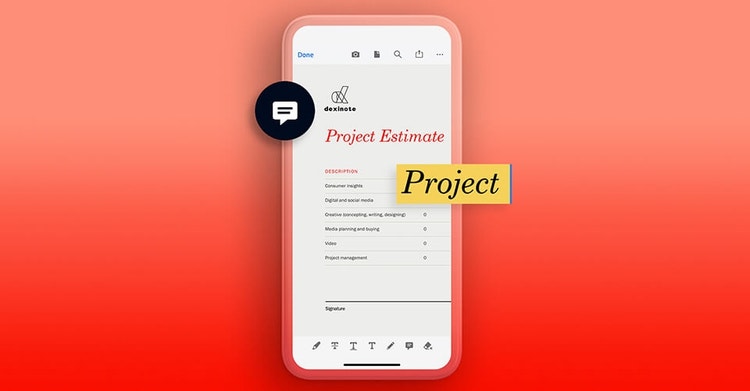
If you see changes that need to be made in a PDF document before you digitally sign, there’s no need to collect screenshots of the issues and hop on the phone. Use markup features in the Acrobat app to note them on the document itself with these steps:

Adobe Acrobat for business is the in-your-pocket solution for signature woes. According to a commissioned Forrester Consulting study, Acrobat reduced the time its users spent getting documents signed and finalized from seven days to two hours. That’s 96 percent less time spent on the collection of new signatures and an average savings of $6 per document processed.
Everything moves faster with signature and markup tool integrations that you can easily use from anywhere.