ACROBAT | 7-MINUTE READ
How to redact a PDF.
Remove sensitive content and private information before sharing PDFs.


ACROBAT | 7-MINUTE READ
Remove sensitive content and private information before sharing PDFs.

Whether you’re running a business or just managing personal documents, you’ll sleep better at night if you take a few extra steps to protect sensitive content before you share electronic documents.
If you learn how to redact a PDF, you can easily black out credit card numbers, social security numbers, addresses, and other personal details in forms you share electronically.
In addition to text and images, PDFs contain data about the information within, or metadata. Metadata can include the document's author, the document description, keywords, and dates and times of creation or modification. A PDF might also contain elements like JavaScript that can change and unexpectedly modify the formatting. All of this is info you might want to keep private.
Concealing sensitive information is especially helpful to ensure safe communication between businesses and customers, medical providers and insurance companies, schools and students, and, of course, law firms and courts. By removing it through PDF redaction, you can ensure your PDF is safe and your formatting is consistent.
Before you share a PDF with others, it's ideal to examine the document for sensitive content or private information that can trace the document to you. You can use a Redact PDF tool to remove or redact sensitive images and text visible in a PDF or a Sanitize tool to locate and remove hidden information or content from a PDF.

You may be most familiar with redaction in legal or government-related documents. When court documents are published or shared with other parties, sensitive or private information is redacted. This includes information that could pose identity theft risks, information relevant to ongoing investigations, classified information, and information deemed otherwise unnecessary and too private for the public. Courts specifically mandate that certain personally identifiable information (PII) be redacted, so redaction is used especially often in legal settings. Sensitive or identifying images might also be redacted, including just faces in images.
Besides being useful in legal settings, people might want to learn how to redact a PDF to protect sensitive information in professional communications between businesses or clients. Businesses can protect trade secrets and proprietary information when sharing documents. Certain financial information may also be kept secure by redacting it in a PDF.
In the medical field, PHI (Private Health Information) may need to be redacted to comply with laws like HIPAA. Because HIPAA requires clients to be informed when their PHI is shared illegally, privacy is especially important, and PDF redaction can be a useful tool to ensure security.
Some methods of redaction, such as changing the font color to white or using a black marker on physical documents, are unreliable and may not secure the information you need to keep private. Using a PDF redactor, on the other hand, is a secure method many industries rely on.
You can easily learn how to redact in Adobe, as Acrobat allows you to permanently remove text and graphics from your PDF document. First, make a copy of your PDF so you don’t accidentally lose something you want to keep. Then, go into Edit Mode and follow these steps to select text or images and redact them.
1. Select Tools › Redact.
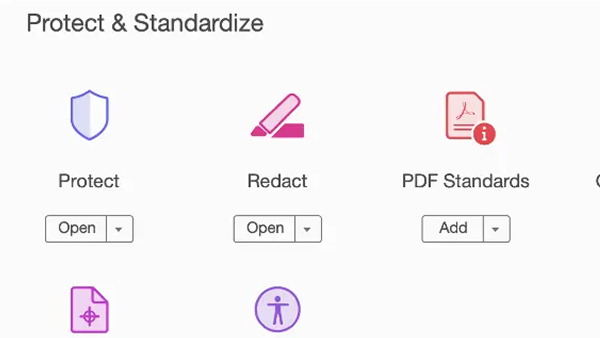
2. Use the crosshair to draw rectangles over the text or images you want to permanently remove from the PDF. (Type Command+Z on a Mac or Control+Z on a PC to undo any mistakes.)
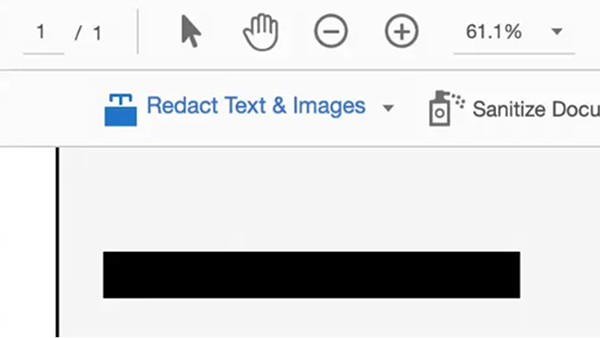
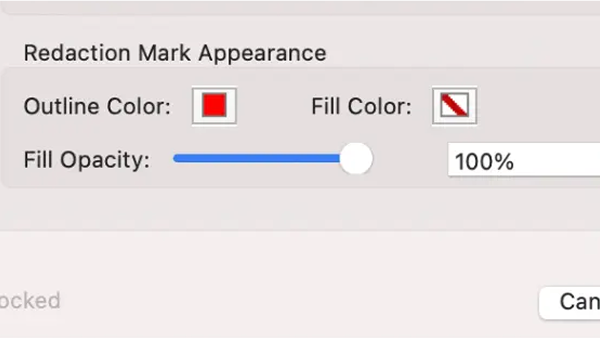
3. Optional: If you don’t want a black box, select your preferred redaction marks. Click the drop-down menu next to the Redact Text & Images box, and select Redaction Tool Properties. Pick outline and fill colors for the redacted area, or click Use Overlay Text. Add custom text in the field, choose from US Privacy Act and FOIA codes, or import new codes. Click OK when you have your selections.
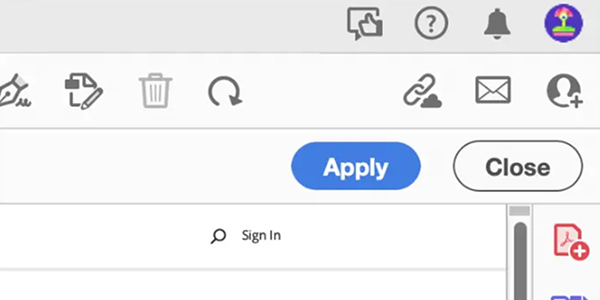
4. Click Apply. A pop-up will appear warning you that once you click OK, the redacted information will be permanently deleted and you won’t be able to retrieve it.
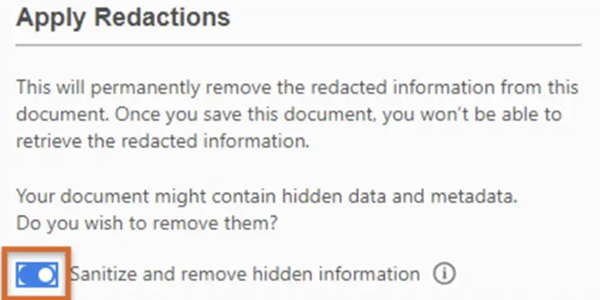
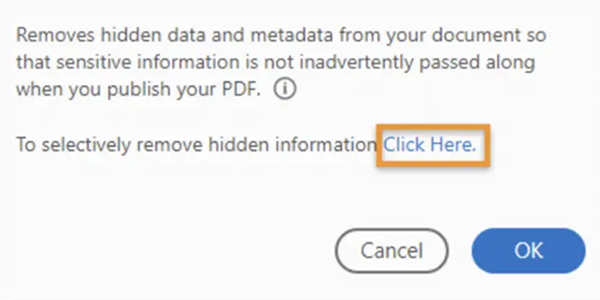
5. In the same pop-up window, select whether you want to remove the hidden data and metadata as well. Sanitize the PDF by leaving the toggle button on. (Read more about sanitizing documents below.)
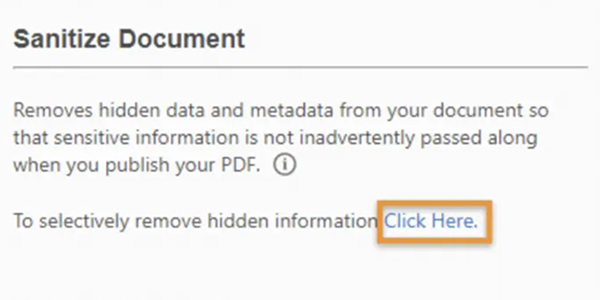
6. Click OK to apply the redactions.
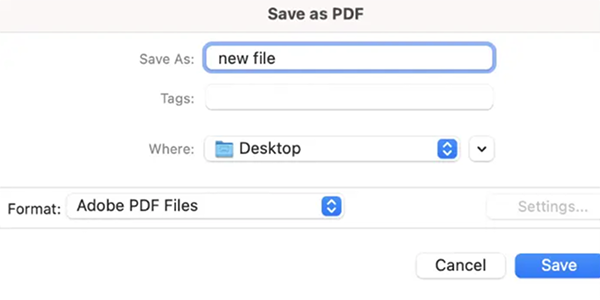
7. Save as a different file name to avoid overwriting the original PDF.
Some situations require more than just knowing how to redact a PDF.
For example, US courts require that mentions of Social Security numbers, names of minor children, dates of birth, and financial account numbers be redacted in legal filings. You can make quick work of these redactions with the Find Text tool in PDFs that contain searchable text.
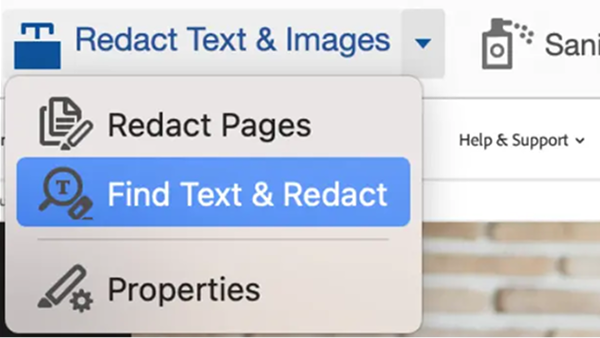
1. Select Tools › Redact › Redact Text & Images.
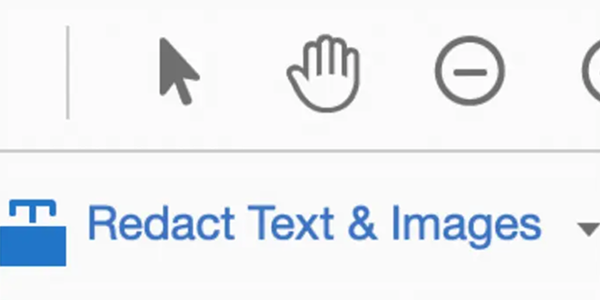
2. Click the drop-down menu and choose Find Text & Redact.
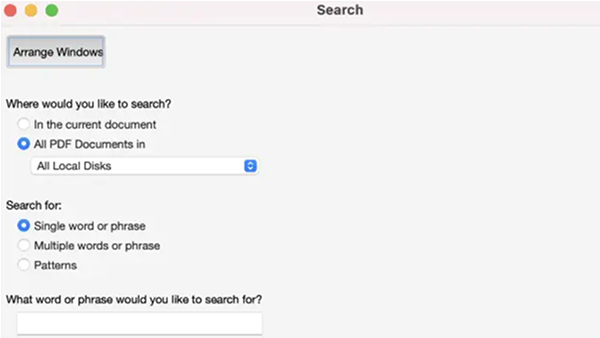
3. In the Search dialog box, search the current PDF or all PDFs in another location.
4. Pick your preference:
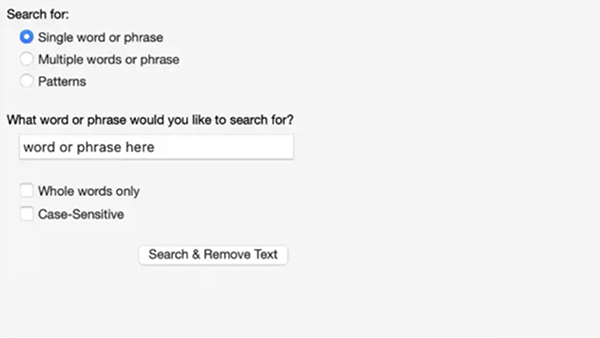
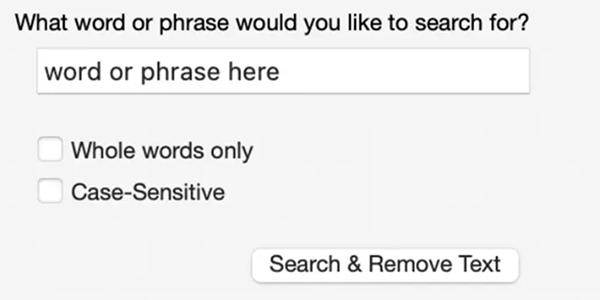
5. Click Search & Remove Text.
6. Click the plus sign (+) next to the document name to see all occurrences of the word or phrase, and select all.
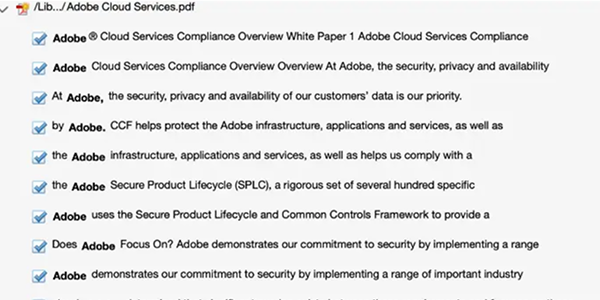
7. Click Apply to remove the items marked for redaction. The items aren’t permanently removed from the document until you save it, and you can save the file with a different name to avoid overwriting the original file.
When you learn how to redact in Adobe Acrobat, you can use the Remove Hidden Information feature to find and remove content such as hidden text, metadata, comments, and attachments. When you remove these items, additional ones are automatically removed from the document, such as digital signatures, document information added by third-party plug-ins and applications, and special features that enable users to review, fill and sign PDF documents.
The removed information might include metadata, embedded content, attached files, scripts, hidden layers, embedded search indexes, stored form data, comments and annotations, hidden data from previous document saves, obscured text and images, unreferenced data, links, actions, JavaScript, and overlapping objects.
Follow these quick steps to find and redact hidden content in your PDF:
When redacting a PDF, it's important to go beyond simply blacking out text. Effective redaction requires attention to detail, document structure, and security settings to ensure that no sensitive information can be recovered or inferred. Here are a few tips to keep in mind as you finalize your redacted PDF:
By redacting portions of your PDFs, you can make sure sensitive information never slips through the cracks. When converting a Microsoft Word, Excel, or other file format into a PDF, you can use Adobe’s tools to redact information before you share.
You can also password-protect PDF documents and prevent any copying or editing of your original file, or remove redaction from PDF documents if they're no longer needed. With Acrobat Pro, you’ve got all the tools you need to keep your sensitive information safe.


