


iPhone users can convert nearly any file type to PDF format using several different methods. Whether you need to preserve a web page, transform a photo, or convert a Word document, your iPhone has the tools to get it done. Built-in iOS features handle basic conversions, while online tools like Adobe Acrobat provide more advanced options for complex file types and batch processing.
Types of files to convert to PDF on iPhone
One of the most convenient aspects of iPhone PDF conversion is the sheer variety of file types you can work with. Understanding which files you can convert to a PDF on iPhone helps you choose the right method for each situation.
Here are the most common file types iPhone users convert to PDF:
- Photos and images. Your camera roll is full of potential PDFs. You can convert photos to PDF for sharing, archiving, or including in professional documents. This works for various image formats your iPhone supports.
- Screenshots. Captured something important on your screen? You can easily save screenshots as PDF to preserve the exact layout and content for future reference or sharing.
- HEIC images. Apple’s High Efficiency Image Container (HEIC) format saves storage space but can cause compatibility issues when sharing. You can convert HEIC files to PDF for universal accessibility across all devices and platforms.
- Text messages. Need to save important conversations for records or documentation purposes? You can export text messages to PDF to create a permanent, shareable record of your communications.
- Documents. Word files, Pages documents, and other text-based files convert seamlessly to PDF. This ensures your formatting stays intact regardless of what software the recipient uses.
- Web pages. Save articles, receipts, or any web content as a PDF to read offline or archive for later. The PDF captures the entire page layout, including images and text.
- Notes. Your Apple Notes app contains valuable information worth preserving. Converting notes to PDF creates a portable, shareable version that anyone can open.
How to convert file to PDF on iPhone with built-in apps
Your iPhone includes native tools that handle most PDF conversion tasks without requiring any additional downloads. These built-in methods work reliably and cost nothing to use. Learning how to change file to PDF on iPhone using these features gives you quick access to PDF creation whenever you need it.
Using the Print function
The Print function is the most versatile built-in method for PDF conversion. It works best for documents, web pages, emails, and any content that has a print option in its share menu.
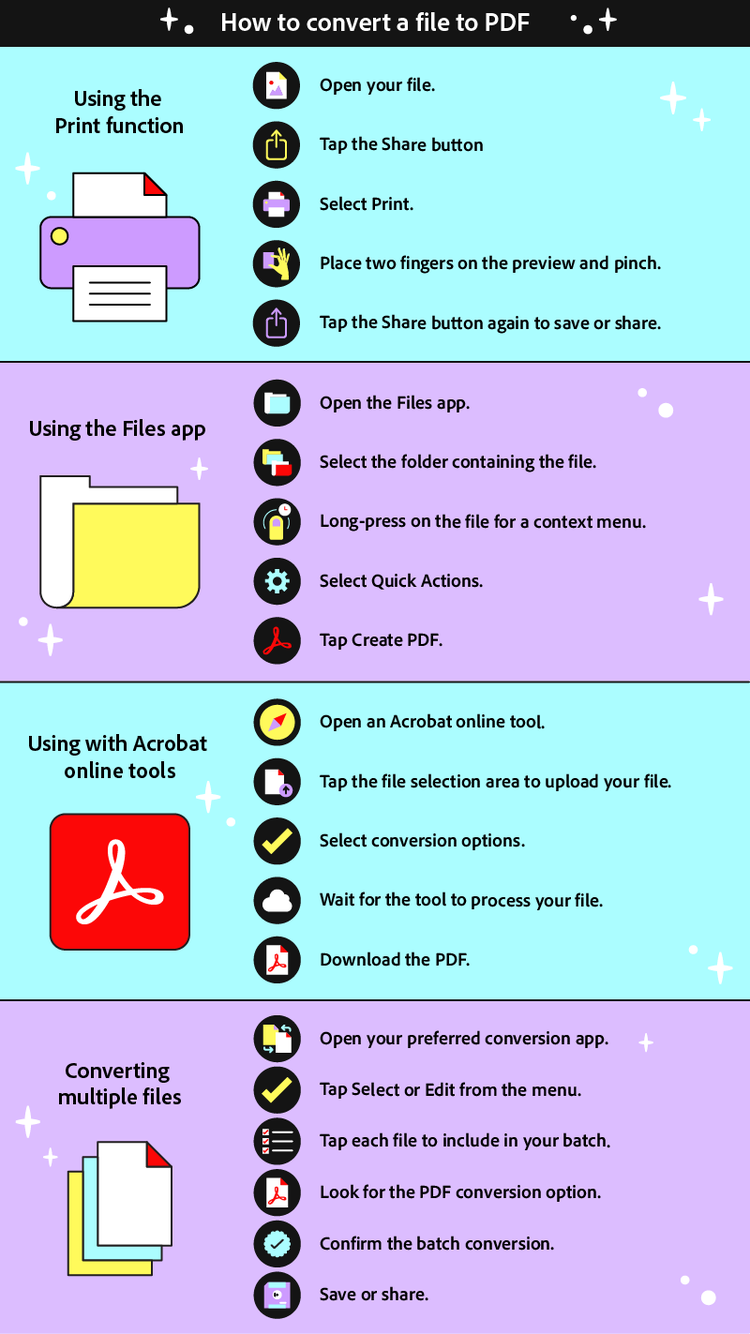
- Open the file you want to convert. This could be a document, web page, email, or note.
- Tap the Share button, which looks like a square with an upward arrow.
- Scroll down in the share menu and select Print.
- On the print preview screen, place two fingers on the preview image and pinch outward to expand it. This gesture transforms the print preview into a PDF.
- The file now displays as a full-screen PDF. Tap the Share button again to save it to Files, send it via email, or share it through any available app.
This method leverages the iOS print system’s ability to generate PDF output, making it available for virtually any printable content on your device. The Print function is ideal when you need to convert content from apps that do not have direct PDF export options, such as Safari web pages, Mail messages, or third-party applications.
Using the Files app
The Files app provides a more direct approach to PDF creation, particularly effective for images and photos stored in your iCloud Drive or local storage.
- Open the Files app on your iPhone.
- Navigate to the folder containing the file you want to convert.
- Long-press on the file until a context menu appears.
- Select Quick Actions from the menu options.
- Tap Create PDF to generate your converted file.
The new PDF appears in the same folder as the original file, making it easy to locate and share.
The Files app method works best when you already have documents organized in your file system and need quick, straightforward conversions. It excels at handling images, screenshots, and documents that are already saved to your device storage or cloud drives.
Each method has its strengths. The Print function works with nearly any content type and offers more control over the final output. The Files app method is faster for images and documents already stored in your file system. Choose based on where your source file lives and how quickly you need the conversion done.
How to convert file to PDF on iPhone with Acrobat online tools
While built-in iPhone features handle basic conversions, Acrobat online PDF tools offer expanded capabilities that go far beyond what native iOS can provide. These browser-based tools work directly in Safari, requiring no app installation while delivering professional-quality results.
The Acrobat online suite includes specialized converters designed to convert files to PDF on iPhone with precision:
- JPG to PDF converter transforms your photos and image files into shareable PDF documents while preserving image quality.
- Word to PDF converter handles Microsoft Word documents, maintaining all formatting, fonts, and layout elements exactly as intended.
- Excel to PDF converter turns spreadsheets into PDFs that display correctly on any device, preserving cell structure and formulas as visible values.
- PowerPoint to PDF converter transforms presentations into static PDFs perfect for sharing or archiving, with each slide becoming a separate page.
- PNG to PDF converter works with transparent images and graphics, creating PDFs that maintain image clarity and any transparency effects.
Using any Acrobat online PDF converter follows a straightforward process:
- Open Safari on your iPhone and navigate to the specific Acrobat online tool you need.
- Tap the file selection area to upload your file from Photos, Files, or another location on your device.
- Select the appropriate conversion options if prompted, such as page orientation or quality settings.
- Wait briefly while the tool processes your file in the cloud.
- Download the converted PDF directly to your iPhone or share it immediately through any available channel.
Beyond basic conversion, Acrobat online tools integrate with Acrobat AI Assistant, which can help you summarize document content, answer questions about your PDFs, and extract key information quickly. This makes the online tools valuable not just for conversion but for understanding and working with your documents more efficiently.
The advantage of using Acrobat online tools becomes clear when dealing with complex file types or when you need guaranteed formatting fidelity. A Word document with intricate tables, custom fonts, or embedded images converts perfectly because Adobe’s conversion engine understands these elements at a deep level. Professional users particularly appreciate this precision when preparing client-facing documents or official records that must appear exactly as intended.
How to convert multiple files to PDF on iPhone
Sometimes one file is not enough. Whether you are preparing a project portfolio, archiving a collection of receipts, or gathering documentation for a major purchase, batch conversion saves significant time compared to processing files individually. Understanding how to convert a file to PDF on iPhone becomes even more valuable when you can apply that knowledge to multiple documents at once.
Converting multiple files to PDF on your iPhone requires a slightly different approach than single-file conversion. Here is how to convert file to PDF on iPhone when working with several items at once:
- Open your preferred conversion app. For images stored in Photos, open that app. For documents, open the Files app. For online conversions, navigate to your chosen Acrobat tool in Safari.
- Tap Select or Edit from the menu, typically located in the upper right corner of the screen. This activates multi-selection mode.
- Tap each file you want to include in your batch conversion. A checkmark or highlight appears on selected items. Take your time to ensure you have captured everything you need.
- Look for the PDF conversion option. In Photos, this appears in the Share menu under Print. In Files, use the More menu to find Create PDF. In Acrobat online tools, the interface supports uploading multiple files at once.
- Confirm the batch conversion when prompted. The system processes each file according to your selected method.
- Save or share the converted PDFs. Depending on your method, you may receive individual PDFs or a combined document. Choose the option that best fits your needs.
Organizing your converted files makes future access easier. Consider creating dedicated folders in the Files app for different projects or categories. Name your PDFs descriptively so you can find them quickly later. Using dates in filenames helps maintain chronological order for things like receipts or correspondence.
For large batch conversions involving many files or complex documents, Acrobat online tools often provide the most reliable results. The cloud-based processing handles heavy workloads without draining your iPhone’s battery or storage space. This approach also ensures consistent quality across all converted files, which matters when creating professional document sets or comprehensive archives.
Frequently asked questions
Yes, your iPhone includes built-in PDF creation capabilities that require no additional apps. The Print function, accessible through the Share menu in most apps, converts virtually any printable content to PDF. Simply open your file, tap Share, select Print, then pinch outward on the preview to create your PDF. The Files app also offers direct PDF creation through its Quick Actions menu for compatible file types.
The process depends on your document type. For Word, Pages, or similar documents, open the file and use the Share menu to access the Print function. Pinch outward on the print preview to generate a PDF. Alternatively, use Acrobat online tools in your browser for precise conversion that preserves complex formatting, tables, and embedded elements exactly as they appear in the original document.
The best converter depends on your specific needs. For occasional basic conversions, the built-in iOS tools work well. For frequent conversions, complex documents, or batch processing, Adobe Acrobat provides the most comprehensive solution. Acrobat online tools offer free conversions through your browser, while the Acrobat app adds features like editing, signing, and advanced organization tools.
Yes, PDF conversion works in both directions. Acrobat online tools include converters that transform PDFs back to Word, Excel, PowerPoint, and image formats. This proves valuable when you receive a PDF but need to edit the content in its original application. The conversion preserves formatting and layout elements, making the resulting file ready for immediate editing.
Large PDFs can be difficult to share via email or messaging apps. Acrobat online tools include a Compress PDF feature that reduces file size while maintaining readable quality. Simply upload your PDF, let the tool optimize it, and download the smaller version. You can also reduce size by converting images to lower resolution before creating the PDF or by removing unnecessary pages from the final document.
Basic PDFs created through the Print function are essentially static images of your content. However, PDFs created with or opened in Adobe Acrobat gain editing capabilities. You can add text, insert images, fill forms, apply signatures, and annotate documents directly on your iPhone. For full editing of text and layout elements, Acrobat Pro subscription unlocks advanced editing tools that let you modify PDF content as easily as a word processor document.
PDF format offers universal compatibility across all devices, operating systems, and applications. When you convert a file to PDF, you lock in the formatting so recipients see exactly what you intended, regardless of what software they use. PDFs also support security features like password protection and restricted editing, making them ideal for sensitive documents. The format compresses well for sharing while maintaining visual quality, and PDFs remain readable for decades without compatibility concerns that affect proprietary formats.
You may also like
title
How to Convert File to PDF on iPhone
cardImageAltText
Illustration showing iPhone screens converting files to PDF
cardImage
Tags
caas:content-type/article,caas:products/acrobat,caas:topic/convert-pdf,caas:topic/jpg-to-pdf

