#1E1E1E

ACROBAT | 6-MINUTE READ

How to delete a blank page in Word.

Learn how to delete a blank page in Word with some keyboard shortcuts.

Explore Acrobat Studio

A generic word processor on a laptop has a file open with a paragraph mark and a trash can on the screen.
#f8f8f8
Curious how to delete a page in Word? Sometimes, deleting that extra blank page at the end of your Word document is difficult. Whether you’re working on a Windows device or a Mac, check out these tried-and-true methods for locating that spare page and finally deleting it from your Word document for good. Mastering this simple fix can help keep your documents clean, organized, and professional. No more mystery pages messing up your layout.

Whether it’s in a long research paper or a vacation itinerary, sometimes that extra blank page at the end of your copy just won’t disappear.

Even though the task sounds self-explanatory, deleting a blank page in Word can be difficult depending on your device, formatting settings, or how the document was created. Hidden paragraph marks, section breaks, or layout issues can all contribute to the problem.

Thankfully, you can try a few foolproof methods for both Mac and Windows to end your extra page struggle — whether you’re cleaning up a document for print, sharing it as a PDF, or combining multiple Word files.

How to delete a page in a Word file.

Deleting a page in Word is usually straightforward, but it depends on whether the page contains text, images, or formatting elements.
If you’re trying to remove a page with content, the key is selecting everything on that page and deleting it fully.

Here’s how to do it:

  1. Place your cursor at the beginning of the page you want to delete.
  2. Click and drag your mouse to highlight all of the content on that page.
  3. Press Delete (or Backspace on Mac) on your keyboard.
If the page still doesn’t disappear, make sure no extra paragraph marks or section breaks are left behind. You can reveal them by selecting Home > ¶ (Show/Hide Paragraph Marks).

How to delete a blank page in Word.

Learning how to delete pages in Word means getting familiar with the Delete key. For this method, simply scroll to the extra page, click anywhere, and then click Delete.

If that doesn’t seem to do the trick, delete that phantom page in the Navigation Pane, which gives you a visual overview of your document.
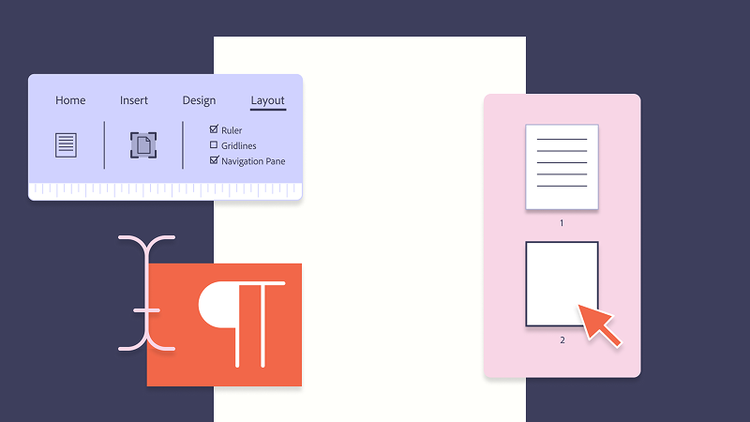

A layout menu in a generic word processor shows paragraph marks and an overview of the pages of the file.


  1. In the Word Menu ribbon, click the View tab.

  1. In the sidebar, click the Pages option.

  1. View the page thumbnails in your document.

  1. Click the blank page thumbnail and click Delete.

Blank pages can sometimes appear after adding external content — especially when you insert a PDF into Word. Formatting shifts or extra spacing may push content onto a new, unintended page, so it’s helpful to double-check layout settings after making any insertions.

How to delete a page in Word on Windows.

Windows has a keyboard shortcut to help find your paragraph marks and delete that spare blank page. Follow the steps below to see how to remove a page in Word.

  1. Tap anywhere within your Word document.
  2. Press the keyboard shortcut Ctrl+Shift+8 to locate the paragraph marks (¶) in your document.
  3. Scroll to the page that needs to be deleted, or press Ctrl+G, and enter the specific page number. This keyboard action brings you to that page.
  4. Find the extra paragraph marks (¶) or page break.
  5. Select the paragraph marks (¶) or page break and press Delete until the blank page is erased.
If you’re planning to export or finalize your document as a PDF, you can make last-minute layout fixes — even after conversion — using an online PDF editor. This is especially useful for removing any lingering blank pages or cleaning up formatting without going back into Word.

How to delete a page in Word on a Mac.

Deleting a blank page on a Mac is easy, but it requires pressing a different keyboard shortcut than Windows.

  1. Click anywhere in your Word document.
  2. Press the keyboard shortcut Command+8.
  3. View the paragraph marks (¶) within the Word document.
  4. Scroll down to the blank page that needs to be removed, or press Option+Command+G and enter the specific page number.
  5. Select the paragraph marks (¶) or page break and keep clicking the Delete key until the blank page is erased.
If you’re cleaning up your document for distribution or sharing, converting it to a PDF can help preserve formatting and prevent blank pages from reappearing. You can quickly do that with a Word to PDF tool to ensure your final version looks exactly how you want it. Remember that you can easily convert PDF to Word if you need to make more changes.

How to troubleshoot deleting a page in Word.

A frequent challenge in Word is removing an unwanted blank page at the end of a document. This often happens because Word includes a non-deletable end-paragraph that occasionally spills onto a new page. To eliminate the blank page, you need to ensure that this final paragraph fits on the preceding page. One simple trick is to reduce the font size of the paragraph so it doesn’t force a page break.

Follow these steps:


  1. Press Command + 8 (or Ctrl + Shift + 8 on Windows) to display paragraph marks.

  1. Locate the paragraph mark (¶) at the end of the document and select it.

  1. In the Font size box, type 01 and press Enter. This shrinks the paragraph enough to fit on the previous page, which should remove the blank one.

  1. Press Command + 8 again to hide paragraph marks.

If the paragraph still doesn’t fit, you can also reduce the bottom margin slightly:

  • Go to the Layout tab > Margins > Custom Margins.
  • Set the bottom margin to a smaller value, like 0.3 inches, and click OK.

This adjustment helps squeeze the final paragraph onto the previous page and eliminate the extra one entirely.

If you’re managing multiple Word files or exporting them to PDF, layout issues like blank pages can become more noticeable. In those cases, it helps to know how to combine Word documents before finalizing your file. And if you’re working with a PDF version and need to fix extra pages post-export, you can easily delete PDF pages online using free tools.


If you’re still having trouble deleting a page, try the following tips:

  • Check for section breaks. These can create new pages. Go to Home > ¶, locate the break, and delete it.
  • Tables or images spilling over. If a table or image extends slightly beyond the bottom margin, it may force Word to add a blank page. Resize or reposition the object.
  • Header and footer content. Sometimes, a header or footer element causes spacing issues. Double-click the area and delete any unnecessary content.
  • Document protection. Ensure the document isn’t locked or restricted from editing. Check this under File > Info > Protect Document.
  • Compatibility mode issues. Older .doc formats can behave differently. Try saving the file as a .docx and reattempt the deletion.

Frequently asked questions.

Why is there an end paragraph at the end of a Word document?

Word typically includes an end paragraph at the end of each Word page to maintain the document’s structure and formatting. The end paragraph ensures that everything in the Word document stays in line, so it’s included at the end of every page. You can delete the end paragraph by highlighting the paragraph marks in your document with the keyboard shortcut Ctrl+Shift+8 on Windows and Command+8 on Mac. If this doesn’t delete the end paragraph, then open up the Paragraph box in the Word Menu ribbon and change the line spacing to single at exactly 1 pt.

How do you troubleshoot a page break in Microsoft Word?

Sometimes, page breaks can cause extra blank pages at the end of your copy. A trick to reveal them is to click the Show/Hide button in the Paragraph box in the Word Menu ribbon. This action will reveal the section breaks, allowing you to delete them.

Also, if you experience formatting issues with page breaks, check for compatibility issues. If you’re editing a document created in an older version of Word, then it may not be compatible with your current version of Word. You can convert the old document to the new format by clicking File > Convert. You may experience some layout changes, but now you can save the document in the updated version of Word.

Or, you can still edit the document in compatibility mode, which occurs automatically when the file is opened. However, you cannot access the newest features of Word. You can save the document in the old format in the Save As option and click your desired file type.

How do I delete an extra blank page in Pages?

Pages is Apple’s version of Microsoft Word. The word processor application is automatically downloaded to your Mac computer, so some users find it more accessible than downloading Microsoft Word. If you’re having difficulty deleting an extra blank page in Apple Pages, then follow the steps below to remove it.

  1. Navigate to the View or Page Thumbnails button in the Menu Toolbar. The Page Thumbnails may be shown as a small icon of a page.
  2. Click the icon and view the page thumbnails on the left side of your screen.
  3. Similar to Word, you’ll locate the blank page you’d like to delete in the thumbnails.
  4. Click the thumbnail of the blank page, then click Delete.

How do I delete an extra blank page in Docs?

Google Docs is a free online word processor similar to Microsoft Word. You can delete an extra blank page in Docs by either deleting the page content or adjusting the margins.

  1. In the Google Docs Menu toolbar, click View.
  2. Uncheck Show print layout.
  3. Open File > Page Setup.
  4. Adjust the bottom margin from 1 to .5.

How to delete a blank page in Word on your mobile device?

If you’re working from Word on your mobile device, then the keyboard shortcut may not be the same. Try one of two methods to delete a blank page in the Microsoft Word app on your phone:

Delete copy. If the page you want to delete includes content, click Delete or use the Cut feature (the scissors icon).

Remove paragraph breaks. Remove the hidden end paragraph or section breaks by revealing them.

  1. In the Home tab, click the Show/Hide button. The button may be presented by a paragraph mark (¶).
  2. Highlight the section break and click Delete.

Keep exploring

https://main--dc--adobecom.aem.page/dc-shared/fragments/seo-articles/seo-caas-collection

https://main--dc--adobecom.aem.page/dc-shared/fragments/seo-articles/acrobat-color-blade