


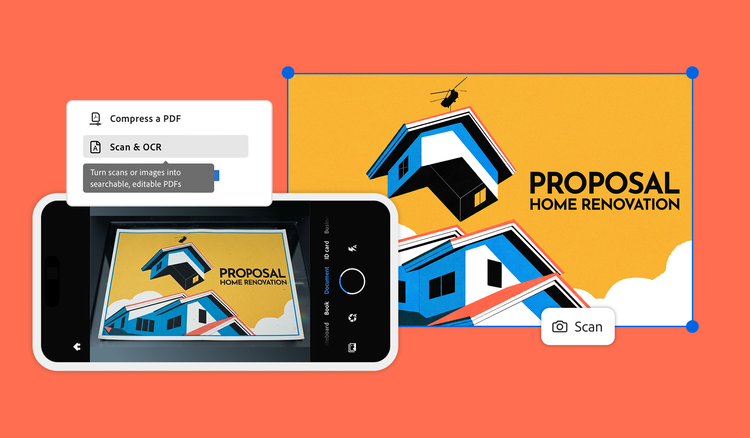
You scan an invoice, statement, or report, open the PDF later, and discover you can’t select a single word. The page looks perfectly readable, but your device may still see it as an image. Learn how to turn a scanned PDF into searchable, usable information without retyping it by hand on your desktop and mobile devices.
What OCR does to a scanned page.
If your device views content as an image, optical character recognition (OCR) recognizes the text in a scan and adds machine-readable text you can search, select, copy, and extract. The important part is knowing how to check whether OCR has already been applied, run it if needed, and verify the results before you reuse the information.
Before you run OCR, take 15 seconds and find out whether your PDF already contains searchable text. This test matters when you are trying to avoid retyping information by hand. According to the Adobe Digital Insights State of AI in Documents report from April 2026, nearly one-third of professionals who use multiple tools lose four or more hours each week switching between tools and reentering information. OCR can make information trapped in a scan reusable without starting over from the keyboard.
Open the PDF and try to select a word, highlight a sentence, or use Select All. If nothing highlights, you are probably looking at a flat image rather than machine-readable text. If the text is selectable, OCR has likely already been applied, and you can move straight to copying or extracting the information you need. If it isn’t, add a searchable text layer.
Run OCR on the scan.
Once you know the PDF is image-only, OCR can recognize the text and make it searchable. Choose the pages you want to process, set the document language, and run text recognition. OCR analyzes the page image, recognizes the characters, and adds machine-readable text to the PDF.
In Adobe Acrobat, open the scanned PDF and click All tools > Scan & OCR > Recognize text. Acrobat can also apply OCR automatically when you open a scanned PDF with Edit.
For a browser-based option, upload the PDF to the free Acrobat online OCR tool. OCR runs automatically, creating searchable text you can select, copy, and find later.
If you are still at the capture stage rather than working with an existing PDF, you can turn a phone capture into a PDF and have the PDF tool use OCR to recognize the text in the saved scan.
Set the language to match the document.
If the page looks clear but OCR is producing obvious mistakes, check the document language. Matching the OCR language to the page language gives text recognition the right character and language context. A clean scan helps, but the recognition step still needs the right language context to interpret the characters accurately.
Keep the original scan visible.
If preserving the original document’s appearance matters, look for an output option that keeps the image searchable. This option keeps the scanned PDF visible while adding searchable text underneath it. Viewing the original scan is useful for invoices, statements, forms, historical records, and other documents because you can extract information while still keeping the original page available for comparison.
Get the data out of the scanned PDF.
Once OCR has recognized the text, you can copy individual details or move larger amounts of information into another format using the tips below.
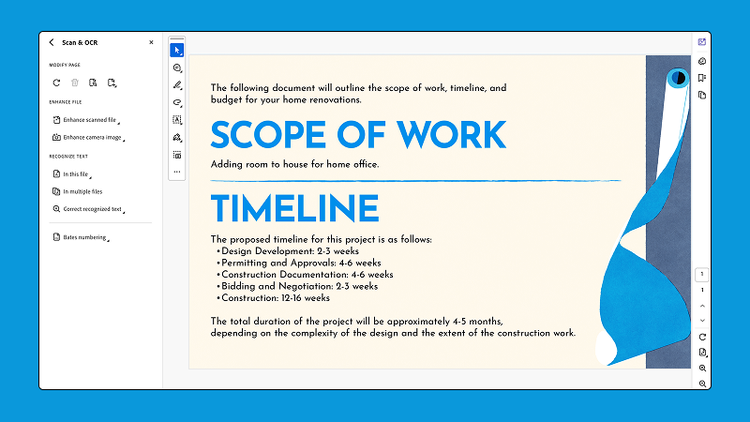
Copy only the text you need.
Once the text layer exists, select the passage you need the same way you would in any document — drag across it, copy, and paste. If you need to reuse most or all of the document, converting a PDF to Word without breaking the formatting can be more efficient than copying information section by section.
Move tables into Excel.
For a scanned invoice, statement, or report with tabular data, you can export the PDF to a spreadsheet.
Open your scanned file in Acrobat, and click Export PDF > Spreadsheet> Microsoft Excel Workbook. When you need a selected portion of the document rather than the entire PDF, you can also use All Tools > Export PDF. OCR makes the characters readable to software, but that does not mean every part of the original page structure will transfer perfectly.
Spot-check the totals before you use them.
Tables deserve an extra verification step. Spreadsheet formatting can shift during conversion, and reading-order problems can affect the data itself, not just make the output look messy. Multicolumn layouts can be read in the wrong sequence, and tables can flatten into unstructured text during extraction. A number may be recognized correctly but end up separated from the row, column, or label that gave it meaning.
Keep the scanned page as your source of truth. The same rule applies when converting a PDF to Word without breaking the formatting, since text and layout can shift during conversion. Before using extracted data, compare important totals, dates, names, and account numbers with the original image in the PDF.
What to do when OCR doesn’t recognize the text.
When OCR returns missing words, strange characters, or text in the wrong order, fixing the errors one by one usually costs more than starting with a cleaner source. OCR has a harder time recognizing text when a scan has:
- Low resolution or blur
- Poor or uneven lighting
- A page captured at an angle
- Decorative or unusual fonts
- Busy backgrounds or low contrast
- Handwriting
- The wrong OCR language selected
A password-protected or encrypted PDF can also block OCR entirely. If text recognition will not run even though the page itself looks clear, check whether the file has security restrictions.
For handwritten material, turning handwritten notes into a clean digital document may require additional review because handwriting, diagrams, tables, and nonstandard layouts can be more difficult to translate into a clean text layer. If you are starting from an image file rather than a PDF, TIFF or PNG preserves more image detail than JPEG when OCR accuracy matters.
Getting a cleaner source at capture is one of the easiest ways to improve results — choosing the right capture mode when scanning a document with your phone matters more than fixing errors afterward.
If you still have the original paper document, try re-scanning the page with your phone using Adobe Scan, which can detect document boundaries, correct perspective, and clean up the page directly on your mobile device. Afterward, you can save it as a PDF and share it either to Acrobat desktop or the Acrobat Reader mobile app. The Acrobat feature titled “Enhance scanned documents” can help clean up an existing scan before you run OCR again.
Batch-process a stack of scans.
If you have a backlog of scanned PDFs, many PDF and OCR tools support batch processing so you don’t have to run recognition on each file individually. This can save time when working through invoices, statements, reports, or archived documents. Spot-check important information after processing, especially when source documents contain tables, complex layouts, or lower-quality scans.
In Acrobat Pro, the Action Wizard can automate repeat OCR tasks across multiple files, making it useful for batches of invoices, statements, reports, or archived documents.
A scan you can’t select is a document you’ll have to retype. Make a scanned PDF searchable with Acrobat.
Frequently asked questions
Yes. Run OCR to recognize the characters in the scanned image and add a searchable text layer. Once that text is available, you can select, copy, search, or export the information.
Try selecting a word or searching for a phrase you can clearly see on the page. If the text highlights or appears in search results, the PDF already contains machine-readable text.
Blur, shadows, skewed pages, low contrast, decorative fonts, busy backgrounds, and the wrong language setting can all reduce OCR accuracy. A cleaner source image usually improves recognition.
Yes. Many PDF and OCR tools support batch processing, which lets you apply OCR to multiple files in one workflow. Spot-check important information afterward, especially in complex or lower-quality scans.
Not always. The scanned PDF preserves the original table’s visual appearance, but the extracted text layer can lose rows, columns, or reading order. Compare important values with the original scanned page before using them elsewhere.
Mobile devices provide scanning capabilities in the palm of your hand and work well when you need a convenient option. Mobile app tools can provide smart auto-cropping and other features for basic scanning adjustments. Use a desktop when you’re working through a large batch or need more control over the output.
You may also like
title
Make scanned PDF data usable.
cardImageAltText
A mobile camera using the Scan & OCR tool to scan a home renovation proposal.
cardImage
Tags
caas:content-type/article,caas:products/acrobat,caas:topic/excel-to-pdf

