

Adobe Firefly
The next evolution of creative AI is here for all your ideas, with image, video, audio and vector tools.


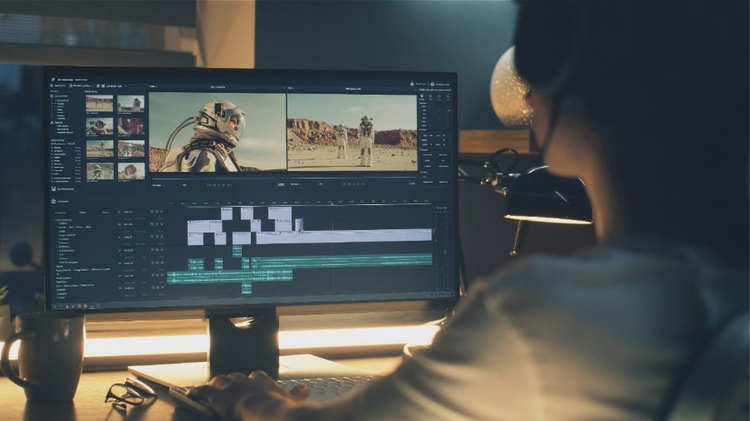
Video editing is the process of selecting, arranging, and refining raw footage to create a polished and engaging final video. It involves cutting unwanted parts, adjusting visuals and audio, adding text or transitions, and exporting the finished content in the right format.
In simple terms, video editing is where your clips come together to tell a story.
In India’s rapidly growing creator economy, video editing has become one of the most in-demand digital skills. From influencers and educators to startups and freelancers, everyone relies on high-quality video content to connect with audiences.
Here’s why learning video editing is valuable today:
Before learning advanced techniques, you need to first understand the fundamentals. Let’s get into it.
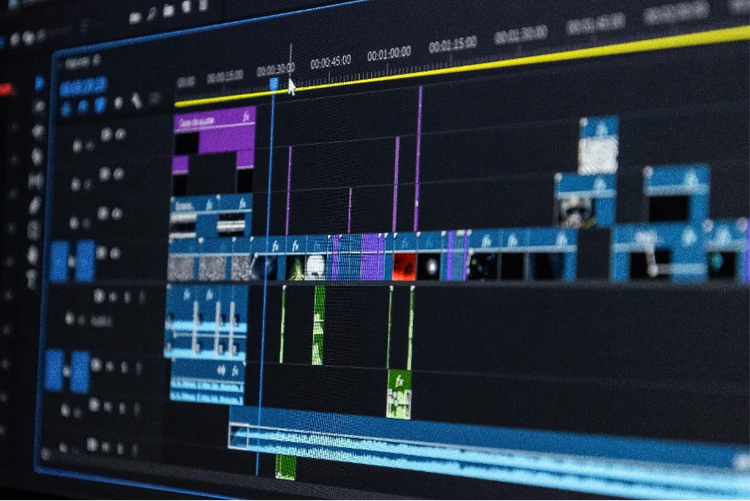
The timeline is the most important part of any video editing software. It’s the area where you build your video. It is a long horizontal strip where time moves from left to right: the left side is the beginning of your video, and the right side is the end.
The timeline usually has multiple layers. These can include the video layer (your visuals), the audio layer (music and voice), and the text layer (titles and captions).
Here’s what you can do on the timeline:
Cutting and trimming are two of the most basic and most important actions in video editing. They help you remove unnecessary parts of your footage and improve the overall flow of your video. Cutting means splitting a clip into smaller sections. Trimming means shortening the beginning or end of a clip. Both are used to remove mistakes, long pauses, or unwanted moments.
Good editing is often about removing what doesn’t add value. When you trim properly, your video feels cleaner, faster, and more professional.
Here’s what cutting and trimming help you do:
Transitions and effects help connect one clip to another. They control how your video moves from one scene to the next. A simple cut switches instantly between clips, while a transition adds a visual effect between them, such as a fade or dissolve.
Most editing software offers many transition options, but beginners should use them carefully. In most cases, simple cuts work best. Use transitions only when they support the story or improve the viewing experience. A good rule of thumb: if the effect doesn’t help the story, don’t use it.
Common beginner transitions include:
Text elements help communicate your message clearly. They can introduce your topic, highlight key points, or make your video more accessible. Adding text is especially important for social media, where many viewers watch videos without sound. Subtitles can increase engagement and make your content accessible to a wider audience.
Text can be used to:
Most videos include multiple audio elements, such as dialogues, voice recordings, background music, and sound effects. These need to be balanced properly to improve the sound quality of the final cut. If viewers struggle to hear your message clearly, they are more likely to stop watching. You need clean and clear audio to keep them engaged.
Audio editing doesn’t have to be extensive; even simple adjustments can significantly improve your video’s quality.
Basic audio editing includes:
Exporting is the final step in video editing. It converts your edited project into a video file that you can share and upload. When exporting, you choose the resolution, format, and orientation of your video. These settings affect how your video looks on different platforms.
It is important to note that different platforms require different formats. You need to choose the correct settings to ensure your video looks professional, whether it’s viewed on a TV screen, laptop, mobile phone, or on social media channels like YouTube, Instagram, and TikTok.
Before exporting, check:
Video editing is a skill that improves with practice, and you don’t need expensive equipment or advanced knowledge to create engaging videos. The key is to follow a clear, simple roadmap and focus on one step at a time.
Before opening any software, it’s important to know what video editing actually is. Editing isn’t just adding fancy effects. It’s about organising clips, removing unnecessary parts, and making your story clear and engaging. A helpful way to start is by watching videos you enjoy and noticing how they flow: how long clips stay on screen, where music changes, and how text or transitions are used. Observing this builds your “editor’s eye” and gives you ideas for your own projects.
Picking the right software is essential, but beginners don’t need the most advanced tools. Look for something simple with an easy-to-use timeline, basic text and audio features, and drag-and-drop functionality. You can try Adobe Firefly’s AI video editor, or opt for more traditional apps like Premiere and After Effects. Whichever you choose, remember that the best software is the one you feel comfortable using consistently, so you can spend more time practicing and less time struggling with the interface.
The fastest way to learn is by doing. Start with short, simple projects, like a 30-second Instagram Reel, a travel montage, or a birthday video. Small projects are less intimidating and let you experiment with cutting, trimming, and adding text or music. The goal isn’t perfection: it’s consistency. Completing one small project each week builds confidence and helps you learn faster.
Editing improves through practice and feedback. Share your videos on platforms like YouTube, Instagram, or creator communities and ask for constructive comments. Feedback helps you spot areas to improve, like pacing, audio clarity, or text placement. Each project teaches you something new, and the more you create, the faster your skills will grow.
Your first few videos might not look professional, and that’s okay. Every skilled editor started the same way. Improvement comes from regular practice and repetition. Even editing for 30 minutes a day or completing a few small projects per week will show noticeable results within a month. The key is to keep creating, learning from mistakes, and refining your skills.

Adobe Firefly makes video editing faster, smarter, and more accessible for beginners. Instead of learning complex techniques right away, you can start with prompt-based editing in Adobe Firefly and then explore more advanced tools in Premiere Pro as your skills grow. This approach lets you focus on storytelling first, while AI handles many of the technical steps.
Here are some beginner friendly AI features that can simplify your editing workflow.
Visual thumbnails give you a clear preview of each scene, so you can identify moments at a glance without relying on file names or playing every clip. This makes it faster to trim footage, match scenes, sync audio, and place text at the right moment. This makes it easier for beginners to organise clips, fix pacing, and build a complete video without a complicated workflow.
Text-Based Editing turns your transcript into a powerful editing tool. Adobe automatically generates a transcript of your video, allowing you to highlight text to add corresponding clips to your timeline. Instead of scrubbing through clips or audio waveforms, you can simply select or move sections of text, and the matching video updates automatically. You can reorder sections, trim unwanted parts, and even remove filler words in bulk. This is helpful for beginners who want precise control over their video without complex technical commands.
You can quickly add captions or text overlays by using the video transcript. Instead of creating a text layer and typing everything manually, you can highlight words directly from the transcript and place them on the timeline as on-screen text. The text appears exactly where those words are spoken, saving time and keeping your captions perfectly in sync. This makes it much easier for beginners to add subtitles, highlight key phrases, or create social media text without complex editing steps.
You can extend clips using simple text prompts in Adobe Firefly, making it easier to lengthen footage or create B-roll without reshooting. Instead of stretching clips or repeating frames, you can describe what you want and let AI generate the extra motion. This helps fill gaps in your timeline and keeps your video flowing smoothly without complicated manual edits.
Refine the look of your video using simple text prompts in the AI video editor. Instead of adjusting multiple technical controls, you can describe the changes you want, such as brighter lighting, warmer tones, or a softer background, and the Firefly applies the edits for you. This makes it easier to improve the overall mood and visual quality of your footage without advanced colour-grading skills.
AI features help remove many of the technical barriers that beginners often face. They make it easier to start creating, experiment with ideas, and build confidence while learning the fundamentals of video editing. As your skills grow, you can move beyond AI-assisted steps and develop more advanced video editing techniques, giving you greater creative control over your videos.
Based on your location, we think you may prefer the United States website, where you'll get regional content, offerings, and pricing.

