


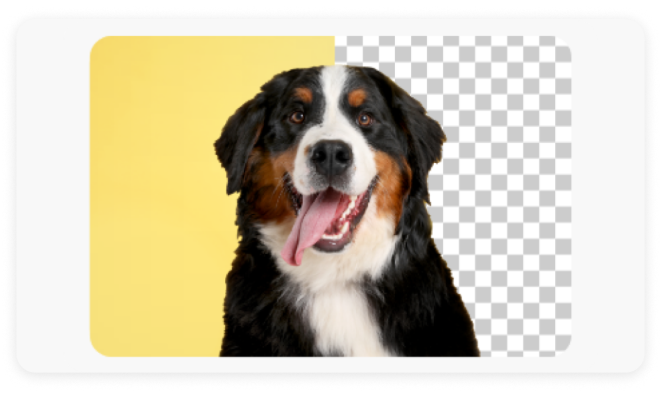
Background removal may seem easy — until you work with portraits with flyaway hair, glass reflections, deep shadows, or a background with a color that almost matches the subject. With the image background remover market projected to reach $2.38 billion by 2032, as per 360iResearch, it’s clear this isn’t a specialized challenge anymore. And while more demand has led to more tools, it hasn’t necessarily led to better results when you need to remove background from a complex image. Adobe Express gives you greater precise control over editing without sacrificing fine details.

How to remove background from a complex image in Adobe Express.
Refine tricky edges like hair, glass, and motion blur. Learn how Adobe Express lets you remove complex image backgrounds with precision.

Easy all-in-one editor

One-click edits from any device

Fast creation with generative AI

Thousands of professionally-designed templates
What makes a background complex.
A background becomes complex when the software can’t clearly separate the subject from the environment. The edge isn’t obvious. Colors overlap. Light interferes. That’s when automatic removal starts making decisions rather than performing clean detections.
You see it in the details first.
-
Fine edges and the fringe problem.
Fur, textured fabric, anything with soft strands behaves the same way. These aren’t solid shapes. Background slips between the fibers, which means the edge isn’t a single line. Basic tools react by tightening the outline too much. The result technically matches the subject, but it loses volume. It feels cut out.
-
Similar tones and edge confusion.
If a beige coat sits against a sand-colored wall, the border almost disappears. Pixel values barely shift from one side to the other. The tool doesn’t have enough contrast to follow, so it trims inconsistently. You might not notice until you drop the subject onto a darker background, and the edge suddenly looks thin or uneven.
Inside the online image editor, Adobe Express evaluates subject structure in addition to color. A shoulder remains attached to the body even when tones blend. That structural recognition reduces the chance of accidental clipping, though subtle edges still require attention.
-
Transparency and refraction.
Glass, veils, tinted plastic – the background doesn’t sit neatly behind them. It passes through. Light shifts inside the material. When software treats it as a solid object, transparency is flattened, and the edge hardens. The image loses depth.
An efficient set of tools approaches that in stages: isolate first, then refine opacity and restore detail where needed. That second pass keeps the glass looking like glass instead of a sticker.
-
Motion blur.
A moving subject doesn’t have a crisp edge. Pixels along the border are blended by definition. Automatic removal can get close, but a blur that turns into a sharp rim looks unnatural. The softness has to be preserved deliberately.
-
Layered or crowded scenes.
When objects overlap – a fence cutting across an arm, leaves brushing a shoulder – the tool has to interpret depth. Overlaps confuse detection. You isolate the subject, and part of the background comes with it.
Learning how to remove objects after the initial cut helps separate those layered elements without restarting the entire process.
A background is complex when separation isn’t apparent – when light, color, texture, motion, or depth blur the line between subject and surroundings. The more those factors overlap, the more refinement becomes part of the workflow.
Removing background from a complex image.
Some photos don’t cooperate. Soft fur, lace, loose strands of hair – these edges aren’t solid, so the cut won’t be either. When you need to remove background from a complex image, the automatic pass is only the starting point. It clears the obvious backdrop fast. What remains is where the real work happens.
1. First pass.
Upload the image to an AI background remover. That initial result shows you how the AI interprets the subject. On clean photos, it can be nearly finished. On detailed ones, you’ll see rounded hairlines, clipped textures, or thin strips of background still hanging on.
Treat that output as a draft. Once the bulk of the background is gone, it’s easier to see where the edge needs refinement.
2. Manual cleanup.
Open the image inside the photo editor. This is where you can refine the cut. Use the Restore Brush to bring back details that were trimmed too far, like thin fabric edges or slight curves that define the subject. Keep the brush soft so the transition blends naturally.
Switch to the Erase Brush for the opposite issue. Tiny fragments of background often remain in tight spaces: inside handles, between strands, or around textured objects. These don’t always stand out until you place the subject on a darker color.
If overlapping objects remain attached after the first pass, perform a manual cleanup to separate them without undoing your entire mask. That’s useful in crowded scenes where fences, leaves, or props intersect the subject.
When a section looks jagged or partially missing, generative fill can repair that edge by extending or rebuilding small areas based on surrounding pixels. This isn’t for every photo, but on complex extractions, it can fix cuts that manual brushing can’t smooth out.
3. Stress test.
Even after cleanup, small errors hide in plain sight. The checkerboard transparency view is forgiving so it won’t expose faint halos or leftover fragments along the edge. Swap it for a solid color layer behind the subject. High contrast exposes faint halos and uneven trimming that were easy to miss.
Zoom in and adjust slowly. Go back in with the Erase Brush and tighten those areas. Clean up minor inconsistencies before exporting.
4. Don’t undo your work at export.
Save the file as PNG and keep Transparent Background turned on. That’s what preserves the edge detail you just refined. Exporting as JPEG flattens everything onto white, so the soft transitions around hair or fabric disappear.
How device choice affects complex background removal.
Adobe Express keeps your projects synced, so you can open the same image on your phone or laptop without starting over. The tools exist on both. What changes is the amount of control you feel when refining the edge.
On a desktop, small flaws surface faster. On mobile, speed wins. When the cut isn’t clean, you nudge it into place on the desktop. On mobile, refinement can require more precision.
Extraction breakdown.
Feature
Desktop (Browser/App)
Mobile (iOS/Android)
Input precision
A mouse or stylus gives steadier control for tiny edge corrections.
Finger input works for broad fixes. Fine detail can feel less steady without a stylus.
Refine workflow
Remove Background, then move straight into the editor for brush adjustments.
Often starts as a quick cutout before you move into deeper editing.
Generative Fill
AI-assisted editing (remove/insert object)
Easier to draw tight selections and type detailed prompts.
Works well for quick object removal. Selecting micro details takes more patience.
Screen real estate
Larger display makes faint halos easier to catch.
Small screens can hide subtle edge issues.
Speed of capture
Better suited for polishing existing shots.
Fast for capturing and cutting in the moment.
Zoom past 200% and the gap becomes obvious. A mouse lets you trace along a curve and stop exactly where it looks natural. Touch input reacts inconsistently to pressure and hand movement. That difference shows up when the boundary between subject and background isn’t clearly defined.
You can zoom on a phone, but your finger blocks part of the correction area. It works. It just requires more back-and-forth when the edge is fragile.
Image quality changes the equation as well. Low light and motion softness blur the boundary before you begin. If the edge looks muddy, background removal turns into guesswork. Running the image through an AI image enhancer improves contrast before extraction. If blur is part of the issue, the unblur images tool can tighten the outline slightly before you attempt removal.
Making the subject sit naturally in the scene.
A clean cutout isn’t the end of the job. It just removes the old background. What makes the composite believable is how well the subject matches the new one.
Most “pasted-on” images fail because the light or color temperature doesn’t match. A subject shot under cool indoor lighting will clash with a warm sunset backdrop. Even if the edge is perfect, the eye immediately notices the mismatch.
Start with color adjustments.
Select the subject layer and open the Adjustments panel. Shift Warmth and Tint until the tones feel consistent with the background. Small moves are enough. You’re not repainting the subject; just aligning it. If the background leans heavily toward one dominant color, like cool blue, a slight shift toward that color helps simulate light spill from the environment.
Saturation is usually where composites break. Stock or AI-generated backgrounds tend to be more vibrant than real subjects. If the person or object looks dull by comparison, increase saturation slightly. If they look louder than the scene, pull it back. The goal is balance, not intensity.
Depth matters next.
In real photography, foreground and background rarely share the same sharpness. If your background is meant to feel distant, consider softening it using the blur background tool. A light blur often does more than heavy editing because it draws attention away from small edge imperfections and reinforces visual hierarchy.
If the subject is on a surface, avoid evenly blurring the entire scene. Duplicate the background layer, blur one copy, and mask it so the area near the subject’s feet stays sharper than the distance. That gradient transition mimics natural depth without drawing attention to itself.
Then deal with grounding.
Without a shadow, a subject floats. It doesn’t matter how good the edge is. Add a Drop Shadow from the Effects panel and match the angle to the light direction in the background. If the sun appears from the right, the shadow should fall left. Mismatched angles break realism instantly.
Keep the first shadow small and tight where the subject touches the surface. That creates contact. If the light source is strong, add a second, softer shadow that extends outward with higher blur and lower opacity. The two together feel more natural than one heavy blur.
Blending isn’t about dramatic edits. It’s about removing the small inconsistencies that signal “composite.” When color, depth, and shadow align, the cutout stops looking like a cutout.
Using complex-image edits in real projects.
Background removal rarely ends in the editor. The cutout moves into something else – a product page, a feed post, a slide, a print layout. If the edges are complex, flaws don’t fade. They surface once the file is resized or placed against a stronger color.
What matters isn’t how clean it looks at 100% zoom. It’s how it survives compression, scaling, and print.
eCommerce product listings.
Product shots are rarely perfect. Texture, gloss, and uneven light all complicate separation.
After removing the background, place the product over a plain white layer and inspect the perimeter closely. Platform compression can thicken faint transitions around textured materials.
If you move the item into a lifestyle background, match the temperature before adding effects. Skip dramatic filters. Subtle warmth shifts are usually enough. Add a restrained shadow underneath so the object doesn’t feel suspended.
Export as PNG if transparency is supported.
Social media campaigns.
Feeds, like Facebook posts, are harsh. Minor inconsistencies get amplified on social platforms. Compressing the upload increases contrast and can harden edges that looked smooth in the editor.
Test the subject over both dark and light backgrounds before publishing. If you’ve sharpened the image, dial it back. Oversharpened edges turn brittle once resized. When using blur for depth, make sure the subject isn’t unnaturally crisp compared to the surrounding graphics.
AI-generated presentations.
Slides expose problems quickly. Gradients and projected light make edge transitions more evident than they appear on a laptop screen.
Check the cutout against the most saturated slide color in the deck. If the background texture is complex, inspect semi-transparent transitions at higher zoom. Confirm the shadow direction aligns with the slide’s light source. Mismatch stands out immediately when projected.
Custom apparel designs.
Ink changes edges. Cotton absorbs detail and slightly spreads pigment, especially on darker fabric.
Preview the design at its real print size before sending it to a T-shirt layout. Thin lines and fine transitions can merge once scaled. Instead of sharpening the edge, reduce micro-contrast along the outer boundary to make the transition print cleaner.
Shadows behave differently on fabric. A subtle screen shadow can print heavier than expected. Adjust opacity relative to the garment color, not to white.
Printed invitations.
Paper softens detail. Textured stock spreads ink just enough to thicken delicate edges.
View the design at full print size and check intricate transitions before ordering printed invitations. Cream or off-white cardstock shifts the perceived color balance. It adjusts warmth gently rather than increasing contrast.
Leave space near trim lines. Minor cutting variation can expose uneven contours if the subject sits too close to the edge.
Confidently remove background from complex images with Adobe Express.
Knowing how to remove background from a complex image expands what you can do with a single photo. You’re not locked into the original setting. The subject becomes movable. It can live on a product page, inside a presentation, or on print without starting over.
Refining difficult edges changes how you approach editing. Instead of hoping the cut works, you inspect it, adjust it, and move on. That shift is important when the details are subtle and the output format is unforgiving.
Adobe Express lowers the barrier without lowering the standard. The tools handle the heavy lifting, but they still leave room for precision. Even if you’re new to editing, you can build clean composites that hold up outside the editor.
Start removing backgrounds from complex images in Adobe Express today.
You might also like...


FAQs.
Why does my cutout look fine in the editor but rough after I post it?

Compression. Most Social platforms process your image again, and that extra pass can harden faint edges. The second pass can also reveal unnoticeable halos before. Pre-export, upload the subject onto a dark and light background. If anything looks thin or brittle, fix it.
How do I keep glass or sheer fabric from looking fake after background removal?

Should I sharpen the image before or after removing the background?
Can I print directly from Adobe Express after removing a complex background?
Which export format best protects complex edges?
Why does my cutout look fine in the editor but rough after I post it? opened

