How to use a transparent background for creative, standout designs.
Discover creative ways to use transparent background in design, from logos to social posts, and learn how to create them easily with Adobe Express.
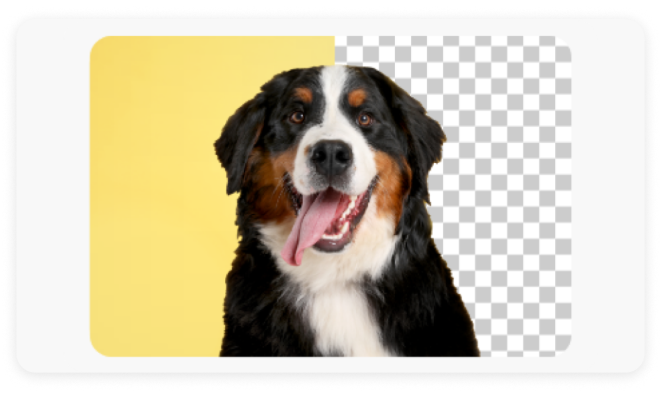




If you’ve ever placed a logo onto a colored slide and noticed an awkward white box around it, you’ve already seen why transparency matters. A transparent background removes visual barriers, allowing images, logos, and graphics to integrate naturally into any layout.
Understanding how to use transparent background elements gives you far more control over layering, branding, and composition across your digital and print projects. In this guide, you’ll learn practical workflows, strategic applications, and creative techniques in Adobe Express that turn simple cutouts into flexible, reusable design assets.
Why transparent backgrounds matter more than most people realize.
We sometimes think of transparency in design as just clear, see-through backgrounds, but in design, it takes on a bigger role. They enable designers to experiment with and create new, interesting visual styles.
According to a study in the Journal of Engineering Design, transparency can be used to communicate additional information that helps shape not just consumers’ interpretations of a product, but also their perception and experience. For example, when it comes to packaging design, consumers tend to prefer products with transparent packaging because they can see the product, unlike their opaque counterparts. This enhances product trust and also changes how consumers perceive product quality.
How do transparent backgrounds work?
A transparent background means the area surrounding your design subject carries no fill. It’s invisible, allowing whatever sits beneath it to show through. Technically, this is made possible by an alpha channel, which is an additional layer of data in the image file that records the opacity or transparency of every pixel.
File formats that support this channel—most commonly PNG and WebP—can store transparency. JPEG cannot, which is why export format matters just as much as how you design.
When you save an image without transparency, any empty area usually defaults to a solid color, usually white. Drop that image on a navy website banner or a dark Instagram Story and that white fill becomes an immediate problem. It’s not a fixable-later issue; it has to be addressed at the point of export, which is why understanding the difference is fundamental to a clean workflow.
How transparent backgrounds can benefit your creative projects.
Transparent backgrounds are essential for logos, product photography, stickers, and labels, video overlays, icons, watermarks, branded templates, and printable collateral.
Transparent backgrounds let you:
- Overlay logos on any color or photo
- Create layered marketing graphics
- Design high-quality mockups that feel more realistic
- Build social media posts without awkward white boxes
- Repurpose assets across multiple formats
In Adobe Express, you can quickly remove backgrounds using the AI-powered background remover tool and export files as transparent PNGs for reuse across creative projects.
How to use Adobe Express to create a transparent background.
Below is a basic guide on how you can create transparent backgrounds in Adobe Express. Once you have the basics down, it’ll be easier to apply the steps to almost any creative project.
Step 1: Remove the background.
Upload your image to Adobe Express by either selecting Upload, which lets you select files directly from your device, or choosing Add content that allows you choose which type of media to use in your design. For example, if you go with the Add content route, you can choose Media and select photos and videos to use, then select Remove background. The tool automatically detects the subject and eliminates the surrounding background.
If needed, use a tool like Photoshop to smooth or refine edges for hair, fabric, or complex shapes because clean edges are what separate amateur cutouts from professional-looking assets.
You can access the Remove Background directly through the main editor. There's also a separate image background remover feature linked here.
Note: If you’re planning to use the Remove Video Background feature via the main editor, note that it’s only available in Premium plans. The Remove Background supports common image formats, including JPEG, PNG, and GIF. For best results, it’s recommended that you use high-resolution images that have a clear separation between the subject and background.
Step 2: Download as PNG with transparency.
When exporting, choose Transparent PNG. This keeps the background invisible instead of flattening it to white.
Step 3: Place it into a new design.
Open a new project using a social media post template, presentation template, flyer template, or logo template.
Upload or drag your transparent PNG into the canvas. Now you can layer it over colors, gradients, photos, patterns, or video backgrounds.
Logos and branding.
One file for a multitude of use cases.
A logo is used in hundreds of contexts throughout the life of a brand, such as websites, business cards, email signatures, merchandise, signage, and presentation decks. If that logo is locked to a white or colored background, every one of those applications becomes a friction point.
Saving it as a PNG with a transparent background solves this across the board. You get one clean file that works everywhere at any size, on any surface.
In Adobe Express, you can design a logo from scratch using professionally designed templates and export it as a PNG that preserves full transparency.
Brand elements beyond the logo.
The same logic applies to secondary brand assets, like icons, watermarks, and illustrated elements. Any asset used repeatedly across different backgrounds should be saved as a transparent background PNG from the start. Build these once, store them correctly, and you eliminate a recurring step from every future project.
For teams, the brand kit feature from Adobe Express takes this further. Transparent background logos and brand assets live alongside color palettes and font selections, giving every team member immediate access to correctly formatted files. There’s no confusion between versions, and no working from the wrong file. Note that you can only access brand kits on Premium plans. Compare plan features here.
Social media graphics that adapt to any feed.
Why static assets slow you down.
When your graphic elements, like product shots or brand marks, are each saved with a solid background, every new campaign requires rebuilding the composition.
Transparent-background assets remove that bottleneck entirely. Drop in a new base layer and every element above it automatically works, because nothing is competing visually with the new background. It’s a small structural change to your workflow that you can easily apply across every piece of content you produce.
Layering across platforms.
The same product photo, cut out with a transparent background, can sit on a minimal white background for a product announcement, a bold color-block for a promotional post, a textured gradient for seasonal campaigns, and a photographic background for a lifestyle placement without excessive additional retouching.
Product photography and marketing materials.
Why background removal is a standard step.
In e-commerce and product marketing, a clean product cutout is a baseline expectation. Products on transparent or white backgrounds look more intentional, read more clearly, and perform better visually across the range of backgrounds used in ads, landing pages, and print layouts. The challenge historically was that achieving a clean cutout required either professional retouching skills or expensive software.
Adobe Express removes that barrier. The easy-to-use background image remover detects and isolates the subject from any photo automatically, in seconds. The result is a clean PNG ready to drop into any design context immediately.
From one cutout to multiple placements.
The real value is in the reuse. Once your product is properly cut out, it drops into a promotional flyer, a poster, a social ad, or a print layout without any additional work per placement. One background removal multiplies across every piece of content that features that product.
Creative poster and flyer designs with transparency.
When designing print or digital projects, experiment with different transparency levels to add visual interest and depth to your creative projects. This means that not every background should be fully transparent. Some backgrounds work well with partial transparency, especially if you want to evoke a sense of intrigue or mystery in your designs.
Overlay your transparent backgrounds on vivid or colorful patterns to make your overall design stand out. You could also combine transparent assets with opaque icons, text, or shapes to create contrast. For example, try combining transparent illustrations, overlaying them on opaque photos to make a dynamic, collage-like composition.
Applying these techniques gives the different elements in your design new ways to interact with each other, creating unique compositions that can give you surprising and impactful results.
Transparent background for presentations and professional decks.
The logo placement problem in slide decks.
Logos placed on presentation slides with non-matching backgrounds are one of the most common visual inconsistencies in corporate design. A white box around a logo on a dark or colored slide immediately reads as an asset that wasn't properly prepared.
Fortunately, the fix is straightforward. Using a logo that has a transparent background and sits cleanly on any slide color, without any visible edge, keeps your slide deck looking clean and consistent. It also prevents your presentation from looking too overloaded with graphics.
That said, consider making logo variations that you can use across dark or light backgrounds to maximize your logo’s versatility. Before publishing, test your design and all its iterations across all platforms or devices. This helps you determine whether they’re still effective across different screens and resolutions.
Documents, watermarks, and templates.
For branded document templates, like proposals, reports, letterheads, and internal communications, the same principle applies. Transparent background logos in headers and footers can easily adapt to any page color scheme without major visual inconsistencies. Watermarks, by their nature, must be transparent to some extent (even 50% works) or they obscure the content they accompany.
Transparent backgrounds for video and animation.
Overlays and watermarks.
When you want to place a logo, title card, watermark, or animated graphic element over video footage, that overlay needs to be transparent everywhere except where the graphic itself appears. Without this, you're placing a solid-colored box over your footage. The graphic elements are designed separately as PNGs and overlaid during editing with their transparency intact.
Adobe Express supports video editing workflows that incorporate these principles directly. The video editor lets you place images and graphics over video content with control over positioning and layering. The AI background remover, a premium feature, is also a handy tool that lets you easily remove and replace any video background.
Animated stickers and motion graphics.
These design choices are a great way to give your design a layered look. Animation effects combined with transparent assets can help guide the viewer’s eye, allowing them to focus on an aspect or element of your design that you want to highlight.
Even without animation, you can still make cool stickers using the background remover tool. For example, use the tool to remove the background from a photo of your pet, then add that cutout to a colored or patterned background in any shape you want. You could also add fun icons to make your design pop.
Tips for getting consistently professional results.
Here’s how you can elevate any project that requires transparent backgrounds:
Format and resolution decisions that matter.
PNG is the most widely compatible format for transparent backgrounds and the recommended default for most use cases. It preserves the alpha channel that stores transparency and works across digital platforms and tools. WebP also supports transparency, but has more limited compatibility in older environments. When in doubt, export as PNG.
Designing for accessibility.
Transparent designs can look modern and layered, but accessibility should always guide your choices.
Maintain text contrast.
When layering transparent images over backgrounds, check that any text placed nearby meets contrast standards. If a background is busy or textured, consider:
- Adding a subtle color overlay
- Using a semi-transparent shape, instead of a fully transparent one, behind the text to create a subtle contrast
- Adjusting brightness or blur in the background image to ensure that text or icons remain legible
- Ensuring sufficient contrast between the background and image or text
Adobe Express allows you to easily adjust opacity and add color overlays directly in the editor, helping you maintain readability. The WCAG also has helpful tips on how to make your designs more accessible.
Avoid visual clutter.
Transparency makes it easy to stack elements, but too many layers can overwhelm viewers. A good rule is to establish a clear visual hierarchy by having a primary focal point, supporting graphic elements, and secondary text. If everything floats at the same visual height, the design can lose its clarity.
Being strategic with when not to use transparency.
Transparency is powerful, but it’s not always the right choice. Avoid transparent cutouts when:
- The original background provides important context
- Lighting mismatches make the subject look artificial
- The composition becomes visually confusing
In some cases, keeping a clean, solid background is stronger than layering multiple elements, and good designs are intentional. Before finalizing a layout, ask yourself:
- Does transparency improve clarity?
- Does it strengthen brand consistency?
- Does it create meaningful depth?
If the answer is no, rethink your design and simplify.
Common mistakes when using transparent backgrounds.
Transparent backgrounds are one of the most practical and versatile tools in a designer’s workflow, but they can still be misused. Understanding these pitfalls helps you truly master how to use transparent background assets effectively:
- Overlapping without hierarchy. Too many floating elements can create clutter. To make your design more streamlined, be intentional with how you use size, spacing, and alignment. Grids are also useful if you need visual guides for placement.
- Poor edge refinement. Messy edges can impact how clean and polished your design looks, which is why it’s good practice to zoom in on your work regularly to find spots that you can refine.
- Ignoring contrast. Transparent elements must contrast with the background, but if your background is already busy, try adding subtle overlays or shadows. If you’re adding text, adjust your background’s opacity to maintain readability.
- Forgetting file format. If you export as JPEG, transparency disappears, so always double-check your format, making sure that it’s in PNG before exporting, especially for projects that require transparent backgrounds or design assets.
Leveraging transparent backgrounds for strategic advantage with Adobe Express.
Transparent backgrounds are a creative advantage. From logos and product images to social media graphics and presentations, transparency allows your designs to adapt, layer, and scale without friction.
The key is not simply removing backgrounds, but understanding how to use transparent background assets strategically. Focus on clean edges, intentional layering, brand consistency, and reusability. With Adobe Express, you can quickly and easily remove backgrounds, refine visuals, and craft polished layouts all in one place.
Explore the background remover tool and start designing a reusable asset library that supports every creative project you make.