Acrobat
How to copy text from a PDF document.
Whether you’re dealing with scanned images, PDFs, or protected files, learn how to extract text efficiently and streamline your workflow.
Acrobat
Whether you’re dealing with scanned images, PDFs, or protected files, learn how to extract text efficiently and streamline your workflow.

Published by Adobe Acrobat India on 22 August 2024
Modified: 29 October 2025
JUMP TO SECTION
How to copy and paste text from PDF
How to copy text from a PDF using a PDF editor online
How to copy text from scanned PDF documents and images using the OCR PDF tool
How to copy text from a protected PDF
How to copy text from PDF OCR to Word converter
If you are unable to copy text from a PDF or cannot copy text from a PDF, it is usually due to one of three common reasons:
By understanding why you are unable to copy text from your PDF, you can choose the right method to extract your content — whether that is a simple copy-and-paste or using OCR.
Copying text from a PDF is common. You might need to copy your PAN card number from a scanned document for KYC verification, pull bank transaction details from a PDF statement for a loan application, or extract GST invoice information for filing returns. Whether it is for academic research, content creation, legal purposes, or personal reference, you can often copy text manually from simple, well-structured PDFs.
Let us explore how to copy text in PDF documents using the following:
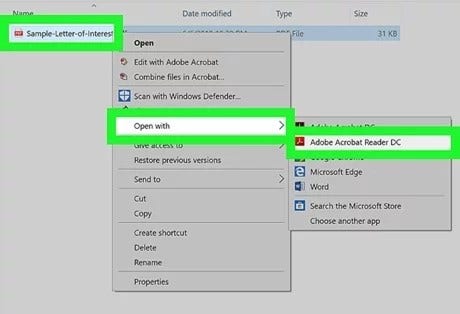
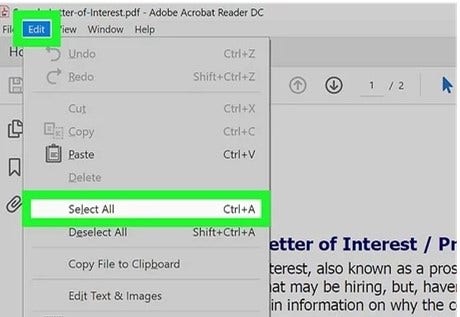
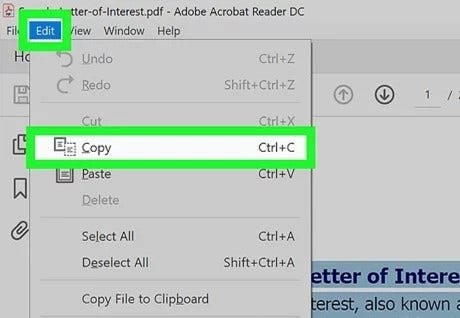
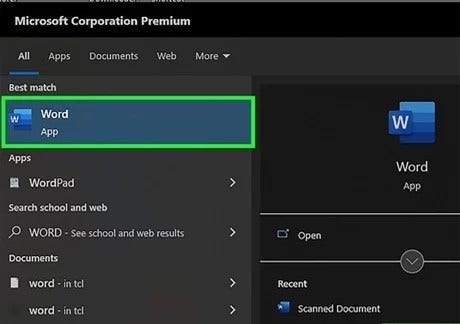
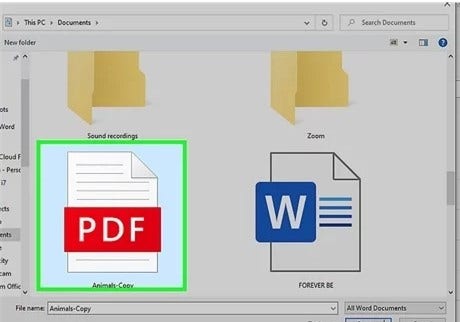
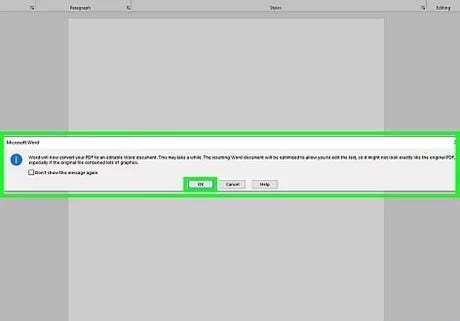
While Microsoft is not the ideal solution for every PDF, it can be a handy tool for copying text from simple, well-structured PDFs. Here is how to copy PDF text using Microsoft Word:
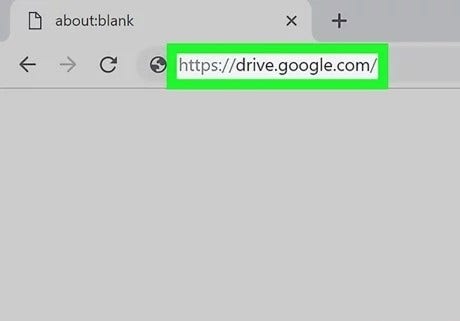
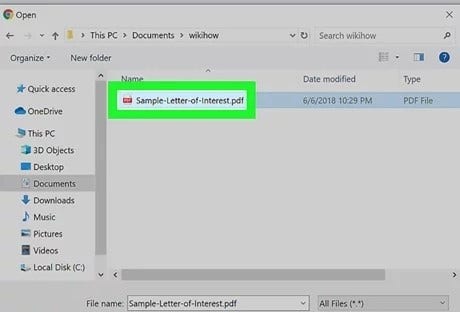
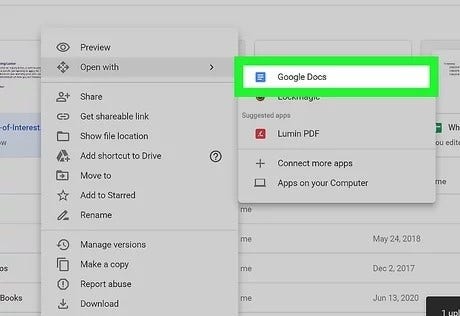
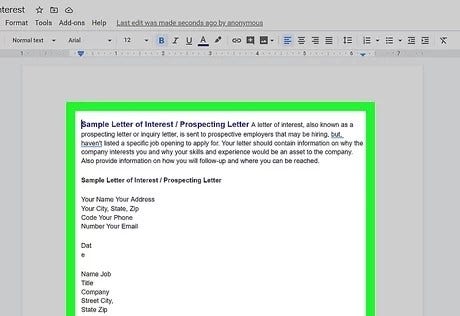
Google Documents offers a convenient way to extract text from PDFs, even scanned ones. Here is how to copy PDF text using Google Docs:
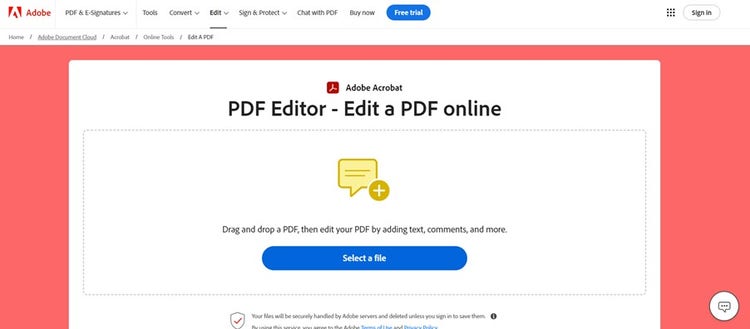
Need to copy some text from a PDF but don't have any software installed? Adobe Acrobat's online PDF editor can help. Here is how you can copy text from PDFs online:
Sometimes, a PDF is actually just an image. For example, it could be a scanned PAN card, Aadhaar card, bank statement, or property registration document. In such cases, the text cannot be highlighted or copied directly because it is stored as an image rather than editable text. Adobe Acrobat Online includes Optical Character Recognition (OCR), a built-in tool that converts scanned or image-based PDFs into searchable, editable documents. This allows you to quickly extract important details for KYC verification, loan applications, or tax filings. Learn how to copy text from a PDF image using the Acrobat OCR PDF tool online:
Step 1: Launch Adobe Acrobat online services and open the image-only PDF you want to convert.
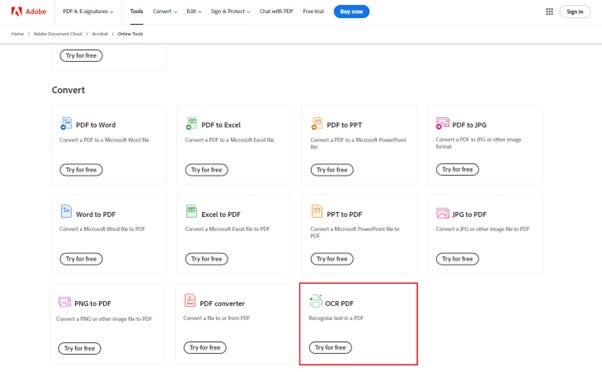
Step 2: Access the ‘OCR PDF’ tool under ‘Convert’.
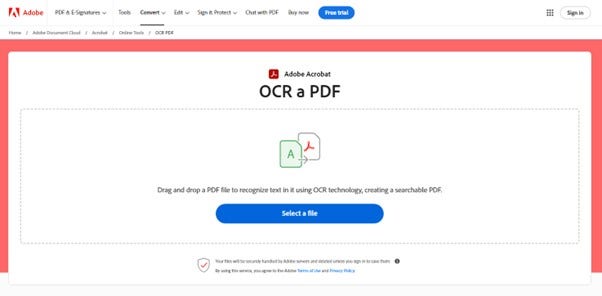
Step 3: Select the PDF and wait for Acrobat to upload it.
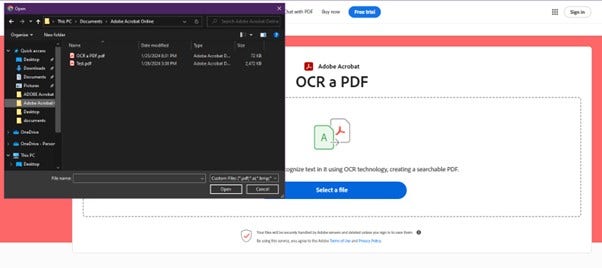
Step 4: Once done, Adobe will automatically recognise the text within, which you can now copy.

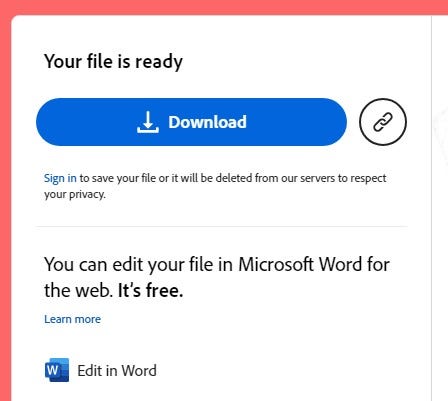
Step 5: Sign in to download your newly converted file or perform other editing functions using Acrobat.
Protected PDFs often have restrictions that prevent copying, printing, or editing. This is common for sensitive or official documents, such as a Form 26AS tax statement, a bank fixed deposit receipt, or a property registration document. If you need to copy text from a protected PDF, you will first need to unlock it using the correct password or permissions. Once unlocked, you can use Adobe Acrobat to copy the required details quickly and accurately.
To access the text within the PDF:
By removing the password, you can highlight and copy the desired text.
Copying text from a PDF is simple when you convert the PDF file to a Word document. Here is how to do it using Adobe Acrobat:
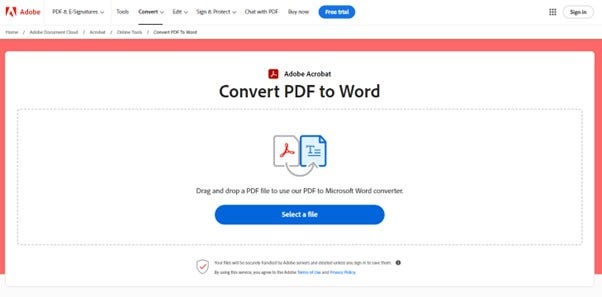
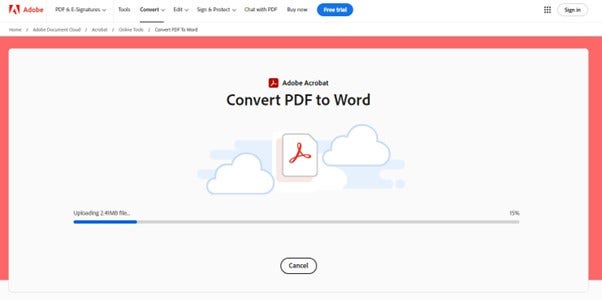
This guide has shown you how to copy text from a PDF, whether you are working with a simple document or a scanned file. With the right approach, you can extract the content you need while keeping formatting intact.
No matter the type of PDF, you now have the tools to copy text accurately, efficiently, and with confidence.