

Creativity for all
Photography, video, graphic design, illustration and so much more. Everything you need, wherever your imagination takes you.


PHOTOGRAPHY
Create standout designs with just a few clicks. Adobe Photoshop AI features help you add professional-looking shadows and depth without the usual time and effort. Whether you’re designing social posts, ecommerce banners, or digital art, Photoshop’s smart AI features make it easy to elevate your visuals. With features like Smart Shadows, Auto Layering, and built-in Style Presets, creators across India can now add depth, realism and polish in seconds.
JUMP TO SECTION
Photoshop AI features that create realistic shadows
How to add drop shadows and depth in Photoshop using AI?
Tips for best results with drop shadows in Photoshop AI
Everyday ways to use Photoshop AI for shadows and depth
Is drop shadow in Photoshop available for free?
How Photoshop AI supports creators across India
Shadows can make or break the realism of a design. Traditionally, adding natural-looking shadows meant manually adjusting blur, opacity, angles, and distances, a time-consuming process. But now, Photoshop AI does the heavy lifting. Whether you’re editing product shots in Mumbai or building client graphics in Kochi, AI-powered drop shadow tools let you focus on creativity, not fine-tuning.
This guide shows how Adobe Photoshop AI makes it quicker and easier to add drop shadows, giving you full control over the final look and feel, helping creators bring ideas to life using Adobe Creative Cloud.
Photoshop’s AI-powered features analyse your image and automatically determine the best way to apply realistic shadows and visual depth. These features are part of Adobe Sensei, the machine learning engine powering Photoshop’s most intuitive features.
Here are the top Photoshop AI features that help you add shadows in seconds:
These features make it easier than ever to add realistic drop shadows in Photoshop, no matter your skill level.
Adding shadows with Photoshop AI is quick and intuitive. Follow these steps to bring more depth and realism to your designs:
1. Open your image in Photoshop
Start with a product photo, portrait, or any object you want to enhance.
2. Select your object
Use the Object Selection Tool or Quick Selection Tool to highlight the subject. Photoshop AI will detect the edges automatically.
3. Apply Smart Shadows
Go to Layer > Layer Style > Smart Shadows. Photoshop AI analyses the lighting and placement, then suggests a realistic shadow effect.
4. Refine with Auto Layering
Shadows are placed on a separate editable layer, giving you control to adjust opacity, blur, or position without changing the original image.
5. Customise with Drop Shadow settings
Use the AI-enhanced Drop Shadow options to adjust angle, distance, and softness. Auto-suggestions and previews help you achieve natural depth.
Optional enhancements:
6. Save and export
Once you are satisfied, save your design in the format you need, whether for web, print, or social media.
Even with AI doing the heavy lifting, a few smart choices can make your shadows look more natural and professional:
1. Match the light source:
Check the direction of light in your photo and align the shadow angle for realism.
2. Keep it subtle:
Use lower opacity for softer effects, especially in product photos and portraits.
3. Stay consistent across designs:
Apply the same depth style to all elements in a campaign so the visuals look polished.
4. Experiment with presets:
Try different shadow styles to see what works best for social posts, ecommerce banners or UI layouts.
5. Combine with other edits:
Adjust brightness, contrast and colour in Lightroom or Photoshop before adding shadows for a balanced final look.
From ecommerce sellers to content creators, Photoshop AI helps speed up shadow editing and makes visuals look more professional. Here are some ways Indian creators are already using it:
1. Ecommerce product photos:
Add consistent shadows to catalogue images for platforms like Flipkart, Amazon or Myntra, making products look polished and ready to sell.
2. Social media content:
Use bold shadows for Instagram reels, YouTube thumbnails or campaign posts to create eye-catching graphics that stand out in feeds.
3. Agency design projects:
Speed up banner, poster and presentation designs by applying shadows across multiple elements in seconds.
4. Education and training material:
Create cleaner slides, infographics and online course visuals with subtle depth that improves readability.
5. Startups and small businesses:
Build professional-looking brand assets such as packaging designs, pitch decks and website graphics without long design hours.
With Photoshop AI, creators across India can reduce repetitive editing, maintain consistency and deliver high-quality work faster.
If you’re just getting started, here are a few ways to try Photoshop’s shadow tools without a subscription:
These options are great for testing AI-driven design workflows before committing long-term.
From ecommerce startups to freelance designers, creators across cities like Jaipur, Chennai, and Hyderabad are using AI to work faster and look more professional. With Photoshop AI’s drop shadow features, you can:
Whether you're preparing a pitch deck, creating packaging, or refining UI mock-ups, Photoshop helps your designs stand out, faster.
Maximise your creative potential by pairing Photoshop’s shadow tools with other Creative Cloud apps:
With Creative Cloud Pro, you get access to the complete suite of AI-powered features across apps, including Photoshop AI, Firefly and Express, giving you a faster, more connected creative workflow.

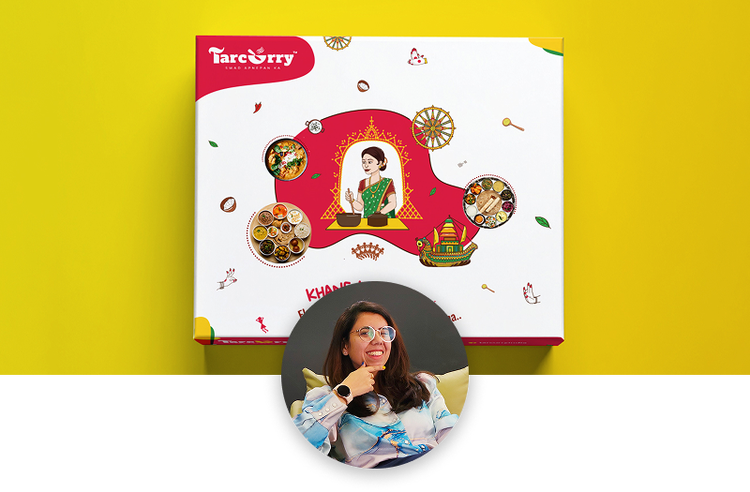
“I work across multiple apps for my branding projects. With Illustrator and Photoshop, I can move seamlessly between the two, without hampering my productivity.”
Nisha Droch, Designer & Co-founder, Creative Hatti
Photography, video, graphic design, illustration and so much more. Everything you need, wherever your imagination takes you.
Based on your location, we think you may prefer the United States website, where you'll get regional content, offerings, and pricing.



