#1e1e1e

VIDEO

Fix frame rate issues fast with Adobe’s AI features.

Learn how to identify and correct frame rate issues quickly using Adobe Creative Cloud’s AI-powered apps, so your video edits stay smooth, clear, and professional.
Explore Premiere Pro

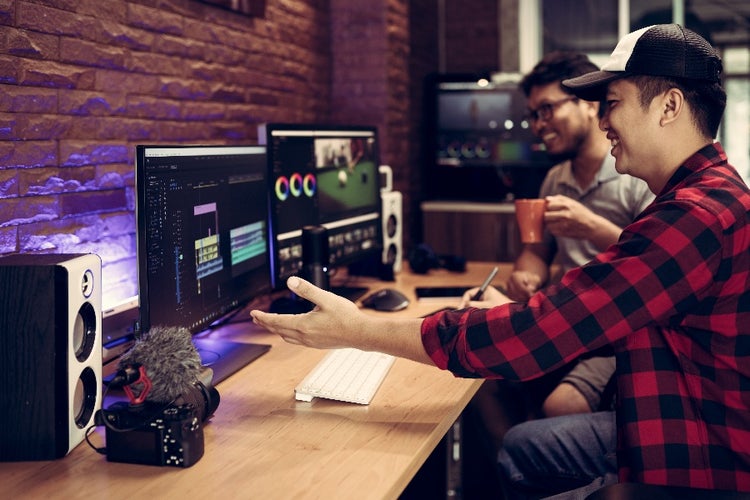
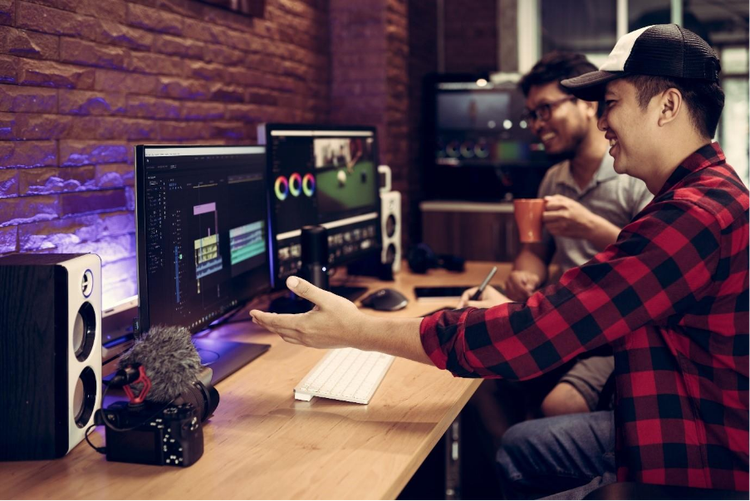
Two video editors review footage on dual monitors in a studio, discussing frame rate settings while editing a project.
#F5F5F5

Why does frame rate matter in video editing?

Frame rate (fps) is the number of frames displayed per second in a video. It directly affects how motion appears. A mismatched or inconsistent frame rate can result in choppy playback, audio sync issues, or unnatural movement problems that can be distracting and difficult to troubleshoot manually.

Understanding what frame rate is and how it impacts your video is essential for achieving high-quality edits. This guide explores how Adobe’s AI features make it easier to diagnose and fix fps inconsistencies across clips or sequences, helping creators keep their projects sharp and seamless using Adobe Creative Cloud.

Why can frame rate cause issues in video editing?

Mixing footage with different frame rates such as clips from phones, DSLRs, or screen recordings often leads to visible glitches in post-production. These inconsistencies affect how the video plays back and how smooth the motion appears.

Frame rate mismatches can result in:

  • Jerky or uneven playback that breaks the flow of the video
  • Audio falling out of sync with the visuals
  • Duplicate or missing frames, creating a ghosting effect
  • Cuts that feel visually disjointed or abrupt

These issues are especially common in projects that involve footage from multiple devices or older content reused for new formats. While they can be frustrating to fix manually, Premiere Pro AI features provide a fast way to fix them.

How to fast-track your video editing with Auto Reframe in Premiere Pro.

Auto Reframe in Adobe Premiere Pro helps turn horizontal videos into vertical or square formats automatically. It’s ideal for creators repurposing long-form content for social platforms like Instagram Reels or YouTube Shorts.

Manually reframing each clip for vertical output is time-consuming. Auto Reframe uses AI to track your subject and adjust the framing for you. Just select your aspect ratio, apply it to your sequence, and let Premiere Pro handle the rest.

Here’s how it works:

  • Use Scene Edit Detection to cut longer videos into clips automatically
  • Right-click your sequence and select Auto Reframe Sequence
  • Choose a format (like 9:16 for vertical) and click Create
  • Premiere Pro analyses the motion and keeps your subject in view

You can still fine-tune the result. Use Effect Controls to override keyframes and lock the frame on specific parts of the shot.

Once reframed, export your clips directly for social. Auto Reframe simplifies repurposing, making short-form content faster to produce and more polished across platforms.

Close-up of a person using a smartphone with video content floating around them, representing frame rate optimisation and digital media playback.

Correct choppy playback with Smooth Playback Correction.

Once frame rates are aligned, playback issues can still occur due to encoding errors, dropped frames, or mismatched export settings. That’s where Smooth Playback Correction comes in.

Available in Adobe Premiere Pro and After Effects, this AI feature enhances viewing quality during editing by:

  • Identifying timing inconsistencies between audio and video
  • Smoothing transitions between mismatched clip segments
  • Reducing motion blur or jitter caused by inconsistent fps
  • Applying corrections in real-time without rendering delays

This feature is especially helpful when previewing high-resolution footage on mid-range machines or when dealing with frame rate changes caused by previous exports.

Adjust frame rate settings for best results.

While AI tools do the heavy lifting, understanding how to manage frame rate manually gives creators more control over the outcome. Here are a few best practices:

  • Choose the right sequence settings: Match your project timeline to the desired final fps (24, 30, or 60 depending on use case). If you’re unsure how resolution relates to fps and aspect ratio, Adobe’s beginner’s guide to video resolution breaks it down.
  • Use “Interpret Footage” in Premiere Pro: This allows you to manually conform imported clips to match your timeline fps.
  • Avoid mixing too many frame rates: Stick to one consistent frame rate where possible to reduce visual inconsistencies.
  • Test playback before export: Use Preview mode to spot sync issues or jitter early in the process.

If unsure which fps is right, remember that 24fps offers a cinematic feel, 30fps is ideal for YouTube and interviews, while 60fps works well for fast motion or tutorials.

Frame rate fixes for creators in India.

From regional content production to social media storytelling, many creators in India work with footage from multiple devices and formats. Fixing frame rate issues quickly ensures smoother playback, better audio sync and a professional finish, no matter the platform.
  • YouTube vloggers: Editing travel or lifestyle vlogs that combine smartphone clips with DSLR footage for a seamless viewing experience.
  • Regional OTT editors: Managing mixed archive footage and new shots for web series or films while keeping motion consistent across scenes.
  • EdTech creators: Synchronising screen recordings and webcam videos to produce clear and engaging online lessons.
  • Wedding filmmakers: Blending clips from multiple cameras and drones to deliver cinematic event videos without jitter or ghosting.
  • Short-form content creators: Repurposing horizontal videos into vertical formats for Instagram Reels and YouTube Shorts without losing quality.

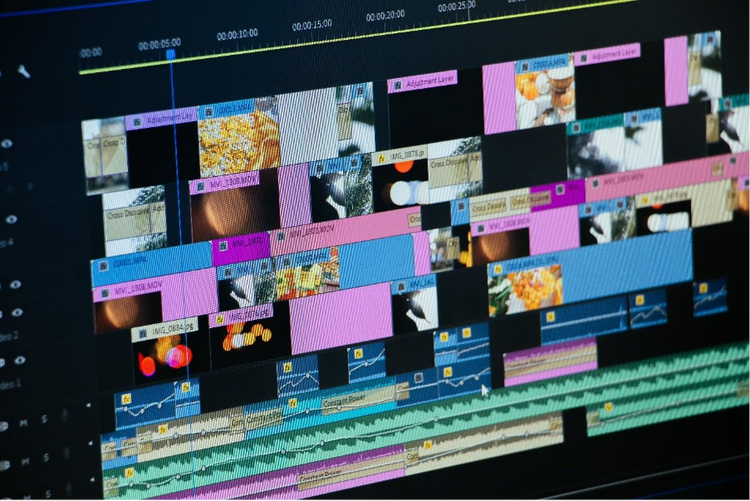
Video editor blending footage from phones, DSLRs, and screen recordings at varied frame rates.

Fixing frame rate issues with Adobe Creative Cloud.

Even well-shot footage can suffer from mismatched frame rates, choppy motion, or playback delays. Adobe Creative Cloud includes intelligent features to correct these issues quickly and professionally:

Adobe Premiere Pro

  • Premiere Pro is the primary workspace for fixing fps and frame rate mismatches.
  • Auto Frame Match automatically adjusts clips to align with your sequence’s frame rate
  • Interpret Footage lets you manually conform clips to match a project’s fps
  • Scene Edit Detection breaks longer footage into smaller edits for easier frame rate correction
  • Time Interpolation (Frame Sampling, Frame Blending, Optical Flow) ensures smooth playback when converting between frame rates

Explore our guide to get familiar with Premiere Pro’s powerful editing features for film, TV, and online content.

Adobe After Effects (for video)

  • After Effects helps refine playback smoothness and motion across time-stretched or frame-adjusted footage.
  • Use Frame Blending or Pixel Motion to reduce jitter when slowing down or converting footage
  • Apply Time Remapping for more precise control over clip speed and timing
  • Combine with Smooth Playback Correction to polish sequence motion for final delivery

Explore Adobe After Effects features and discover the tools you can use to design dynamic video effects and motion graphics.

Adobe Media Encoder

When exporting, Media Encoder ensures that your chosen output frame rate remains consistent with your project settings.

  • Choose from preset output frame rates (24, 25, 30, 60fps)
  • Match source settings to avoid re-encoding errors
  • Convert older or external clips into a unified frame rate for easier editing downstream

Finishing with finesse: AI tools in post-production.

Once frame rate issues are resolved, Adobe Creative Cloud helps polish the final edit with consistent motion and sync. In addition to Auto Frame Match and Smooth Playback Correction, tools like Time Interpolation and Optical Flow enhance transitions between clips with differing frame rates.

Together, these features ensure that:

  • Motion remains fluid across scenes
  • Dialogue syncs naturally with video
  • Viewers stay focused on the story, not technical glitches

Adobe’s frame rate solutions are built for editors who need to move quickly without sacrificing quality whether producing marketing videos, reels, tutorials, or full-length features.

Frequently asked questions.

How can I check the frame rate of a video clip in Premiere Pro?

To check a clip’s frame rate in Premiere Pro, right-click the file in the Project panel and choose Properties. This reveals the clip’s fps, which is essential when working with footage from multiple sources. Identifying mismatches early helps avoid playback and sync issues later in your timeline.

Should my export frame rate match my sequence settings?

Yes, your export frame rate should match your sequence settings. Exporting at a different fps can cause unintended speed changes or visual glitches. Matching the two ensures a consistent viewer experience across platforms.

Can I combine 25fps and 30fps footage without visible issues?

Combining 25fps and 30fps footage is possible but may result in slight motion inconsistencies. Using Auto Frame Match can help align clips, but for a seamless edit, it’s best to interpret all footage to a single frame rate before you begin.

Is Smooth Playback Correction applied to the exported file?

No, Smooth Playback Correction is not included in the export. It enhances real-time playback inside Premiere Pro, which is helpful during editing especially when working on high-resolution files or lower-powered systems.

How to fix frame rate issues without re-shooting the video?

In Premiere Pro, use Interpret Footage to match fps, Smooth Playback Correction to fix jitter and sync issues, and Optical Flow to create smooth motion between mismatched clips. These AI-powered tools save time and deliver professional results from existing footage.

What’s the best way to convert 30fps footage to 24fps for a film-style output?

The best way to convert 30fps to 24fps is by using Optical Flow or AI-driven time interpolation. These tools help preserve natural motion and avoid stutter, especially important when creating cinematic-style edits where fluid movement matters.

What is the best frame rate for YouTube videos?

For most YouTube content, 30fps is ideal. Use 24fps for a cinematic look or 60fps for fast action. In Premiere Pro, match your sequence fps to your desired output before exporting. This helps maintain smooth playback and prevents unexpected motion issues.

Which Adobe app is best for Instagram Reels editing?

Premiere Pro’s Auto Reframe quickly converts videos to 9:16 vertical for Reels, keeping your subject in frame. For quick mobile edits, Premiere Rush offers vertical editing and direct social exports. Both products ensure your content is optimised for social media without losing quality.

https://www.adobe.com/cc-shared/fragments/creativity-for-all/default

You may also like

Content as a Service v3 - photo - Monday 1 September 2025 at 17:18

https://main--cc--adobecom.aem.page/cc-shared/fragments/seo-articles/do-more-premiere-pro-color-blade