https://main--da-cc--adobecom.aem.live/cc-shared/assets/img/firefly.svg Adobe Firefly

Create dystopian art with Generate Image in Adobe Firefly.
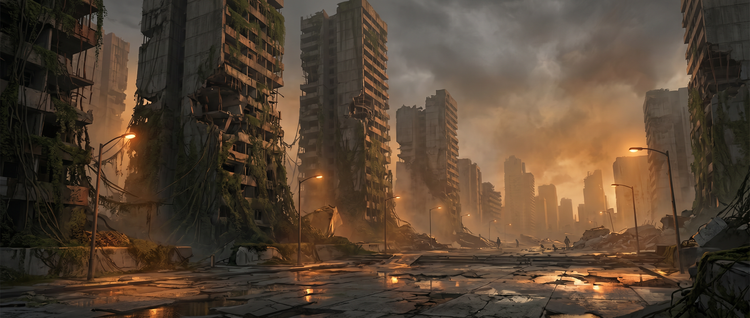
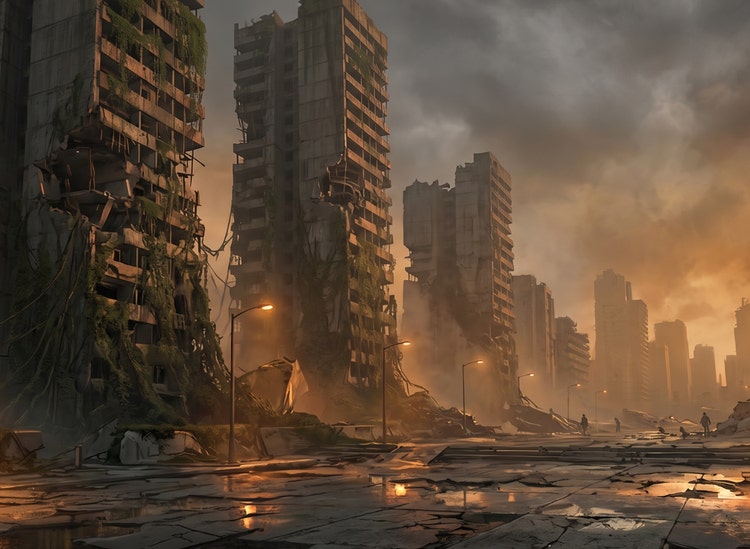
Turn a detailed text prompt into richly layered dystopian art. Control atmosphere, palette, and narrative detail with Adobe Firefly.
- image
- Describe a subject, an action, a place, a mood, or a style.
- Adobe Generative AI Terms
- https://main--cc--adobecom.aem.live/creativecloud/animation/testdoc/unity/generate.svg Generate
- Describe the dystopian art you want to generate
- Prompt
- Tip
- Unable to process the request
- Please describe what you want to generate.
- Prompt exceeds the max length of 750 characters
- dystopianArtGenerator


https://main--cc--adobecom.aem.live/cc-shared/assets/img/product-icons/svg/firefly-80.svg

Adobe Firefly
The next evolution of creative AI is here for all your ideas, with image, video, audio, and vector tools.
Bring your dystopian vision to life.
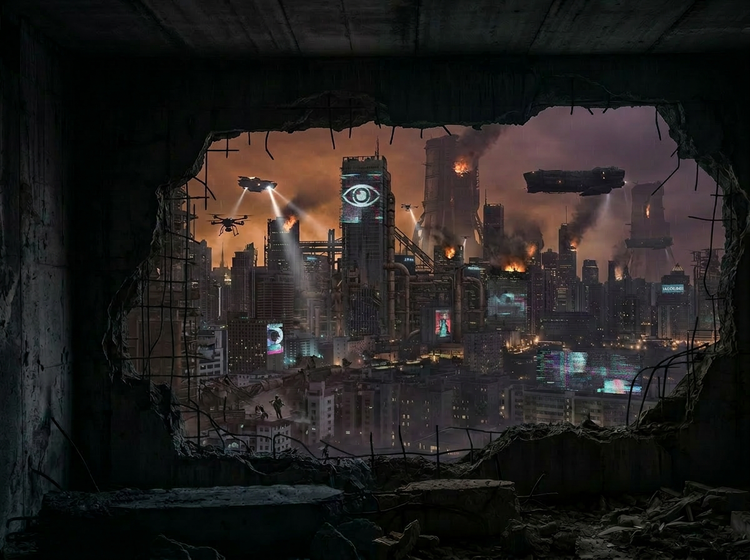
Dystopian art has a specific visual vocabulary: fractured architecture, muted industrial skies, and a world rendered in careful, considered detail. Generate Image in Adobe Firefly lets you move from concept to finished dystopian art quickly, without needing technical illustration skills.
Layer your prompts for richer results.
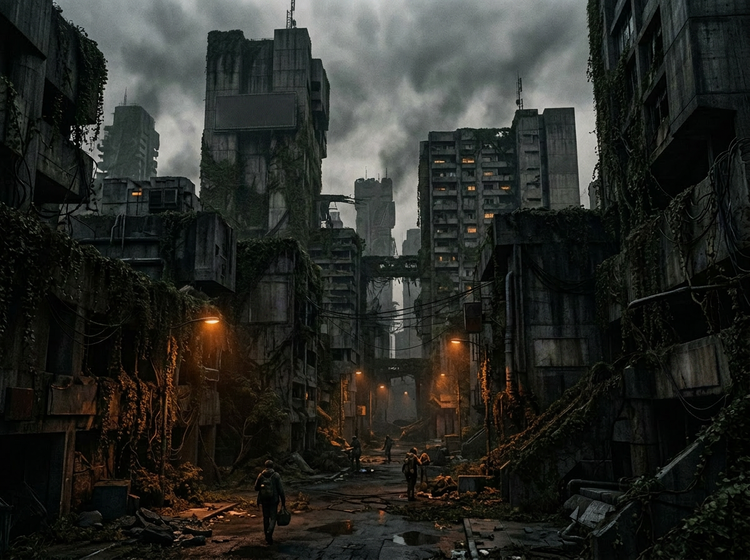
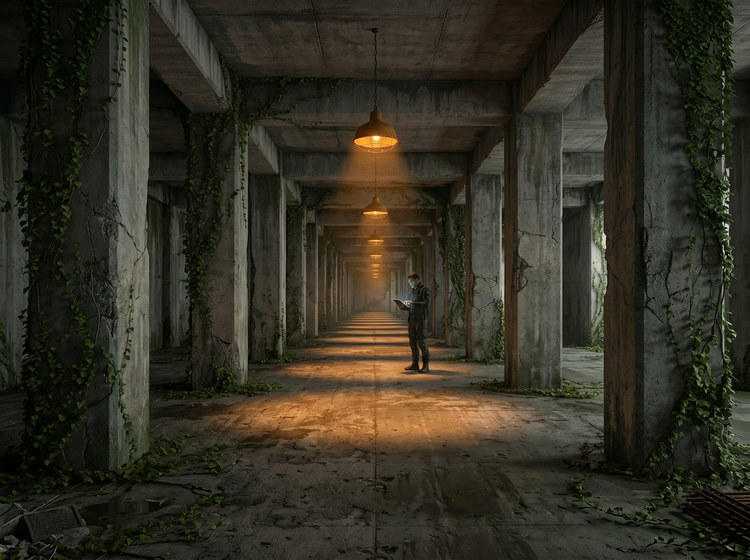
The more specific your prompt, the more your dystopian art reflects your vision. Stack descriptors: setting, time period, texture, atmosphere, palette, and narrative detail. A prompt like “brutalist city overrun by vines, ash-colored sky, amber street glow, 2140” pulls Adobe Firefly toward your intent rather than a generic approximation. You stay in control of the creative direction throughout.
Refine your direction without starting over.
Generate a first image, identify what’s working, then adjust a single variable in your prompt and generate again. Shift the lighting from cool blue to deep amber. Swap concrete for overgrown foliage. Adobe Firefly responds to incremental changes, so you can move through visual directions quickly and converge on the image you have in mind.
Use your dystopian art in professional work.
Adobe Firefly models are trained on licensed and public-domain content, so you can use the dystopian art you generate with Firefly models in concept art packages, game design pipelines, and editorial work. Illustrators, game concept artists, and designers can incorporate their generations directly into professional deliverables.
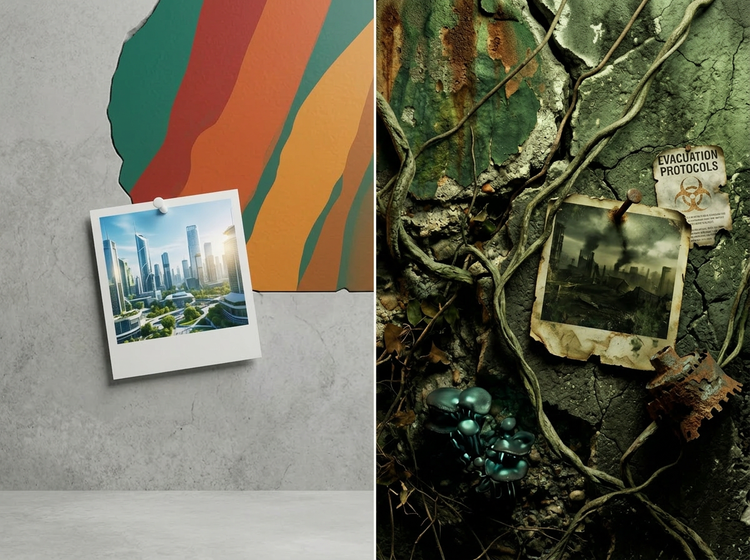
Anchor your visual style with a reference image.
Upload a reference image alongside your prompt to guide the overall register and palette of your dystopian art. The image-to-image tool in Firefly carries your aesthetic direction into the generation, so each iteration stays within the visual world you’re building rather than drifting across styles.
How to generate dystopian art with Adobe Firefly.
Step 1
Open Adobe Firefly and select Generate Image.
Step 2
Upload an image or write a prompt.
Step 3
Adjust your style settings.
Step 4
Generate your dystopian artwork.
Step 5
Review your results and refine them if needed.
Step 6
Download your dystopian art.
Steps on how to generate dystopian art using Adobe Firefly Generate Image.
PT3M
firefly
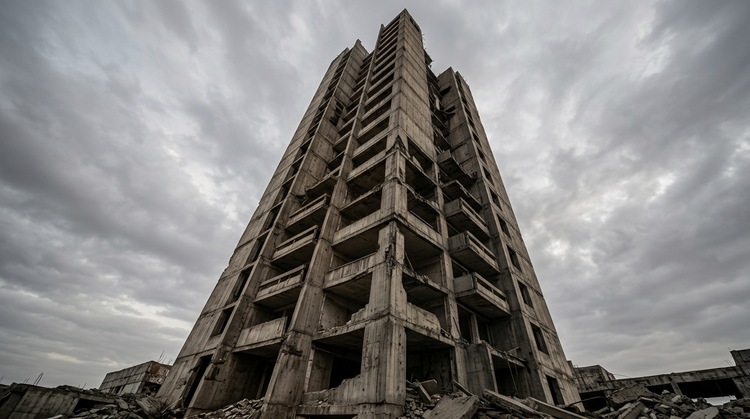
Precise creative control
Fine-tune every aspect of your dystopian image. Use detailed prompts to specify setting, atmosphere, lighting, color temperature, and compositional detail, then adjust style settings to narrow in on the exact register your project requires.
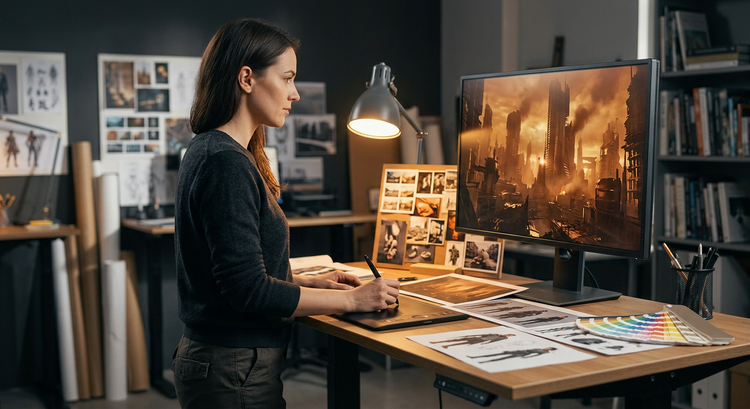
Top AI models, all in one place
Adobe Firefly brings together its own models and top partner models from companies such as Google, OpenAI, Flux, and more in a single creative studio. Generate with the model that’s best suited to your style, without switching between tools.
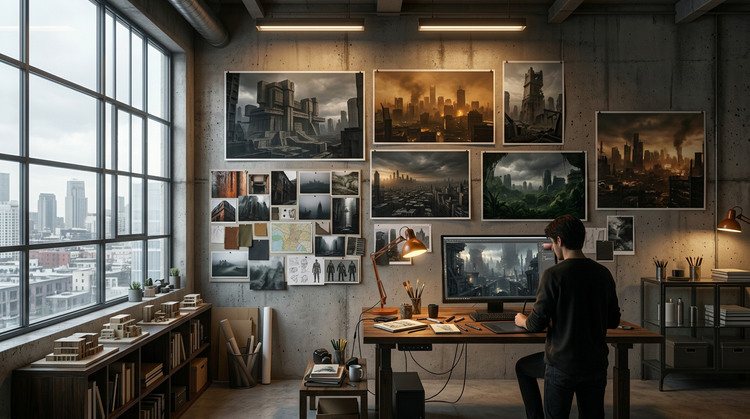
Your complete creative studio
Adobe Firefly is more than an image generator. Start with a prompt, refine your result with precision editing tools, and go from first idea to finished image without leaving your creative flow.
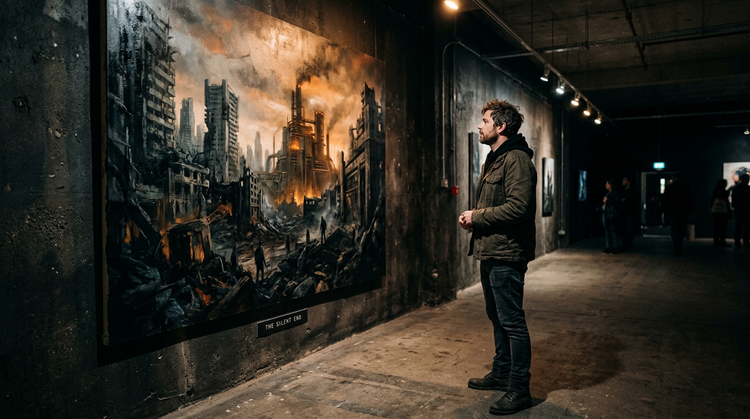
Seamless integration
Easily open your Adobe Firefly generations in Photoshop on the web and Adobe Express for a seamless creative workflow, all in one place.