Photo to PDF

{{verb-widget-legal}}

How to convert an image to PDF online.

Turn JPG, PNG, BMP, HEIC or other image files into sleek, easily shareable PDFs in seconds. Use our picture and photo to PDF converter to better organise your work, share visuals or prepare files for printing.
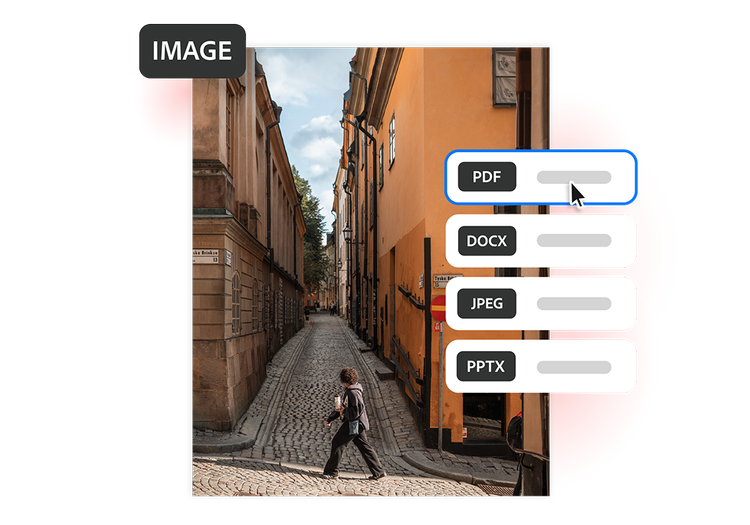
It’s easy to convert your image to PDF for free:

Cobblestone street with warm orange buildings, shown as an Image to PDF conversion with PDF selected in the format menu

  • Upload your image file. Drag and drop or browse your files and select the image to upload.
  • Convert. Hit convert to turn your image into a high-quality PDF.
  • Download and save. Once converted, just download or save your newly converted PDF file. You can then print or share your PDF.

Why use our free image to PDF converter?

Discover the benefits of transforming image files into PDFs with Acrobat’s image to PDF converter.

https://main--da-dc--adobecom.aem.page/dc-shared/assets/images/frictionless/icons/share.svg

Share files easily

PDFs are simple to send, open and view across different types of devices and operating systems. Convert photos into PDFs for a professional format that’s universally accessible.

https://main--da-dc--adobecom.aem.page/dc-shared/assets/images/frictionless/icons/image-quality.svg

Preserve image quality

Convert without fear over image quality. The appearance of your original image remains intact once converted to PDF. This includes the colour, sharpness and other details of your picture or photo.

https://main--da-dc--adobecom.aem.page/dc-shared/assets/images/frictionless/icons/combine.svg

Easily combine images

Turn multiple photos or pictures into a single organised PDF. You can then download or share for presentations, reports, receipts, portfolios, school assignments or personal projects. Consolidate multiple images in one seamless, high-quality PDF.

https://main--da-dc--adobecom.aem.page/dc-shared/assets/images/frictionless/icons/print.svg

Not all image files print reliably. But PDFs maintain consistent sizing and formatting, making this file type preferable for printing flyers, photos and other visual documents.

https://main--da-dc--adobecom.aem.page/dc-shared/assets/images/frictionless/icons/organize.svg

Better organisation

Rather than keeping track of a number of individual image files, you can convert photos to PDFs that are simple to archive, label, search and share. You can even merge multiple images onto one PDF document for easier storage and sharing.

https://main--da-dc--adobecom.aem.page/dc-shared/assets/images/frictionless/icons/more.svg

Unlock more with PDFs

Edit, organise and sign your PDFs with all the online tools that Acrobat has to offer. You can combine PDFs into a single file, compress large documents and protect sensitive information by adding password protection.

#ffffff

More ways to work with PDFs

Try our online tools to convert, compress and merge PDF files — Acrobat can do it all.

Try our free PDF to Word converter

Try our free PDF to Word converter

Try our free JPG to PDF converter

Try our free JPG to PDF converter

Try our free Word to PDF conversion tool

Try our free Word to PDF conversion tool

Combine PDF files any time, anywhere

Combine PDF files any time, anywhere

Questions about the image to PDF converter? We have answers.

What image file types can I convert to PDF?
The Adobe Acrobat free image to PDF converter supports a variety of picture and photo file types, including JPEG, JPG, PNG, BMP, HEIC, TIFF, GIF, PSD, INDD and AI files.
Are there limits on the number or size of image files I can convert?
The online image to PDF converter is designed for quick, individual conversions. You may encounter limits for large batches or files above 100MB. Explore the full range of Adobe Acrobat’s online tools for more options and formats.
Why should I convert images to PDF?
You may decide to turn images or screenshots into PDFs so the files are easier to share, present and print. The PDF format allows you to consolidate multiple images in a single file, while still preserving image quality and formatting.
Can I convert images to PDF on my phone?
Yes – our online converter works in any supported browser. This means you can convert images to PDFs online on your smartphone, tablet or PC, using iOS, Android or any supported platform.
Is it secure to convert images to PDF online?
You can rest easy knowing that your privacy and file security are our top priority. Your image files are processed and deleted from Adobe servers unless you decide to sign in and save them for a future project.
Who would use an image to PDF converter?

An image to PDF converter is useful for any creative, from students to small business owners and photographers, who need to turn photos into sharable documents.

Adobe Acrobat's image to PDF tool can come in handy for various purposes, from combining receipts to consolidating portfolio images or assignment photos into a single organised file.

How do I turn multiple photos into one PDF document?
It’s simple to combine multiple photos with the right tools, whether you’re creating a portfolio or bringing together a multiple-page report. First, use Adobe Acrobat's image to PDF converter to convert your images into PDFs. Then use the Merge PDF tool to consolidate them into a single file.
How do I save a photo as a PDF?
It’s simple and easy to save a picture as a PDF using the Adobe Acrobat online PDF converter. Just drag and drop your photo into the drop box or select from your files. Hit convert, then download the PDF.
How do I save a photo as a PDF on an iPhone?

It’s easy to convert photos to PDFs on an iPhone using the Photos app on iOS. All you need to do is:

  1. Open the Photos app.
  2. Select the photo you want to convert.
  3. Click the Share icon.
  4. Navigate to Print.
  5. Zoom into the photo to open the PDF viewer.
  6. Hit Share.
  7. Choose Save to Files.
How do I convert a screenshot to a PDF?
Just drag and drop your screenshot into the Adobe Acrobat PDF converter. Whether you’ve saved it as a PNG or JPEG, our converter can transform it into a PDF in just a few moments.
Can I combine multiple screenshots into one PDF?
Yes! First, use the image to PDF converter tool to turn the screenshot into a PDF. Once you have multiple PDFs, you can use the Adobe Acrobat Merge PDF tool to create one consolidated document. To convert multiple image files in one step, explore our Acrobat Pro plans.

More resources

Learning How to Add an Image to a PDF

We have the how-to guide to insert an image into a PDF.

Read now

Convert PowerPoint to JPG

You have a presentation coming up that you’ll need to present on a different computer. No problem. In this guide, we’ll show you how to convert PPT to JPG and make presenting a breeze.

Read now

How to Convert JPG to PDF on a Mac

PDF files are designed to be readable on any device, making them a great way to share information. Learn how to convert a JPG to PDF on a Mac using our handy guide.

Read now

How to Draw on PDF

A picture is worth a thousand words. Whether you’re annotating a design project or signing a document, learn how to draw on a PDF in a few simple steps.
Read now

Try these Acrobat online tools

Convert from PDF

Convert to PDF

Reduce file size

Edit

Sign & Protect

Generative AI

Convert from PDF
Convert to PDF
Reduce file size
Edit
Sign & Protect
Generative AI