How to use AI writing tools with Adobe Acrobat.
With an AI text generator, you no longer need to put pen to paper to write a paragraph. Whether you’re short on time, looking for creative inspiration, or want help editing, an AI writer can be a big help.
Read on to learn how you can make the most of Adobe Acrobat’s AI writing assistant and create your own AI prompts.
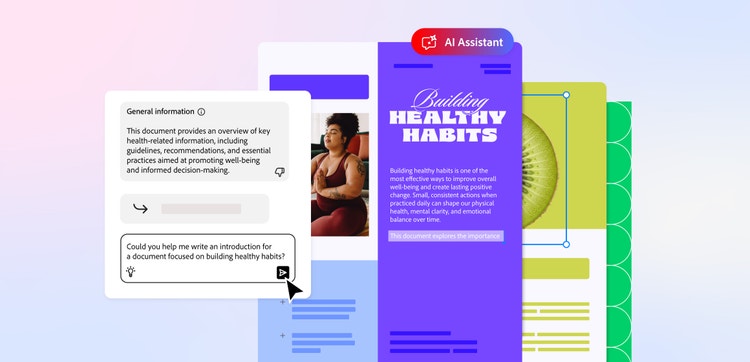
What are the main types of AI writing tools?
AI writing tools aren’t one-size-fits-all. You can find a variety of tools, some with their own specialism, to help you write the content you need.
Some of the main types of AI writing tools you can access include:
- AI text generators. Acting as an all-rounder, AI text generators are capable of carrying out a range of tasks, from generating new copy to editing existing paragraphs. They can be used for creative projects as well as business-related writing tasks. Depending on the level of intelligence, you may be able to ask an AI text generator comprehension questions about a text.
- AI spellcheckers. Some AI writing assistants are set up to review existing pieces of content and make sure there aren’t any spelling or grammatical errors. This can be a useful way to proofread quickly, so there’s more time for in-depth human checks around sourcing, structure and accuracy. SEO writing tools. Optimising content for search engines is something marketing teams specialise in. But AI writing assistants that generate search engine optimised (SEO) content can take the load off teams and speed up the process.
- CRM platform support. Fielding customer queries and addressing complaints is essential for any customer-focused business. With some text generators, you can use AI to answer basic customer questions on your CRM (Customer Relationship Management) platform, freeing up staff to deal with more complex issues.
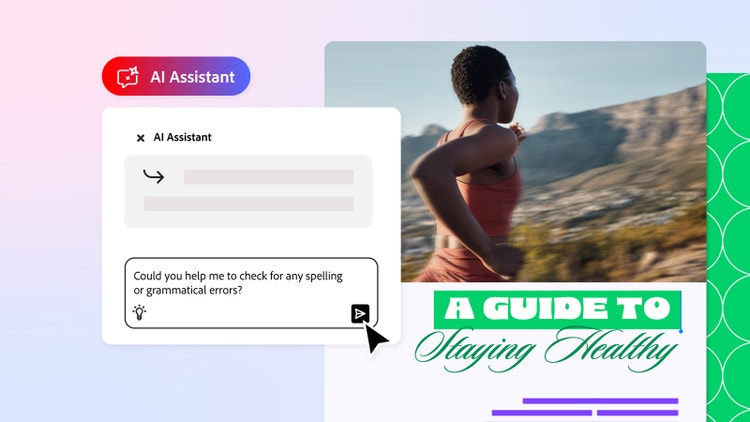
How to write with Adobe Acrobat’s AI Assistant.
It’s easy to use Adobe Acrobat’s AI Assistant for writing. We’ve broken the process down into five simple steps for you to follow.
1. Set up your AI Assistant.
Using Adobe Acrobat’s AI Assistant, you can generate stories, scripts, ad copy and more with a simple text prompt.
Start by opening up a PDF space, either in your browser or app. Once in the space, you’ll need to upload one or more PDFs.
From here, you can select your AI Assistant. The existing versions will offer a variety of takes on the PDFs you’ve uploaded, but you can also create your own if you want a specific form of assistance.
2. Generate text from scratch.
The text that your AI Assistant generates will be influenced by the PDFs you’ve uploaded. For example, if you upload a storyboard for a film or TV episode, you can ask the AI writer to generate a story around the PDF.
A simple AI prompt, such as ‘create a 100-word story based on the PDF uploaded’, can be enough to spark creative ideas. If you want to see some specifics, then be sure to include these details in your prompt.
3. Paraphrase existing content.
Paraphrasing any existing content is just as simple as asking the Adobe AI Assistant to create new copy. Simply upload the PDF that contains the text you want paraphrased and enter your request for Adobe’s AI tool.
Bear in mind, if you’re using a large PDF with a lot of text, the paraphrased text will likely be shorter than the full document.
4. Rewrite text with the AI Assistant.
Similar to paraphrasing, you can also use the AI Assistant tool to reword text in a PDF.
Whether you want to fit the text within a certain word limit or change the mood of the piece, rewording can alter the main body of the text without losing the meaning.
This may be necessary if you’re taking information from one source but using it in another. For example, a PDF written for an academic textbook that you want to make more accessible. Be sure to include the necessary details you want to see in your prompt.
5. Refine and edit your writing.
Once Adobe’s AI Assistant has generated the text you requested, you may need to refine and edit it. You can do this manually, by editing the text in a word processor, or you can ask the AI writer to edit it for you.
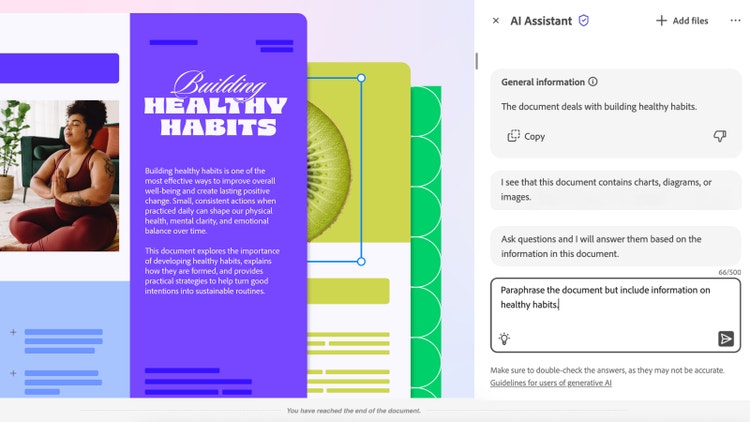
For example, if the AI writing assistant paraphrased a visitor’s guide for you but skipped an essential detail, you could request: ‘Paraphrase again but include information on opening times of the museum.’
Feel free to experiment with the AI Assistant to get the results you’re looking for.
7 ways to use AI writing tools.
AI writing tools are often noted for their versatility, as they allow you to perform a wide range of tasks with just a few prompts. Below we’ve listed a selection of our favourite ways to use AI writing assistants.
- Generate drafts for emails. If you need to send an important email, but are unsure where to begin, you can use an AI writing tool to create a draft version you can tailor to your needs.
- Create marketing copy. Whether it’s for a promotional email, a post on social media, or to put on your website, you can use your AI writing tool to build copy you can use for marketing and advertising purposes.
- Help with mental blocks. If you’re working on a novel, song, or even the intro to your latest YouTube video, you might encounter a mental block. Using an AI Assistant can help you kick-start your ideas and get those creative juices flowing.
- Rephrase sentences. If you’re lifting information from a reputable source and are worried about plagiarism, being able to rephrase the wording is essential. If you’re struggling with this task, AI writing tools can help.
- Condense long paragraphs. Sometimes it’s important to get to the meat of the message. If you need to trim a waffly email you’ve written or get to the essentials in a textbook, AI writing can help condense and explain any long and complex paragraphs.
- Check grammar and spelling. Spellcheckers can help with basic proofing, but for a more in-depth look at what you’ve written, consider using an AI writing assistant. Depending on the prompt you enter, some AI assistants can rewrite or highlight errors for you.
- Translate text. If you’re presented with text in a language or multiple languages you don’t understand, you’ll need them translated. AI writers provide a convenient solution for translating PDFs and texts into other languages.
How to write good AI prompts.
If you want to get the best out of AI, it can be worthwhile thinking about the prompts you use.
Prompts are the written commands you give to AI text generators. How and what you write will be determined by what you’re looking for.
For example, if you’re brainstorming ideas, you might not have a specific vision for what you want, so the prompt can be looser. In comparison, you would need to ask for a precise answer if you were looking for the solution to an equation on a PDF.
It can be helpful to break down effective prompts into four key aspects:
1. Task – This is what you want the AI writing assistant to do.
2. Context – This is where you refer to the PDF(s) you’ve uploaded.
3. Expectations – This is how you want the response to appear, whether that’s as a summary, a figure, or anything else.
4. Format – This is how you want your response to appear as a result. Short bullets, a couple of paragraphs, or anything else?
Put into practice, this might look like the following:
Summarise the key events of the English Civil War [This is your task] based on this biography of Charles I [This is your context]. Provide information on important dates, significant battles, and the military leaders involved [This is your expectation]. Outline this as a list of bullet points presented in chronological order [This is your format].
Not every prompt will require this much detail, while some may require more. Don’t be afraid to experiment until you get a satisfactory answer.
FAQs.
What is the best AI writing tool?
The best AI writing tools are the ones that allow you to refine your prompts and test new approaches to help you get the best results. Adobe’s AI Assistant writing tool is tailored to work with PDFs but encourages editing and experimentation too.
Is the Acrobat AI writing assistant tool free to use?
You’ll need to have a paid membership for Acrobat Studio account to access the AI Assistant. However, you can get a free seven-day trial to test out the tool before you commit to a plan.
What is Adobe AI good for?
Adobe Acrobat’s AI Assistant is good at pulling and working with information from PDF files. Whether you need a long file summarised or complicated passages explained, you can upload files and gain fresh insights.
More useful resources.
Useful PDF tools.
Read, edit and manage your PDFs across web and mobile with Adobe Acrobat online.