How to write with Adobe Acrobat’s AI Assistant.
It’s easy to use Adobe Acrobat’s AI Assistant for writing. We’ve broken the process down into five simple steps for you to follow.
1. Set up your AI Assistant.
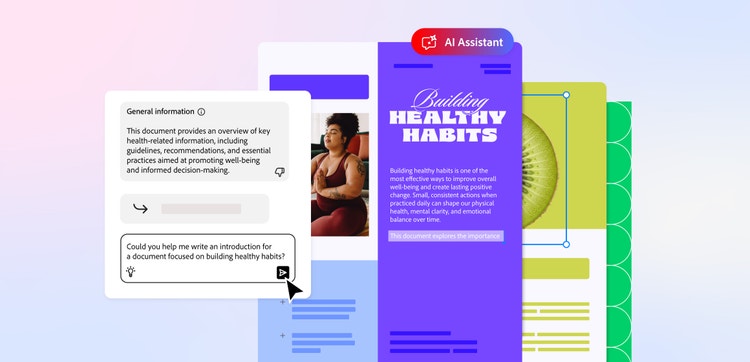
Using Adobe Acrobat’s AI Assistant, you can generate stories, scripts, ad copy and more with a simple text prompt.
Start by opening up a PDF space, either in your browser or app. Once in the space, you’ll need to upload one or more PDFs.
From here, you can select your AI Assistant. The existing versions will offer a variety of takes on the PDFs you’ve uploaded, but you can also create your own if you want a specific form of assistance.
2. Generate text from scratch.
The text that your AI Assistant generates will be influenced by the PDFs you’ve uploaded. For example, if you upload a storyboard for a film or TV episode, you can ask the AI writer to generate a story around the PDF.
A simple AI prompt, such as ‘create a 100-word story based on the PDF uploaded’, can be enough to spark creative ideas. If you want to see some specifics, then be sure to include these details in your prompt.
3. Paraphrase existing content.
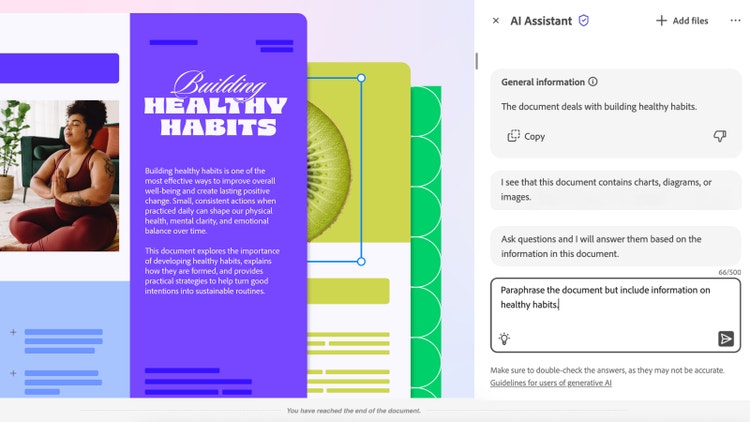
Paraphrasing any existing content is just as simple as asking the Adobe AI Assistant to create new copy. Simply upload the PDF that contains the text you want paraphrased and enter your request for Adobe’s AI tool.
Bear in mind, if you’re using a large PDF with a lot of text, the paraphrased text will likely be shorter than the full document.
4. Rewrite text with the AI Assistant.
Similar to paraphrasing, you can also use the AI Assistant tool to reword text in a PDF.
Whether you want to fit the text within a certain word limit or change the mood of the piece, rewording can alter the main body of the text without losing the meaning.
This may be necessary if you’re taking information from one source but using it in another. For example, a PDF written for an academic textbook that you want to make more accessible. Be sure to include the necessary details you want to see in your prompt.
5. Refine and edit your writing.
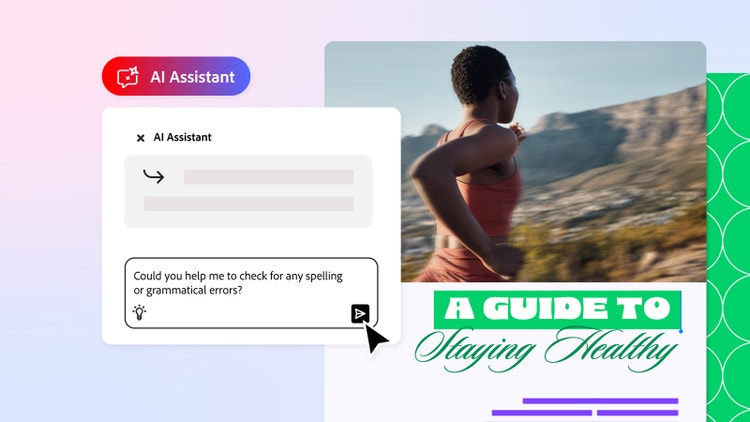
Once Adobe’s AI Assistant has generated the text you requested, you may need to refine and edit it. You can do this manually, by editing the text in a word processor, or you can ask the AI writer to edit it for you.
For example, if the AI writing assistant paraphrased a visitor’s guide for you but skipped an essential detail, you could request: ‘Paraphrase again but include information on opening times of the museum.’
Feel free to experiment with the AI Assistant to get the results you’re looking for.