
ACROBAT | 4 MINUTE READ
How to convert PDF to Word on Mac in 3 different ways.
Learn to use Adobe Acrobat online to convert a PDF to Microsoft Word


ACROBAT | 4 MINUTE READ
Learn to use Adobe Acrobat online to convert a PDF to Microsoft Word

Can I turn a PDF into a Word document on Mac?
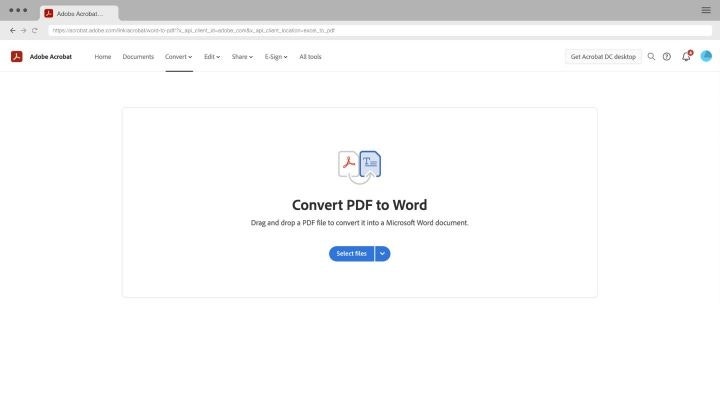
Yes. It’s quick and easy to convert a file from PDF to Word with Adobe Acrobat online services. All you have to do is drag and drop your PDF and then download the converted Word file. You can convert PDF to Word in any web browser on any device.
Converting a PDF to a Word document on Mac PDF to Word converter computers is quick and convenient with online tools. These tools allow you to upload your PDF and download an editable Word file in just a few clicks, saving time and effort while preserving the original layout and formatting. With Acrobat, you can choose the PDF to Word converter tool. From there, follow these quick steps:
1 Click the blue button labelled “Select a file” or drag and drop a PDF into the drop zone.
2 Select the PDF you want to convert to the DOCX file format.
3 Acrobat automatically converts the file from PDF to Word.
4 Download the converted Word document or sign in to save it to the cloud.

If you haven’t installed any other software, you are probably already viewing PDFs in Preview because it’s the built-in and default app for viewing PDFs on most Mac computers. Within this app, you can try exporting the file as a Word file. If the original formatting isn’t too complex, the exported file might work just fine for your purposes.
If you don’t want to export the file or you find that you’re unable to export as a PDF, a work-around option to edit a PDF in Word would be to copy and paste the text from the PDF into a new Word file. Of course, that gives you the text to work with, but the formatting will likely be skewed. Try exporting first to see if that gives you better results.
The Preview app thumbnail looks like a photo and a loupe. If the file doesn’t automatically open in Preview, control-click the file and select Open With > Preview.
Choose File > Export. Select PDF as the file type from the menu. Download your new file.
Another option is to try opening the PDF file in Word directly. This option might work if the PDF is text-based and uses simple formatting.
Click the Word app to open it.
Go to File > Open. Look for the PDF file that you want to convert. If necessary, select Browse and locate the folder where the file is stored.
Click Open. Word will let you know that it will make a copy of the original file and convert the contents so they can be displayed in Word.
You can’t make edits yet, but after you save the file as a Word document, you can change the settings.
In the Save menu, select Save As and choose to save it as a Word document. Select OK. Now you can open the file in editing mode and make any necessary edits.
While the PDF is one of the most versatile document file formats out there, sometimes you need to switch to a different format, like a Word doc. It’s a common and necessary part of working. Here are some of the most common reasons to convert:
Regardless of the reason, converting a PDF to a Word document or vice versa is easy and takes only a few seconds in Adobe Acrobat online services. There, you can ensure that you get a highquality conversion and you can find the other tools you need for working with PDFs all in one place.
If you’re looking for more tools beyond conversion, try a 7-day free trial of Adobe Acrobat Pro. Acrobat Pro gives you the power to edit PDF documents, convert scanned documents to PDFs and run text recognition on your documents, merge and split PDFs, request signatures and more.
If you have documents that need converting, Acrobat Pro can help — learn more and explore what you can get done.


