Adobe Acrobat
How to view and edit PDFs on a Mac.
Edit PDF text, images and other elements in just a few steps.


Adobe Acrobat
Edit PDF text, images and other elements in just a few steps.

Can you use PDFs on Macs and Apple devices?
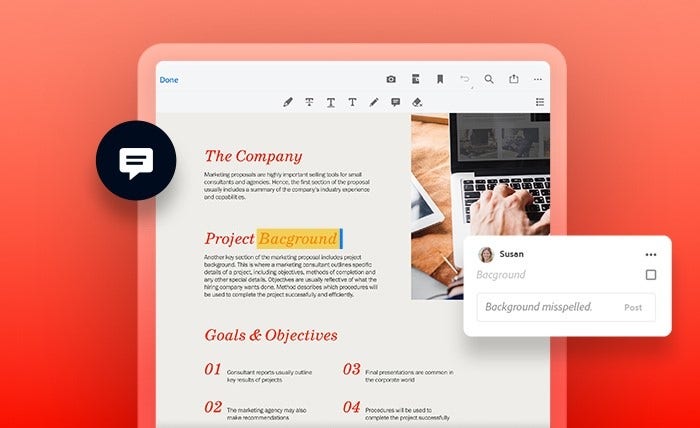
Acrobat online is a free PDF editor that allows users to add comments, text, images and doodles to a PDF. To open a PDF document in Acrobat online, just drag and drop it into the Acrobat online browser window.
Acrobat online includes a text tool, drawing tool and other mark-up tools that let Mac users make notes and additions to a PDF file. However, it doesn’t let users edit or update existing text or images.
Explore essential Acrobat tools for free
Learn how to edit text, change imagery and organise pages in a guided tutorial.

MacOS, the Mac operating system, includes Preview, a free PDF Mac app that lets users open, view and comment on PDF files. Preview is the default option when opening PDFs on a Mac. So to open a PDF with Preview on a Mac, just double-click the document you want to view.
In Preview, you can annotate a PDF on Mac with strike through, underline, highlight existing text, adding comments and adding shapes. Although you can’t edit existing text, you can add new text. Here are the steps to add new text in a PDF using the Preview app:
If you would like to crop a photo, follow these steps:
Acrobat lets you do more than just view PDFs and make notes. Create a PDF from scratch, annotate files, work with images and even create fillable PDF forms. In addition to changing the content of PDFs, Acrobat can also help you to manage them. It includes numerous security features so users can password-protect and redact PDFs. You can also use the PDF converter to convert PDF files into other file formats and rely on a full set of editing tools to change everything about a document.
For best results, change your default PDF viewer to Acrobat on your Apple device. To do so, right-click on a PDF, go to Get Info › Open With, and set Acrobat as the default application. Once you do so, you’re up and running with a comprehensive, flexible app that will let you use PDFs to their full potential.

If you’d like to try out the most reliable tools for editing PDFs, you can access them for free with Adobe Acrobat online services, which you can access using any Internet browser. There you can quickly and easily communicate to collaborators what needs to be added, deleted or changed. Just follow these steps:
Acrobat online services are easy to use and offer you tools to highlight, underline, strike through, or add text. Plus, you can add sticky notes or even draw in the PDF. Your team will be able to clearly see where to apply changes, speeding your project’s completion.
Adobe Acrobat Pro has the PDF tools you need in one place to create PDFs, leave annotations and feedback, work with images and make fillable forms. You can also make your PDFs even more secure with Adobe’s password protection and redaction tools. To make Acrobat the default PDF viewer on your Mac, simply follow the steps:
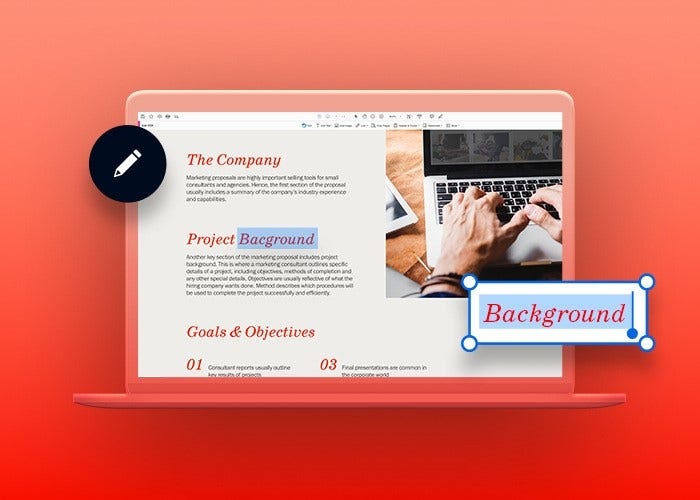
If you open a PDF with Preview or Acrobat online tools, you can add notes, doodles and comments to a PDF. By opening it with Acrobat, you can edit the main text, images and other elements.
Acrobat online and Preview allow Mac users to open and view PDFs for free. Users can also add comments and mark-ups, but they cannot edit the main body of a PDF with these free options or a free trial of Acrobat.
The macOS includes Preview, an app for opening and viewing PDFs.
Get the most out of your PDF experience with Acrobat.
Discover how to edit graphics and text in a PDF or scanned PDF and learn how to handle a password-protected PDF file.