How to Upload a PDF to ChatGPT with Adobe Acrobat.
With the rise of AI tools, it’s never been easier to edit and review PDF files. From CVs and job applications to contracts, coursework, and administrative documents, you’ll find plenty of ways to streamline, optimise, and speed up your tasks.
The Adobe Acrobat integration with ChatGPT makes it fast, simple and secure to view and amend your PDFs.
Read on to explore the main benefits and how to upload a PDF to ChatGPT using Acrobat.
What you’ll learn.
- Key takeaways.
- Can you upload PDFs to ChatGPT?
- Why upload PDFs to ChatGPT with Adobe Acrobat?
- How to upload a PDF to ChatGPT with Adobe Acrobat on desktop.
- How to upload a PDF to ChatGPT with Adobe Acrobat on mobile.
- What are the best alternatives for chatting with PDFs?
- Tips for uploading PDFs to ChatGPT.
- Achieve more with your PDFs with Acrobat in ChatGPT.
- FAQs.
Key takeaways.
- The Acrobat ChatGPT tool makes it easy to work on PDFs in one place, without having to move between apps.
- With help from AI, you can edit and reorder PDFs, convert them to different formats, extract key pieces of information, and lots more.
- You can choose to upload a PDF to ChatGPT via your desktop or a mobile device.
Can you upload PDFs to ChatGPT?
Yes, you can upload a PDF to ChatGPT using the chatbot itself. With a few simple prompts, ChatGPT can extract and summarise essential information from PDFs, saving you the time of going through long or complex documents yourself.
Simply click on the ‘+’ icon next to the chat box and select the paperclip. You can then attach a PDF file, and prompt ChatGPT to summarise or review it.
A range of third-party tools can also help you understand, analyse, and optimise PDFs. But it’s important to be aware of their limitations, plus the potential security risks of uploading sensitive documents to public chatbots.
The Acrobat ChatGPT integration offers the best of both worlds, giving you the chance to do more with your PDFs, with data security front-of-mind.
Why upload PDFs to ChatGPT with Adobe Acrobat?
The Adobe Acrobat ChatGPT integration gives you access to a wide range of PDF tools. Here are just some of the reasons you may decide to upload a PDF to ChatGPT:
- Edit PDF content. Bring your document to life by enhancing the text or layout.
- Create a new PDF. Generate a PDF from scratch to kickstart a fresh project.
- Summarise the main points. Ask Acrobat in ChatGPT to explain your document to help consolidate your understanding of the file.
- Merge or compress a PDF. Make your file smaller and more compact. You can also split the document, or reorder and delete certain pages.
- Extract key information. Ask to extract specific PDF data, tables or sections to save time on copying, pasting and analysing.
- Redact sensitive data. Ask the chatbot to redact confidential information from your PDF file.
- Convert PDFs. Quickly turn images into PDF files. Or convert a PDF to another document format, such as Microsoft Word.
- Focus on security. Adobe protects sensitive user information by meeting industry standards and regulations.
Adobe Acrobat’s online tools can help you do even more with your PDFs. You can chat with a PDF online, get AI summaries, convert to different file types, and more.
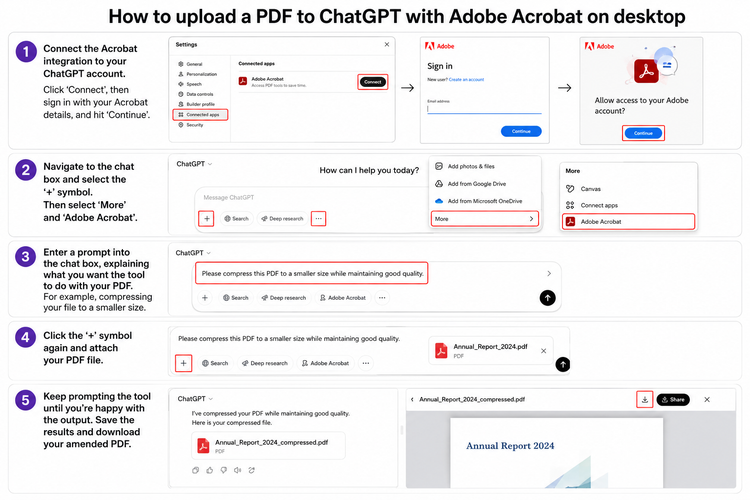
How to upload a PDF to ChatGPT with Adobe Acrobat on desktop.
Using a desktop computer? Here’s how to upload a PDF to ChatGPT via the Acrobat tool:
- Connect the Acrobat integration to your ChatGPT account. Click ‘Connect’, then sign in with your Acrobat details, and hit ‘Continue’.
- Navigate to the chat box and select the ‘+’ symbol. Then select ‘More’ and ‘Adobe Acrobat’.
- Enter a prompt into the chat box, explaining what you want the tool to do with your PDF. For example, compressing your file to a smaller size.
- Click the ‘+’ symbol again and attach your PDF file.
- Keep prompting the tool until you’re happy with the output. Save the results and download your amended PDF.
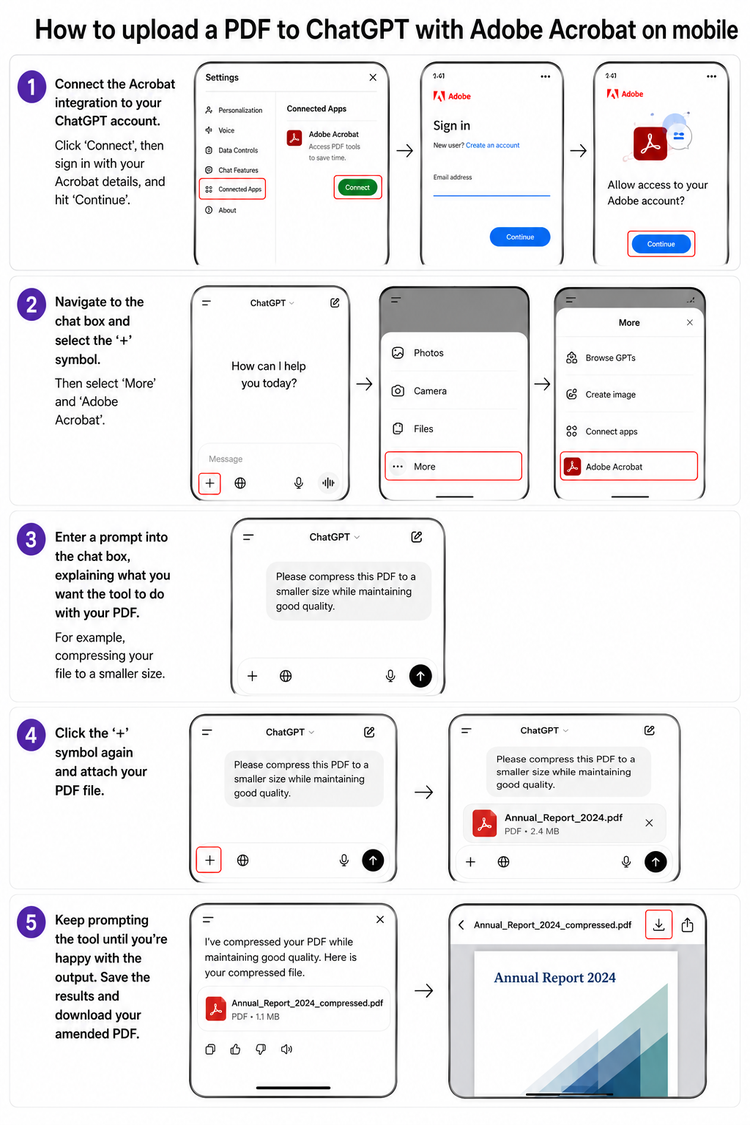
How to upload a PDF to ChatGPT with Adobe Acrobat on mobile.
Here’s how to upload a PDF to ChatGPT with Acrobat when using a mobile device:
- Download the ChatGPT app to your mobile phone.
- Log in to ChatGPT and ensure your account is connected to the Acrobat integration.
- Tap the ‘+’ symbol next to the chat box and select ‘Adobe Acrobat’.
- Enter a prompt for what you want the tool to do with your PDF.
- Tap the ‘+’ sign again and select ‘Files’ to attach your PDF.
- Once you’re happy with the results, save and download the amended file.
What are the best alternatives for chatting with PDFs?
Beyond ChatGPT, you’ll find plenty of online tools that allow you to chat directly with a PDF file. Depending on the tool, you could ask for quick summaries, insights, or more advanced editing features.
When comparing different options, think about:
- The capabilities and core features that are available from each tool – and whether they match your tasks, goals, and specific needs.
- Whether the tool is free or if there are any costs involved.
- How secure your documents and data will be.
- Whether any premium plans or features are available.
For example, the Adobe Acrobat AI Assistant can provide you with PDF summaries, deep insights, and a range of editing options – all in a matter of seconds.
Tips for uploading PDFs to ChatGPT.
To avoid errors and save time, here are some top tips when preparing your PDF file for a ChatGPT upload:
- Write clear, descriptive, and specific prompts. You could also consider starting things off with a primary prompt, before following it up with more detailed requests.
- Focus on privacy and data security. Whichever tool you use, always consider the nature and sensitivity of the data you’re sharing.
- Remove barriers. You can make files easier to scan by taking off passwords, compressing large documents, and ensuring the formatting is clear.
- Consider alternative formats. If an unknown error occurred when uploading a PDF to ChatGPT, try using another file format to see if that solves the problem.
Troubleshooting PDF files that are not printing.
There are other options you can try if your PDF files are still not printing. Often, it’s just a few quick tweaks that can be the difference between errors and successful printing, and they’re quite simple.
Before rushing ahead to complex troubleshooting, try the following steps if PDFs will not print:
- Restart your printer and computer to clear temporary errors.
- Double-check you’re printing to the correct or default printer.
- Try printing the PDF from a different viewer or application.
- Ensure the print queue is clear of stuck or paused jobs.
- Check that paper sizes and scaling settings match the document.
- Print the PDF as an image.
- Re-download the file if it’s corrupted.
Achieve more with your PDFs with Acrobat in ChatGPT.
Whether editing a PDF, generating summaries, or extracting the most valuable information, the Adobe Acrobat integration with ChatGPT can support you every step of the way.
Learn more about the tool’s features and how to get started.
FAQs.
How many PDFs can you upload to ChatGPT?
You can upload up to 10 files at once for each chat you launch.
Users on a free ChatGPT plan are able to upload three files a day. Other users can upload up to 80 documents every three hours.
What is the best PDF size for ChatGPT uploads?
Any file you choose to upload to ChatGPT needs to stay within the maximum limit of 512MB. However, there are specific rules for certain file types, such as text documents and spreadsheets.
Why can’t I upload a PDF file to ChatGPT?
A range of issues could stop your PDF upload from being successful. These may include:
- A corrupted or damaged PDF file.
- An overly large file.
- Complicated formatting.
- Password protection.
- Uploading too many files in a short space of time.
More resources.
- How to Print a Booklet in PDF.
- How to Black Out and Redact PDF Files.
- How to Use ChatGPT for PDF Editing in Adobe Acrobat.
- What is an AI Chatbot?
Useful PDF tools.
Convert, edit, summarise, and compress PDFs with online tools from Adobe Acrobat.