


JUMP TO SECTION
- 5 ways to summarize a long PDF quickly
- How to tell if a PDF summary is reliable
- Method 1: Use AI inside the PDF app
- Method 2: Use browser or PDF reader features
- Method 3: Skim the report manually
- Method 4: Use an online PDF summarizer
- Method 5: Upload the PDF to a general AI chatbot
- Compare the 5 PDF summary methods
- Frequently asked questions
If a 200-page report lands in your inbox 20 minutes before a meeting, you need to understand that report quickly, but you also need to know whether the summary you generate is trustworthy. If you have a long PDF and only a minute, choose a method that surfaces the main points quickly and still lets you verify what matters.
5 ways to summarize a long PDF quickly.
The five methods in this article each approach summarization differently. We’ll compare them by speed, accuracy, and verifiable source claims so you can choose the right shortcut for the situation.
How to tell if a PDF summary is reliable.
Summarizing is already a common AI document workflow. In the Adobe Digital Insights State of AI in Documents report from April 2026, 51% of professionals said they use AI to summarize documents and 43% use it to find information.
Speed isn’t the only thing people want. A September 2026 update to the same report found that 78% of senior business leaders say they trust AI-processed information more when answers link back to their original source.
When you haven’t read a PDF yourself, a polished summary can still leave you wondering whether its claims are verified or whether it’s missing the main theme entirely. That’s why the most useful summaries make verification easy. If a number, conclusion, or recommendation matters, you should be able to trace it back to the supporting passage in the original document. Source references let you check the handful of facts you plan to use without reading every page.
Verification isn’t the only thing to check. Summarizing means handing your document to a service, so it’s worth knowing whether that service retains the file, who can see it, and whether its contents feed model training.
Method 1: Use AI inside the PDF app.
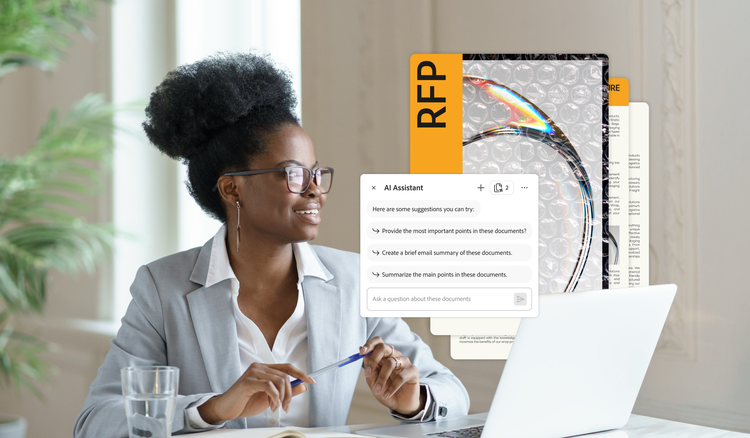
If you want a fast summary while keeping a path back to the source, use an AI tool embedded in the PDF tool so you don’t have to take your document elsewhere. It can help you quickly understand a long document and produce a clear summary using generative AI.
For example, you might ask AI: “Summarize this report in five bullets for an executive meeting. Prioritize the main findings, important metrics, risks, and recommended next steps.” AI will use those instructions to shape the response around the information you asked for, rather than giving you a generic overview. Whether you can then trace a claim back to its source depends on the tool — Adobe Acrobat AI Assistant returns numbered links to the pages its answers came from.
Some in-app assistants also let you add several documents and ask questions across all of them, which helps when a project spans more than one report. If a report contains scanned pages or tables that are difficult to interpret, you may need to extract key data from the scanned PDF before relying on those details in a summary.
In Acrobat, Generative Summary organizes the report into sections and highlights key points, and AI Assistant takes the follow-up questions from there. On data handling: Adobe does not use customer documents or data to train AI models. Acrobat generative AI features run in the cloud, and Microsoft Azure OpenAI is contractually prohibited from manually reviewing or training on Adobe customer data.
Method 2: Use browser or PDF reader features.
If you only need a quick overview, your browser or PDF reader may already include tools that can summarize an open document. Copilot in Microsoft Edge, for example, can work with an open PDF and surface the main points without requiring a separate summarization tool.
The tradeoff is depth and verification. Browser-based features help you get oriented quickly, but they may give you less control over the summary’s structure or make it harder to trace individual claims back to specific passages in the document.
Availability, sign-in requirements, and source references can also vary by browser, feature, and account. For anything you plan to use in a meeting or decision, check the important details against the original PDF.
Method 3: Skim the report manually.
Manual skimming will not produce a polished summary in minutes, but it still deserves a place in the comparison.
When a report is high-stakes, or you need to understand the author’s reasoning, use strategic skimming: reading rapidly to get a general overview of the material. This strategy can help you quickly identify the sections and findings that matter most. For a deeper review, a consistent approach to reading, annotating, and citing PDFs can help you track the passages and evidence you plan to use.
For a fast manual pass, look at:
- The executive summary or abstract
- The introduction and stated objectives
- The table of contents and major headings
- Charts, figures, and highlighted metrics
- Conclusions and recommendations
But skimming has limits, and some documents have to be read, not summarized — a contract you’re about to sign is the clearest case, where obligations and risks live in the exact wording.
For other long reports, AI summaries can speed up manual review by helping you identify which sections deserve closer attention instead of starting blindly on page one.
Method 4: Use an online PDF summarizer.
If you want a quick summary without installing software, an online PDF summarizer can be a convenient option. It’s a standalone web tool built specifically to extract highlights. This approach works well when you want a fast, browser-based overview without setting up a larger document workflow. For example, Smallpdf includes an AI PDF Summarizer that generates a summary with key takeaways plus a chat, free without registration.
Method 5: Upload the PDF to a general AI chatbot.
A general-purpose AI chatbot can summarize a PDF quickly. Upload the report, ask for the main points, and follow up with questions about the sections that matter most.
The tradeoff is that source references, file limits, privacy controls, and pricing vary by tool and plan. Some chatbots can point you back to supporting content, while others make it harder to trace a summary claim to the exact passage it came from.
Long or complex reports can also increase the chance that important context is missed or misinterpreted. If you plan to use a statistic, conclusion, or recommendation in a meeting or decision, check it against the original document first.
For confidential reports, review both your organization’s AI policy and the service’s current data-handling terms before uploading the file.
Compare the 5 PDF summary methods.
Every method here can produce a summary quickly. What separates them is what happens next — whether you can check the summary against the report it came from.
Method
Speed
Page or file limits
Citations back to source
Accuracy
Privacy posture
General AI chatbot
Fast
Varies by tool and plan
Varies by tool
Can miss context or hallucinate, especially in long documents
Varies, often unclear for uploaded files
Browser or reader feature
Fast
Varies by tool
Varies by tool
Useful for quick orientation, but important details should be checked
Varies by provider, usually requires sign-in
Manual skimming
Slow
Not applicable
Not applicable, no summary layer
Gives you direct access, but human interpretation can miss details
Not applicable
Dedicated summary generator
Fast
Varies by service
Varies by tool
Useful for quick summaries, but important claims should be verified
Varies by provider and sign-in status
Acrobat AI Assistant
Fast
Up to 600 pages, 100 MB
Yes, numbered links to source pages
Specifically designed for document analysis, with citations to check every claim
Content not used for training without consent
Open your next long report in Acrobat and ask AI Assistant for the summary.
Frequently asked questions
AI-powered document tools, general chatbots, browser assistants, and dedicated summarizers can all generate a first-pass summary quickly. Processing time depends on the document and service, so no method can guarantee a summary in under a minute for every PDF.
Compare its most important claims with the original document. Check numbers, dates, conclusions, risks, and recommendations, especially anything you plan to use in a meeting, presentation, or decision.
Source references make a summary easier to verify because you can trace important claims back to the original document. They are especially useful when you have not read the entire source yourself.
That depends on the provider, account type, settings, and your organization’s policies. Review the service’s current privacy and data-use terms before uploading confidential, regulated, or proprietary material. Also check if the service uses uploaded data to train AI models.
For a quick, low-stakes overview, several AI-based methods can work well. For a long report you need to discuss, present, or act on, prioritize a method that lets you verify important findings against the source.
You may also like
title
Find the fastest way to summarize a PDF.
cardImageAltText
Woman asking AI Assistant to summarize a long PDF.
cardImage
Tags
caas:content-type/article,caas:products/acrobat,caas:topic/ai-summarizer

