Adding physics to a character and scene
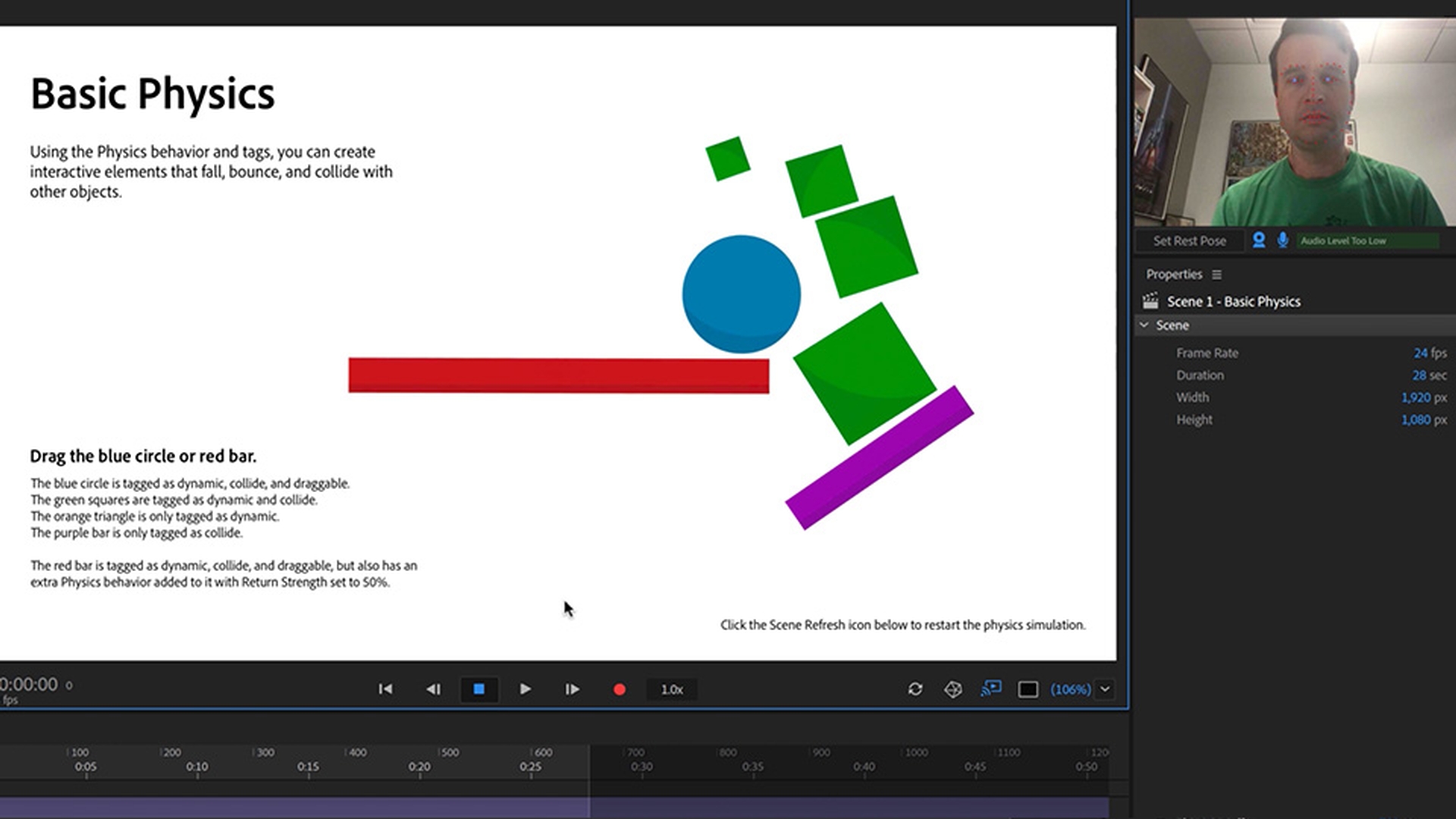
1 Make collidable objects
Add tags to make objects collide.
Introduction
Previewing basic physics interactions in a scene
Preparing puppets for physics in rig mode
Using dynamic, collide, and draggable tags
Configuring static and dynamic platforms
Custom physics behaviors and fine-tuning motion
What you learned: Make a scene of collidable objects
The Dynamic and Collide tags make independent groups subject to the laws of gravity and bump into each other.
Adjusting the Physics behavior parameters can change things like wind, gravity, and bounciness.
Adding a Physics behavior directly to a group lets you set specific rules for just one object in a scene.
2 Add dangle physics
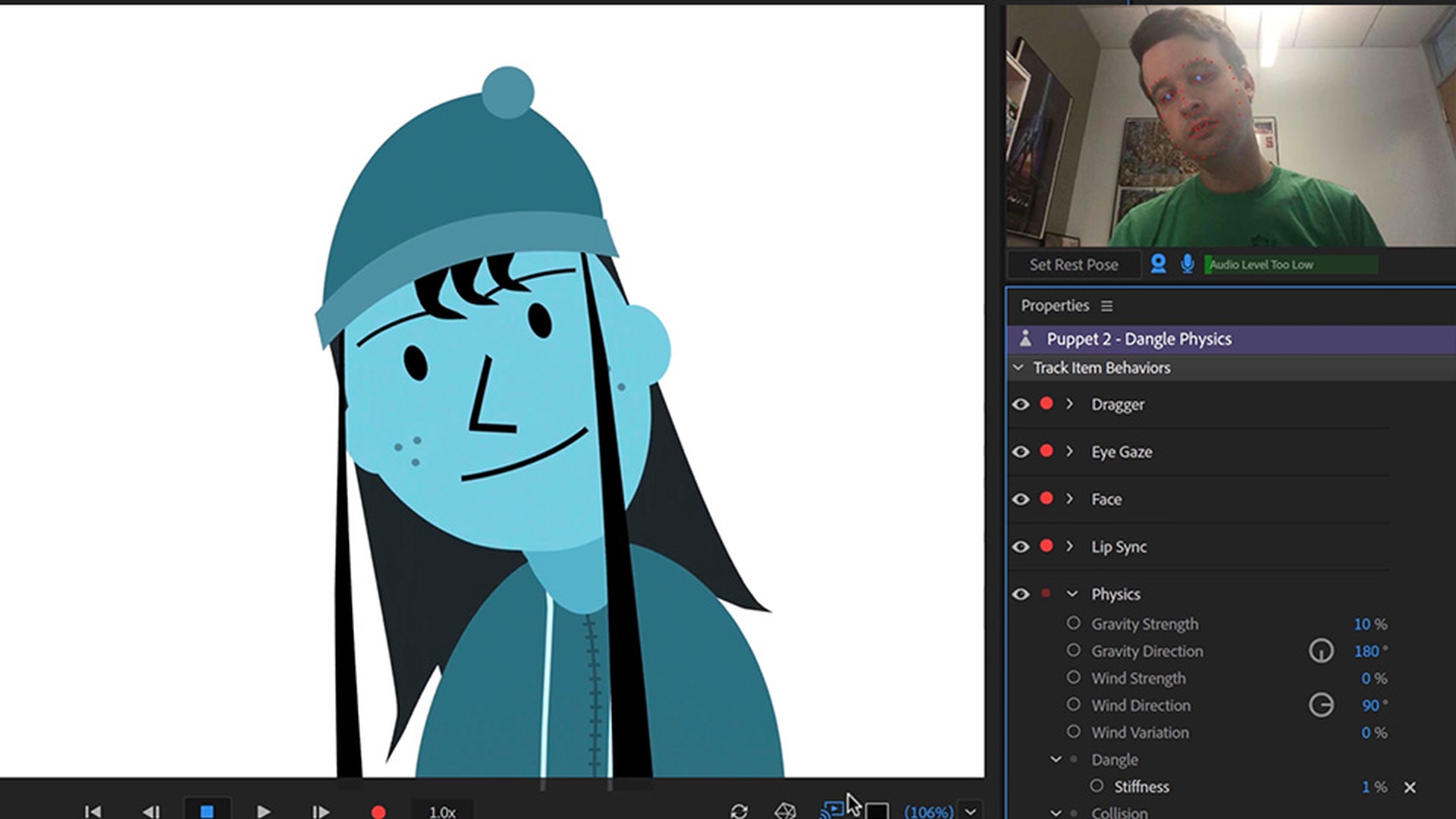
Add dangle handles to enliven several character features.
Introduction
Previewing dangle physics and stiffness effects
Preparing the character for dangle rigging
Adding dangle handles for hair and drawstrings
Stabilizing larger elements with sticks and fixed tags
Customizing dangle behavior on individual parts
What you learned: Adding dangle physics to characters
A dangle handle is like a metal ball that causes character parts to bounce, sway, and slide realistically with your character’s movements.
Moving the origin handle of any independent group will determine where it attaches to other artwork and where dangle handles pivot from.
Adjusting the Physics behavior parameters, particularly stiffness, will make dangle effects more or less subtle.
3 Create a particle system
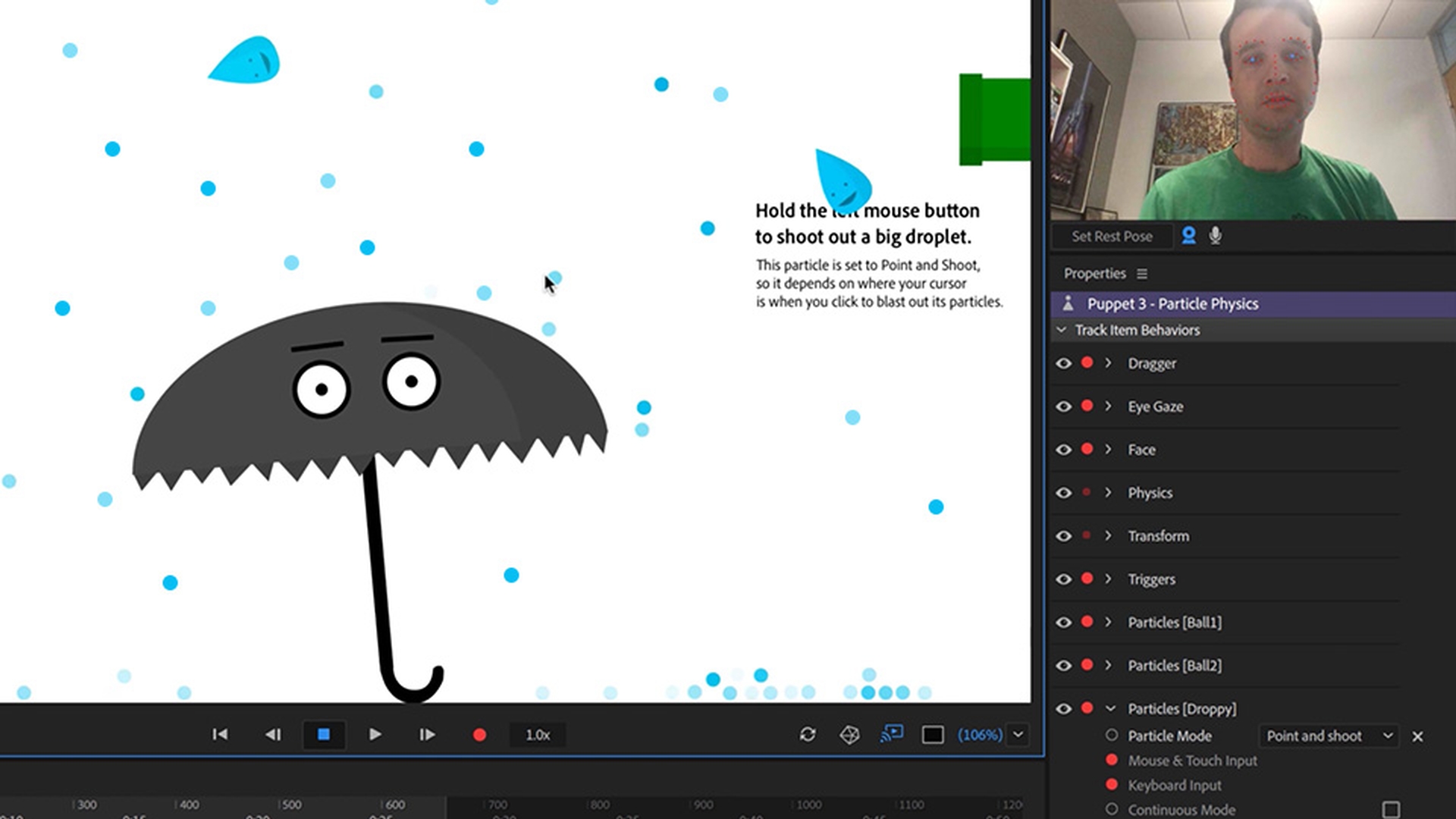
Make falling or shooting particles.
Introduction
Previewing particle physics in action
Opening the unrigged scene and preparing for particles
Creating falling particle systems with the particles behavior
Making objects interact with particles using collisions
Building a cannon-style particle emitter
What you learned:
Adding a Particles behavior turns any independent group into a falling sequence or a shooting cannon.
Checking Collide in the Particles behavior makes it collide with other objects, like rain bouncing off of an umbrella.
Changing behavior parameters like velocity and particles per second has dramatic effects on the simulation.
Presenter

