>> When using vector art and pattern brushes in Adobe Animate CC, you are not restricted to those brushes you find in the built-in Brush Library.
You can also create your own custom brushes with the Adobe Capture CC mobile app, and even edit aspects for your brushes within Animate itself.
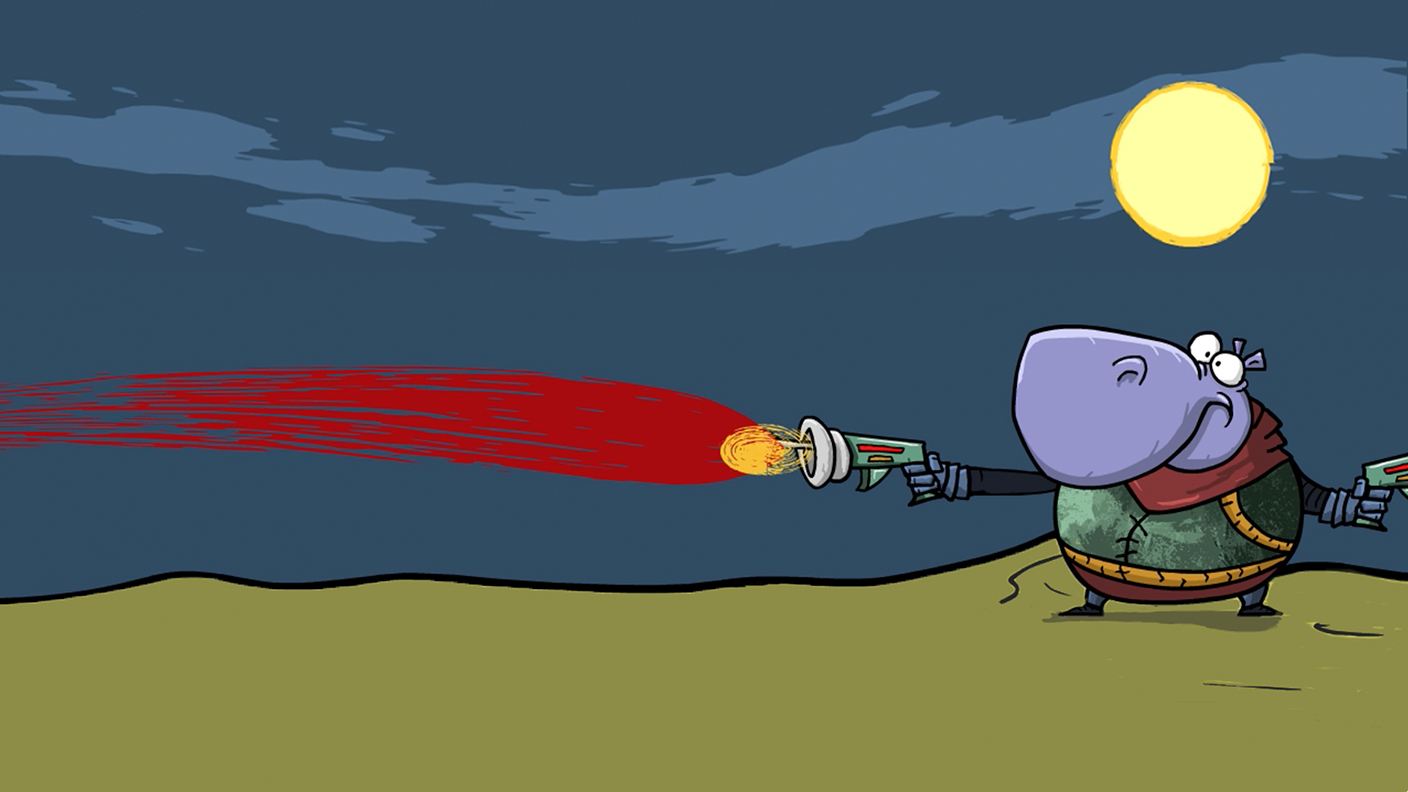
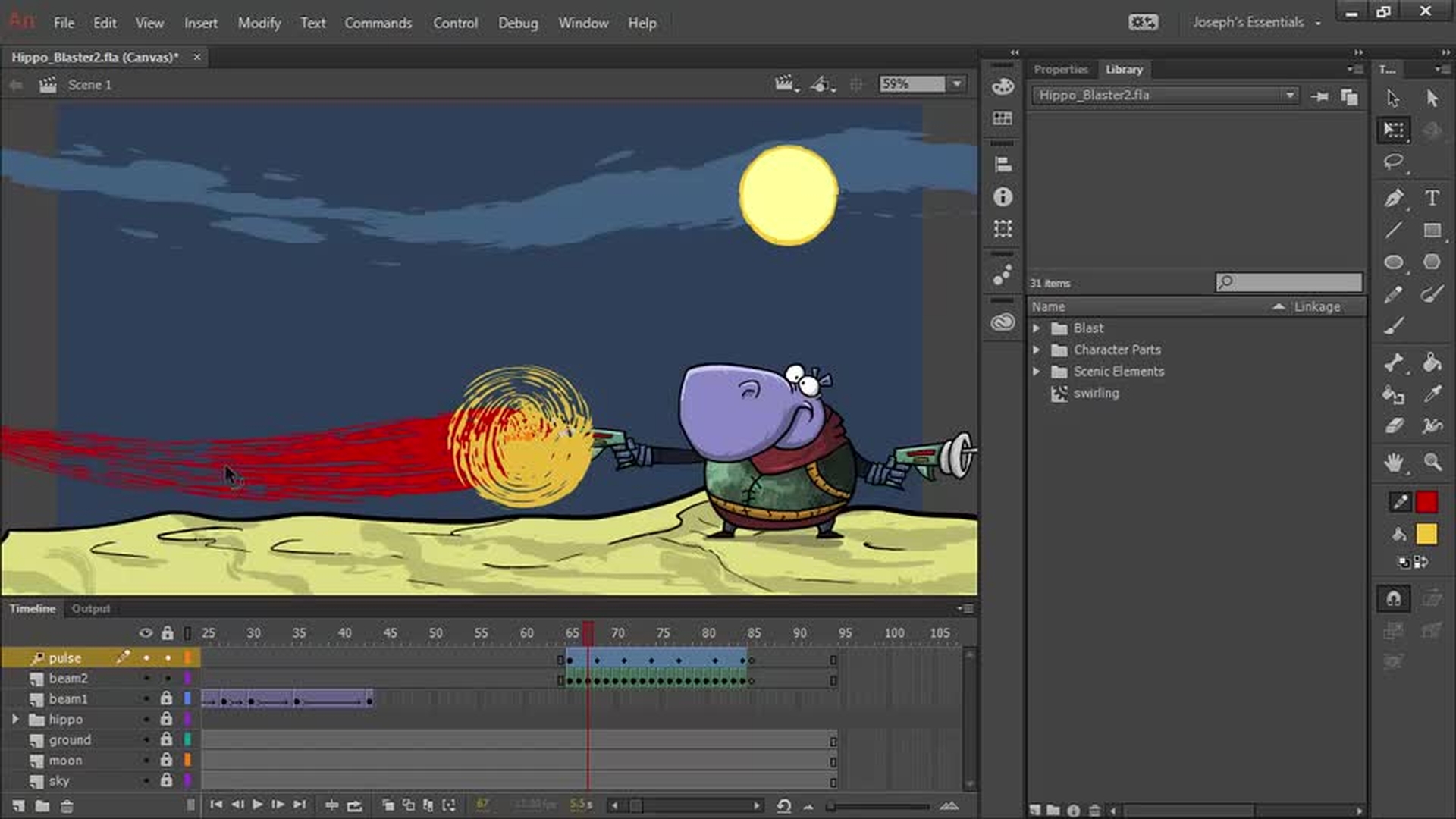
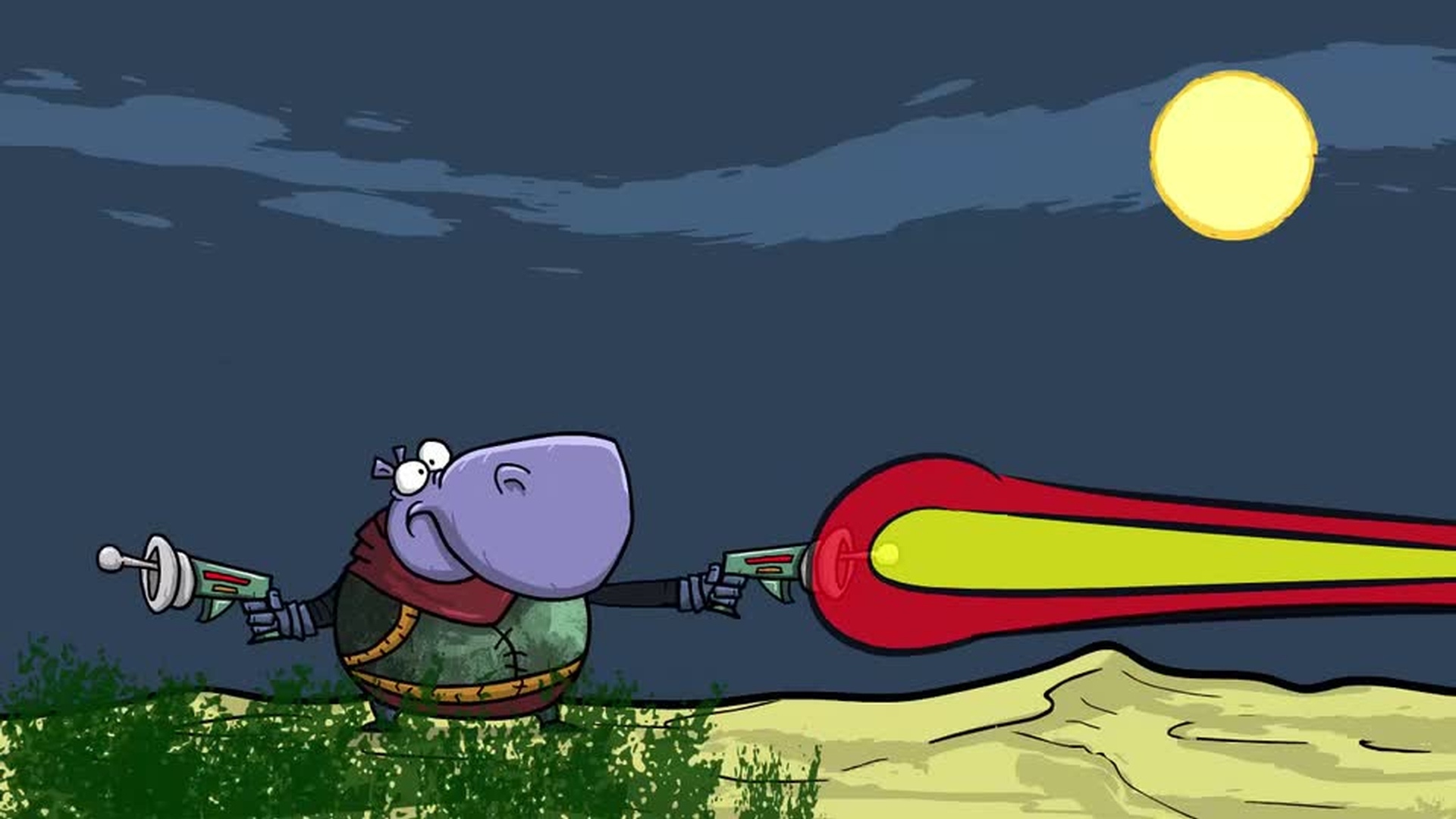
So we just saw an animation created with heavy use of vector art brushes created with the Capture CC mobile app and brought into Animate through Creative Cloud Libraries.
Let's open up our CC Libraries panel once again and you'll notice down here, we have a Grass Brush.
We want to use this Grass Brush to create some shrubby grass in our landscape.
So to do that, we'll go ahead and choose our Paint Brush Tool, and with the Properties panel open, we'll go ahead and additionally open up the CC Libraries panel so that we can double-click on that Grass Brush and see it populate our Style window.
Now I'm going to choose a nice dark green color, maybe from his vest.
And additionally, let's pull the Alpha up to something like 82.
In terms of the Variable Width Profile in this case, we just want it to be uniform.
And let's make the Stroke somewhere around 25, 27.
In this case, I am gonna actually want to straighten my brush path.
So I will choose Straighten as my Paint Brush mode here.
So to do this, let's go ahead and unlock our ground layer once again.
Lock both the pulse and beam2 layers because we are not going to mess with them anymore.
So what I can do is just draw out one of our little bushes here and if I use the Selection Tool to select this, we can see the path, and I can also adjust the Stroke size to make the bush actually visible here.
Now that's not the best color.
I'm gonna go ahead and change that to something which shows up a bit better.
Something like this dark green color here.
Now of course, this is a vector path, so we can make adjustments to the bush with the Selection Tool simply by hovering over it and then adjusting just as we did with the blasters.
However, if we wanted to make a pattern right now, we could, of course, go ahead and draw out a number of bushes here.
But we are not going to do that.
Let's select all four of these bushes and delete them.
We are going to go ahead and reselect our Paint Brush Tool.
And instead of actually using the brush as it is, we are going to edit it first.
So to do that, press the little Edit stroke style icon right here, looks like a pencil.
And here you get a preview of your Art Brush and you can rename it if you want.
So I'll call this "Grass Brush Modified."
Now from here, we are able to Scale proportionally, and we get a preview right here on exactly what that's going to look like.
We could also change the direction that our art is mapped on to the stroke.
[Stretch to fit stroke length] We can stretch, [Stretch to fit stroke length] to fit the length of our stroke, [Stretch to fit stroke length] or use the default which is to Stretch between guides.
Now if we wanted to, we could adjust the guides like this so that it would actually stretch between them.
We can choose to not adjust corners and folds for Overlap, or to go ahead and adjust the corners and folds to prevent any Overlap by selecting this option here.
While these options are all good, they apply to Art Brushes.
However, you'll notice that this is a dropdown here, where we can choose to convert our Art Brush into a Pattern Brush.
And that's exactly what we want to do in this case.
Here, when we switch over to Pattern Brush, we get a nice pattern preview.
Additionally, we are able to go ahead and flip our artwork, both on the horizontal and vertical.
We have the option to Stretch to fit.
We can also Add space to fit.
So here, you'll notice that it's adding spaces between each application of our pattern.
How big those spaces are, and how many applications of the pattern get actually laid down is going to depend on how long the different paths are.
We can also choose to Approximate a path and we get the preview there as well.
We can change the Spacing in percentage, so perhaps 50%.
And we see that enacted here.
I'm gonna take that back down to 0.
And lastly, we can choose how to deal with corners.
[At corners: Flank artwork] So you'll notice [At corners: Flank artwork] we have two corners in the preview here.
[At corners: Flank artwork] And right now we are flanking the artwork.
We can also choose None.
And then it's not going to try to do anything with the corners.
[Center artwork] We can center the artwork.
[Center artwork] So you can see in these cases, [Center artwork] the artwork is centered at the corners.
Here's Flank, which is the default.
[Slice artwork] We could also slice the artwork.
[Slice artwork] And you can see that the corners are managed very nicely there.
And finally, Overlap artwork, in which case the artwork is overlapped and bunched up in the corners, just like that.
I'm gonna go back and choose the default which is Flank artwork.
Because that adjusts it all very nicely, it looks very natural, as it's sort of crammed in to the corners and expanded from them.
So let's go ahead and say Add.
With that done, we can see in our Style preview that indeed we are using a Pattern Brush.
And if I go ahead and draw out all these little grassy, shrubby bits here, we can see how they actually come into play with our overall scene.
We can even stack them a little bit if we want to until we have something that looks pretty nice.
All right, let's go ahead and render and preview this animation.
The possibilities truly are limitless, when using the enhanced brushes within Adobe Animate CC.