Remove noise from audio files with Audition

Find the noise in your audio files
In this video, you’ll review the typical noise scenarios you will encounter when cleaning up your clips.

Add audio files
Review noise types
Spectral frequency display
Learn to remove rings and beeps
Sometimes you will want to remove specific, isolated sounds.
In this video, you will learn how to use the Paintbrush selection tool to select the unwanted noise, create a noise profile of the unwanted sound, and apply the Sound Remover effect to remove it.
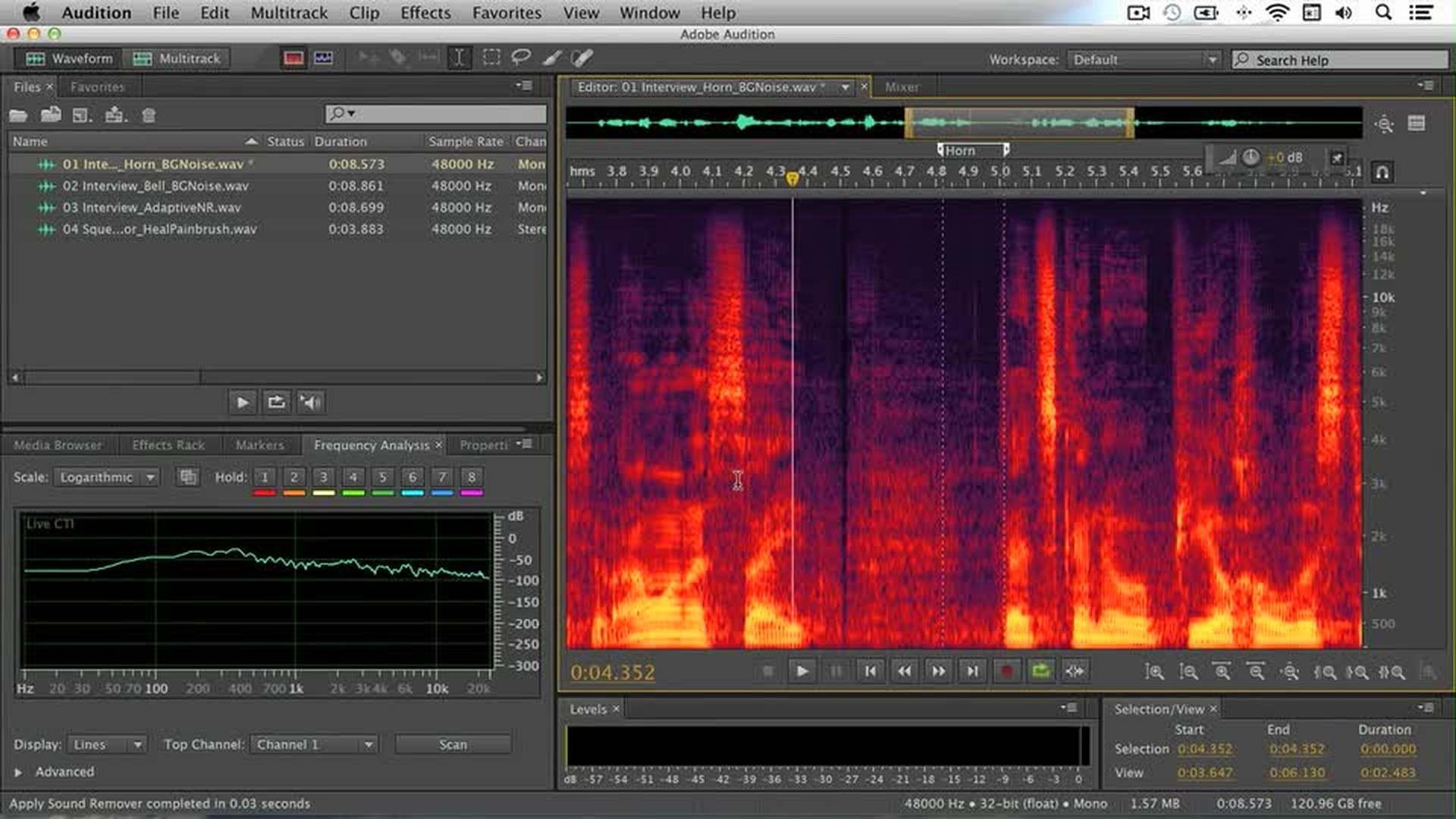
Paintbrush selection tool
Learn sound model
Sound Remover effect
Get rid of unwanted sounds that are mixed into your main audio
A more difficult scenario is when you need to remove a noise that occurs at the same time in the clip as sound that you want to keep in your audio file.
In this video, you will learn how to use the Paintbrush selection tool to select the unwanted noise, create another noise profile, and again use the Sound Remover effect to remove a bell that rings at the same time that someone is talking. You will also learn how to remove ambient noise by using the marquee selection tool to select the background noise, capturing a noise print, and using the Noise Reduction effect to remove it.

Remove intermixed noise
Remove background noise
Remove all annoying background noise in one step
Sometimes you will have video or audio files where the background noise is uneven or inconsistent. You could use the technique you learned in the previous video to remove each piece of inconsistent noise in several separate steps. However, Audition has a feature that will allow you to remove all the inconsistent noise in one step.
In this video, you will use the Adaptive Noise Reduction effect to analyze the audio in the clip and adapt to changes in the noise over time. This will allow you to remove all the noise in one step. You will also review the steps you learned in the previous video using the Noise Reduction effect.
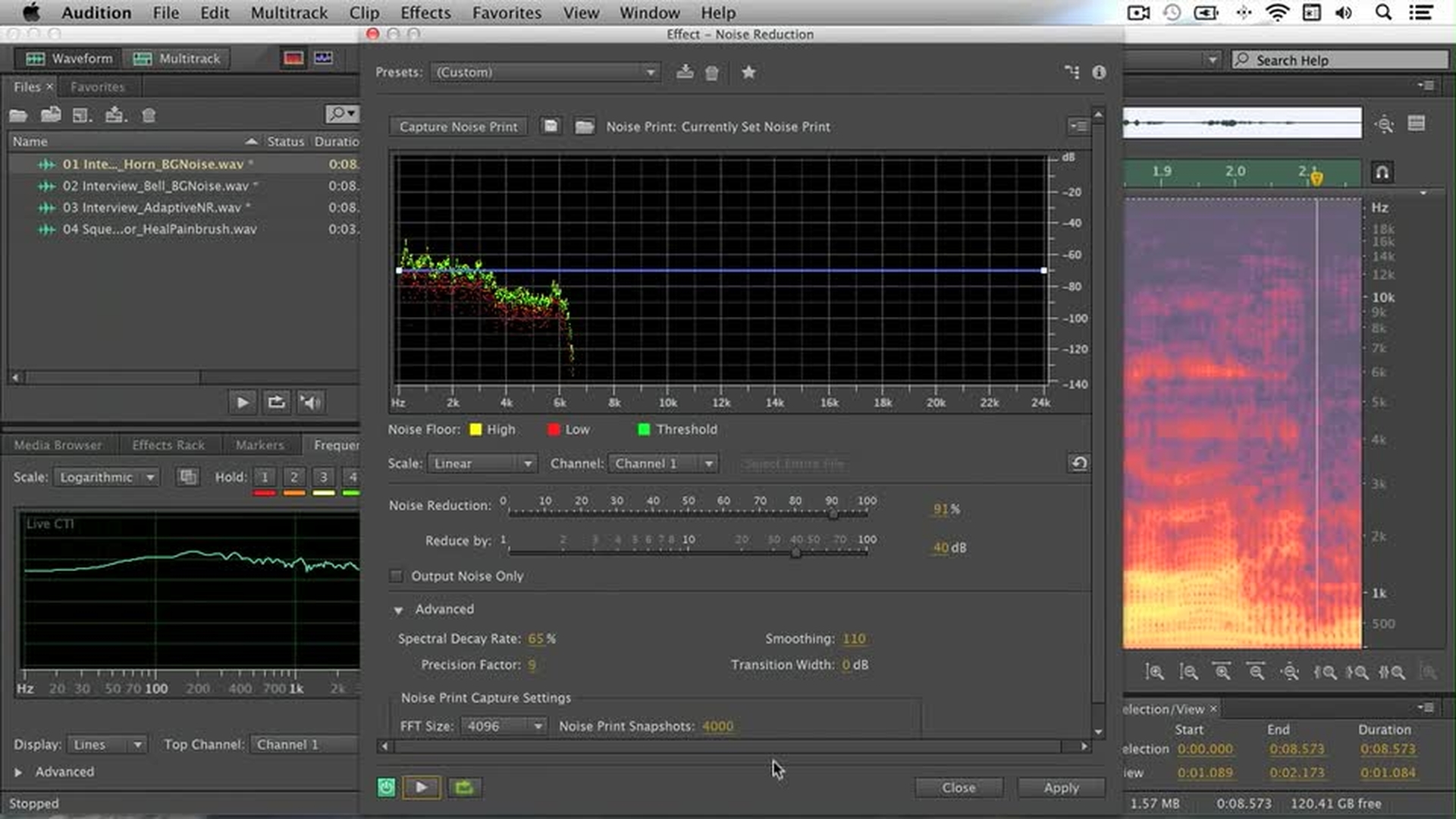
Adaptive Noise Reduction effect
Adjust reduction parameters
Apply the effect
“Heal” your files automatically and export them
In this video, you will use both the Marquee selection tool and the Paintbrush selection tool to select a noise, and then use the Auto Heal feature to attenuate the noise. You will also learn the different settings to export your clip correctly in the proper format.
Now most of the noise should be removed from your audio.
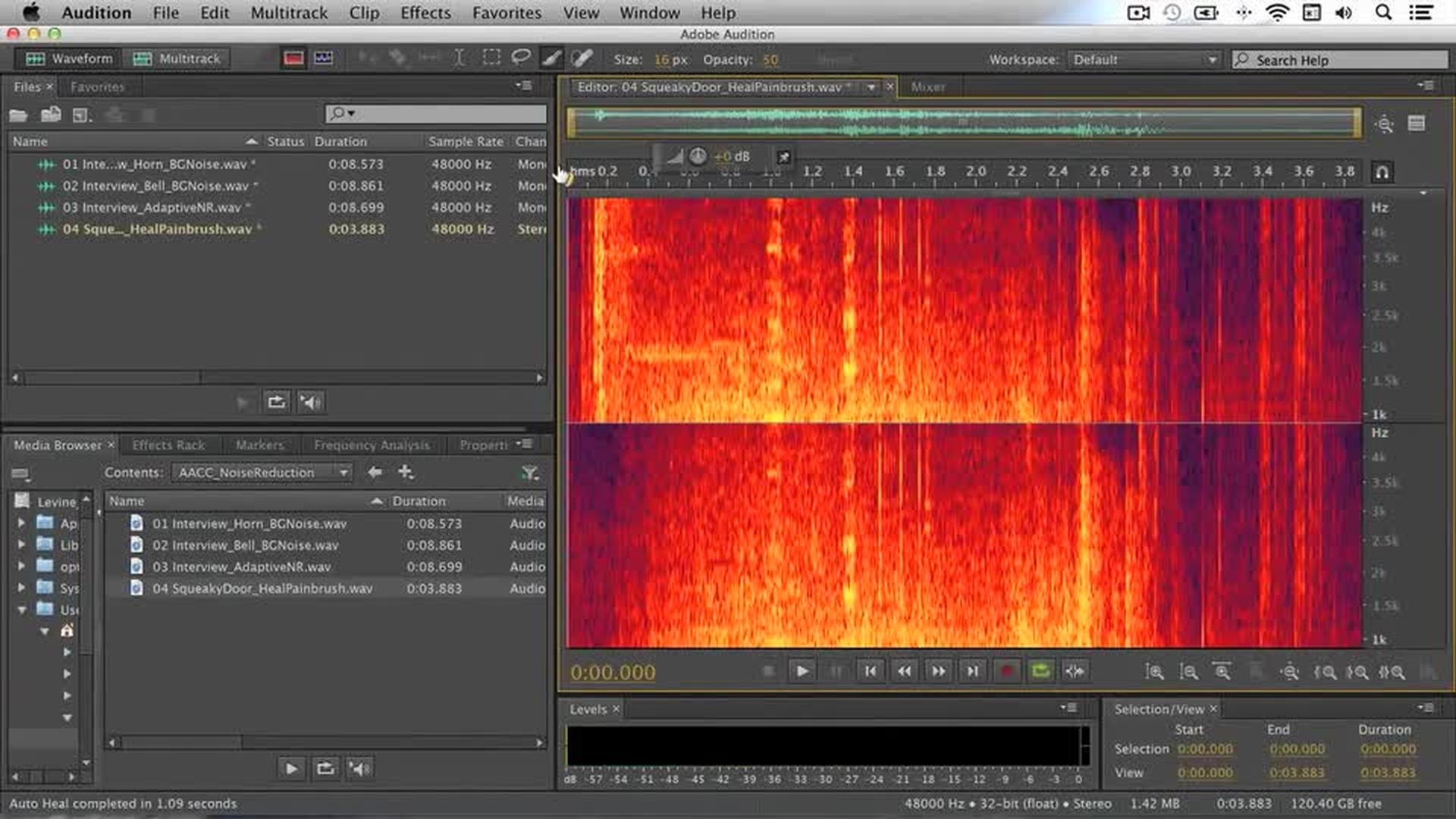
Lasso selection tool
Auto Heal effect
Export the files
Contributor

