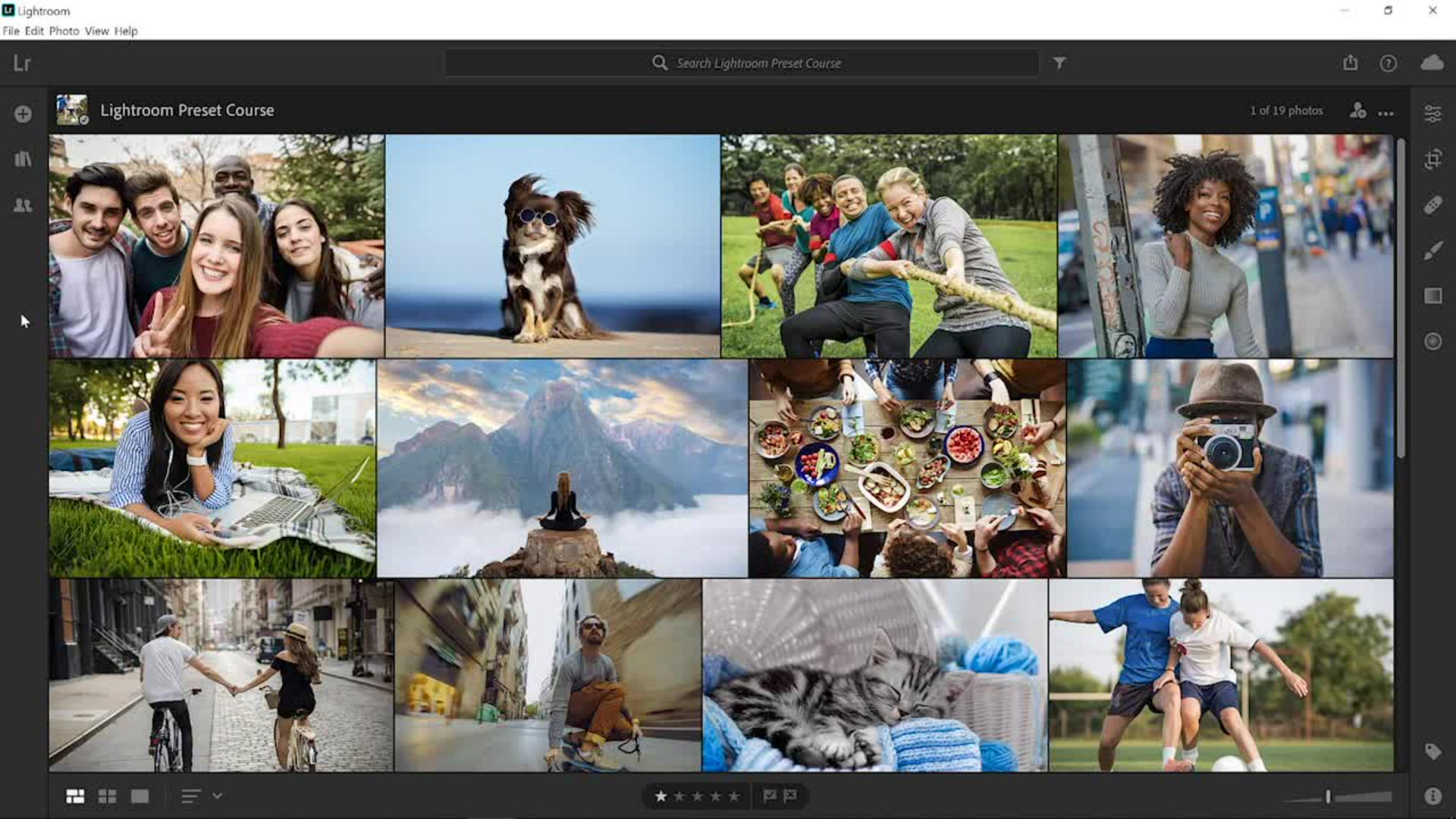
In this video, you will learn how to apply presets to your photos in Lightroom.
You can follow along with any photo or you can download the sample file from the Adobe page for this tutorial.
Once you import the sample photo into Lightroom, you will see it in the photo grid, double click on it to open it.
Understanding what presets are and how they work
Presets are a lot like applying a filter to a photo on a mobile app.
With one click, you can dramatically change the look and feel of your photo.
Unlike many mobile photo editing apps, presets are all editable.
A preset is nothing more than a predetermined position of one or more of the control sliders, so you can always adjust them to fit your needs.
Let me show you how they work.
Click on the Edit icon or press E on the keyboard to go into the Editing workspace.
Browsing and previewing preset categories
Then, click on the ... and disable Single-Panel Mode.
This will allow you to open more than one panel at a time and it will help illustrate how presets work.
Next, Open the Light, Color, and Effects panels, then click on the Presets button at the bottom of the Edit panel, that opens up a third column with the list of presets grouped into categories.
You can click on the name to expand the category.
Then, you can hover over each preset to see a live preview of how it will affect your photo.
And, of course, if you find one that you like, you can click on it to apply it.
Notice it as I hover over the presets, the sliders in the panels change.
The predetermined location of each slider or preset location of each slider is what gives each preset its look.
You can also use presets to help you learn what some of the editing controls do.
For example, when you hover over the Aged Photo preset in the Creative category, you will notice that the Whites slider is set to positive 40, which brightens the highlights.
In the Blacks slider, it’s set to negative 40 to darken the shadows.
This creates contrast in the image.
Customizing presets with manual adjustments
Also, in the Color panel, you will see that the Vibrance and Saturation sliders have both been reduced to de-saturate the image and make it seem older.
Next, I'll open the B&W presets and hover over them.
For this photo, I will go back to the Color category and select High Contrast & Detail.
Sometimes a preset will not be perfect for your photo, but you can always edit it to better match your image.
In this case, I think that the Contrast is too strong, so I can reduce it by dragging the Contrast slider to the left.
Another great feature is that you can apply multiple presets
Stacking multiple presets for creative effects
to an image to create more interesting effects, which means that you can stack presets on top of one another to further enhance your image and create more interesting effects.
For example, you could add Grain to this photo.
Expand the Grain preset category and hover over the Grain presets.
Notice that the original preset is left intact, we're only adding Grain.
The Grain slider is in the Effects panel.
Notice how the Grain slider changes as I hover over the presets.
I'll select Light because I don't want too much Grain on this photo.
You could also add a vignette on top of that.
Open the Vignette category and hover over the different presets.
Notice the Vignette slider in the Effects panel.
I'll select Heavy to add a strong vignette.
If you would like multiple versions of your photo with different presets,
Creating variations and resetting presets
you could go to the Edit menu and select Duplicate..., then click on the Film Strip icon and select the copy on the far left of the film strip.
To remove the presets that we've applied and start from scratch, you can reset your image to go back to the original by clicking on the ... icon and selecting Reset to Original, or you can press Shift R on the keyboard, then you can hover over the presets and find one that you like.
Click on it to apply it and now you have the same photo with two different presets.
As you can see, presets are very powerful and can save you a lot of time in editing.
You can even use them on Lightroom on your mobile devices.
Now that you know how to apply presets in Lightroom, go ahead and try them out on your photos.
This sample file contains Adobe Stock assets you can use to practice what you learn in this tutorial. If you want to use the sample file beyond this tutorial, you can purchase licenses on Adobe Stock. Check out the ReadMe file in the folder for the terms that apply to your use of this sample file.
What you learned: Preview and apply Lightroom presets
Open the Presets panel
With a photo selected, click the Edit icon to open the Edit panel.
Click the Presets button at the bottom of the Edit panel to open the Presets panel.
Preview presets
Click a title in the Presets panel to access the presets in that group.
To review how a preset will look on the selected photo, hover over the preset without clicking.
Apply presets
When you find a preset that you like, click the preset to apply it to the selected photo. You can apply multiple presets to the same photo.
To remove a preset, click the Undo button. To remove multiple presets, along with all other edits, click the three-dot icon in the Toolbar and choose Reset to Original.
You can control how Adobe websites use cookies and similar technologies by making choices below. But note that if you disable cookies and similar technologies entirely, Adobe websites may not function properly.
Cookies are small text files stored by your web browser when you use websites. There are also other technologies that can be used for similar purposes like HTML5 Local Storage and local shared objects, web beacons, and embedded scripts. These technologies help us do things like remembering you and your preferences when you return to our sites, measure how you use the website, conduct market research, and gather information about the ads you see and interact with.
You can make choices in the menu below about what cookies and other technologies you want us to use on Adobe sites when you visit them from this browser. You can always change those choices later by clicking on the Cookie Preferences link at the bottom of the page.
If enabled:
We can improve your experience by tailoring the site and the content to things we think might be of interest
We can better keep track of your preferences — like what language you prefer to use
We will better understand your likely interests so we can provide you more relevant Adobe ads and content on non-Adobe websites and in non-Adobe apps
It will help us improve the performance of our website and those of our partners who use the Adobe Experience Cloud
If disabled:
We won’t be able to remember you from session to session so the experience may not be tailored to your interests
You’ll still have access to the content of the site but certain features that depend on cookies may not function
You’ll still see ads, they just may not be as relevant to you
General information
You can control how Adobe websites use cookies and similar technologies by making choices below. But note that if you disable cookies and similar technologies entirely, Adobe websites may not function properly.
Cookies are small text files stored by your web browser when you use websites. There are also other technologies that can be used for similar purposes like HTML5 Local Storage, web beacons, and embedded scripts. These technologies help us do things like remembering you and your preferences when you return to our sites, measure how you use the website, conduct market research, and gather information about the ads you see and interact with.
You can make choices in the menu below about what cookies and other technologies you want us to use on Adobe sites when you visit them from this browser. You can always change those choices later by clicking on the Cookie Preferences link at the bottom of the page.
If enabled:
We can improve your experience by tailoring the site and the content to things we think might be of interest
We can better keep track of your preferences — like what language you prefer to use
We will better understand your likely interests so we can provide you more relevant Adobe ads and content on non-Adobe websites and in non-Adobe apps
It will help us improve the performance of our website and those of our partners who use the Adobe Experience Cloud
If disabled:
We won’t be able to remember you from session to session so the experience may not be tailored to your interests
We’ll still count your use of our site and services
You’ll still have access to the content of the site but certain features that depend on cookies may not function
You’ll still see ads, they just may not be as relevant to you
Operate the site and core servicesOperate site and measure engagement
Always active
These cookies are required, and they are used to enable the site and related services core functionality. Without them the site could not operate, so they cannot be disabled.
These cookies enable the site and related services’ core functionality and collect statistics about user engagement, such as counting active use to help us understand trends. These cookies cannot be disabled.
Measure performance
These cookies are used to analyze site usage to measure and improve performance. Without them Adobe cannot know what content is most valued and how often unique visitors return to the site, making it hard to improve information we offer to you.
These cookies are used to analyze site usage to measure and improve performance. Without them Adobe cannot know what content is most valued, making it hard to improve information we offer to you.
Extend functionality
These cookies are used to enhance the functionality of Adobe sites such as remembering your settings and preferences to deliver a personalized experience; for example, your username, your repeated visits, preferred language, your country, or any other saved preference.
Personalize advertising
These cookies are used to enable Adobe and our partners to serve ads more relevant to your interests. Without them you will still see ads, but they might not be as relevant to you.
Personalize advertising
These cookies are used to enable Adobe and our partners to serve ads more relevant to your interests. Without them you will still see ads, but they might not be as relevant to you.