.
Adobe Acrobat

Organise and rearrange PDF pages for free

Looking to organise your PDF pages? Use Adobe’s free online tool to rearrange and reorder your PDF pages and create a streamlined document that flows. Drag and drop a PDF to change the page order in your file. The PDF rearranger tool takes just a few seconds to seamlessly organise your files.

Key takeaways

  • Upload your PDF to the organiser tool and rearrange one or multiple PDF pages in just a few clicks.
  • Reorder up to 500 pages in documents up to 100MB – perfect for contacts, reports and creative projects.
  • Use free Adobe Acrobat tools to edit your documents further. Delete, rotate or add pages to perfect your PDFs.

How to rearrange PDF pages online for free

Need to make a last-minute change to a business report? Or maybe want to reorder some chapters in a book or essay to improve the flow of your writing? You can quickly and easily reorder pages in your PDF online using the free PDF organiser tool.
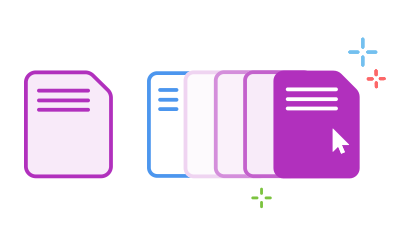
A PDF file with pages being rearranged into a new order
  1. Use the  Select a file  button, or drag and drop your PDF into the dotted area on-screen.
  2. Choose the PDF you’re looking to rearrange.
  3. Once your file has uploaded, sign in to your Adobe account.
  4. Click the thumbnail of the PDF page or pages you want to rearrange. Then drag the thumbnails to where you want them to be.
  5. Once you’re happy, click  Save  to keep your chosen order. You can then download the reordered PDF file or share via email.

Try our free PDF rearranger tool to reorder pages online

Three files with an arrow showing how you can reorder pages in a PDF

Rearrange PDF pages with ease

Upload your document, sign in, and arrange the PDF pages as you need them. Rearranging pages in a PDF is free and easy with Adobe Acrobat online tools.

A stack of files with arrows showing that you can reorder up to 500 PDF pages

Reorder up to 500 pages in your PDF file

Have lots of pages? No problem. You can rearrange up to 500 pages in your PDF document (with a file size up to 100 MB).

Need to make your files smaller so they’re ready to reorder? Use the Acrobat Compress PDF tool.

Multiple PDF files with a scale bar to show that your styling stays the same when you rearrange pages

No compromise on style

Reordering PDF pages doesn’t mean sacrificing styling and formatting – it’s just a simple rearrangement of the document layout. So your fonts, heading styles, and other details will stay the same.

A dustbin, plus sign and arrow showing that you can delete, add and rotate PDF pages for the perfect file

Delete, add, or rotate PDF pages

Organise your PDF even more to make the file your own. Add new pages, delete unwanted ones, or flip them from portrait to landscape, all in one place. Simply sign in to your Acrobat account to get started for free.

A clock representing how you can save time by reuse your PDF content

Reuse PDF content to save time

Already have good material but need to switch up the order and make changes? Transform an existing PDF into fresh content with clever organiser tools. It's faster than starting from scratch.

An organised PDF file

PDF tools you can trust

Acrobat’s online tools can help you rearrange your PDF in a fast, free and secure way. The PDF organiser tool works in alignment with GDPR regulations to keep your content and data fully encrypted. We’ll also delete any files you work on, unless you choose to save them to your secure account.

How to rearrange pages in a PDF with Adobe Acrobat Pro.

With Adobe Acrobat Pro, it’s super simple to organise your PDF into a professional-looking document with intuitive built-in tools. Rearrange PDF pages and organise your file just the way you like it, all in a matter of seconds.

Here’s how to reorder PDF pages in the Acrobat app:

  1. Open your chosen PDF file in Adobe Acrobat.
  2. Go to  Tools  >  Organise Pages  or select the tool from the top menu.
  3. Select one or more page thumbnails. You can use the Shift button to select a page range.
  4. Do one of the following:
    • Drag and drop pages to reorder PDF pages how you want.
    • Copy a page by clicking a thumbnail and using Ctrl+drag to drop it to a second location.
  5. Save your file. Select a folder or click “Choose a Different Folder” and navigate to the folder you want. Name your document and click Save.

Start your free trial of Adobe Acrobat today

What is the best free PDF arranger?

Choosing the best PDF arranger for you will depend on your needs and what you’re using the tool for. For example, the Adobe Acrobat PDF organiser allows you to upload a file and reorganise pages in seconds. It lets you reorder up to 500 PDF pages at once, while retaining all your file formatting. Whether you’re working on a professional report, finalising a contract, or making edits to your book, it’s a quick and accessible tool.

Questions? We have answers.

a text bubble, pencil icon and a stacked PDF icon representing free online Acrobat tools

Use Acrobat tools for free

  • Sign in to try 25+ tools, like convert or compress
  • Add comments, fill in forms and sign PDFs for free
  • Store your files online to access from any device

Rate your experience

Rate your experience
4.1/5-1597votes

Try these Acrobat online tools

word word word word word word word word word word word word word word word word word word word word word word word word word word word word word word word word word word word word word word word word word word word word word word word word word word word word word word word word word word word word word word word word word word word word word word word word word word word word word word word word word word word word word word word word word word word word word word word word word word word word word word word word word word word word word word word word word word word word word word word word word word word word word word word word word word word word word word word word word word word word word word word word word word word word word word word word word word word word word word word word word word word word word word word word word word word word word word word word word word word word word word word word word word word word word word word word word word word word word word word word

mmMwWLliI0fiflO&1
mmMwWLliI0fiflO&1
mmMwWLliI0fiflO&1
mmMwWLliI0fiflO&1
mmMwWLliI0fiflO&1
mmMwWLliI0fiflO&1
mmMwWLliI0fiflO&1