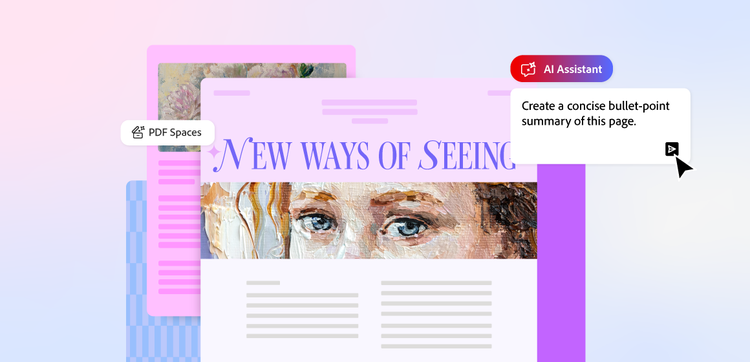
There are plenty of ways to format your documents when you’re using the AI Assistant, but they’re not always obvious from first glance. Below, we explore the range of opportunities the AI Assistant can offer you.
Customise your AI Assistant to get tailored advice.
PDF Spaces comes with multiple assistants built in. So theoretically, you can give the same request to different versions and receive different answers. Some versions are better suited to analysing information, while others excel at being chatty companions.
You have four pre-built assistants to choose from, but can also create your own, to develop the assistant you want.
Chat with your AI Assistant for fast insights.
While you can set tasks for the AI Assistant, you can also chat with it, as you would with a colleague. You can ask it for advice on documents, or request feedback on work you’ve created. If you’re ever unsure about the AI’s functions, you can always ask the assistant itself about the insights it can provide.
Generate content summaries.
If you need to summarise your content, whether to simplify complex topics or give readers a quick understanding before committing to the full document, AI Assistant can be useful.
Summarising is as simple as uploading your documents to the PDF space and then requesting a summary from the assistant.
After uploading your documents to the PDF space, you can request that the AI Assistant gives you advice on reformatting. This can be as simple as using the prompt: ‘Can I get advice on reformatting?’
You may also want to include extra details on the specific type of advice. For example, you might be thinking whether it’s worth including a chart in your document.
Ask for tone and style advice.
The AI Assistant can also give you advice on the tone and style of the content in your document. It can help you determine, for example, if the content is too formal or informal.
Similarly, if exploring a complex subject, you can ask for advice on how the layout of the document can help with explanations.