How to Fill in a PDF Form on iPhone and Mobile.
So, you’re on the move, the clock’s ticking, and a PDF form suddenly drops in your inbox. You need to fill it in fast before an upcoming deadline, but you’re far away from your computer.
Sound familiar? Don’t worry. This guide shows you how to fill in PDF forms on your iPhone or mobile in minutes with Adobe Acrobat. You can now keep your PDF management simple and stress‑free, even on the go.
Key takeaways.
- Turn your phone into a document powerhouse when deadlines hit with Adobe Acrobat.
- Keep privacy front and centre while filling PDFs with Acrobat’s enhanced security and encryption.
- Save time and avoid stress by completing and sharing paperwork securely with Acrobat Reader on iPhone or Android.
Can I fill out a PDF on my iPhone?
Yes, you can. Filling out PDF forms on your iPhone is surprisingly simple with the right applications. Mobile phones have become powerful tools to complete documents wherever you are. Whether you’re travelling or away from your laptop, mobile PDF apps such as Acrobat let you edit, sign, and share forms in minutes. Ideal for staying organised and keeping things moving, especially when time is of the essence.
You might reach for your phone to fill in PDFs when you need to:
- Sign contracts or agreements quickly without printing.
- Complete job applications before deadlines close.
- Fill out medical forms at appointments.
- Submit rental applications while viewing properties.
- Complete travel documents on the go.
- Send expense reports after meetings.
Why fill out documents on your phone?
Today’s mobile apps make everyday admin faster and more flexible. You can easily complete, sign, and share paperwork on iPhone or Android, helping you stay productive wherever you are.
Here are some of the benefits of filling out PDF documents digitally on your iPhone or mobile:
Fill and sign documents instantly.
Enter details and add signatures in seconds using your phone. Forms can be completed the moment they arrive, without relying on printers, laptops or desktops.
Handle paperwork from anywhere.
Finish paperwork while travelling or between meetings. Mobile tools let you stay productive wherever you are.
Easy sharing.
Share finished PDFs in just a few taps. Files can be sent quickly to colleagues, clients, or services.
Password protection.
Secure documents with passwords before sending them. This adds peace of mind when handling sensitive information on the go.
Password protection.
Secure documents with passwords before sending them. This adds peace of mind when handling sensitive information on the go.
Reduce paper waste.
Digital document handling cuts down the need for printing. It also keeps files organised and easier to manage.
How to fill in a PDF form on your phone with Adobe Acrobat.
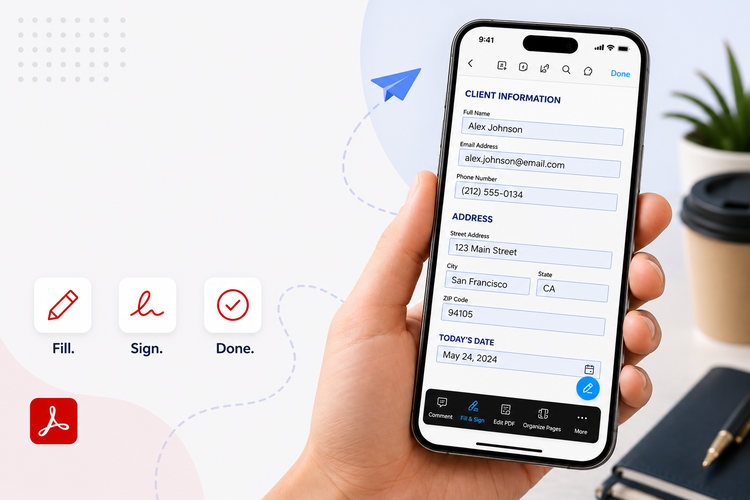
Completing paperwork on your phone has never been easier. Whether you’re responding to forms on short notice or handling daily admin, Acrobat makes it simple to fill out documents on your phone securely and efficiently.
- Open Adobe Acrobat online tools, or download the Acrobat Reader app.
- Upload your PDF document.
- Type text, mark fields, or fill out a PDF on iPhone using interactive tools.
- Sign the document electronically if required.
- Download or send the completed file.
With Adobe Acrobat, you can protect your documents with strong encryption at every step, helping to keep personal and professional data secure while you work on mobile.
Any files that aren’t saved to the Adobe Document Cloud are deleted by default, and uploaded files are secure within your account. This makes Acrobat a reliable way to manage PDFs without compromising security.
How to fill in a PDF form on iPhone.
Apple iOS also includes tools to complete PDF forms directly on your iPhone. Using the Files app and built‑in Markup features, you can enter information, add signatures, and send documents in minutes:
- Open the Files app and locate your PDF.
- Tap the PDF to open it.
- Tap the Markup icon (pen tip).
- Use the Text tool to type into fields.
- Add a signature if required.
- Save or share your completed file.
Tips for how to fill in a PDF form on your iPhone securely.
When completing PDF forms on your iPhone, security should always be a priority. Mobile tools make it easy to work anytime, anywhere, but safe file handling helps prevent data leaks and misuse.
- Choose reliable tools that use encryption to protect your documents, such as Adobe Acrobat.
- Be cautious of unfamiliar PDF websites without clear privacy practices.
- Verify the sender before entering personal or financial information.
- Password‑protect confidential files and manage how they’re shared.
FAQs.
How do I fill in a form sent by email on my iPhone?
If you trust and can verify the sender, open the form on your iPhone and complete it using native tools or Adobe Acrobat. Be sure to refine how you enter information and review the completed form carefully before sharing.
Is there a fill tool on iPhone?
Yes, iPhone has a native fill tool using Markup in Files and Photos. It lets you type into PDFs, add signatures and save changes straight from the Files or Mail app, making quick form completion easy on mobile.
How do I turn my PDF into a fillable form?
To turn a PDF into a fillable form, you’ll need a PDF editing tool that can add form fields. Tools like Adobe Acrobat let you insert text fields, convert static PDFs, and save them as interactive, fillable documents.
Is it safe to upload PDFs to online form‑filling tools?
It depends on the tool. Only use reputable services that clearly explain how they protect files, such as encryption and automatic file deletion. Avoid uploading sensitive documents to unknown or unsecured websites.
Can I fill in multiple PDF forms on my phone at once?
While many PDF editors can manage documents with multiple pages with ease, few can sign multiple individual documents at once. You can, however, merge and edit PDFs using Acrobat online, allowing you to sign multiple forms in one go. To separate them again, simply use the Extract PDF tool.
More resources.
- How to Redact a PDF
- How to Print a Booklet in PDF
- How to Create an Electronic Signature
- How to Upload PDF to ChatGPT
Useful PDF tools.
Simplify how you fill, sign, and share PDFs on the go by signing up to Adobe Acrobat.