How to convert AI to PDF online
Converting your Adobe Illustrator file to PDF is fast and simple with Acrobat online tools. Whether you’re working on desktop or on the go, you can turn vector artwork into a shareable PDF without installing extra software.
Follow these steps to convert AI to PDF:
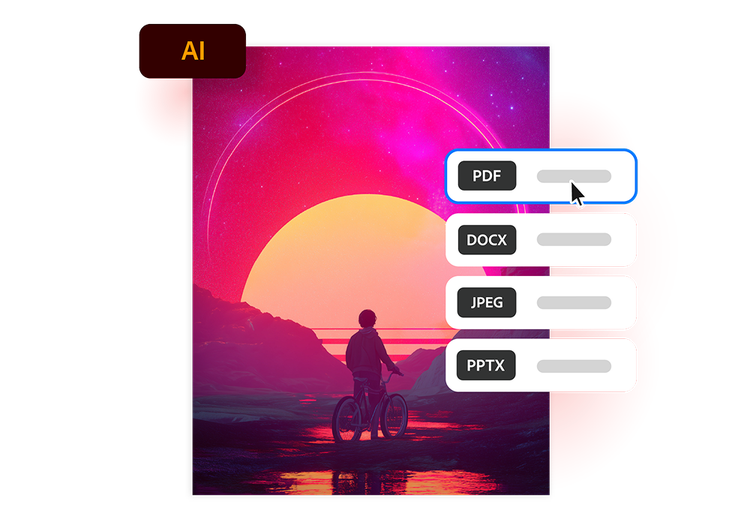
- Upload a source: Upload or drag and drop your Adobe Illustrator file into the converter tool above.
- Convert the file: Your Illustrator file is processed and converted into a PDF in seconds.
- Download your file: Download your newly converted file, then save, print or share your PDF.
Why use our free AI to PDF converter?
Discover the benefits of converting AI files to PDF with Acrobat online tools.
https://main--da-dc--adobecom.aem.page/dc-shared/assets/images/frictionless/icons/share.svg

Easily share artwork
PDFs make it simple to send Illustrator designs to clients, coworkers and printers without them requiring Adobe Illustrator to open or review the file.
https://main--da-dc--adobecom.aem.page/dc-shared/assets/images/frictionless/icons/image-quality.svg

Preserve vector quality
Converting AI to PDF helps maintain crisp lines, typography, colours and scalable vector graphics so your artwork looks polished on any screen or in print.
https://main--da-dc--adobecom.aem.page/dc-shared/assets/images/frictionless/icons/print.svg

Prepare files for print
PDFs are widely used for professional printing because they help preserve layout accuracy and reduce compatibility issues during production.
https://main--da-dc--adobecom.aem.page/dc-shared/assets/images/frictionless/icons/compress.svg

Reduce file complexity
AI project files can include layers, linked assets and editable elements. Converting AI to PDF creates a cleaner, easier-to-manage file for sharing and archiving.
https://main--da-dc--adobecom.aem.page/dc-shared/assets/images/frictionless/icons/comment.svg

Streamline approvals and feedback
Collaborators can comment on and review PDFs using standard PDF tools, making it easier to collect feedback without sharing editable source files.
https://main--da-dc--adobecom.aem.page/dc-shared/assets/images/frictionless/icons/more.svg

Access more PDF tools
After converting your AI file to PDF, you can continue working with Acrobat online tools to compress PDFs, reorder pages, merge files, add password protection and more.
More ways to work with PDFs
Try our online tools to convert, compress and merge PDF files — Acrobat can do it all.

Try our free PDF to Word converter

Try our free JPG to PDF converter

Try our free Word to PDF conversion tool

Combine PDF files any time, anywhere
Questions about the AI to PDF converter? We have answers.
More resources

How To Redact a PDF
Learn how to redact a PDF and blur text using Adobe Acrobat’s powerful redaction tools. Keep private or sensitive information hidden to help secure your data at every stage of sharing.
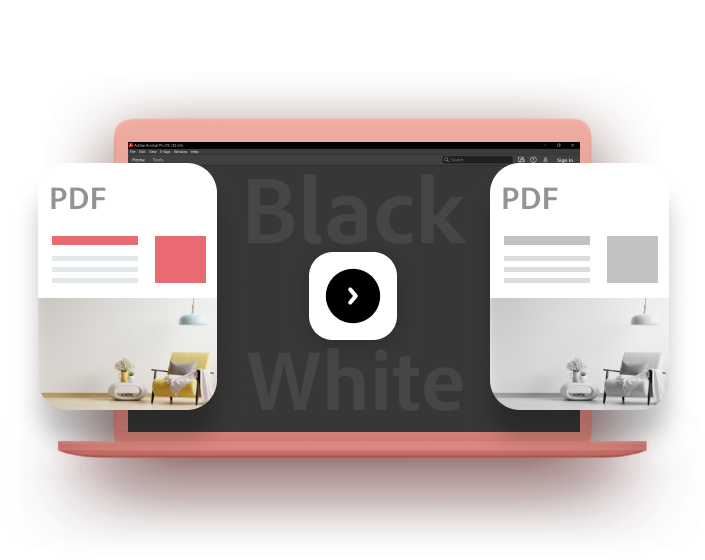
How to Make a PDF Black and White
If a colour view doesn’t matter when reading your PDF, converting the PDF to black and white can make the file considerably smaller. Find out how to convert a PDF to black and white with our easy-to-follow guide.
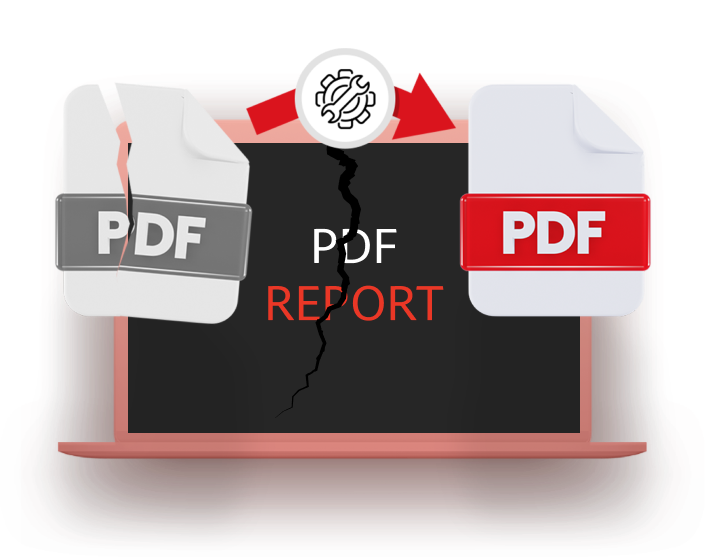
How to Repair a Damaged PDF
PDF files can get corrupted for a variety of reasons. The file may have not downloaded properly, a hard-drive may have reached its storage capacity or there could have been a problem transferring from one device to another.

How to Save Only One Page of a PDF
PDFs are the most popular file format—and for good reason. They are easily shareable and viewable across all operating systems and can be embedded with logos and pictures that display perfectly every time.
Use Acrobat tools for free
- Sign in to try 25+ tools, like convert or compress
- Add comments, fill in forms and sign PDFs for free
- Store your files online to access from any device
Create a free account | Create a free account Adobe Acrobat Sign in


