How to Use ChatGPT for PDF Editing with Adobe Acrobat.
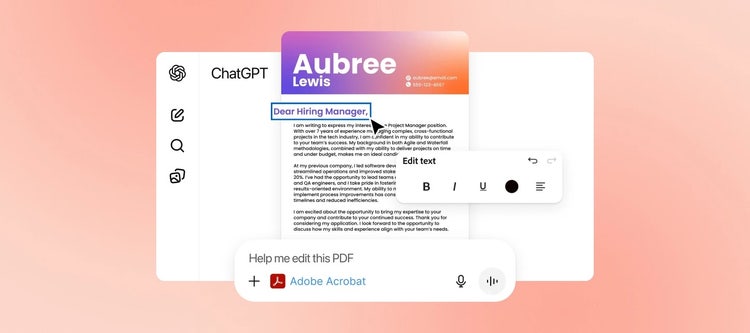
Our Adobe Acrobat ChatGPT integration has changed the game for document workflows. Now you can easily edit, merge, annotate or format PDFs for your university assignments directly within ChatGPT.
There’s no need to change apps or download specialist software, just work directly into the ChatGPT conversation. Learn more about ChatGPT Adobe PDF tools in this guide.
What you’ll learn.
Key takeaways.
- The Adobe Acrobat ChatGPT integration allows you to edit and manipulate PDFs with the tools you know and love within your ChatGPT conversation.
- Level up your workflow and annotate, edit or combine pages of your assignment with ease using ChatGPT AI PDF tools.
- Unlock deeper insights, increased efficiency and better quality work with the best AI software for PDF automation, editing and manipulation.
What is the Adobe Acrobat PDF assistant in ChatGPT?
Adobe integrations with ChatGPT are aimed at creatives – students or professionals – looking for a faster and more efficient way to work.
Adobe Acrobat for ChatGPT works as a PDF assistant. Students can easily edit and organise PDFs using the Adobe Acrobat tools you know and love, but through the AI chatbot. We’ve removed a step, making creativity and efficiency accessible for everyone, by giving you access to our tools without ever having to leave the conversation.
Make quick fixes to your portfolio, assignments or merge group project tasks with AI-powered PDF editing. Or combine multiple files into one PDF for job applications, study materials and more. The possibilities are endless.
The best news? It’s available for all users – even if you’re on our free plan.
How do the Acrobat ChatGPT tools work?
Adobe Acrobat ChatGPT tools help streamline the way you study with AI. To get started, all you need to do is simply enter an instruction, or text prompt, for example: ‘help me combine PDFs for my final university portfolio’. Then, follow the instructions and drag and drop or browse files on your computer. Once you have the generated content, refine the results until you’re happy with the outcome. You can continue to edit, annotate, split or reorder the PDF to your heart’s content.
Need to make last-minute adjustments to a finished assignment? No problem. Now, you can upload your final version to ChatGPT and edit it directly into the PDF.
How can the Acrobat ChatGPT PDF tools benefit students?
There are countless ways that artificial intelligence can be utilised to your advantage as a student. Before we dive into the details, remember that this is a tool to lean on rather than rely on. Harness its capabilities to produce your own, unique work.
Here’s how our Acrobat ChatGPT PDF tools may come in handy:
Speed up academic tasks.
We know what it’s like. Deadlines are looming, and you can do with all the time-saving tricks you can get. Having access to all the online tools you need in one place saves valuable time and effort.
Combine your essay, outline, and bibliography into a structured project submission or compress your final portfolio for easy sharing, without having to leave the conversation workflow.
Opportunity to improve quality of work.
Looking for extra feedback? Ask questions on where you could improve your submission. You could ask it to pull out key points from a grade rubric PDF to identify where you’re currently performing, and what changes may help you to move to the next level.
Unlock deeper comprehension of materials.
Achieve a deeper understanding of your study materials using Acrobat ChatGPT PDF tools. Ask your PDF questions to fully know your way around the subject. This may come in handy for revision – why not ask for exam style questions based on the text? Test your understanding and ace your exams with the help of our tools.
Simplify complex texts.
If you’re buried under PDF texts and reports, let our ChatGPT smart PDF assistant do some of the heavy lifting. Upload the text and ask for summaries of particularly complex ideas or chapters.
Using an AI student PDF summariser can help boost your confidence when working with difficult texts and save you time so you can focus on analysing and building an argument based on the insights found.
What can you use the Acrobat ChatGPT PDF tools for?
Our ChatGPT PDF assistant is useful for all areas of study, from researching and consolidating materials to editing work and formatting your final assignments.
Let’s take a closer look at some more benefits of AI in PDF workflows:
- Summarising documents. Sift through PDF texts and reports faster than ever with handy AI summaries. The tool can also be used to summarise contracts.
- Enhanced research and review. Ask ChatGPT for recommended further reading or alternative sources to ensure you’re well-read on your subject.
- Content generation and brainstorming. Use AI tools to create new content based on your PDF. For example, a marketing student could generate example social media copy based on a campaign they’ve created.
- Annotation and note-taking. Upload and annotate your PDFs directly using our ChatGPT PDF editing tools. You can also lean on AI tools to make notes based on the documents you upload – which may be handy for crafting presentations or email summaries.
- Language and grammar checks. Use ChatGPT for PDF review to look over your document for grammar or typos. Don’t forget to complete a final check yourself, but this can help you feel confident that you’re submitting polished work.
- Understanding data and figures. Extract and analyse financial data directly within ChatGPT using our ChatGPT PDF assistant.
How to use Adobe Acrobat in ChatGPT for PDF editing.
With our tools, you can edit and organise any PDF within the ChatGPT interface. Here’s how to get started:
- Check Adobe Acrobat is connected to ChatGPT. First things first, go to Adobe Acrobat for ChatGPT and click on Connect. You can also connect by heading to ChatGPT, selecting Apps and searching for Adobe Acrobat that way.
- Sign into Adobe Acrobat. Enter your information and select Continue.
- Locate the main chat box. Head to the chat box and click on the ‘+’ symbol, then More. From here you can choose Adobe Acrobat.
- Begin your chat. This is when you can enter your prompt for the task you’d like our tools to complete. For example, ‘Adobe Acrobat extract the most important information from this study material’.
- Upload your PDFs. Use the Asset upload interface to add your PDFs. Press Continue.
- Choose your tool. Navigate to the widget and select the appropriate option. For example, you may need to merge, edit, extract, or combine and compress.
- Preview and confirm. Make sure you’re happy with the output and confirm or Save. For advanced edits, you have the option to Open in Acrobat.
- Download! As it says on the tin.
Bear in mind that content you create or edit using Adobe Acrobat in ChatGPT isn’t automatically saved to your Adobe account. To do so, you’ll need to click Open in Acrobat and save to your Adobe Creative Cloud storage.
Which areas of study can ChatGPT and Adobe PDF tools support?
Acrobat ChatGPT PDF tools can support a variety of different sectors or areas of study, from marketing and communications to science and engineering.
Let’s take a closer look:
- Media and communications. Use our tools to summarise your research and extract themes for critical analysis. You can review scripts and synergise information for content creation.
- Law. The Acrobat ChatGPT PDF assistant can help you to summarise legal documents. It can help find relevant clauses and even assist with argument drafting.
- Business and economics. Harness the potential of Acrobat AI PDF optimisation by analysing market reports and financial statements. Go one step further and extract key data to inform future strategies.
- Science and engineering. For those studying STEM subjects (science, technology, engineering, and mathematics), you can still make the most of our tools for summarising complex journals, understanding methodologies, and extracting data for research and report writing.
- Humanities and arts. Similarly, our AI tools may come in handy when analysing historical or literacy texts to manage extensive reading lists. It can also help to collate and compare key themes for your writing.
Optimise your PDF workflows with the Acrobat PDF tools in ChatGPT.
Use the top AI tool for PDF workflows to analyse, edit, merge or combine PDFs, generate related content, and much more. Take your studies to the next level with game-changing efficiency from Adobe Acrobat’s ChatGPT integration and other online AI tools.
FAQs.
What are the benefits of AI in PDF workflows?
Using AI in PDF workflows can increase your efficiency and boost your confidence. Get the most out of your PDF by asking for text summaries to consolidate complicated information, writing help, and more. Remember that it’s important to refine your prompts, test different approaches and review and edit the output.
What’s the best way to prompt ChatGPT for PDF tasks?
Clear prompts are essential for using ChatGPT for PDF editing. This may include ‘chain-of-thought’ prompting to guide the AI chatbot through the process. For example, ‘Summarise the attached PDF. First, list the section title. Then, highlight the main ideas. Third, provide a conclusion’. Don’t be afraid to refine the prompt until you’re happy with the output.
What’s the best AI software for PDF automation?
The best AI software for PDF automation or editing should allow for intuitive and efficient document manipulation. Adobe Acrobat’s ChatGPT integration allows you to edit typos across multiple files and combine and merge PDFs with ease. Learn more about Acrobat ChatGPT.
Useful PDF tools.
Edit, prepare and organise documents with the world’s best PDF App within ChatGPT. Sign up to Adobe Acrobat to get started.