



What is an s-signature?
An s‑signature, also written as /s/ signature, is a simple way to sign an electronic document by typing your name between forward slashes. It’s a typed signature that still counts as a legally recognized electronic signature in many contexts. An s‑signature can look like:
/Jimmy Doe/
or
/s/ Jimmy Doe
It’s a fast, keyboard‑friendly way to sign when you can’t sign by hand, don’t have a touchscreen, or need to meet specific filing requirements, especially in legal, business, and patent workflows.
What does /s/ mean?
The /s/ notation is a standardized way to show that a typed name is being used as a signature. It signals that the signer is intentionally signing electronically rather than providing a handwritten mark. In conformed signatures, the signer places an “s” between two forward slashes before their typed name, such as:
/s/ John Smith
This style is widely used in legal filings, government submissions, and patent applications.
Why do lawyers use /s/ before a name?
Lawyers, courts, and government agencies use /s/ signatures because they:
• allow fast signing without printing
• work across devices and filing systems
• meet many electronic filing requirements
• provide a consistent, recognizable signature format
• reduce delays caused by wet signatures
In many legal workflows, an s‑signature is accepted as long as it follows the required format and is placed intentionally by the signer.
Why use s-signatures?
Flexibility
Electronic signatures are necessary to keep business moving, especially when you can’t meet face to face. You never want technical issues to get in the way of collecting signatures. An s signature makes it simple to collect, regardless of a person’s device or tech savviness.
Convenience
Depending on where and how you are doing business, the option of an s-signature may help you conduct business more quickly by speeding up the signing process. For example, when you’re e-filing a patent application, you can quickly use a form-fill app to add a digital signature from any keyboard. This is just one of many possible examples of when an s-signature might work better than a wet signature.
Compatibility
S‑signatures work in many government and business systems that accept typed signatures but don’t support drawn or uploaded signatures.

How to use an /s/ signature format: /s/ signature format
Using an s‑signature is one of the simplest ways to sign electronically when you can’t draw or upload a handwritten signature. If you need to learn how to type an s‑signature, or how to sign electronically with /s/, here are a few rules to follow:
- Use letters, Arabic numerals, or both
- Use correct spacing between words
- Include punctuation if needed (commas, periods, hyphens)
- Place the signature between forward slashes
- Add the signature yourself: no one else can add it for you
Examples:
- /Jane Doe/
- /s/ Jane Doe
- /J. A. Doe/
This makes it easy to add a legally recognized typed signature to forms, contracts, and filings, especially when you need a quick, keyboard‑friendly alternative to a handwritten signature. The guidelines above explain exactly how to format an s‑signature correctly and how to use it in documents, including how to insert /s/ in a PDF.
Regulations
The rules around e-signature validity vary from country to country and region to region.
For example, there are many laws that cover the validity of e-signatures in the United States. The Uniform Electronic Transactions Act (UETA) in 1999 and the US Electronic Signatures in Global and National Commerce (ESIGN) Act in 2000 both set regulatory guidelines on electronic signatures, but every state has not adopted these.
The United States Patent and Trademark Office (USPTO) and many other government agencies accept s-signatures for electronic filing. The Manual of Patent Examining Procedures (MPEP) 501 and 502 also covers regulations on s-signatures for patents.
As always, consult your attorney for advice on using an s-signature relevant to your use case.
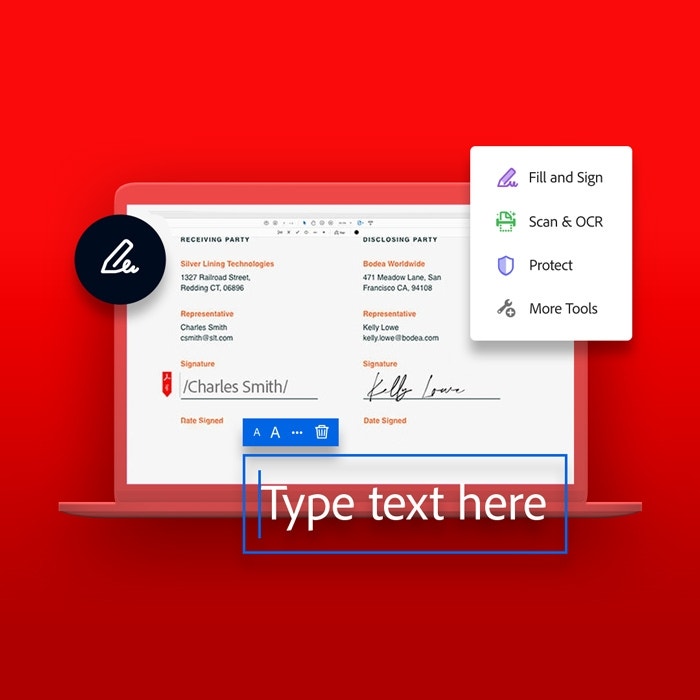
How to add an s‑signature in a PDF
You can insert an s‑signature into any PDF using standard text‑editing tools.
On Desktop
01. Open your form in Acrobat.
02. Select Edit PDF or Edit Text & Images.
03. Click the field where the signature belongs.
04. Type your s‑signature (e.g., /s/ John Smith).
05. Save the document.
Acrobat’s OCR automatically identifies form fields, making text editable even in scanned documents.
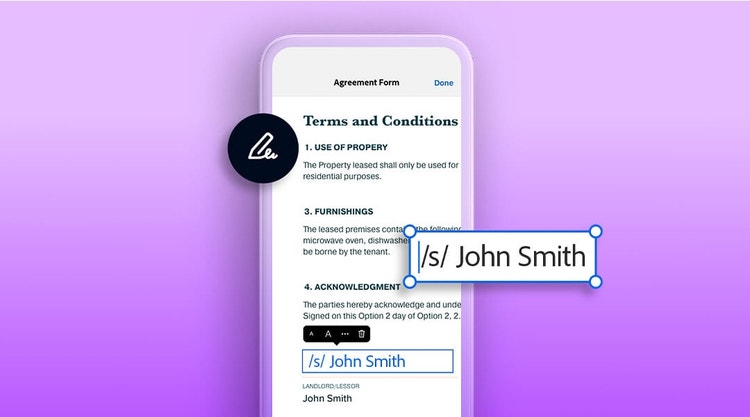
On Mobile
01. Open the form in the Adobe Fill & Sign app.
02. Tap the space where the signature should go.
03. Type your s‑signature.
04. Share or submit the signed document.
How to create a handwritten‑style e‑signature instead
In instances where a handwritten-looking signature is required, you can easily use one that you can create in Acrobat. It's quick and easy to use Acrobat's online signature generator tool, which allows you to choose from multiple font styles or even draw your own signature.
- Choose from handwriting‑style fonts
- Draw your signature with a mouse, stylus, or finger
- Upload a scanned image of your handwritten signature
This gives you the appearance of a wet signature while keeping the convenience of electronic signing.
S‑signature FAQs
A conformed signature is a type of electronic s-signature where the signer puts an “s” between two forward slash marks in front of their typed name (for example, /s/ Jimmy Doe).
There are many forms of e-signatures, each having its own specific uses and formatting requirements. One of the symbols to indicate an electronic signature is /s/, placed before the signer’s name. For example, /s/ Jimmy Doe. The other symbol is the signer’s name between two forward slashes, typed out, for example, as /Jimmy Doe/.
You might think that an electronic signature refers to the box where you sign your name with your stylus or finger. Electronic signatures can, indeed, look like that — or it may look like typing out your full name within the space. Depending on the symbols used and use case, both can be valid versions of electronic signatures.
Disclaimer Note: This article is for informational purposes only. Adobe does not and cannot provide legal, financial, accounting or any other related professional advice. Laws and regulations frequently change. You should consult an attorney, accountant, or other appropriate professional advisor regarding questions specific to your situation. To the maximum extent permitted by law, Adobe provides this material on an “as is” basis. Adobe disclaims and makes no representation or warranty of any kind with respect to this material, express, implied, or statutory, including representations, guarantees, or warranties of merchantability, fitness for a particular purpose, or accuracy.
title
S-signatures help you sign electronic documents just by typing.
cardImageAltText
A person holding a mobile phone in their hand while providing an s-signature on a digital document
cardImage

Tags
caas:content-type/article,caas:topic/b2b,caas:topic/electronic-signature

