
Adobe Illustrator
Orphans and widows in typography.
Master the art of flawless text flow in Adobe Illustrator. Learn to find and correct orphans and widows in typography for more professional-looking designs.


Adobe Illustrator
Master the art of flawless text flow in Adobe Illustrator. Learn to find and correct orphans and widows in typography for more professional-looking designs.

Widow and orphan are typesetting problems that can disrupt the flow of your text. Find out what they are and how to fix them within this quick guide.
A widow is a single word or short line that appears at the end of a paragraph but gets pushed to the top of the next page or column.
An orphan is a single word or short line of text at the beginning of a page or column, separated from the rest of its paragraph.
The Paragraph panel in Adobe Illustrator, with its "Keep with Next" and "Keep Lines Together" options, can help prevent widows and orphans.
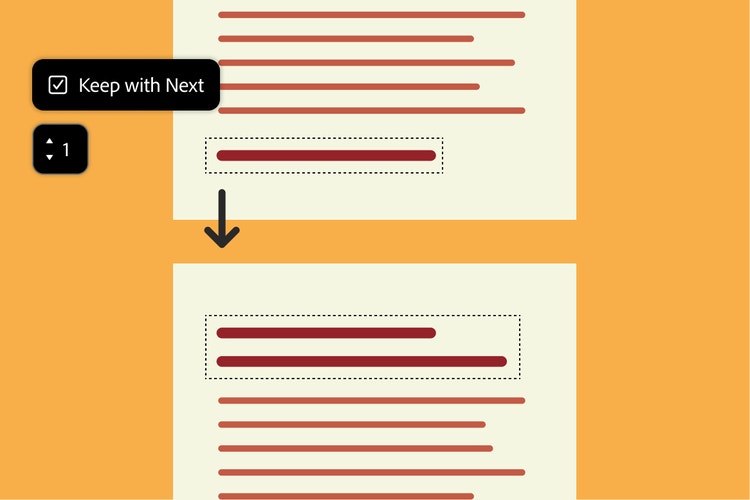
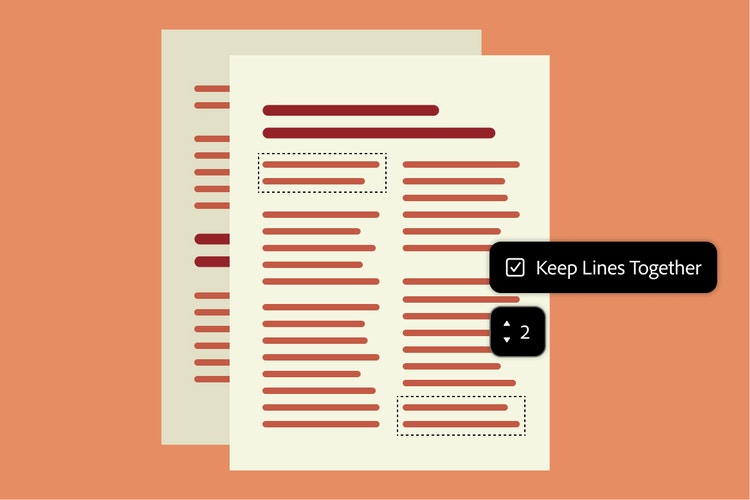
Adobe Illustrator can help you spot these typographic troublemakers.
Eliminating widows and orphans keeps the text flowing and prevents distractions from awkward line breaks for a smooth reading experience.
Use the Story panel (Window > Type > Story) to identify widows and orphans. The panel highlights potential issues with color-coded warnings.
The Type > Show Hidden Characters option can help identify non-breaking spaces and other special characters that might affect line breaks.
With these tips, even beginners can create clean, professional-looking typography.
Adjust spacing and hyphenation settings.
Use Illustrator’s spacing and hyphenation settings to prevent single words from appearing at the start or end of a page or column. For example, you could adjust character spacing so that the last word of a paragraph returns to the previous page.
Manually edit your text.
Reword or modify your content to avoid awkward line breaks. Sometimes changing a word like “extroverted” to “outgoing” could shorten the text enough to prevent a widow or orphan.
Use non-breaking spaces or special characters.
In Illustrator, access the Glyph panel to insert a non-breaking space (Alt+0160 on Windows, Option+Space on Mac). This keeps specific words together, ensuring they don’t split across lines.
Fine-tune text with Optical Margin Alignment.
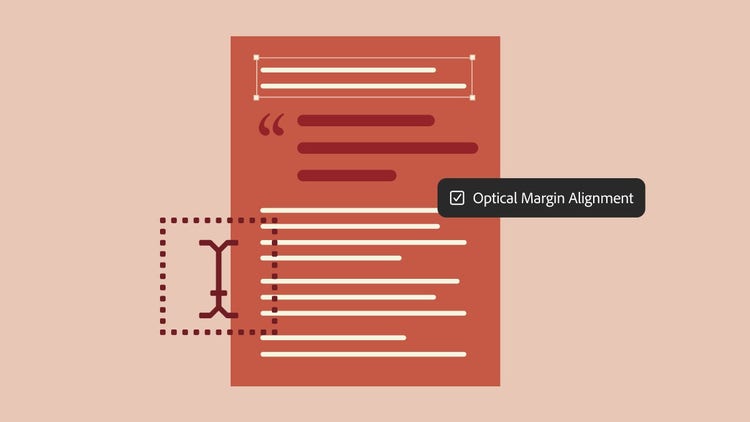
Illustrator’s Optical Margin Alignment helps align text edges more precisely, potentially reducing widows and orphans. You can find this setting in the Story panel.
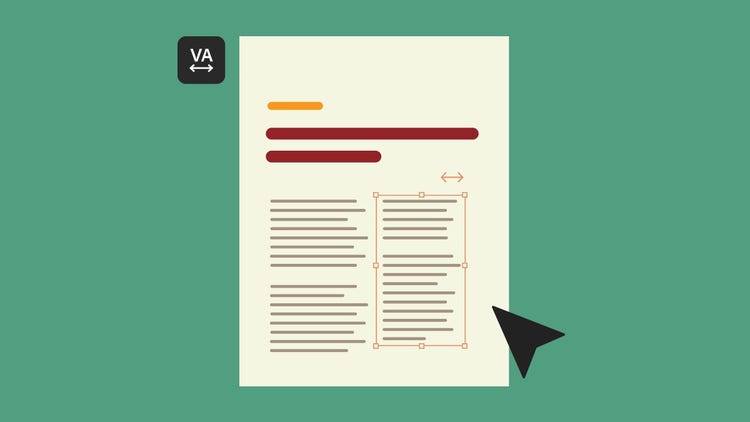
If you’re still struggling with orphans and widows after trying the above, try tweaking your column width, margins, or page layout to adjust how text flows.
Use expressive letterforms. Expressive letterforms include fonts with unique styles, varying weights, or fluid shapes, which can fit more flexibility into a layout and add visual interest and style.
Consistent line spacing and proper justification settings can help prevent awkward line breaks that disrupt the text flow. Selecting the right fonts and font sizes is vital, as some handle line breaks better than others.
Consider setting up style guides or templates with built-in typesetting rules for font types, sizes, weights, and line height. This helps maintain consistency across teams and projects.
Use tools like Adobe Illustrator for advanced control over line breaks, spacing, and special characters like non-breaking spaces.
Lastly, when precision is crucial, consider hiring a professional typesetter to ensure polished typography that maximizes readability and enhances visual appeal.
To recap, widows and orphans are single words or short lines of text that appear at the top or bottom of a page, disrupting the reader’s experience. Minor widows or orphans may sometimes be unavoidable, and that's okay. The key is to prioritize readability over perfection.
It’s important to identify these distracting line breaks early and fine-tune your text to reduce them. In addition to the tips above, you can use Touch Type in Illustrator to scale or adjust the spacing of individual characters without breaking the text flow. Some fonts handle line breaks better than others. Typekit offers a wide selection to experiment with. While you may be unable to prevent them all, a thoughtful approach to typesetting will ensure your documents always look polished and professional.


Elevate your designs with powerful tools and techniques in Adobe Illustrator. Explore creative styles and unlock.
Dimension tool makes it easy to add and personalize size guides to all areas of your technical designs.
Explore color variants of your vector artwork without manual recoloring using Generative Recolor.
With powerful new features, you can create graphics that match your style, explore dozens of options, and finish designs in record time.
US$22.99/moAnnual, billed monthly
Get Illustrator on desktop and iPad as part of Creative Cloud.
Join over 7 million Creative Cloud Pro subscribers worldwide. Save 50% for the first 3 months on the full version of Illustrator and 20+ apps plus Adobe Firefly creative AI. Pay US$34.99/mo for the first 3 months and US$69.99/mo after that. New subscribers only. See terms | See what's included
Save 71% on 20+ Creative Cloud apps — including Illustrator.
US$99.99/moper licenseAnnual, billed monthly
Get Illustrator and 20+ Creative Cloud apps plus exclusive business features. See what's included | Learn more.

