

Content as a Service v2 - discover video collection - Thursday, September 12, 2024 at 16:05


Looping videos make compelling web content, music videos, marketing videos, social media posts, and more. They help you add style to simple motions or add emphasis to instructional footage by showing them again and again.
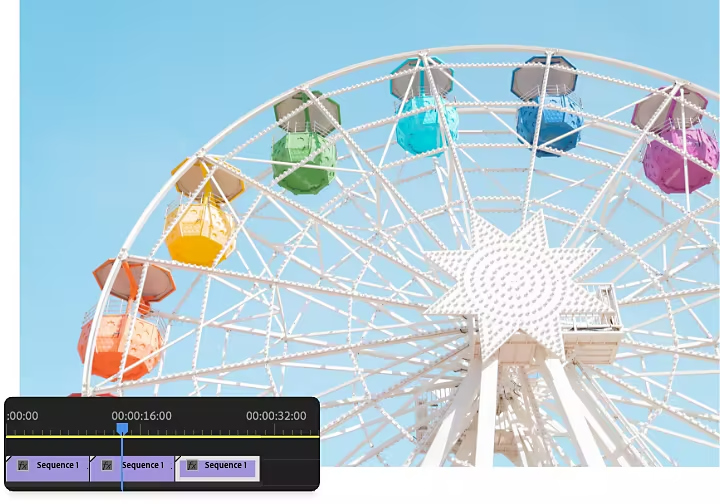
While there’s no loop-video button in Premiere, you can create a looping video in just a few minutes by editing to create a duplicated clip that plays over and over to appear as though the video is looped.
Launch Premiere and click New Project in the Start screen. Then tap Add Media to upload your video. Premiere supports several types of video files, including MOV, M4V, and MP4.
Cut your clip down to just the section you’d like to loop.
Highlight your clip and press Ctrl+C (Windows) or Command+C (Mac) to copy it. Then press Ctrl+V or Command+V to paste a copy of it on the timeline. Repeat this as many times as you need to achieve the length of video that you want.
Click and drag to highlight every clip on the timeline, open the Effects panel to the right, and pull a Transition onto the timeline to smooth out the change between clips. Cross Dissolve is a great option for this.
Export your project.
Create everything from social clips to feature films.
Try these more advanced editing options to really make your looped videos pop.
You can reverse a clip in Premiere. Duplicate your video and then reverse every other clip for a fun effect where the action plays forward, then backward, again and again.
A cinemagraph is a more artistic take on the GIF. One action of a clip is isolated and looped for a dreamlike moving image that appears to loop forever. Learn more about cinemagraphs and how to make them with this tutorial.
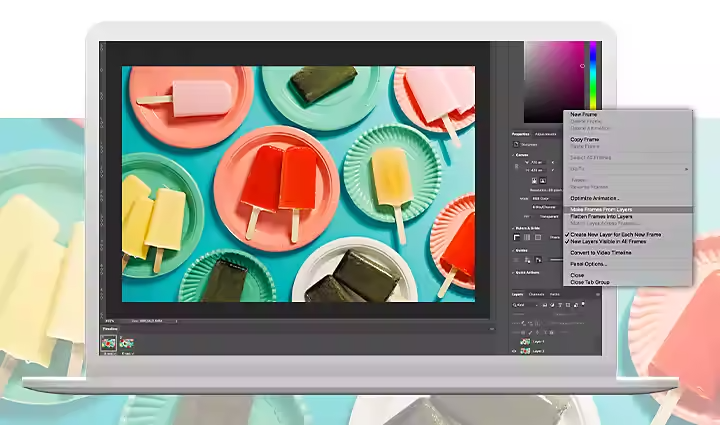
If you want to play videos that repeat forever, like for a web page or presentation, a high-quality GIF is the way to go. Follow these instructions to make an animated GIF from images or a video in Adobe Photoshop.
You might be tempted to use a free online video looper to quickly loop a video file. But a more complete video editor is a better way to make a video loop that is professional in quality, doesn’t have a watermark, and can be exported in various aspect ratios for different platforms.
Don’t have original images or footage to work with? Find amazing static and video assets in Adobe Stock to create imaginative looping videos on any subject you can think of. The options are limitless.




Visualize shots and effects ahead of the shoot, generate assets missed in production to complement your edit, and eliminate tedious tasks to stay focused on your creative ideas.


