Turn rough ideas into vectors.
Drop a sketch or low-res image into Illustrator and start refining, not redrawing. Concept to Vector transforms outlines into editable graphics — ready to reshape, restyle, and explore new directions.


Learn all about the tools and techniques you can use to create crisp, scalable graphics in Illustrator.
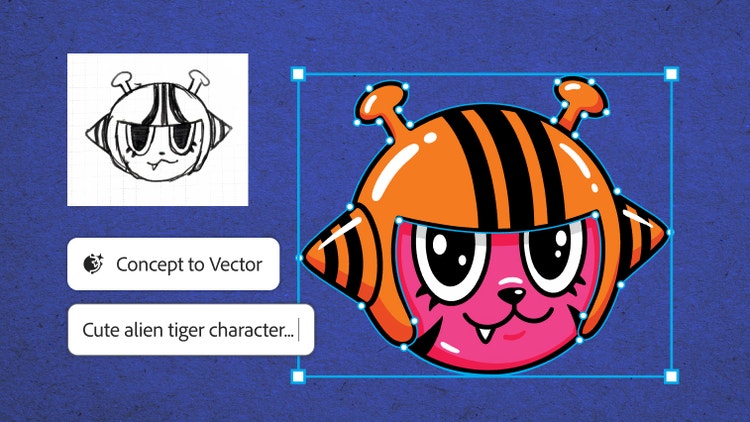
Drop a sketch or low-res image into Illustrator and start refining, not redrawing. Concept to Vector transforms outlines into editable graphics — ready to reshape, restyle, and explore new directions.
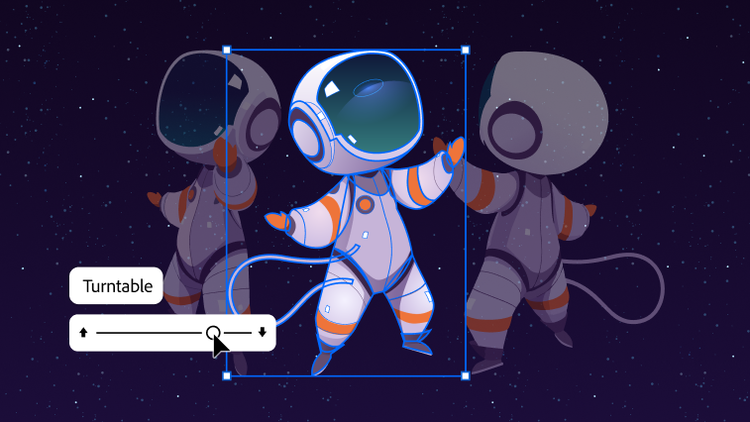
Bring new perspectives to your work with Turntable in Illustrator. Skip hours of redraws, refine designs, and add motion for presentations or social.
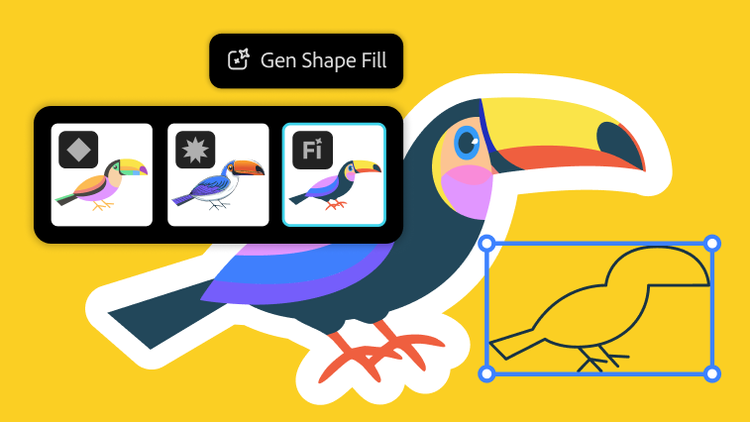
Explore different design possibilities with powerful AI models like GPT‑4o, Gemini 2.5, and more — now in Generative Shape Fill.

Maximize your productivity with new Generative Expand. Resize graphics, add bleeds, and explore concepts for professional designs.

Supercharge your workflow with a smoother Gradient tool and presets for more precise color transitions. A new Color Picker icon makes finding the perfect color easier than ever.

Find the fonts you need faster with an enhanced Font Browser. Apply specific filters, organize into libraries that sync across your Adobe apps, and browse all your fonts in one place.

Create custom, seamless patterns with Text to Pattern. Edit, scale, and save them to your swatch library so you can apply them anywhere in a few clicks.
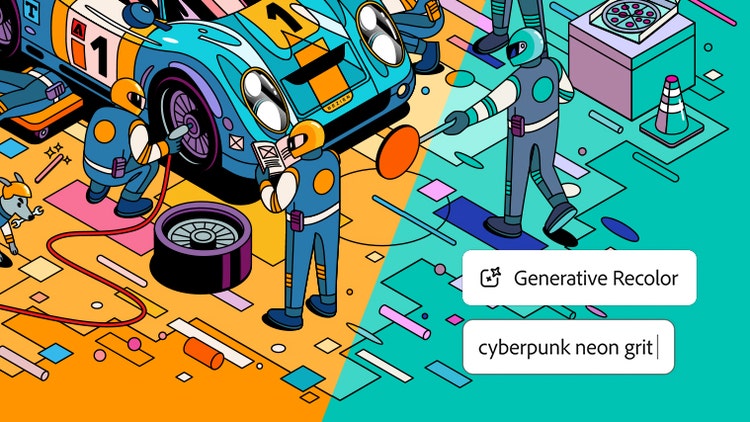
Explore endless color combinations. Use Generative Recolor to turn words and concepts into color palettes and apply them to your designs.

Create, edit, and scale vector graphics that match your style. Quickly go from text prompt to scene, subject, or icon with the smartest Text to Vector Graphic yet.
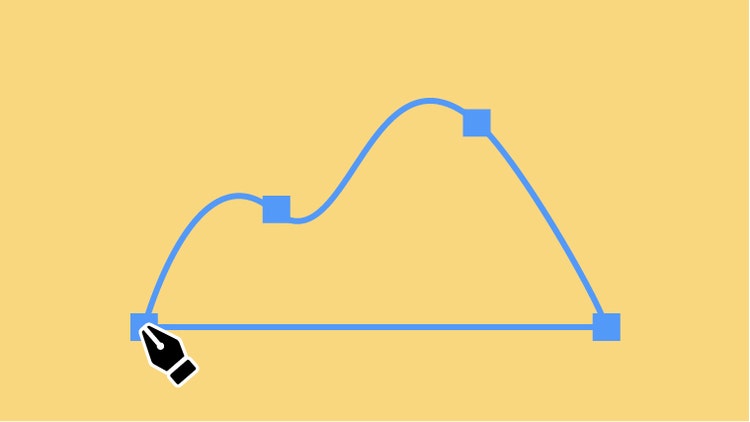
Use the Pen tool to make straight and curved lines you can edit with anchor points. Combine it with the Curvature and Pencil tool to draw anything you can imagine.
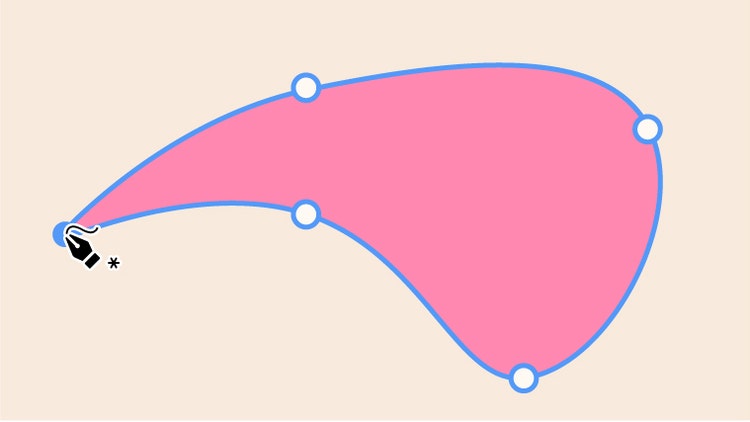
Draw intuitive curved lines and shapes using the Curvature tool. Make C-shaped and S-shaped curves, and even draw straight lines to make a complete shape.

Combine common shapes to make complex ones with the Shape Builder tool. Make bold, geometric designs for icons and more.

Click on an object with the Selection tool to drag it to a new position or resize it.

Use the Direct Selection tool to choose a single point or path segment and then move or adjust it.

Use the Group Selection tool to isolate one object in a unified design and edit it without affecting the others.

Use the Magic Wand tool to select objects with similar features in one click and then adjust their color and more at the same time.

Quickly select several objects at once by drawing around them with the Lasso tool, then move and edit them as a group.

Make multiple artboards of any size for all your design elements with the Artboard tool.

Use the Type tool to add letters, words, or even paragraphs to your designs. Create posters, logos, and more with fonts that fit your style.

Seamlessly blend words and illustrations with the Type on a Path tool. Use it to curve your text around any shape or line.

Add text in a streamlined column to your designs with the Vertical Type tool.

Move your canvas and artboards in any direction with the Hand tool to quickly access any part of your project.

Change the orientation of your canvas with the Rotate Tool so you can easily view and edit parts of a design at the most convenient angle.

Quickly magnify and reduce the view of your work with the Zoom tool to see the full picture or examine a small detail.

Use the Gradient tool to fill objects with subtle transitions between colors. Make linear, radial, and flowy freeform gradients.

Mimic the reflection of light on objects with the Mesh tool to create designs with lifelike qualities.

Add realistic effects, lighting, and textures that turn 2D art into 3D designs using the options and presets in the 3D and Materials panel.

Morph the shapes and colors of two or more objects with the Blend tool to make dimensional creations with graduated hues.

Just click and drag to create guides that display the linear, angular, and radial measurements of your artwork with the Dimension tool. Plus, customize guide units, color, and font.

Turn an object around a fixed point with the Rotate tool to get the perfect placement.

Flip a design element over an axis with the Reflect tool and use it to create symmetrical designs.

From small-scale stickers to giant billboards, resize your designs as big or small as you want with the Scale tool— no quality lost.

Split a line or shape at an anchor point with the Scissors tool to create multiple objects or to trim away parts you don’t want.
Find out how to use the tools and features in real-world design projects like logos, banners, icons, and more — then try them for yourself.

Illustrator features

Illustrator features

Illustrator features

Illustrator features

Illustrator features

Illustrator features

Illustrator features

Illustrator features

Illustrator features

Illustrator features
Illustrator features
Illustrator features
Illustrator features

Illustrator features
US$22.99/moAnnual, billed monthly
Create designs, icons, logos, and more with Illustrator
Use thousands of free templates to make standout content with an Adobe Express Premium plan
Fonts, images, tutorials, and more
100GB cloud storage
25 monthly generative credits
The full version of Illustrator plus the Adobe Express Premium plan.

Create designs, icons, logos, and more with Illustrator
20+ apps for photo, design, and video
Unlimited access to standard creative AI image and vector features like Text to Image and Generative Fill
4,000 monthly generative credits for premium creative AI video and audio features like Text to Video.
Unlimited access to Firefly Boards for exploring ideas and developing storyboards
Access to non-Adobe Generative AI models in Firefly
Adobe Express Premium, Frame.io for Creative Cloud, tutorials, fonts, templates, and 100GB of cloud storage
Join over 7 million Creative Cloud Pro subscribers worldwide. Save 50% for the first 3 months on the full version of Illustrator, plus Adobe Firefly creative AI. Pay US$34.99/mo for the first 3 months and US$69.99/mo after that. New subscribers only.
Create designs, icons, logos, and more with Illustrator
20+ photo, graphic design, and video apps including Illustrator
Unlimited access to standard creative AI image and vector features like Text to Image and Generative Fill
4,000 monthly generative credits for premium creative AI video and audio features like Text to Video
Access to industry-leading AI models from Adobe, Google, OpenAI, and more
Unlimited access to Firefly Boards for exploring ideas and developing storyboards
Access to non-Adobe generative AI models in Firefly
Adobe Express Premium, Frame.io for Creative Cloud, tutorials, fonts, templates, and 100GB of cloud storage
Save 71% on 20+ apps, including Illustrator, plus Adobe Firefly creative AI for images, video, and audio. Pay US$19.99/mo the first year and US$39.99/mo after that.
US$37.99/moper licenseAnnual, billed monthly
Create designs, icons, logos, and more with Illustrator
Quickly and easily make standout social content, flyers, templates, and more with the all-in-one Adobe Express
Fonts, images, tutorials, and more
25 monthly generative credits
100GB cloud storage
Exclusive business features
The full version of Illustrator and the Adobe Express Premium plan, plus exclusive business features.
US$99.99/moper licenseAnnual, billed monthly
Create designs, icons, logos, and more with Illustrator
20+ apps for photo, design, and video
Unlimited access to standard creative AI image and vector features like Text to Image and Generative Fill
4,000 monthly generative credits for premium creative AI video and audio features like Text to Video
Unlimited access to Firefly Boards for exploring ideas and developing storyboards
Access to non-Adobe generative AI models in Firefly
Adobe Express Premium, Frame.io for Creative Cloud, tutorials, fonts, templates, and 100GB of cloud storage
20+ apps, including Illustrator, and Firefly creative AI for images, video, and audio, plus exclusive business features.

Create shaped, editable text directly in Photoshop without jumping into Illustrator. With Dynamic Text, your type automatically reflows as you adjust the shape, so you can find the right fit faster.

You can now easily bring Illustrator vectors into After Effects. Create keyframes for animation and bring complex artwork to life without losing fidelity or layer structure.
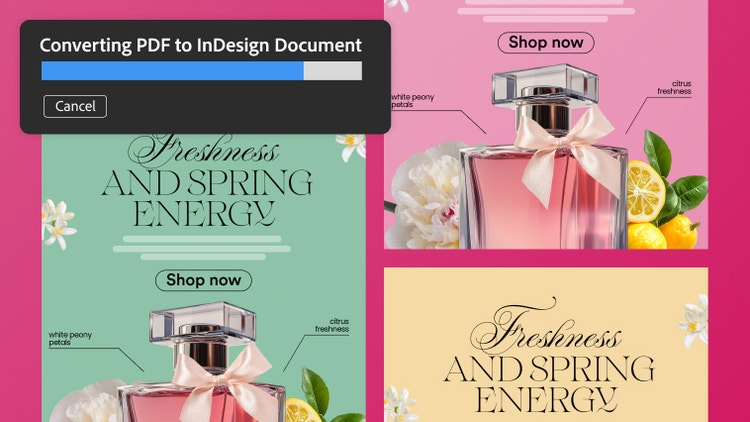
Turn PDFs into editable InDesign files while preserving everything in the original document. Retain tables, hyperlinks, fonts, and other elements, and fine-tune each piece in InDesign.