Why Can I Not Print a PDF?
Ever tried to print a PDF but it’s not working? It can be frustrating. Whether it’s a blank output or an error message, it’s quite common on home and office computers.
In this guide, we’ll cover the key causes of why this happens and practical solutions, so you know what to do if PDF files are not printing.
Key takeaways.
- Many common PDF printing issues can be resolved by updating drivers, clearing the print queue, or checking printer connections.
- Make sure your PDF file isn't corrupted, and fonts are embedded to prevent incomplete or jumbled printouts.
- Check your print settings for the right paper size and scaling, as mismatched PDF dimensions can easily cause printing issues.
What are the benefits of PDF printing?
PDFs are Portable Document Format files, which are designed to keep documents looking the same across various software, devices, and operating systems.
They offer stronger security too, as it’s much harder to edit PDFs than Word documents, for instance. This makes them ideal for formatting documents containing important and sensitive information. You can encrypt PDFs with passwords, granting access only to certain people.
Some common reasons to print a PDF include:
- Contracts, application forms, and CVs.
- Reports, invoices, and presentations.
- Files that need a fixed layout for archiving or review.
Why can I not print a PDF document? Top problems and solutions.
There are a range of reasons why a PDF might not be printing correctly, or at all. It could be an issue with the PDF file or the viewer itself, the printer, or something else.
We’ll now cover some of the most common issues and fixes to help you troubleshoot if PDFs will not print.
Your PDF file is corrupted.
Your PDF might not be printing because the file itself is corrupted. This could prevent it from printing altogether or produce an incomplete or blank output. It can happen during file creation, or due to downloading issues or software conflicts.
To fix this:
- Open the file in a different PDF reader to test whether the issue is only specific to that file.
- Re-download it or ask the sender to send it again.
- Save a new copy of the PDF using ‘Save as’ or print it as an image via the print settings.
These steps can help to identify if the file is corrupted and rectify its ability to print properly.
The printer drivers are out of date.
Out-of-date printer drivers can cause PDFs to stop printing properly. Drivers act as the communicator between the printer and your device, so if they’re not up to date, this could cause printing issues.
To resolve this:
- Check the printer manufacturer’s website for the latest driver version and install any available updates.
- Remove and reinstall the printer to refresh the setup.
Keeping drivers updated ensures better compatibility, helping to eliminate printing issues and improve overall performance.
Acrobat needs an update.
If Adobe Acrobat isn’t up to date, it might struggle to process newer PDF formats. Updating it ensures that you have the latest fixes, security patches, and compatibility updates. Not having the latest version can cause slower processing and errors that affect printing.
The fixes are:
- Checking for updates within Adobe Acrobat and installing the latest version.
- Restart your device after updating to ensure any changes take effect.
Using the most current version of Acrobat reduces the likelihood of printing errors and ensures smoother handling of large and content-rich PDF documents.
The printer isn’t connected.
It might sound obvious, but the printer might not be connected. There could be a loose cable, a network issue, or the printer might be offline.
To ensure there are no issues between the printer and your device:
- Check the printer is connected to your computer or network.
- Make sure it appears as ‘online’ in the device settings.
- Try using a different printer to see if the issue persists.
- Change your default printer – go into your system settings and select another printer or reset the connection.
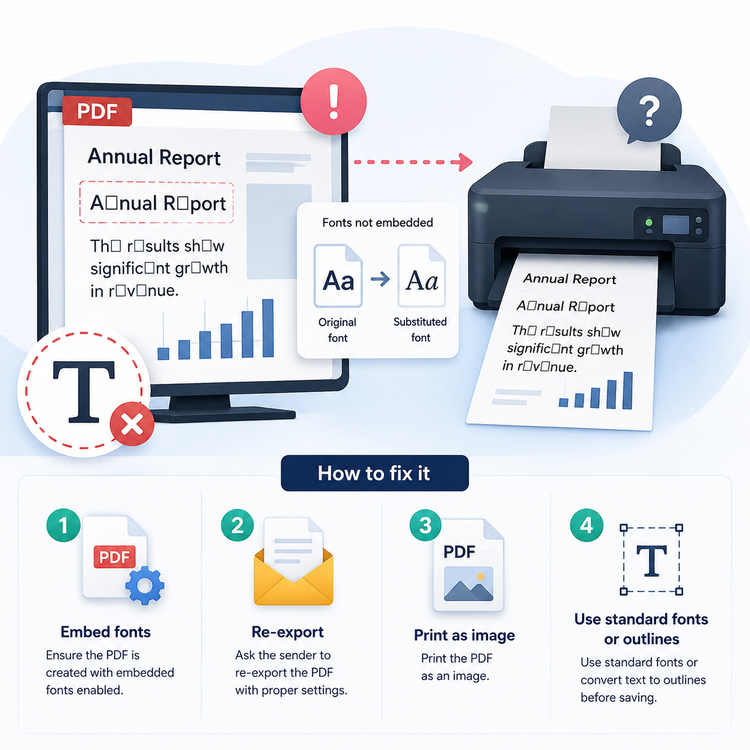
Fonts and characters aren’t properly embedded.
Printers may substitute fonts with alternatives if they aren’t embedded in a PDF, which can cause missing text and jumbled characters. This happens when the original document uses fonts that aren’t installed on the printer itself.
Fixes may include:
- Ensuring the PDF is created with embedded fonts enabled.
- Asking the sender to re-export it with proper settings.
- Printing the PDF as an image.
- Using standard fonts or converting text to outlines before saving.
The paper size doesn’t match the PDF size.
If your printer is not printing PDF documents properly, it’s important to check you’re using the right paper settings. Mismatched settings can cause pages to be cut off, scaled incorrectly, or sometimes not even print at all. It can be common when printing documents formatted for different regions and purposes.
To rectify this:
- Check the print settings and ensure the selected paper size matches the PDF dimensions.
- Enable options like ‘Fit to page’ or ‘Scale to fit’ to adjust the content automatically.
- Preview the document before printing. This helps identify layout issues and ensures everything fits correctly on the selected paper size.
Your print queue needs clearing.
There may be other print jobs waiting to be finalised in the printing queue. A clogged print queue can cause new PDF documents not to print, especially if jobs are stuck or paused. This might make it look like the printer is unresponsive.
But the fix is easy – cancel all pending or failed print jobs. Then try to print the PDF again. Also, restarting the device might sometimes reset the queue too.
A clear print queue equals smoother print processing of new jobs, preventing delays and conflicts, which might be causing your PDF to print incorrectly.
Distorted graphics need attention.
Distorted images or graphics in a PDF can cause reduced print quality or failed jobs. It’s often due to complex vector graphics, transparency effects, or incompatibility with the rendering settings.
To resolve it:
- Print the PDF as an image. This simplifies how the printer processes the file.
- Lower the print quality settings or flatten the transparency.
- Re-export the PDF with optimised settings for print.
These adjustments can make it easier for printers to process these documents, ensuring what’s printed is clear and accurate.
Troubleshooting PDF files that are not printing.
There are other options you can try if your PDF files are still not printing. Often, it’s just a few quick tweaks that can be the difference between errors and successful printing, and they’re quite simple.
Before rushing ahead to complex troubleshooting, try the following steps if PDFs will not print:
- Restart your printer and computer to clear temporary errors.
- Double-check you’re printing to the correct or default printer.
- Try printing the PDF from a different viewer or application.
- Ensure the print queue is clear of stuck or paused jobs.
- Check that paper sizes and scaling settings match the document.
- Print the PDF as an image.
- Re-download the file if it’s corrupted.
Why is print to PDF not working?
Print to PDF lets you virtually download a PDF copy of a website or image, rather than clicking ‘Save as’, or printing it with your printer. It’s a quick way to format something you want to keep as a non-editable PDF.
If this function isn’t working, you might want to try the following:
- On Mac. Reset your print settings by heading to System Settings > Printers & Scanners. Next, Control-click within the printer list (on the right side), select Reset printing system. You might need to restart your Mac too.
- On Windows. You can reset Microsoft Print to PDF using Windows Features. First, open Windows Features and uncheck the toggle for Microsoft Print to PDF. Then, restart your computer, and head back to Windows Features to re-enable it again.
FAQs.
Why is my HP printer not printing a PDF?
Your HP printer might not be printing a PDF because of outdated drivers, a paused print queue, the wrong default printer, or a PDF being incompatible with your version of Adobe Acrobat. Try updating HP drivers, restarting the printer, and printing directly from Adobe Acrobat.
How can I make a PDF print-ready?
You can make a PDF print-ready by checking that the layout, fonts, images, and page size are set correctly before printing. Adobe Acrobat offers a range of online PDF editing and conversion tools that can help you prepare, fix, or optimise a file to get it ready for printing.
What are the signs of PDF file corruption?
Signs of PDF corruption include:
- Files that won’t open.
- Missing pages.
- Jumbled text.
- Blank sections.
- Error messages when printing.
A damaged file may also freeze your viewer or print incorrectly.
Re-downloading the PDF or using a fresh copy can sometimes solve the problem.