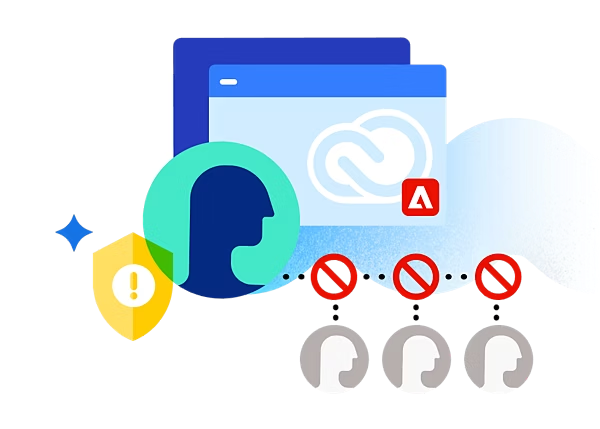
Let’s protect your account and help prevent misuse.
Frequently asked questions
To change your Adobe account password, visit this page for detailed instructions.
Learn how to set up and use two-step verification as an additional authentication step that makes your sign-in experience more secure.
An individual plan allows you to:
- Use Adobe apps on only one device at a time
- Sign in (activate) your account on up to two devices
If you would like to sign in to (activate) Adobe apps on a third device, you’ll need to sign out of (deactivate) another device first. Learn more about using an Adobe app on more than one device.
Follow these steps to manage devices you’re signed into (activated devices) on your Adobe account.
- Sign in to your Adobe account online.
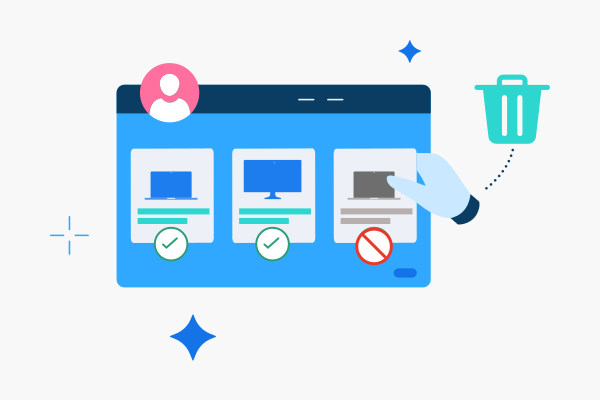
- Go to the dropdown menu below Plans and payment and click on Activated devices.
- Sign yourself or someone else out of a device by clicking on the Deactivate button next to the name of the device.
When you sign out of (deactivate) a device, the Adobe apps on that device will no longer work and files will stop syncing.
Need additional help?
Call Adobe Support at {{phone-number-genuine}}
Start a chat or visit our community forums