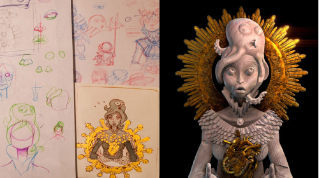
Preparing a Zbrush Tiling Stone Wall to send to Designer
During a production, Substance 3D Designer and Painter can be very efficient for material creation - both for a regular surface (like plaster) or a patterned one (you know, brick walls!).
Those materials are applied on a surface to provide detail that didn’t exist on the geometry in the first place.
But sometimes, the opposite can happen, and it would make more sense to need and have to sculpt those details. When making a stone wall, it is necessary to work with a 3D object, if we want to break it or introduce some rubble at its base.
How to take advantage of the iterative freedom of Substance Designer and Painter while working with a hand-sculpted input? First part
This tutorial is in three parts:
1. Preparing a Zbrush Tiling Stone Wall to send to Designer
2. How to improve a Sculpted Wall with Designer and send it to Painter
3. Fast Texturing in Painter with Generators and Substance 3D Assets Scans
The secret here is not sculpting everything at the same time but keeping some features, like fine stone noise, for the next step that we’ll do in Designer.
Indeed, in a production environment, the final look of an asset might vary a lot. Sometimes you can be asked for a last minute change and you need a fast and efficient way to modify your creation. What would you do if your art director asked for a different style? With an everything-sculpted approach, you would have to resculpt every single detail.
That’s why we are going to split the creation process between our sculpting software and Substance Designer / Painter. Once again using a sculpting software is justified as we need a 3D blocking to define our asset.
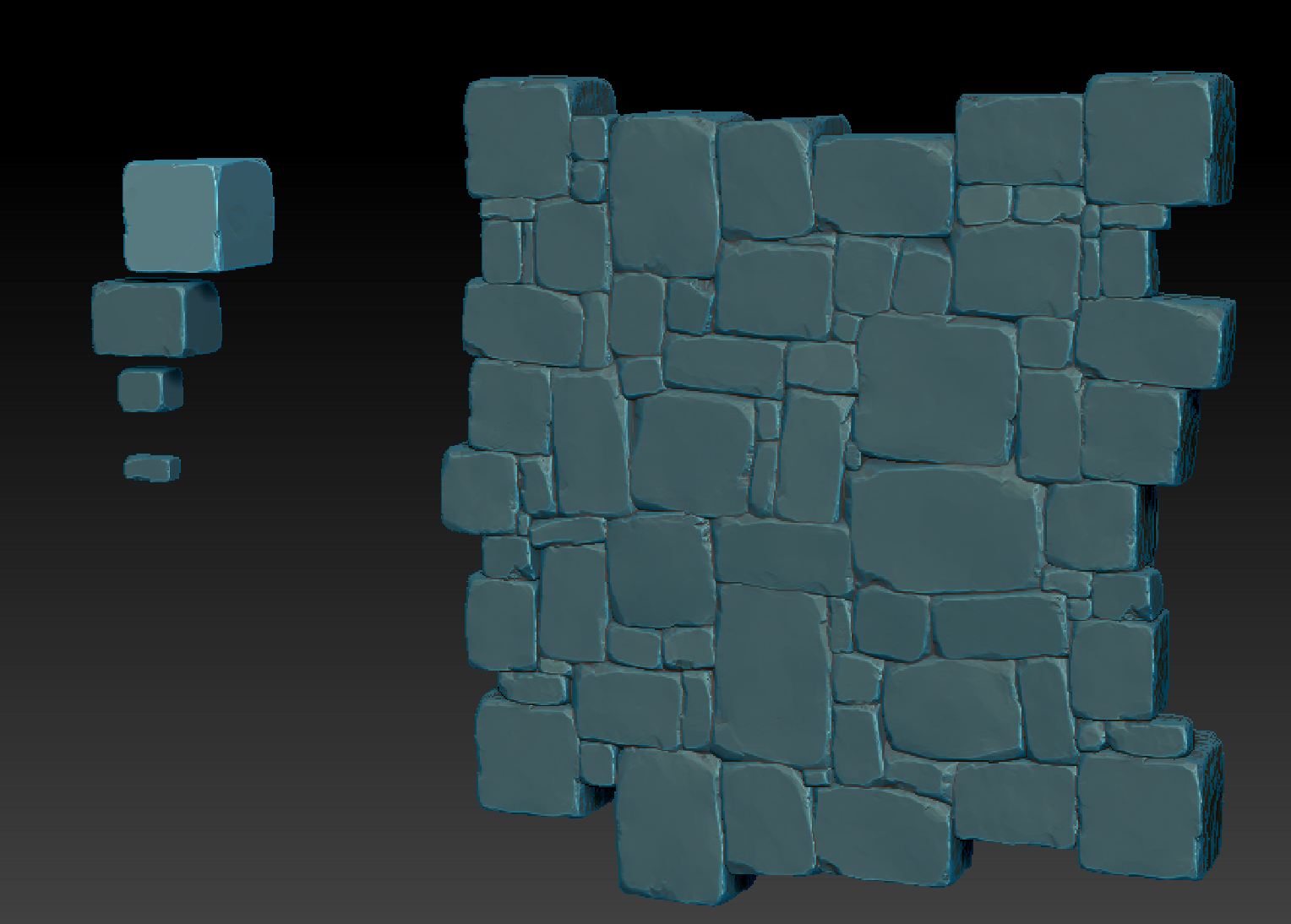
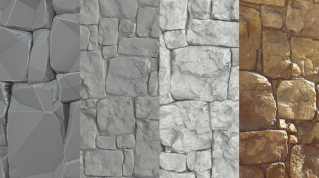
The stone wall has already been made with the “library” of sculpted stones you see on the left, as well as the reference plan for the Frame of the scene. You can find them as an attachement on this tutorial so you can make them your own and follow the tutorial along.
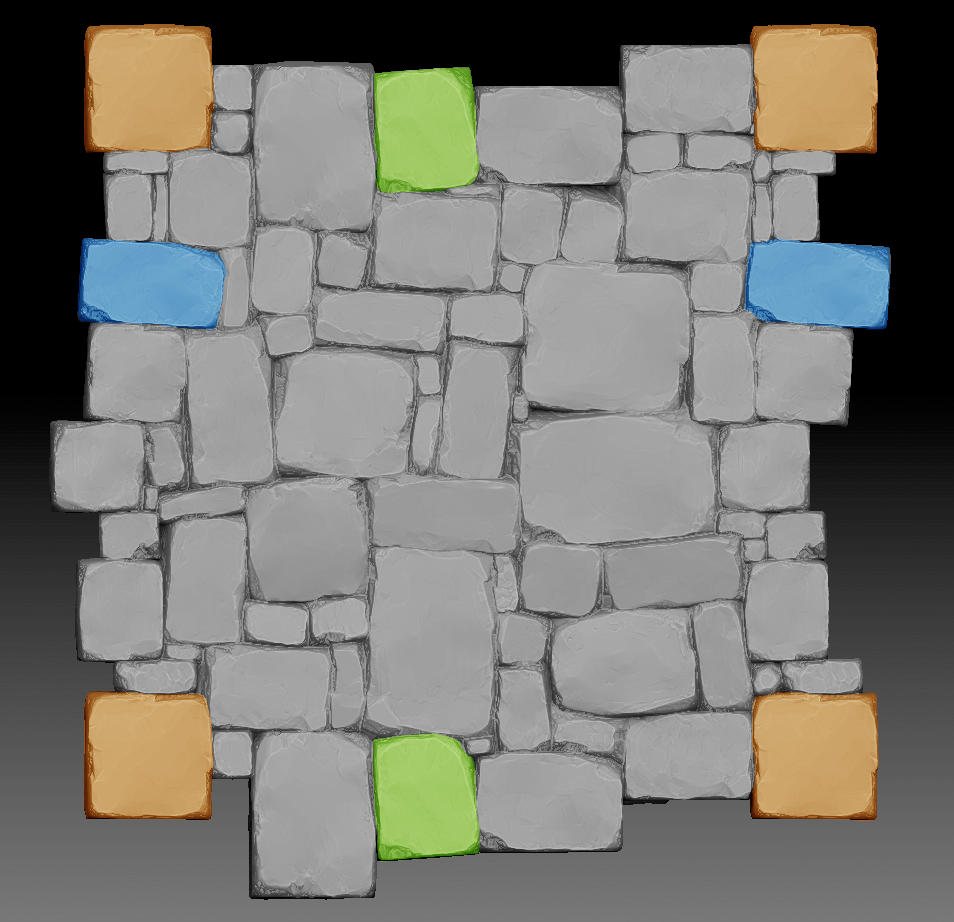
To achieve this stone wall look, we need to follow a few guidelines: * Don’t sculpt anything else than the actual silhouette; * 3 or 4 different rocks is enough to get some variations. Each face can become a unique stone, so you just need to rotate them using a 90° step; * Make sure the tiling works (Image A).
Once we’ve completed all the instructions correctly, how do we
export our output? We could export everything and bake the result on a plane to get the desired maps (AO, Normal …), but it would take a lot of time to rework in case we need any more iterations in the future. Instead of exporting a 3D mesh, we are going to directly export maps that Zbrush can generate. To do so, we are going to need masks and topological informations, so we can scatter our extra-details correctly (mortar, dirt and dust …), including :
Ambient Occlusion
Normal map
Curvature
Height
ID map
However … Is it really necessary to export all these maps? * Ambient Occlusion can be generated from the Height map; * So can the normal map; * Then the curvature map can be generated from the Normal map. In the end, we can export** only 2 textures** from our sculpting software: the height and th ID map.
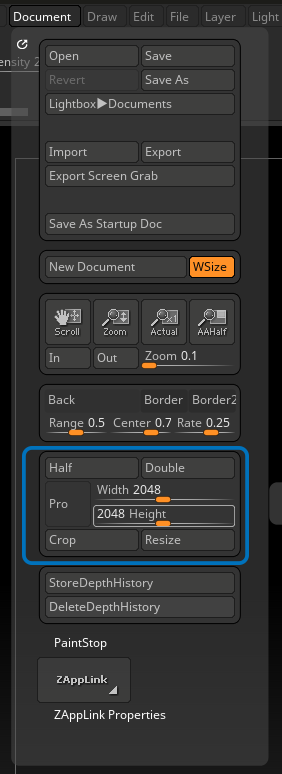
In order to correctly export our height and ID map, we need to make sure our document size is correct. By default, the viewport format is set to non-square (which prevents us from baking the area we need). Here are the steps to obtain the right format:
Go to the document tab and disable “Constraint Proportion” (“Pro” button) and set your resolution (in our case : 2048x2048);
Then click on the “Crop” button to update the copping area. By doing so, you just baked the scene as 2.5D;
Cleanup your viewport by pressing Ctrl + N so you are not bothered by the 2.5D scene, and then drag and drop your new tool back into the viewport (you can now edit it again).
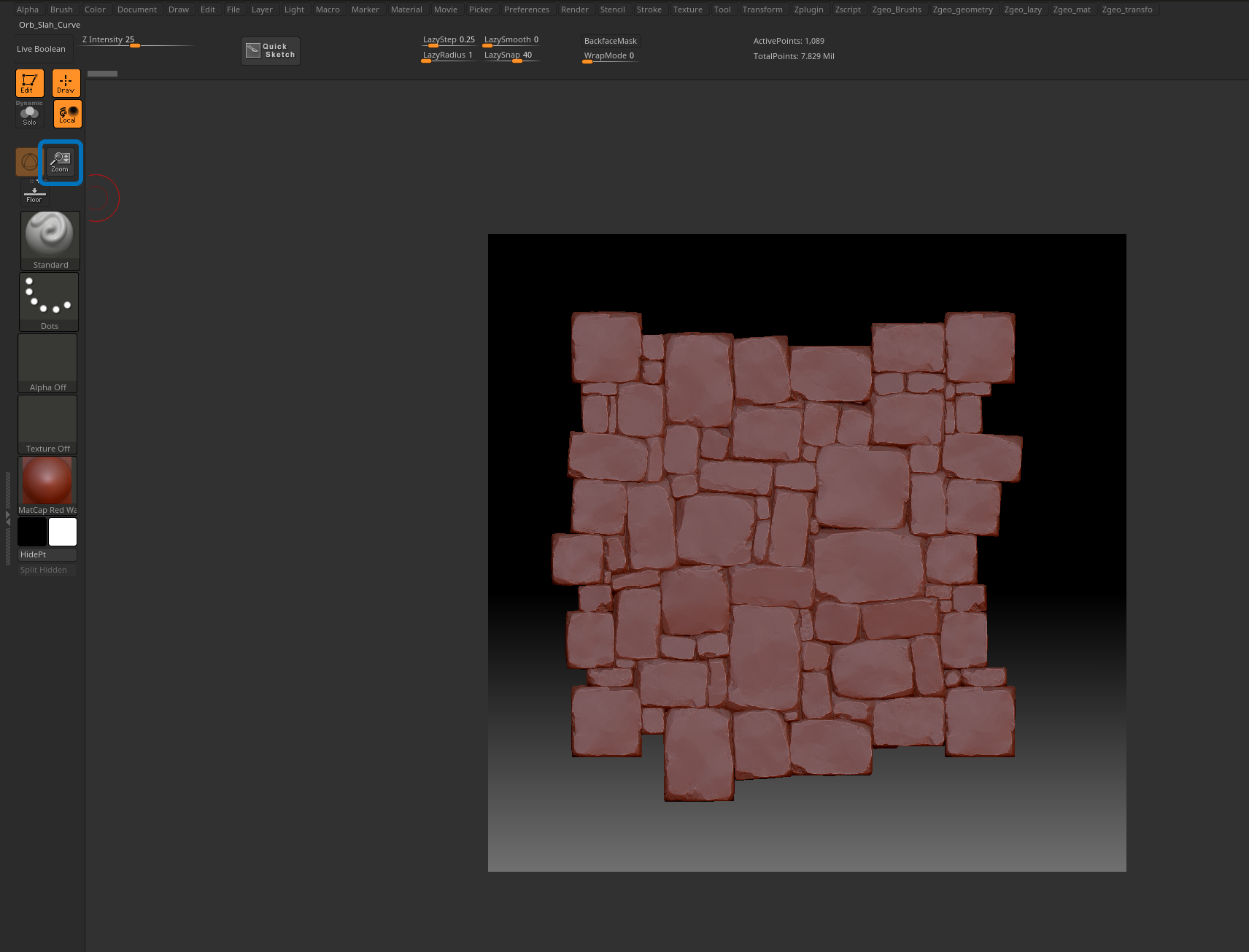
Feel free to zoom out in your scene so you can see the gray frame around your document. If you keep it full screen, the output format won’t be square.
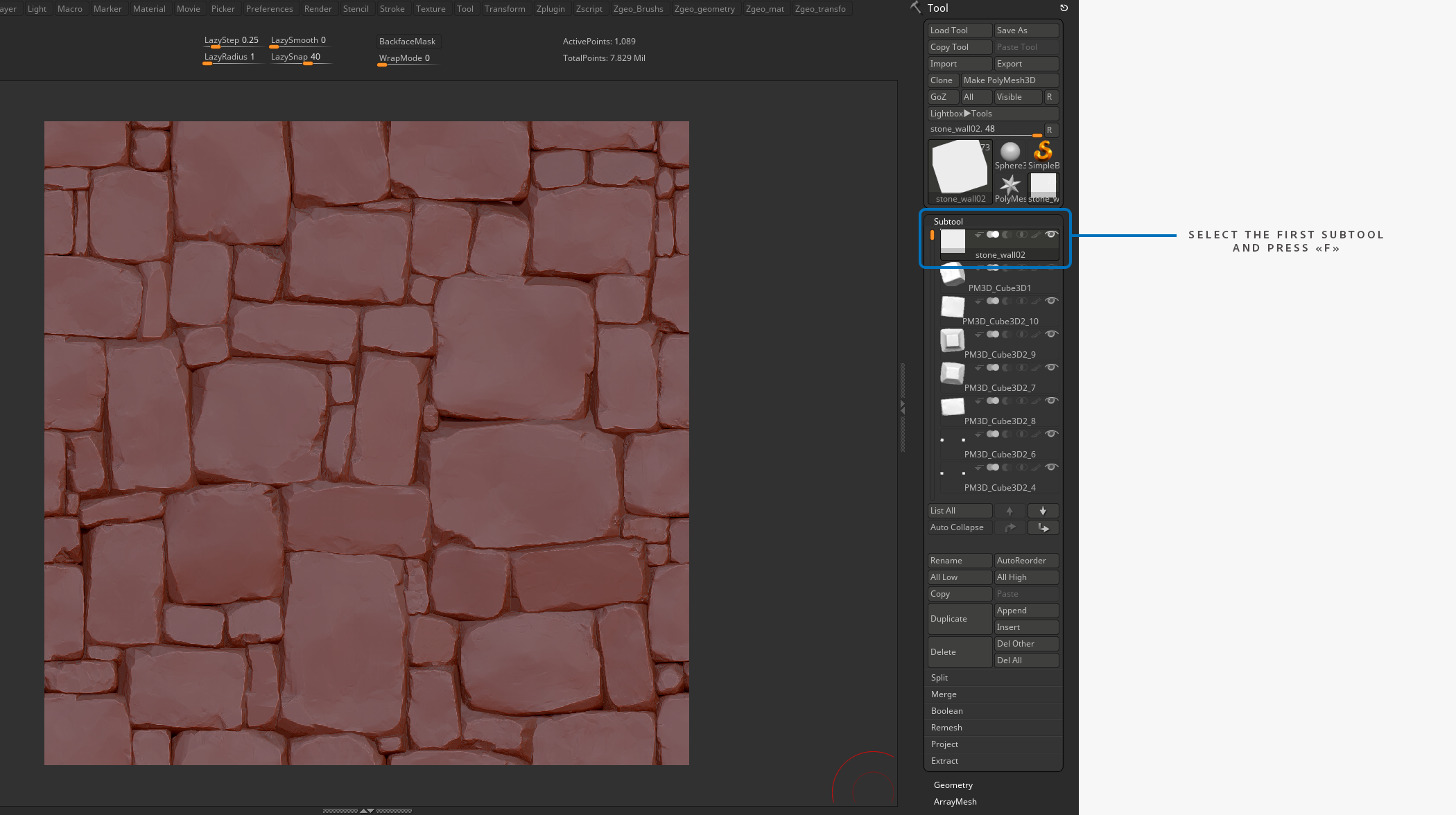
Once the document is set up correctly, select the first Subtool (Stone_wall01) then “frame” it twice (F key). The first “frame” will frame all of the subtools, whereas the second will only frame the active subtool.
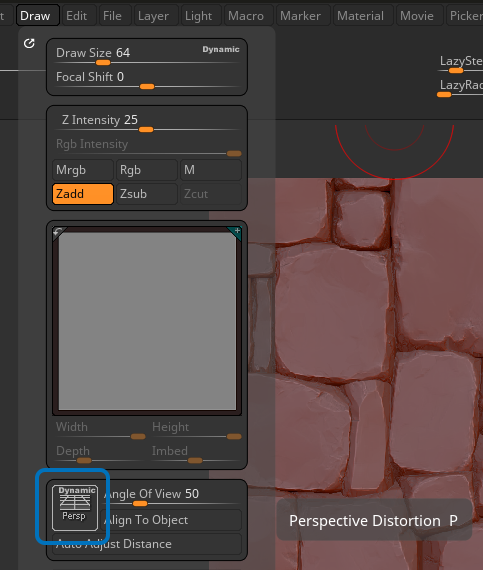
Make sure that Perspective Distortion is inactive (P key) so we actually have an orthogonal projection.
Finally! We can begin extracting the Height and the ID map :)
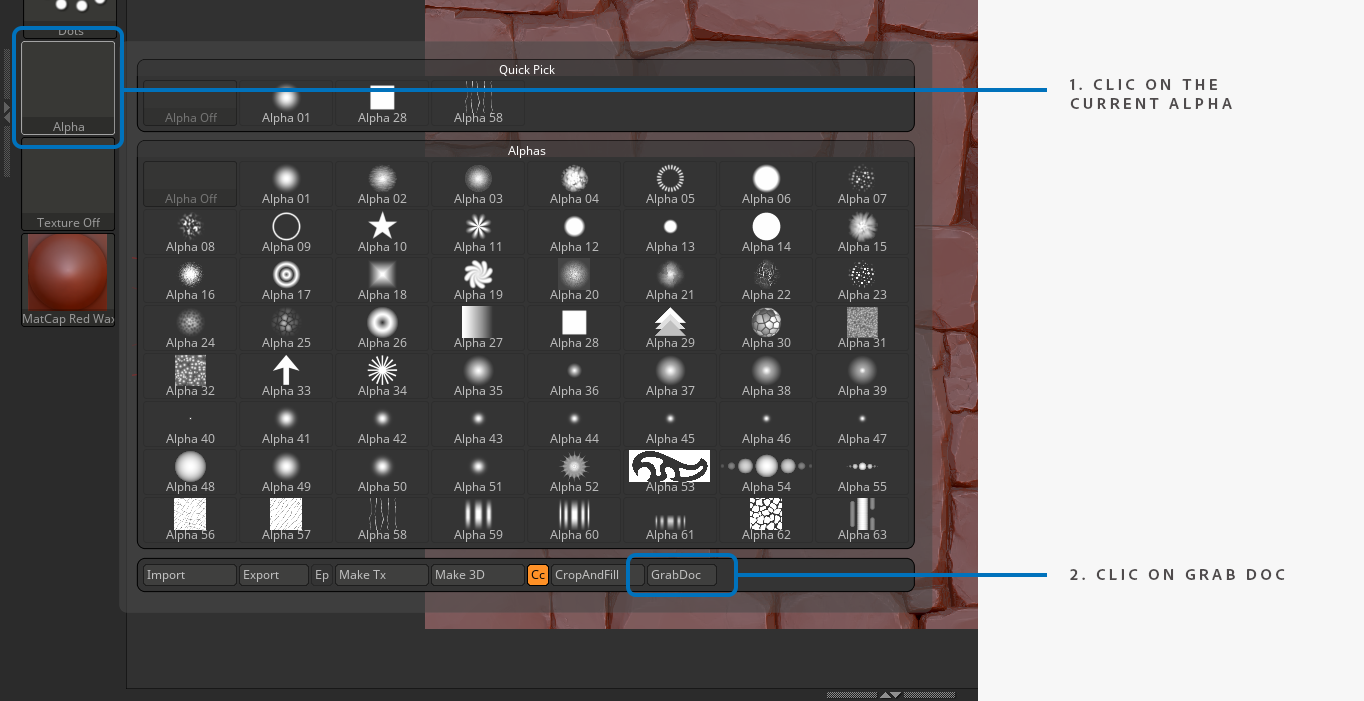
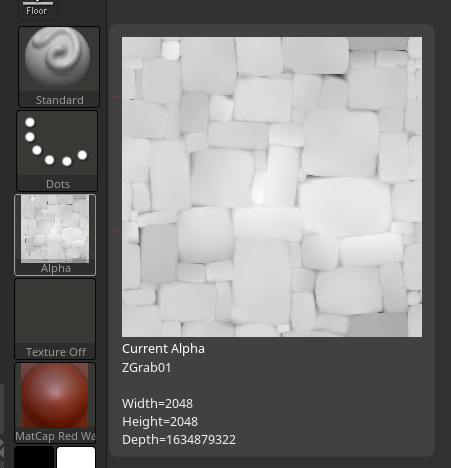
Click on Alpha, then Grab Doc, and lastly Export. The PSD format will allow us to not lose any quality.
A magnificent Height should appear when we hover the mouse over the Alpha section.
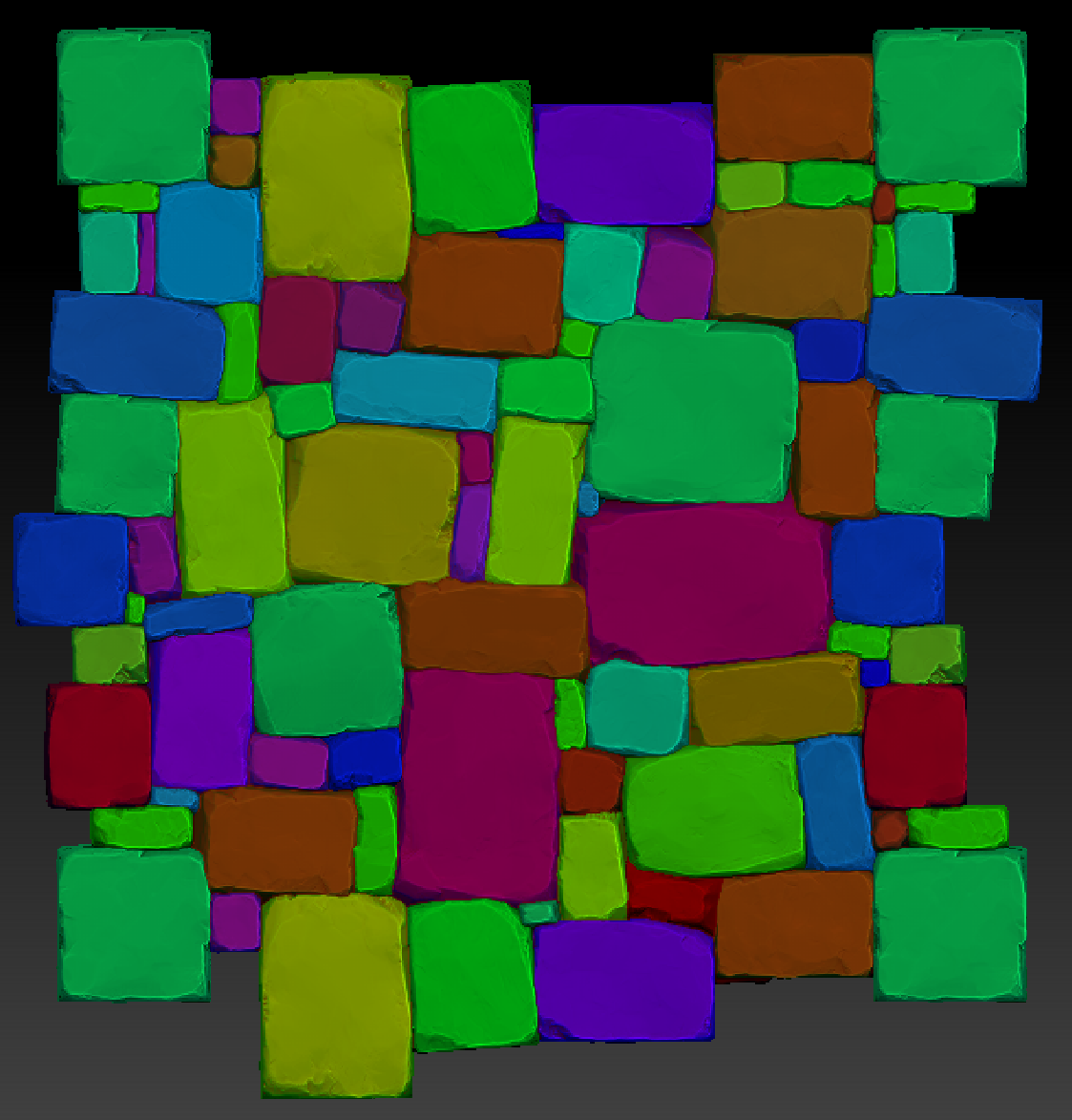
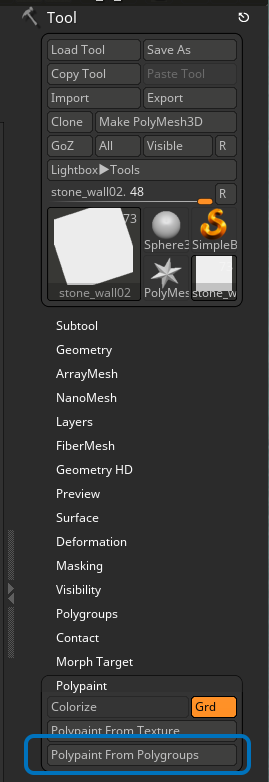
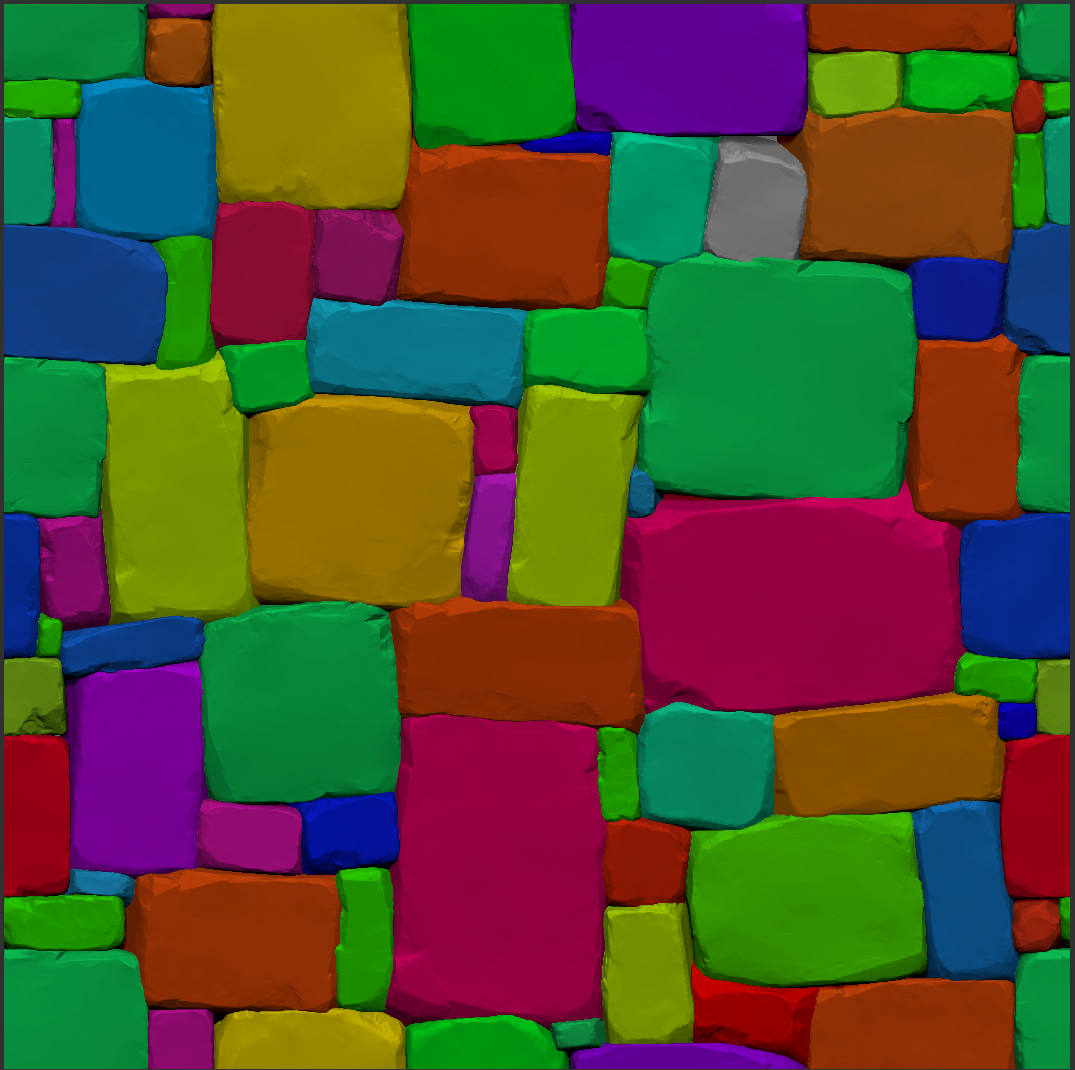
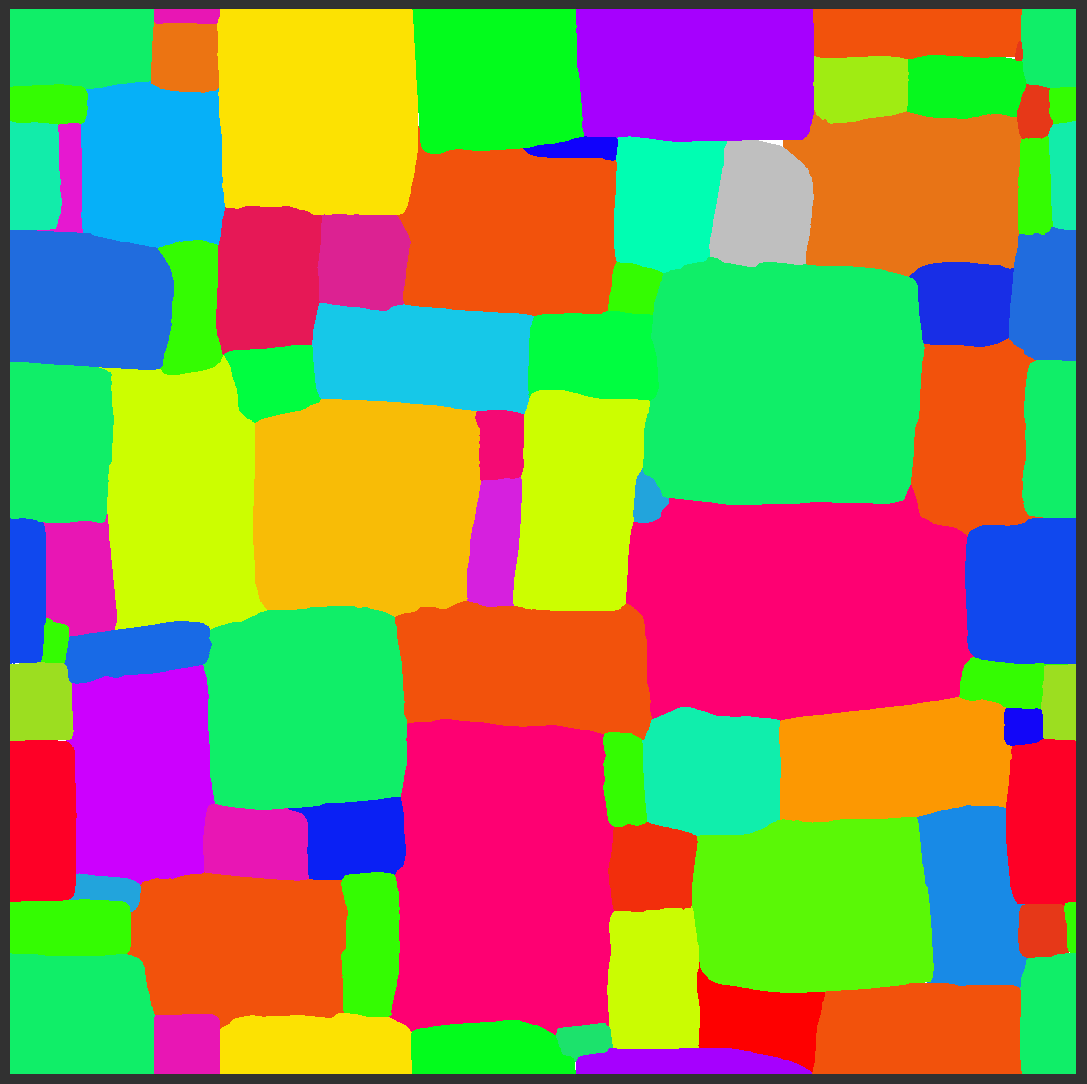
Now it’s the ID map’s turn. The idea is to apply a different color (via polypaint) onto each stone in order to get an ID map, with the help of which every stone can be independently selected.
One possible method is to use the “Polypaint by polygroup” feature, which allows to quickly change the applied color by block by generating a new polygroup by Topology Continuity (Auto Group).
By default it is impossible to efficiently use existing information because of the current matcap shader.
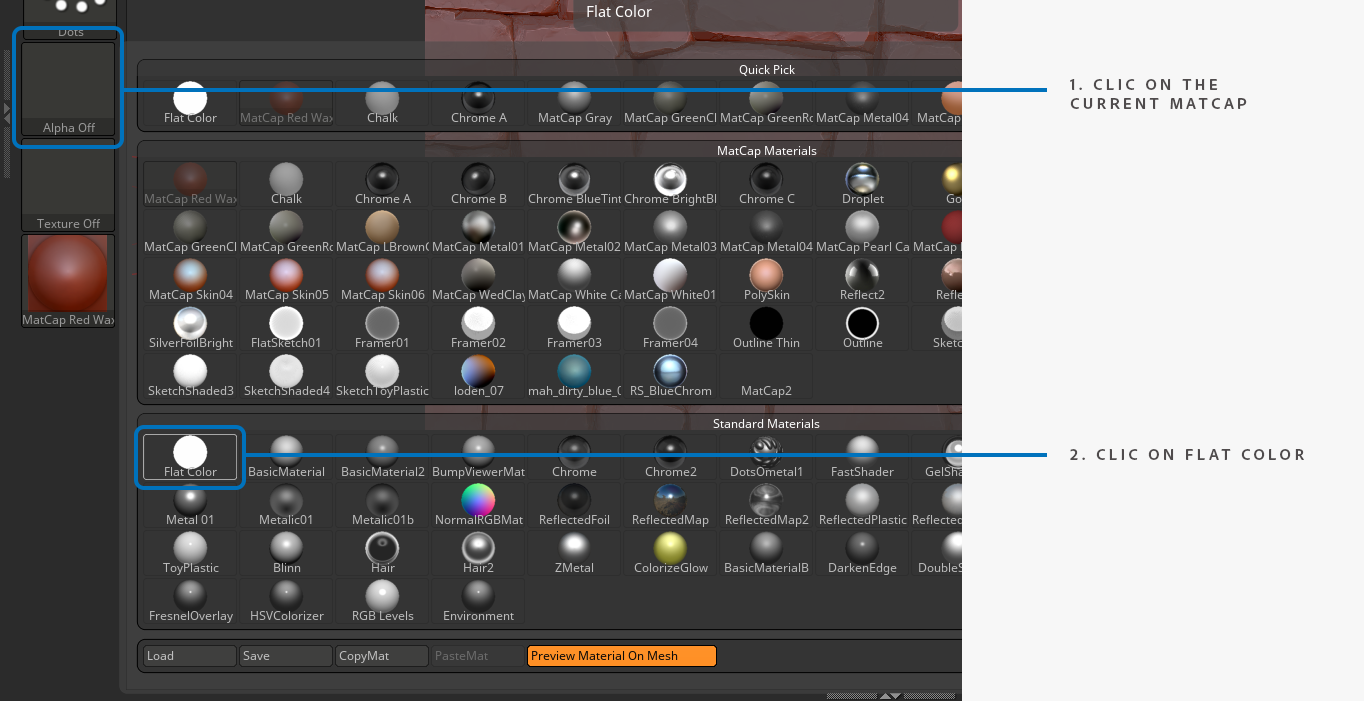
But if we make use of matcap “Flat Color” (Figure 1), we can exclude unnecessary information (Figure 2).
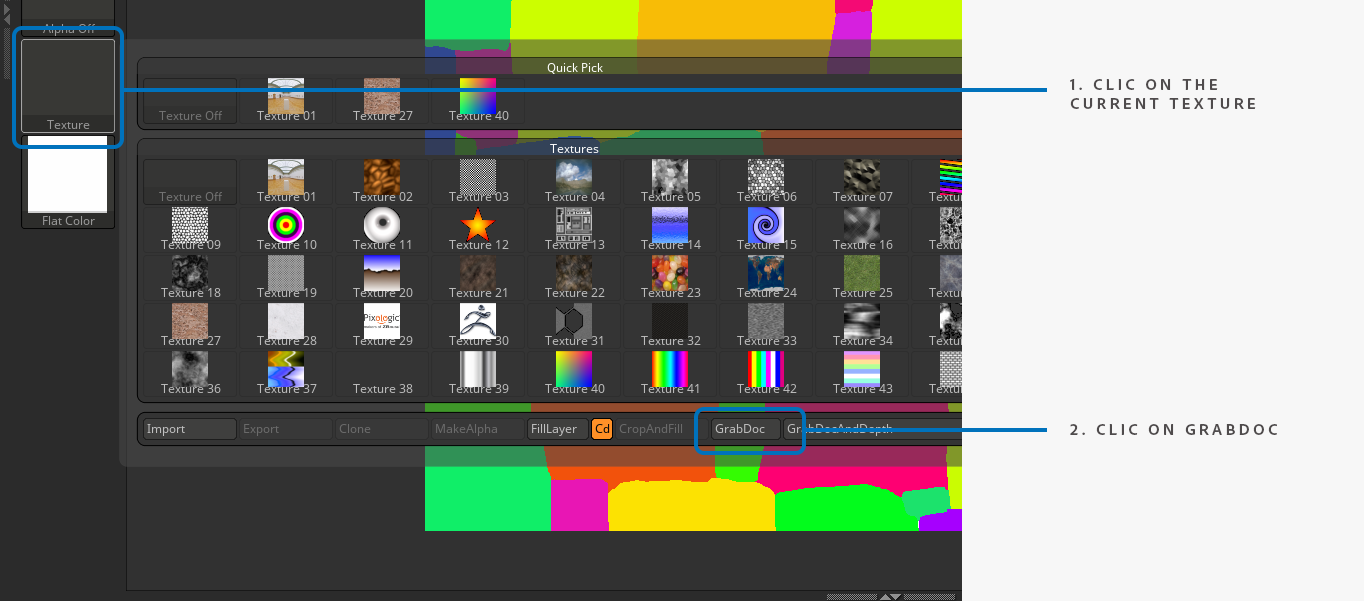
Next, just as for the Height, it is time to fetch our beautiful new ID map! Click on Alpha, then Grab Doc, and lastly Export (PSD).
Congrats, you completed the Zbrush part! Now let’s launch Substance 3D Designer for some serious business now.