Over 60K* files uploaded! Join thousands of users who have successfully added PDF page numbers using Acrobat.
*Over an 18-24 month period.
style
l spacing
background
#fbfbfb
How to add page numbers to a PDF online
Follow these easy steps to insert page numbers in PDF:
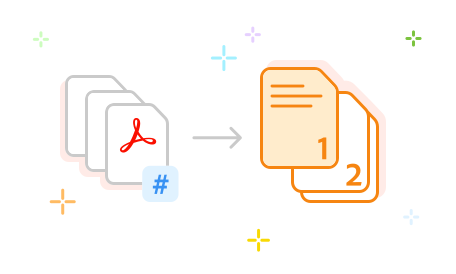
Click the Select a file button above, or drag and drop a PDF into the drop zone.
Select the PDF document to which you want to add page numbers.
After Acrobat uploads the PDF file, sign in.
Select where you want the numbers to appear on your PDF pages and the desired page range.
Select Save to save your numbered file.
Download the new document or get a link to share it.
style
background
Try our free PDF page numbering in PDF tool
background
white
style
background
white
style
xl spacing, three-up
Insert page numbers to a PDF
Navigate through files more easily by adding page numbers to a PDF with Adobe Acrobat online services. Select a file and sign in to get started.
Add to the left side or right side
Acrobat lets you add page numbers to PDFs to the top or bottom of each page, placing them on the left side, center, or right side. You can select which page you want to start the numbering too.
Number a PDF up to 100MB
With the Acrobat online tool, you can add page numbers in one PDF — just keep the file size to 100MB or less. You can number all of the pages or just a page range.
Organize your PDF document
Once you've numbered your PDF file, you can try other Acrobat online tools to organize your PDF file. Reorder, rotate, delete, or add PDF pages.
No extra software to install
You can use Acrobat online PDF tools in any browser, like Microsoft Edge or Google Chrome, so there’s no additional software you need to install.
The best PDF online tools
Acrobat online tools — from the inventor of the PDF file format— are of the highest quality. Use the PDF page numbers tool to navigate through files fast and easily share a specific page.
Questions about page numbering in PDF? We have answers.
The Acrobat online tool lets you quickly add page numbers to the header or footer of a PDF file. The tool provides a number of formatting and page range options:
You can insert the numbers at the top or bottom of PDF pages, placing them on the left side, right side, or in the center.
You can select from five page number formats, choosing a single number, 1 of n, 1/n, Page 1, or Page 1 of n for the header or footer text.
You can change the page number font or font size and add bold, italic, or underline formatting.
You can number all the pages in your file or just a selected page range.
If you don’t want to include a page number on the first page, you can specify the page where you want the PDF page numbering to start.
For additional PDF editing needs, you can start an Adobe Acrobat Pro 7-day free trial. The Acrobat Pro free trial for the Windows or Mac operating system lets you use PDF editor tools to edit PDF text and images, insert bookmarks or watermarks, and add headers and footers with multiple date format options. You can also redact text and add Bates numbering to legal documents, defining case numbers using a prefix text.
In addition, Acrobat Pro includes a handy toolbar to quickly annotate files, including adding text boxes. Convert PDF tools let you convert files to and from PDF, including image file formats and Microsoft Word documents, PowerPoint presentations, and Excel spreadsheets. The Compress a PDF tool also allows you to reduce the size of PDF files and optimize scanned pages using a simple dialog box. With easy Adobe Acrobat tutorials, you can get up and running fast.
You can number all of the pages in a PDF file or select a specific page range for numbering. In addition, you can start page numbers on any page. Just specify the page where you want the numbering to start.
No. If you reorder, delete, or add PDF pages, you will need to renumber the pages for the page numbers to appear correctly.
You can control how Adobe websites use cookies and similar technologies by making choices below. But note that if you disable cookies and similar technologies entirely, Adobe websites may not function properly.
Cookies are small text files stored by your web browser when you use websites. There are also other technologies that can be used for similar purposes like HTML5 Local Storage and local shared objects, web beacons, and embedded scripts. These technologies help us do things like remembering you and your preferences when you return to our sites, measure how you use the website, conduct market research, and gather information about the ads you see and interact with.
You can make choices in the menu below about what cookies and other technologies you want us to use on Adobe sites when you visit them from this browser. You can always change those choices later by clicking on the Cookie Preferences link at the bottom of the page.
If enabled:
We can improve your experience by tailoring the site and the content to things we think might be of interest
We can better keep track of your preferences — like what language you prefer to use
We will better understand your likely interests so we can provide you more relevant Adobe ads and content on non-Adobe websites and in non-Adobe apps
It will help us improve the performance of our website and those of our partners who use the Adobe Experience Cloud
If disabled:
We won’t be able to remember you from session to session so the experience may not be tailored to your interests
You’ll still have access to the content of the site but certain features that depend on cookies may not function
You’ll still see ads, they just may not be as relevant to you
General information
You can control how Adobe websites use cookies and similar technologies by making choices below. But note that if you disable cookies and similar technologies entirely, Adobe websites may not function properly.
Cookies are small text files stored by your web browser when you use websites. There are also other technologies that can be used for similar purposes like HTML5 Local Storage, web beacons, and embedded scripts. These technologies help us do things like remembering you and your preferences when you return to our sites, measure how you use the website, conduct market research, and gather information about the ads you see and interact with.
You can make choices in the menu below about what cookies and other technologies you want us to use on Adobe sites when you visit them from this browser. You can always change those choices later by clicking on the Cookie Preferences link at the bottom of the page.
If enabled:
We can improve your experience by tailoring the site and the content to things we think might be of interest
We can better keep track of your preferences — like what language you prefer to use
We will better understand your likely interests so we can provide you more relevant Adobe ads and content on non-Adobe websites and in non-Adobe apps
It will help us improve the performance of our website and those of our partners who use the Adobe Experience Cloud
If disabled:
We won’t be able to remember you from session to session so the experience may not be tailored to your interests
We’ll still count your use of our site and services
You’ll still have access to the content of the site but certain features that depend on cookies may not function
You’ll still see ads, they just may not be as relevant to you
Operate the site and core servicesOperate site and measure engagement
Always active
These cookies are required, and they are used to enable the site and related services core functionality. Without them the site could not operate, so they cannot be disabled.
These cookies enable the site and related services’ core functionality and collect statistics about user engagement, such as counting active use to help us understand trends. These cookies cannot be disabled.
Measure performance
These cookies are used to analyze site usage to measure and improve performance. Without them Adobe cannot know what content is most valued and how often unique visitors return to the site, making it hard to improve information we offer to you.
These cookies are used to analyze site usage to measure and improve performance. Without them Adobe cannot know what content is most valued, making it hard to improve information we offer to you.
Extend functionality
These cookies are used to enhance the functionality of Adobe sites such as remembering your settings and preferences to deliver a personalized experience; for example, your username, your repeated visits, preferred language, your country, or any other saved preference.
Personalize advertising
These cookies are used to enable Adobe and our partners to serve ads more relevant to your interests. Without them you will still see ads, but they might not be as relevant to you.