Add page numbers to a PDF for free

{{verb-widget-legal}}
Over 60K* files uploaded!
Join thousands of users who have successfully added PDF page numbers using Acrobat.
*Over an 18-24 month period.

Key takeaways

  • Add page numbers to your PDFs to easily organise your documents and find relevant information.
  • Learn how to add page numbers to a PDF for free with Adobe Acrobat’s online tool.
  • Get your documents in order, ready to share or print, with our PDF numbering tool.

How to add page numbers in a PDF

Page numbers make it easier to navigate your documents and quickly refer to the information you need.

To insert page numbers into a PDF file, download Adobe Acrobat Pro, or use our free online PDF editor.

Add page numbers for free with our online PDF editor

No matter the size of your document, numbering a PDF page is simple with Adobe Acrobat. Here’s how you can add a page number to your PDF:

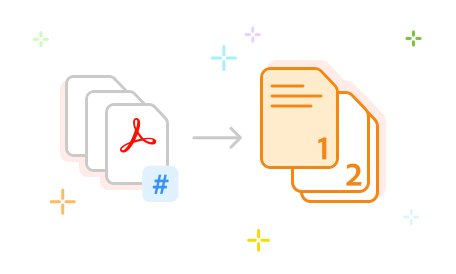
https://main--dc--adobecom.aem.live/dc-shared/assets/images/frictionless/how-to-images/add-pdf-page-numbers.svg | A PDF file with a number symbol in the lower right-hand quarter and an arrow pointing to a PDF with page numbers showing how to add page numbers to a PDF

  1. Click  Select a file  above or drag and drop the PDF file into the drop box.
  2. Sign into your free Adobe Acrobat account after the file has uploaded.
  3. Select which PDF pages you want to add page numbers to.
  4. Tap the Add Text tool to use the copy editor function and choose where to add the page number.
  5. Adjust font, size and more using the dropdown menus.
  6. Click  Save to  and choose where to save your new numbered PDF.
  7. Download or share your paginated PDF file.

Organise your documents with our PDF page number tool

Learn how to paginate a PDF with our online tool. Free and simple to use, you can choose the pages and where to paginate the PDF.

https://main--dc--adobecom.aem.live/dc-shared/assets/images/shared-images/frictionless/seo-icons/number-pdf-pages-to.svg | Multiple pages of a PDF file with page numbers

Add page numbers to your PDF for free

Add page numbers to your PDF with Adobe Acrobat to help you easily navigate documents. Simply find what you need and jump to the right page number. Insert or edit page numbers in files up to 100MB for free. Choose to number a range of pages, or the whole document. Select a PDF to get started.

https://main--dc--adobecom.aem.live/dc-shared/assets/images/shared-images/frictionless/seo-icons/add-numbers-left-or-right.svg | A PDF page with a number symbol and arrows showing that page numbers can be applied to any corner of the page

Insert page numbers on the left, right or centre of the PDF

You can insert PDF page numbers where they make sense on your documents. Choose between left, right or centre alignment with Acrobat, giving you that extra bit of formatting flexibility.

https://main--dc--adobecom.aem.live/dc-shared/assets/images/shared-images/frictionless/seo-icons/organize-pdf-document.svg | A PDF page with a dustbin symbol and an arrow showing the ways you can organise your PDF

Organise your PDF files with ease

Looking to further organise your files beyond PDF numbering? Explore Adobe Acrobat's range of free online tools to help you manage and edit your documents – whether you want to reorder, rotate, add or delete pages.

https://main--dc--adobecom.aem.live/dc-shared/assets/images/shared-images/frictionless/seo-icons/work-in-any-browser.svg | The Acrobat PDF icon on a browser with an arrow showing that you can number PDF pages online with no extra software

No need to install extra software

Adobe Acrobat online PDF tools are free to access from any browser, whether you use Microsoft Edge or Google Chrome. There’s no need to download any extra software, making the whole process hassle-free.

https://main--dc--adobecom.aem.live/dc-shared/assets/images/shared-images/frictionless/seo-icons/best-pdf.svg | A perfectly organised PDF file

Manage PDFs with Adobe Acrobat

Adobe is the inventor of the PDF format, so you can trust the online PDF tools to be reliable and produce high-quality outputs. Manage, edit, and share PDFs online in just a few clicks.

Questions? We have answers.

Is there a way to number PDF pages for free?
Yes, you can number your PDF pages for free using Adobe’s online PDF editor tools. Simply choose your PDF using the Select a File button above or drag and drop it into the dropbox. Then log into your free Adobe account and choose the PDF pages you want to number.
Can I add page numbers to a header and footer in a PDF?

Yes, the free Adobe Acrobat tool allows you to add page numbers to headers and footers in PDFs. With it, you can:

  • Add numbers at the top and bottom of pages.
  • Add numbers to the left, right or centre of a page footer.
  • Change page number fonts and font sizes.
  • Choose from a range of page number formats. For example: a single number, 1 of n, 1/n, Page 1 or Page 1 of n for the header or footer text.
  • Specify where you want your page numbers to start – e.g. if you don't want to number the first page.

If you're looking to edit your PDFs further, you can sign up to a 7-day free trial of Acrobat Pro to access the advanced toolbar.

How do I add page numbers to a PDF in Adobe Acrobat Pro?

It’s simple to insert page numbers into a PDF in Adobe Acrobat Pro. Here’s how to do it:

  1. Open your chosen PDF in Acrobat Pro.
  2. Click Add Text to open the copy editor function.
  3. Head to: Tools > Edit PDF > Add Header + Footer > Add. From here, you can add page numbers to your PDF.
  4. Choose whether you want to add pagination to the top or bottom of the page with header or footer options.
  5. Edit the formatting of the PDF pagination. Adjust font, font size, and choose between odd/even numbering.
Can I add numbers to a certain page range using Adobe Acrobat?
Yes, you can choose which PDF pages to number using Adobe Acrobat’s free online tool. Either number all the pages or choose a specific page range. Just pick where you want your page numbers to start.
Will my page numbers automatically update when I delete or add pages to my PDF?
No, you'll need to renumber the pages in your PDF if you reorder, add, or delete pages. Keep this in mind if you need to make any changes to the structure or organisation of your PDFs. It’s quick and easy to make pagination updates using our online PDF editor.
How do I fix page numbers in Adobe PDF?

If you have a PDF with existing page numbers and need to amend or fix them, you can do so for free using the free online tool from Adobe. Here’s what to do:

  1. Upload or open your PDF file.
  2. Navigate to  Number Pages.
  3. Choose Replace existing numbers to amend and update the pagination on the PDF.

If you’re working in Acrobat Pro, you can do this by navigating to  Organise pages  and Page labels, where you can specify your desired page range.

Learn how to renumber PDF pages.

How do page numbers work in PDFs?

Page numbers on PDFs can appear different when you look at the page thumbnail against the actual document. That’s because the thumbnail adds a number to every page in the document from the first one, regardless of whether it has any content on it. That means front matter – such as the title page, contents page, and foreword or preface – will all be given page numbers.

If you want the page numbering to begin on the actual contents of the PDF rather than the first page of the document, you can create a new numbering sequence.

What is Bates Numbering?

Bates Numbering is a unique identifier attached to document pages to make each page easy to find and retrieve. Bates Numbers are often used in business, legal and medical industries. They are also sometimes referred to as Bates Stamps.

Each page is assigned an identifier, like:

  • Important dates
  • Business names
  • Case numbers
  • Patient names
  • Patient record numbers
  • ID numbers.

Then a number is typically applied as 001/Date, for ease of identification.

How do I add Bates Numbers in Adobe Acrobat Pro?

It’s quick and easy to add Bates Numbers to your documents using Adobe Acrobat Pro. All you need to do is:

  1. Open the document in Acrobat.
  2. Navigate to the ribbon and click on Tools.
  3. Choose Edit PDF and then More.
  4. Select Bates Numbering and then Add.
  5. You can then adjust how the numbering looks on the page.
  6. Once you’re finished, hit Ok.
How do I add Bates Numbers in Adobe PDF Editor
To add Bates Numbers to your documents, you’ll need to use Adobe Acrobat Pro on your desktop. Head to Tools > Edit PDF > More and choose Bates Numbering. Then adjust how the numbering appears on the page. As you add or rearrange pages, the Bates Numbers will automatically update.
How do I link page numbers to a PDF?

You can add links to specific page numbers in your PDF file to help you easily navigate the document. Just follow these steps:

  1. Go to the menu bar and select Edit PDF. Then Link and Add /Edit.
  2. Decide on your link location. You can drag the rectangle tool in the area you’d like to create the link.
  3. Create the link and adjust the appearance.
  4. Choose the destination of the link. You can hyperlink in the document via Page View. Click Next to set the page number.
Can I add page numbers to a password-protected PDF?
Yes, it is possible to add page numbers to a password-protected PDF. But you will need the password to be able to access the file, as well as editing rights, in order to paginate the PDF and make any other necessary changes to the document.
Can I customise where page numbers appear on a PDF?
Yes, you can choose how page numbers appear on the PDF. You can adjust where on the page you number the PDF, the font, font size, and more. After you add a header or footer, you’ll be able to navigate through different formatting options.
What’s the best tool for adding page numbers to PDFs?
The best tool for adding page numbers to PDFs depends on your specific needs. For example, the Adobe Acrobat online PDF editor is quick and simple to use – and free for documents up to 100MB. The best solutions are versatile, enabling you to customise where page numbers sit and allowing for flexible formatting.

More resources

Content as a Service v3 - Tuesday 10 December 2024 at 13:39

Verb
add-pdf-page-numbers

Try these Acrobat online tools

Convert from PDF

Convert to PDF

Reduce file size

Edit

Sign & Protect

Generative AI

Convert from PDF
Convert to PDF
Reduce file size
Edit
Sign & Protect
Generative AI